Introduzione
This manual provides instructions for the setup, operation, maintenance, and troubleshooting of your Microsoft Wireless Optical Mouse Blue, Model K80-00004. Please read this manual thoroughly before using your device.
Cosa c'è nella scatola
Verificare che tutti gli articoli siano presenti nel pacco:
- Microsoft Wireless Optical Mouse
- Ricevitore senza fili
- 2 batterie AA (preinstallate o incluse separatamente)
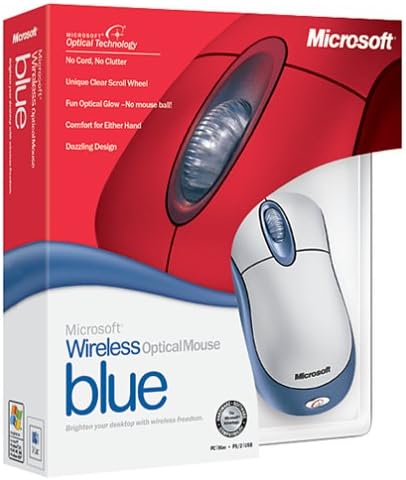
Image: Retail packaging of the Microsoft Wireless Optical Mouse Blue, showing the mouse and receiver.
Impostare
1. Installare le batterie
- Individuare il vano batteria sul lato inferiore del mouse.
- Aprire il coperchio del vano batterie.
- Inserire le due batterie AA, assicurandosi della corretta polarità (+/-).
- Chiudere il coperchio del vano batterie.

Immagine: Frontale view of the Microsoft Wireless Optical Mouse Blue, showing the top buttons and scroll wheel. The battery compartment is on the underside.
2. Connect the Wireless Receiver
- Collegare il ricevitore wireless USB a una porta USB disponibile sul computer.
- Allow your operating system to detect and install the necessary drivers. This process is usually automatic.
- For optimal performance, ensure the receiver is placed at least 12 inches away from other wireless devices or large metal objects.
3. Optional Software Installation (IntelliPoint)
- While not required for basic functionality, installing Microsoft IntelliPoint software provides advanced customization options for your mouse buttons and scroll wheel.
- Refer to the Microsoft support website for the latest IntelliPoint software compatible with your operating system.
4. Set Orientation (Calibration)
- After initial setup, it is recommended to perform an "Orientation Set" or calibration if available through the IntelliPoint software or your operating system's mouse settings. This helps optimize tracking performance.
Istruzioni per l'uso
The Microsoft Wireless Optical Mouse Blue is designed for comfortable and precise navigation.
Funzioni di base
- Clic sinistro: Pulsante principale per la selezione degli elementi, l'apertura filee interagire con il software.
- Clic destro: Pulsante secondario per accedere ai menu contestuali e alle opzioni aggiuntive.
- Rotella di scorrimento: Ruotare la rotellina verso l'alto o verso il basso per scorrere i documenti e web pages. The scroll wheel may also function as a clickable button for additional commands, depending on software configuration.
Funzionamento senza fili
- The mouse operates wirelessly up to 6 feet (approximately 1.8 meters) from its receiver.
- Optical technology scans the desktop surface for precise cursor movement without the need for a mouse pad on most surfaces.
- The mouse is designed for comfortable use with either the right or left hand.

Immagine: Angolata view of the Microsoft Wireless Optical Mouse Blue, highlighting its ergonomic shape and blue/silver design.
Manutenzione
Sostituzione della batteria
- The mouse requires two AA batteries.
- When battery power is low, your computer may display a notification (if IntelliPoint software is installed) or mouse performance may degrade.
- Replace batteries as described in the "Install Batteries" section under Setup.
- Always use fresh, high-quality batteries for optimal performance.
Pulizia
- To clean the mouse, gently wipe the surface with a soft, damp stoffa.
- Evitare l'uso di prodotti chimici aggressivi o detergenti abrasivi, poiché potrebbero danneggiare la finitura.
- Assicurarsi che nessun liquido penetri nei componenti interni del mouse.
Travel Considerations
- The Microsoft Wireless Optical Mouse is a transmitting device. When traveling by air, it is recommended to remove the batteries from the mouse before boarding to comply with airline regulations regarding electronic devices.
Risoluzione dei problemi
Mouse Not Responding or Lagging
- Controllare le batterie: Assicurarsi che le batterie siano installate correttamente e abbiano una carica sufficiente. Sostituirle se necessario.
- Controllare la connessione del ricevitore: Ensure the wireless receiver is securely plugged into a functioning USB port. Try a different USB port.
- Prossimità: Ensure the mouse is within 6 feet of the receiver. Reduce obstacles between the mouse and receiver.
- Interferenza: Other wireless devices (e.g., Wi-Fi routers, cordless phones) can cause interference. Move the receiver away from such devices.
- Superficie: Ensure the mouse is used on a suitable surface. Highly reflective or transparent surfaces may affect optical tracking.
- Risincronizzazione: Some wireless mice have a re-sync button on both the mouse and receiver. Consult the full product manual or Microsoft support for specific re-sync procedures for this model if issues persist.
Clicking Issues
- If clicks are not registering or require multiple presses, check for physical obstructions or debris around the buttons.
- Assicurarsi che il mouse sia acceso e collegato.
Compatibilità software
- The IntelliPoint software may have specific operating system requirements. For example, older versions may not be compatible with newer operating systems like Windows Vista or later.
- Always download the latest software from the official Microsoft support websito per il tuo sistema operativo specifico.
Specifiche
| Caratteristica | Dettaglio |
|---|---|
| Numero di modello | K80-00004 |
| Marca | Microsoft |
| Tecnologia di connettività | Senza fili |
| Rilevamento del movimento | Ottico |
| Colore | Blue / Silver |
| Batterie | 2 batterie AA (incluse) |
| Peso dell'articolo | 13.6 once (circa 385.5 grammi) |
| Dimensioni del prodotto | 9.3 x 8.9 x 2.1 pollici (circa 23.6 x 22.6 x 5.3 cm) |
| Prima data disponibile | 1 agosto 2002 |
Informazioni sulla garanzia
According to the legal disclaimer, this product is sold without a warranty. Please refer to your point of purchase for any return or exchange policies.
Supporto
For further assistance, driver downloads, or updated information regarding your Microsoft Wireless Optical Mouse Blue, please visit the official Microsoft support websito.
You can typically find support resources by searching for "Microsoft support" and your product model number (K80-00004).


