
Microsoft Wireless Optical Desktop Executive Keyboard and Mouse Combo
Manuale d'uso
1. Introduzione
This manual provides comprehensive instructions for the Microsoft Wireless Optical Desktop Executive Keyboard and Mouse Combo. Please read this manual thoroughly before use to ensure proper setup and operation. This combo is designed for use with personal computers running Windows or Mac operating systems.
2. Contenuto della confezione
- Microsoft Wireless Optical Desktop Executive Keyboard
- Microsoft Wireless Optical Desktop Executive Mouse
- Ricevitore wireless USB
- 4 AA Batteries (2 for keyboard, 2 for mouse)
- Guida per l'utente (questo documento)
3. Impostazione
3.1 Installazione della batteria
- Tastiera: Locate the battery compartment on the underside of the keyboard. Open the cover and insert two AA batteries, ensuring correct polarity (+/-). Close the cover.
- Topo: Locate the battery compartment on the underside of the mouse. Open the cover and insert two AA batteries, ensuring correct polarity (+/-). Close the cover.
3.2 Connecting the USB Wireless Receiver
- Collegare il ricevitore wireless USB a una porta USB disponibile sul computer.
- Il sistema operativo dovrebbe rilevare e installare automaticamente i driver necessari. Questo processo potrebbe richiedere alcuni istanti.
- Once drivers are installed, the keyboard and mouse should be ready for use. If not, press the 'Connect' button on the receiver and then on the keyboard/mouse (if available) to establish a connection.
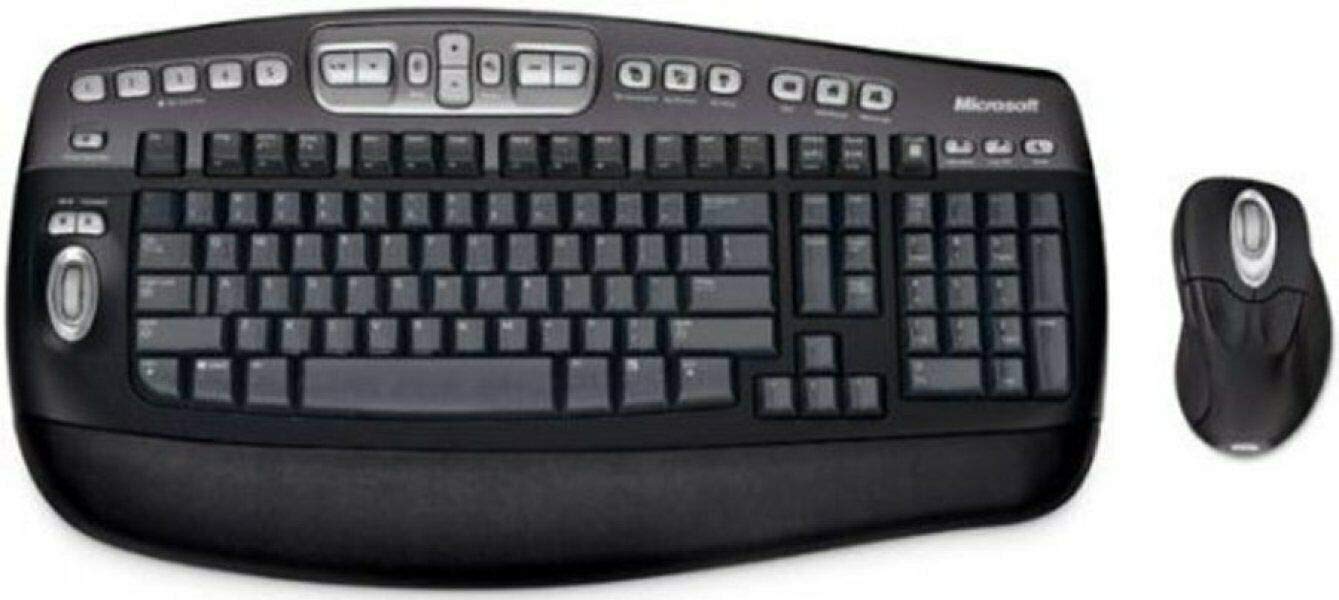
An image showing the Microsoft Wireless Optical Desktop Executive Keyboard and Mouse Combo, highlighting its ergonomic design and wireless components.
4. Funzionamento
4.1 Caratteristiche della tastiera
- Wider Keys with Softer Edges: Designed for comfortable typing.
- Tasti di scelta rapida: Provides one-touch access to frequently used computer functions and files such as Mail, Web/Home, Messenger, My Documents, and My Pictures.
- 5 Programmable 'My Favorites' Keys: Customize these keys for one-touch access to your favorite websiti o applicazioni.
4.2 Caratteristiche del mouse
- High-Performance Optical Technology: Ensures precise control without the need for maintenance.
- Design ergonomico: Progettato per un utilizzo confortevole anche per periodi prolungati.
- Scroll Wheel with Application Switching: Push down on the scroll wheel to easily move between open windows.
- 5 pulsanti programmabili: Includes two side buttons for forward/back navigation in web browsers. All five buttons, including the wheel button, can be reassigned to various functions.
4.3 Customizing Keys and Buttons
To customize the programmable keys on the keyboard and buttons on the mouse, you may need to install Microsoft's IntelliType Pro and IntelliPoint software, respectively. These can typically be downloaded from the official Microsoft support website. Follow the on-screen instructions within the software to assign desired functions.
5. Manutenzione
5.1 Pulizia
- Tastiera: Utilizzare un panno morbido e privo di lanugine leggermente dampPulire con acqua o una soluzione detergente delicata. Evitare l'eccessiva umidità. Non spruzzare detergenti direttamente sulla tastiera.
- Topo: Pulire l'esterno con un panno morbido, damp cloth. For the optical sensor, use a dry cotton swab to gently remove any dust or debris.
5.2 Sostituzione della batteria
Replace the AA batteries in both the keyboard and mouse when performance degrades or the low battery indicator (if present) illuminates. Always use fresh, high-quality AA alkaline batteries. Dispose of old batteries according to local regulations.
6. Risoluzione Dei Problemi
6.1 La tastiera o il mouse non rispondono
- Assicurarsi che le batterie siano installate correttamente e non siano scariche. Sostituirle se necessario.
- Verify the USB wireless receiver is securely plugged into a working USB port. Try a different USB port.
- Ensure the keyboard and mouse are within range of the receiver (typically up to 30 feet or 10 meters).
- Re-establish the connection: Press the 'Connect' button on the receiver, then on the keyboard and mouse.
- Riavvia il computer.
6.2 Erratic Mouse Movement
- Pulisci il sensore ottico sul lato inferiore del mouse.
- Assicurati di utilizzare il mouse su una superficie adatta. Superfici altamente riflettenti o trasparenti potrebbero causare problemi. Si consiglia l'uso di un tappetino per mouse.
- Verificare la presenza di interferenze da altri dispositivi wireless.
6.3 Hot Keys or Programmable Buttons Not Working
- Ensure Microsoft IntelliType Pro (for keyboard) and IntelliPoint (for mouse) software is installed and up to date.
- Check the software settings to confirm keys/buttons are assigned correctly.
7. Specifiche
| Marca | Microsoft |
| Modello | Wireless Optical Desktop Executive |
| Tecnologia di connettività | Frequenza Radio |
| Caratteristica speciale | Design ergonomico |
| Dispositivi compatibili | Personal Computer (Windows/Mac) |
| Batterie | Sono necessarie 4 batterie AA (incluse) |
| Peso dell'articolo | 4.75 libbre |
| Dimensioni del pacco | 20.4 x 10.9 x 3.5 pollici |
8. Garanzia e supporto
8.1 Informazioni sulla garanzia
For detailed warranty information, please refer to the documentation included with your product packaging or visit the official Microsoft support websito. I termini e le condizioni della garanzia possono variare in base alla regione e al prodotto.
8.2 Assistenza clienti
For further assistance, technical support, or driver downloads, please visit the official Microsoft support website. You can typically find support resources by searching for your product model on their site.


