
Codice articolo: 966230-0403
Logitech Harmony 1000 Advanced Universal Remote
Modello: 966230-0403
Marca: Logitech
1. Introduzione
The Logitech Harmony 1000 is an advanced universal remote control designed to simplify the management of your home entertainment system. It consolidates control of up to 15 separate components into a single device, eliminating the need for multiple remotes. Featuring a color touch screen and intuitive interface, it allows for seamless control of various audio/video devices.
This manual provides comprehensive instructions for setting up, operating, and maintaining your Harmony 1000 remote control.

Image: The Logitech Harmony 1000 remote control, showcasing its large color touch screen with various activity icons such as "Watch TV", "Watch a DVD", and "Play a Game". Physical buttons for channel, volume, and navigation are visible on the right side.
2. Caratteristiche principali
- One-Touch Activity Controls: Simplify complex operations by powering on all necessary components with a single touch.
- Easy-to-Use 3.5” Touch Screen: Features large, color icons and backlit buttons for enhanced usability and functionality.
- Computer-Based Setup: Connect the remote to your computer, and a guided wizard assists with the entire setup process.
- Batteria ricaricabile agli ioni di litio: Ensures continuous power, with a convenient charging stand included to keep the unit charged and accessible.
- Ampia compatibilità dei dispositivi: Controls a wide range of devices including HDTVs, PVR/DVRs, DVD/Blu-ray players, VCRs, gaming consoles, and even lighting controls. Compatible with over 4500 brands and 150,000+ IR devices.
- Smart State Technology®: Automatically sets up your entertainment system for specific activities (e.g., "Watch TV", "Listen to Music") without requiring manual macro programming.
- Online Database Updates: The device database is regularly updated, ensuring your remote remains current with new components and fine-tuned settings. Updates are applied automatically when connected to a computer.
- Optional RF Wireless Control: With the separately sold Harmony RF Wireless Extender, control devices without direct line-of-sight, through cabinets, walls, and floors, up to 100 feet.
3. Guida all'installazione
3.1. Contenuto della confezione
Prima di iniziare, assicurarsi che tutti i componenti siano presenti:
- Logitech Harmony 1000 remote control
- Stazione di ricarica
- Cavo USB
- Adattatore CA
- Batteria agli ioni di litio
- CD di installazione
- Guida all'installazione

Image: The Logitech Harmony 1000 remote control resting in its dedicated charging station, ready for use or charging.

Immagine: un primo piano view of the Logitech Harmony 1000 remote, highlighting the USB port on its side, with a USB cable connected, indicating its computer connectivity for setup and updates.
3.2. System Requirements for Setup
To configure your Harmony 1000, you will need a computer meeting the following specifications:
- For Windows® systems: Microsoft Windows 2000, ME, or XP, USB port, CD-ROM drive, Internet access.
- For Macintosh® systems: Mac OS X 10.3 or later, USB port, CD-ROM drive, Internet access.
3.3. Procedura di configurazione iniziale
- Installa il software: Insert the Installation CD into your computer's CD-ROM drive and follow the on-screen prompts to install the Logitech Harmony software.
- Connetti remoto: Connect your Harmony 1000 remote to your computer using the provided USB cable.
- Avvia la procedura guidata di installazione: IL Web wizard will automatically launch or can be accessed through the installed software. This wizard will guide you step-by-step through the setup process.
- Inserisci le informazioni del dispositivo: Input the model numbers for all your entertainment components (e.g., TV, DVD player, receiver, cable box). The extensive online database will identify your devices.
- Define Activities: Answer simple questions about how you "Watch TV," "Watch a DVD," or "Listen to Music." The wizard will configure the remote to control the necessary devices for each activity.
- Sincronizzare: Once configuration is complete, synchronize the settings to your Harmony 1000 remote.
The Harmony remote's online database is continuously updated. Connecting your remote to your computer regularly ensures it has the latest device codes and settings.
4. Istruzioni per l'uso
The Harmony 1000 is designed for intuitive operation through its touch screen and physical buttons.
4.1. Activity-Based Control
The core of the Harmony 1000's ease of use is its Smart State Technology® activity control. Instead of selecting individual devices, you select an activity:
- Select an Activity: On the touch screen, press one of the Activity buttons, such as "Watch TV," "Watch a DVD," or "Listen to Music."
- Configurazione automatica: The Harmony 1000 will automatically power on the required devices, switch inputs, and configure settings for that activity. For example, "Watch TV" might turn on your TV and cable box, and set the TV to the correct input.

Image: The touch screen of the Harmony 1000 displaying various activity icons, including "Watch TV", "Watch a DVD", "Record a Video", "Play a Game", "Listen to Radio", and "My Pictures".

Image: A close-up of the Harmony 1000's touch screen showing media playback controls (play, pause, fast forward, rewind, stop) and navigation buttons, typically displayed during an active media consumption activity.
4.2. Using Physical Buttons
In addition to the touch screen, the Harmony 1000 features dedicated physical buttons for common functions:
- Canale su/giù (Ch +/-): Changes channels on your TV or cable/satellite box.
- Volume su/giù (Vol +/-): Adjusts the volume of your audio receiver or TV.
- Disattiva audio: Disattiva l'audio.
- Tasti di navigazione (frecce e OK): Utilizzato per la navigazione e la selezione del menu.
- Indietro/Ritorno: Ritorna alla schermata o al menu precedente.
- Pulsante di accensione: Located at the top left, used to turn the remote on/off or initiate system power off.
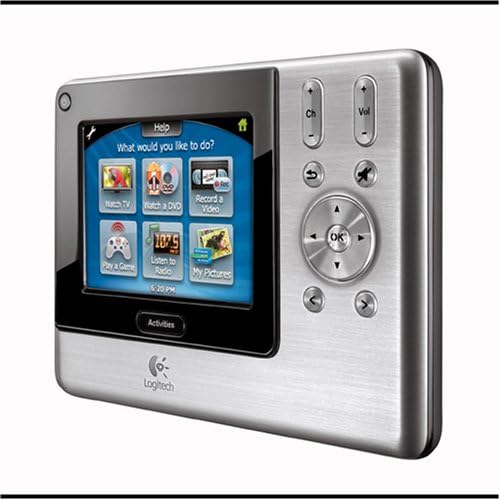
Immagine: Lato A view of the Logitech Harmony 1000 remote, clearly showing the physical buttons for channel, volume, mute, and the directional pad with an 'OK' button, alongside the touch screen.
5. Manutenzione
5.1. Carica della batteria
The Harmony 1000 is powered by a rechargeable Lithium-ion battery. To ensure continuous operation, regularly place the remote in its charging station when not in use.
- Collegare l'adattatore CA alla stazione di ricarica e inserirlo in una presa di corrente.
- Place the Harmony 1000 remote into the charging station. Ensure it is seated correctly for charging to begin.
- A battery charging indicator on the remote will confirm it is charging.
Keeping the remote in its charging station ensures it is always powered up and easy to locate.
5.2. Pulizia
To clean the remote, use a soft, dry, lint-free cloth. For stubborn marks, slightly dampImmergere il panno in acqua. Evitare di utilizzare detergenti abrasivi, solventi o spray aerosol direttamente sul dispositivo.
6. Risoluzione Dei Problemi
The Harmony 1000 includes a built-in "HELP" button to assist with common issues.
6.1. Using the HELP Button
If your entertainment system does not respond as expected (e.g., no sound, no picture, or a device fails to turn on), press the AIUTO button on the remote's screen. The remote will guide you through simple troubleshooting steps to identify and resolve the issue, often by re-sending commands or verifying device states.
6.2. Problemi comuni e soluzioni
- Il telecomando non risponde:
- Ensure the battery is charged. Place the remote on its charging station.
- If the screen is frozen, try a soft reset by holding the power button for a few seconds, or if necessary, temporarily remove and reinsert the battery.
- Dispositivi che non si accendono/spengono correttamente:
- Utilizzare il AIUTO pulsante.
- Ensure the remote has a clear line of sight to the devices (unless using an RF extender).
- Verify device settings and power-on delays in the Harmony software on your computer. Re-synchronize the remote after making changes.
- Specific Commands Not Working:
- Connect the remote to your computer and check the device commands in the Harmony software. Ensure the correct commands are assigned to buttons or screen icons.
- Update the remote's software and device database via the online portal.
7. Specifiche
| Attributo | Dettaglio |
|---|---|
| Dimensioni del prodotto | 3 x 12 x 8 pollici |
| Peso dell'articolo | 2.65 libbre |
| Produttore | Logitech |
| Numero di modello | 966230-0403 |
| Colore | Argento |
| Numero massimo di dispositivi supportati | Fino a 15 |
| Dispositivi compatibili | DVD/Blu-ray Player, Gaming Console, Lighting Controls, Set Top Box, Television, PVR/DVR, VCR |
| Caratteristica speciale | Indicatore di carica della batteria |
| Connettività | Infrared (IR), Radio Frequency (RF) with optional extender |
| Display | Schermo touch a colori da 3.5 pollici |
8. Garanzia e supporto
8.1. Informazioni sulla garanzia
The Logitech Harmony 1000 Advanced Universal Remote comes with a Garanzia limitata di 1 anno dalla data di acquisto. Conservare la prova d'acquisto per eventuali reclami in garanzia.
8.2. Supporto del prodotto
For further assistance, updated software, or access to the latest device database, visit the official Logitech support website. Regular connection of your remote to your computer ensures it benefits from the latest updates and expanded device compatibility.
Puoi trovare maggiori informazioni e risorse di supporto su Negozio Logitech su Amazon.
Ask a question about this manual
Ask about setup, troubleshooting, compatibility, parts, safety, or missing instructions. Manuals+ will review the question and use this page’s manual context to help answer it.