
Introduzione
Grazie per l'acquistoasing the Genius MaxFire Blaze2 Vibration Gamepad. This manual provides detailed instructions for setting up, operating, and maintaining your gamepad to ensure optimal performance and longevity. The MaxFire Blaze2 is designed to provide superior control and an immersive gaming experience on both PlayStation 2 consoles and compatible Windows PC systems.
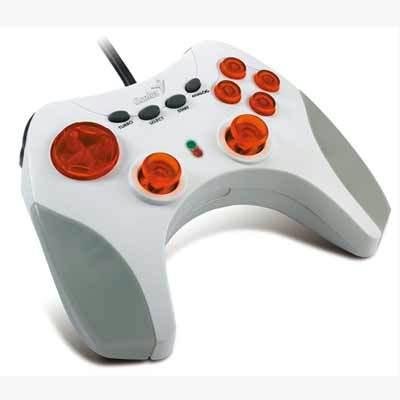
Image: The Genius MaxFire Blaze2 Gamepad, featuring a white and grey body with prominent orange translucent buttons and black control buttons. A black cable extends from the top.
Impostare
Follow these steps to connect your Genius MaxFire Blaze2 Gamepad to your gaming system.
Connecting to PlayStation 2:
- Assicurati che la console PlayStation 2 sia spenta.
- Locate an available controller port on the front of your PlayStation 2 console.
- Insert the gamepad's connector plug firmly into the controller port.
- Power on your PlayStation 2 console. The gamepad should be automatically recognized.
Connecting to PC (Windows XP/2000/ME/98SE):
- Assicurati che il PC sia acceso.
- Individua una porta USB disponibile sul tuo PC.
- Insert the gamepad's USB connector plug firmly into the USB port.
- Your operating system (Windows XP/2000/ME/98SE) should detect the new hardware and attempt to install the necessary drivers automatically.
- If prompted, follow the on-screen instructions to complete driver installation. In most cases, standard HID (Human Interface Device) drivers will be used.
- After installation, you can verify the gamepad's functionality through your operating system's Game Controllers settings (e.g., in Windows, go to Control Panel > Game Controllers or Devices and Printers).
Istruzioni per l'uso
The Genius MaxFire Blaze2 Gamepad features a standard layout for intuitive control.
Controlli di base:
- Pad direzionale (D-Pad): Located on the left, used for precise directional movement.
- Stick analogici: Two analog sticks provide 360-degree movement for finer control in games.
- Pulsanti di azione: Typically located on the right (e.g., Triangle, Circle, Cross, Square for PlayStation; A, B, X, Y for PC games).
- Pulsanti dorsali (L1, L2, R1, R2): Located on the top edge of the gamepad, used for various in-game actions like aiming, firing, or switching items.
- Pulsante Start: Utilizzato per mettere in pausa i giochi o accedere ai menu di gioco.
- Pulsante SELEZIONA: Often used for map access, inventory, or other secondary functions.
- ANALOG Button: Toggles the analog stick mode on/off. An indicator light may illuminate when analog mode is active.
Funzione Turbo:
The Turbo function allows a button to be pressed repeatedly with a single hold, which is particularly useful in action or shooting games for rapid firing.
- To activate Turbo for a specific button: Press and hold the Turbosoffiante button, then press the desired action button (e.g., Fire button). The Turbo function is now assigned to that button.
- Per disattivare Turbo per un pulsante specifico: tenere premuto il pulsante Turbosoffiante button again, then press the same action button. The Turbo function will be removed from that button.
Risposte di vibrazione:
The MaxFire Blaze2 features vibration feedback, which enhances immersion by providing tactile sensations during gameplay (e.g., explosions, impacts). This feature is automatically enabled when supported by the game and system.
Manutenzione
Proper care will extend the life of your gamepad.
- Pulizia: Utilizzare un panno morbido e asciutto per pulire la superficie del gamepad. Per lo sporco ostinato, leggermente dampLavare il panno con acqua. Non utilizzare prodotti chimici aggressivi o detergenti abrasivi.
- Magazzinaggio: Store the gamepad in a cool, dry place away from direct sunlight and extreme temperatures. Avoid tangling the cable.
- Gestione: Non far cadere il gamepad né sottoporlo a forti urti. Evitare di tirare con forza il cavo quando lo si scollega.
Risoluzione dei problemi
If you encounter issues with your Genius MaxFire Blaze2 Gamepad, try the following solutions:
- Gamepad not recognized:
- Ensure the cable is securely plugged into the console or PC's port.
- Try a different controller port or USB port.
- Riavvia la console o il PC.
- For PC, check Device Manager to see if the device is listed and if there are any driver issues. Reinstall drivers if necessary.
- Buttons or Analog Sticks unresponsive:
- Assicurarsi che il gamepad sia collegato correttamente.
- Test the gamepad in a different game or application to rule out game-specific issues.
- For PC, calibrate the gamepad through the Game Controllers settings in your operating system.
- Vibrazione non funzionante:
- Verifica che il gioco a cui stai giocando supporti il feedback tramite vibrazione.
- Controlla le impostazioni di gioco per assicurarti che la vibrazione sia abilitata.
- For PC, ensure the vibration feature is enabled in the gamepad's driver settings (if applicable).
Specifiche
| Marca | Genio |
| Numero di modello | Blaze2 |
| Compatibilità della piattaforma | PlayStation 2, PC (Windows XP/2000/ME/98SE) |
| Numero di pulsanti | 14 |
| Caratteristiche | Vibration Feedback, Turbo Function, Analog Sticks |
| Dimensioni (L x P x A) | 73.66 x 45.72 x 60.96 cm (29 x 18 x 24 pollici) |
| Peso | 19.5 kg (43 libbre) |
Note: Dimensions and weight may refer to packaging or shipping weight. Product weight is typically much lower.
Garanzia e supporto
For warranty information or technical support, please refer to the documentation included with your purchase or visit the official Genius websito.
Produttore: Genio