
Introduzione
The IOGEAR GCS72U 2-Port USB VGA KVM Switch allows users to control two computers from a single console, sharing a VGA monitor, a USB mouse, a USB keyboard, a set of powered speakers, and a microphone. This device is designed for simple plug-and-play operation, requiring no additional software or power adapter. Switching between connected computers is achieved via a convenient remote push-button switch.
Caratteristiche principali
- Two-Computer Control: Manage two computers using one USB keyboard, USB mouse, and VGA monitor.
- Supporto ad alta risoluzione: Supports video resolutions up to 2048 x 1536 with DDC2B.
- Audio and Microphone Support: Includes 2.1 stereo audio and microphone connections.
- Plug-and-Play: No software drivers or external power adapter required for operation.
- Cavi integrati: Features 3-foot long molded-in KVM (USB and VGA) cables for simplified setup.
- Commutazione remota: Convenient one-touch push-button switch for easy computer selection.
- Ampia compatibilità: Compatible with PC, Mac, and Sun operating platforms, including Windows XP or higher, Mac OS 9.0 or higher, and Sun Solaris 9 or higher.
- Mac Keyboard Support: Provides full Mac keyboard support.
- Programmable Mice Support: Supports programmable mice.
Contenuto della confezione
- 1 x IOGEAR GCS72U 2-Port USB VGA KVM Switch
- 1 x Guida rapida
- 1 x Scheda di garanzia
Istruzioni di installazione
Follow these steps to set up your IOGEAR GCS72U KVM Switch:
- Collegare le periferiche della console: Connect your VGA monitor, USB keyboard, USB mouse, powered speakers, and microphone to the designated ports on the KVM switch.
- Connect to Computers: Connect the integrated KVM cables (VGA, USB, Audio, Mic) from the KVM switch to the corresponding ports on each of your two computers. Ensure all connections are secure.
- Position Remote Switch: Place the remote push-button switch in a convenient location on your desk for easy access.
- Accensione: Power on your computers. The KVM switch draws power from the USB connections, so no external power adapter is needed.
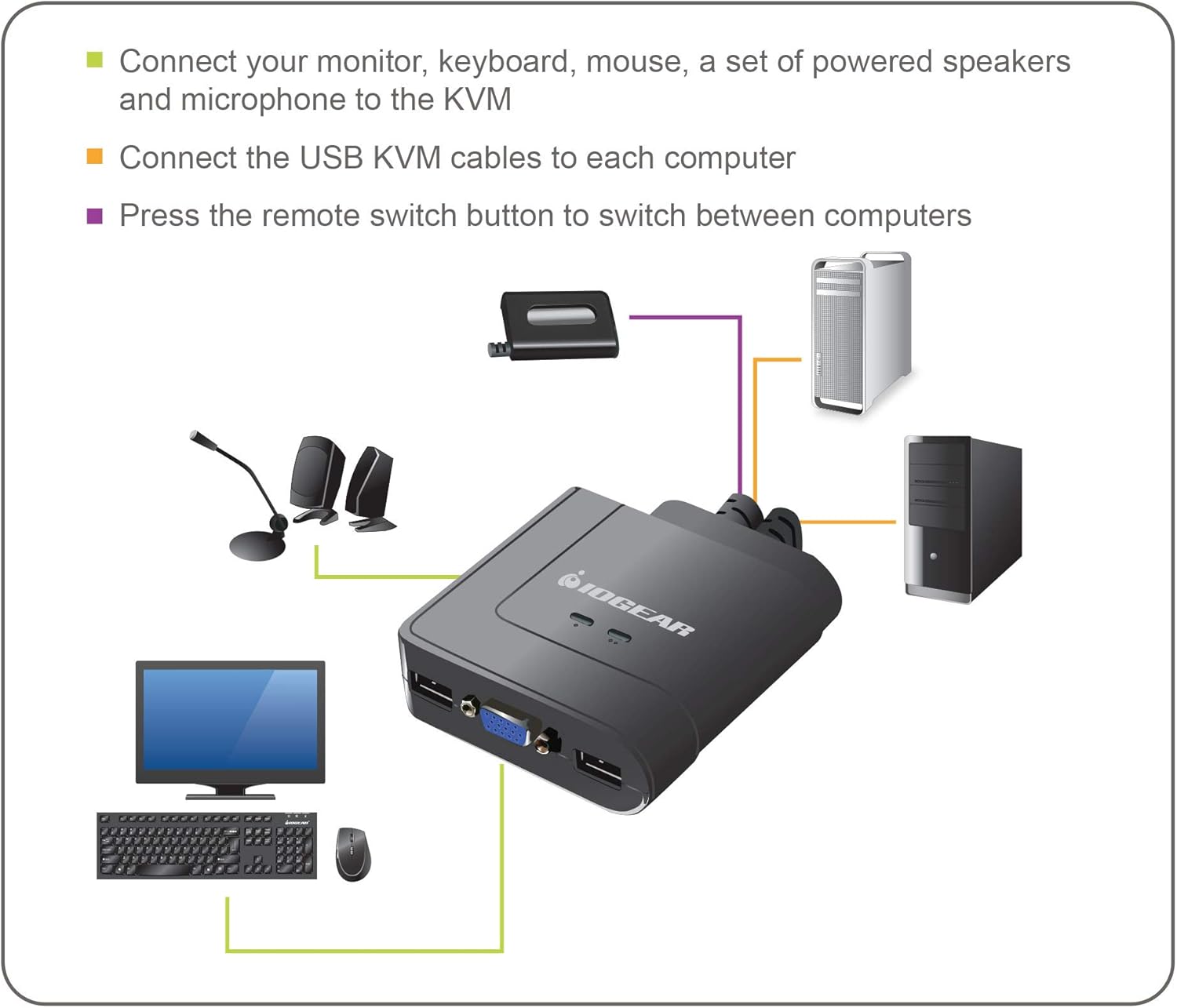
Figure 1: Connection Diagram for IOGEAR GCS72U KVM Switch. This image illustrates connecting a monitor, keyboard, mouse, speakers, and microphone to the KVM switch, which then connects to two computers.

Figure 2: Built-in KVM Cables. The image displays the integrated VGA, USB, and audio/microphone cables extending from the KVM unit.
Istruzioni per l'uso
To switch between the two connected computers:
- Pulsante remoto: Press the button on the remote switch to toggle between Computer 1 and Computer 2. An LED indicator on the KVM switch will illuminate green to show which computer is currently selected.

Figure 3: IOGEAR GCS72U KVM Switch with Remote. This image shows the main KVM unit and the separate remote button used for switching between computers.
Specifiche
| Caratteristica | Dettaglio |
|---|---|
| Marca | IO-OGGETTO |
| Modello | GCS72U |
| Numero di porte | 2 |
| Risoluzione video | Up to 2048 x 1536, DDC2B |
| Supporto audio | 2.1 Stereo Audio and Microphone |
| Tipo di interruttore | Push Button (Remote) |
| Protocollo di connettività | Cablato |
| Volume di eserciziotage | 5 Volt (alimentato tramite USB) |
| Dimensioni articolo (L x P x A) | 8.9 x 6.2 x 2.2 pollici |
| Peso dell'articolo | 13.12 once |
Compatibilità del sistema
The IOGEAR GCS72U KVM Switch is compatible with a wide range of operating systems:
- Windows XP / Vista (32-bit / 64-bit), Windows 7 (32-bit / 64-bit) or higher
- Mac OS X v10.3.9 o successivo
- Sun Solaris 9 or higher
- Linux and other USB supported systems (additional drivers and support may be needed for some systems)

Figure 4: Multi-OS Support. This graphic confirms compatibility with Mac, PC, and Linux operating systems.
Risoluzione dei problemi
- Video Resolution Issues: If a computer is booted without the KVM switch actively connected to it, the display resolution might revert to a lower setting (e.g., 800x600). To resolve this, switch to the affected computer, access its display settings, and re-select the desired resolution. It is recommended to switch to a computer before it completes its boot sequence if a specific resolution is required from startup.
- Microfono non funzionante: The microphone port on the KVM switch is not powered. If your microphone requires phantom power or a powered input, it may not function correctly. Ensure your microphone is compatible with unpowered inputs or use an external powered microphone adapter.
- USB Device Power: For high-draw USB devices like certain keyboards or mice, consider connecting them through a powered USB hub to ensure stable operation, especially if experiencing intermittent connectivity.
- Bent VGA Pins: When connecting VGA cables, ensure proper alignment and apply gentle, even pressure. Bent pins can occur if forced incorrectly.
- Ritardo di commutazione: A brief delay of a couple of seconds may occur when switching between computers. This is normal operation.
Garanzia e supporto
The IOGEAR GCS72U KVM Switch is backed by a Garanzia di 3 anno. For technical assistance, IOGEAR provides free lifetime technical support. Please refer to the included Warranty Card for detailed terms and conditions, or visit the official IOGEAR websito per le risorse di supporto.
Video del prodotto
IOGEAR USB KVM Switch Overview
Questo video fornisce un overview of the IOGEAR USB KVM Switch, demonstrating its features and functionality.