
1. Finitaview
The Microsoft LifeCam Cinema is a high-definition webcam designed for clear and smooth video communication. It features 720p HD video chat capabilities, a high-precision glass element lens for sharp image quality, and is certified for Skype. The webcam offers 360° rotation and incorporates TrueColor Technology with face tracking for bright and colorful video output.
Caratteristiche principali:
- 720p HD video chat
- High precision glass element lens for sharp image quality
- Certified for Skype
- Rotazione di 360°
- TrueColor Technology with face tracking for bright and colorful video
2. Cosa c'è nella scatola
Dopo aver aperto la confezione, assicurarsi che siano presenti tutti i seguenti componenti:
- Microsoft LifeCam Cinema Webcamma
- Cavo USB (integrato)
- Manuale dell'utente (questo documento)
- Supporto adesivo curvo
- Fibbia di montaggio
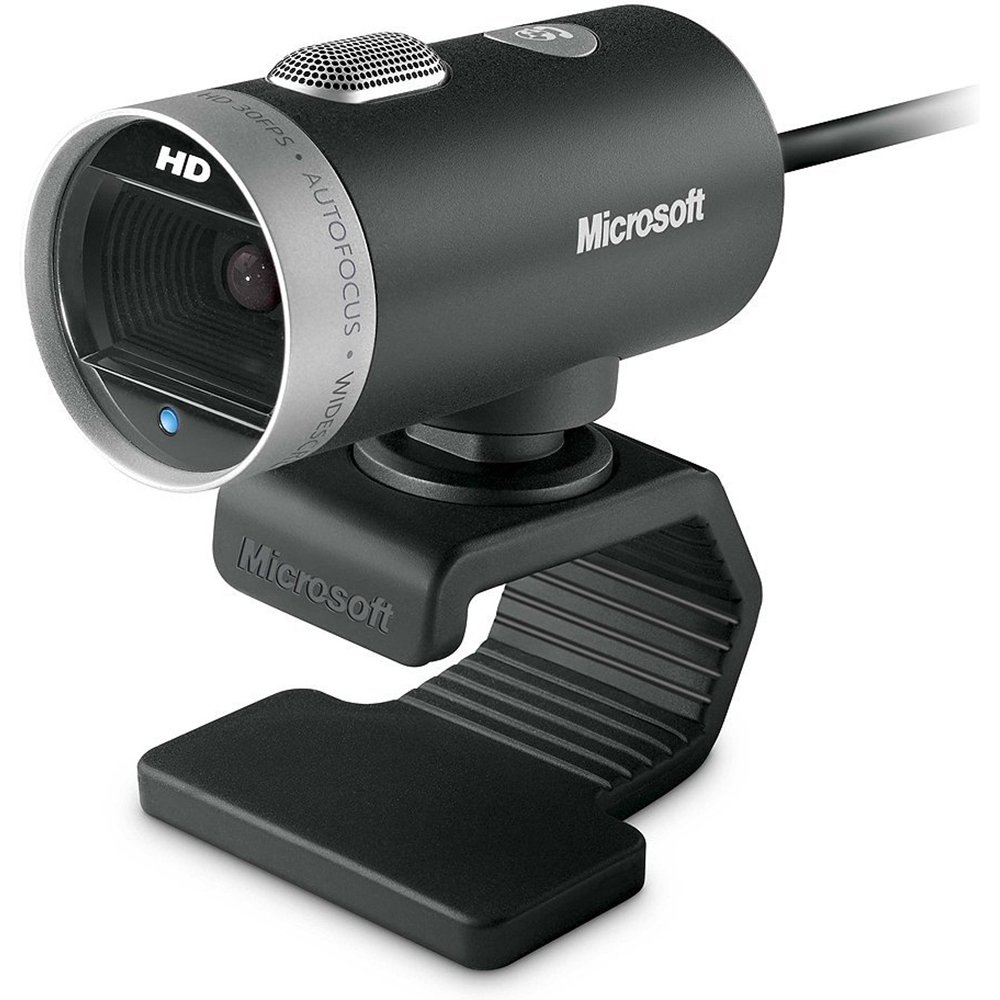
Image: The Microsoft LifeCam Cinema webcam, showing its main body, lens, microphone, and flexible stand with integrated USB cable.
3. Impostazione
- Posizionamento del WebCamera: Place the LifeCam Cinema on top of your monitor or a flat surface. The flexible stand allows for stable placement.
- Collegamento al computer: Plug the integrated USB cable into an available USB port on your computer.
- Installazione del driver: Your operating system (Windows is supported) should automatically detect the device and install the necessary drivers. If prompted, follow the on-screen instructions. You may need to download the latest drivers from the official Microsoft support websito per prestazioni ottimali.
- Installazione del software: Install any accompanying LifeCam software if desired, which may offer additional features or settings.

Image: The Microsoft LifeCam Cinema webcam securely positioned on top of a computer monitor, demonstrating its stable mounting design.
Video: An official product video demonstrating the features and usage of the Microsoft LifeCam Cinema webcam, including its 720p HD widescreen video, auto focus, high-precision glass element lens, ClearFrame Technology, and digital microphone.
4. Istruzioni per l'uso
- Starting a Video Call: Open your preferred video conferencing application (e.g., Skype, Zoom, Microsoft Teams). The LifeCam Cinema should be automatically recognized as your primary camera and microphone.
- Posizione di regolazione: IL webcam features 360° rotation, allowing you to easily adjust the camera angle without moving the base.
- Messa a fuoco automatica: The camera automatically adjusts focus to keep you sharp and clear during video calls.
- Tecnologia TrueColor: This feature automatically adjusts exposure for bright and colorful video, even in varying lighting conditions.
- Microfono digitale: The built-in digital microphone provides clear audio capture. Ensure it is selected as the input device in your application settings if you experience audio issues.
5. Manutenzione
- Pulizia della lente: Use a soft, lint-free cloth specifically designed for optics to gently wipe the camera lens. Avoid abrasive materials or harsh chemicals.
- Pulizia del corpo: Pulisci il webcorpo della camma con un morbido, damp cloth. Do not immerse the device in water or use excessive moisture.
- Magazzinaggio: Quando non è in uso, conservare il webconservare in un luogo pulito e asciutto, lontano da temperature estreme e dalla luce solare diretta.
- Cura del cavo: Evitare di piegare o torcere eccessivamente il cavo USB per evitare danni interni.
6. Risoluzione Dei Problemi
- Nessun video/telecamera non rilevata:
- Assicurarsi che il cavo USB sia collegato saldamente a entrambi i dispositivi webcam e il computer.
- Prova a collegare il file webcam in un'altra porta USB.
- Riavvia il computer.
- Controlla Gestione dispositivi del tuo computer (Windows) per vedere se webcam is listed and if there are any driver issues. Reinstall drivers if necessary.
- Verify that your video conferencing software is configured to use the LifeCam Cinema as the video input device.
- Nessun audio/Microfono non funzionante:
- Check your computer's sound settings to ensure the LifeCam Cinema microphone is selected as the default recording device.
- Verify that your video conferencing software is configured to use the LifeCam Cinema as the audio input device.
- Ensure the microphone is not muted in your system settings or within the application.
- Scarsa qualità video:
- Assicurarsi che l'obiettivo della fotocamera sia pulito.
- Check your internet connection speed; a slow connection can affect video quality.
- Ensure adequate lighting in your environment. TrueColor Technology helps, but sufficient ambient light is always best.
- Chiudere altre applicazioni che potrebbero consumare risorse di sistema.
7. Specifiche
| Caratteristica | Dettaglio |
|---|---|
| Marca | Microsoft |
| Numero di modello | H5D-00001 |
| Risoluzione di acquisizione video | Formato: 720p |
| Tecnologia del sensore fotografico | CMOS |
| Tecnologia di connettività | USB |
| Colore | Nero |
| Caratteristiche | Low Light, Auto Focus, TrueColor Technology, Digital Microphone |
| Dimensioni dell'articolo (P x L x A) | 0.71"P x 2.19"L x 1.81"A |
| Peso dell'articolo | 0.87 libbre |
| Sistema operativo | Finestre |
| Viewangolo di ing | 360 Degrees (rotation) |
| Velocità di acquisizione dell'immagine | 30 fotogrammi al secondo |
| Dispositivi compatibili | PCs with specified system requirements; Skype |
8. Garanzia e supporto
The Microsoft LifeCam Cinema (Model H5D-00001) comes with a 3 anni di garanzia limitata from the manufacturer, Microsoft.
For technical support, driver downloads, or further assistance, please visit the official Microsoft support websito o fare riferimento alle informazioni di contatto fornite sulla confezione del prodotto.
You can also find additional resources and FAQs on the Microsoft support pages for LifeCam products.


