BlackBerry BB 9900 Bold Touch Smartphone User Manual
Modello: BB 9900
1. Introduzione
This manual provides essential instructions for setting up, operating, and maintaining your BlackBerry BB 9900 Bold Touch smartphone. Please read this guide thoroughly to ensure proper use and to maximize the device's capabilities. The BlackBerry BB 9900 Bold Touch combines a capacitive touchscreen with a full QWERTY keyboard, running on BlackBerry OS 7.
2. Contenuto della confezione
Verifica che il pacco contenga i seguenti articoli:
BlackBerry BB 9900 Bold Touch Smartphone
Batteria ricaricabile
Caricatore da Parete
Cavo USB
Manuale dell'utente (questo documento)
3. Dispositivo suview
Familiarize yourself with the physical features of your BlackBerry BB 9900 Bold Touch.
3.1 Front View
Immagine: Frontale view of the BlackBerry BB 9900 Bold Touch, highlighting the 2.8-inch touchscreen and the physical QWERTY keyboard below it. The device also features a trackpad and call/end buttons.
Schermo touchscreen: 2.8-inch capacitive display for interactive navigation.
Tastiera QWERTY: Full physical keyboard for efficient typing.
Optical Trackpad: For precise navigation and selection.
Pulsanti di chiamata/fine chiamata: Standard telephony controls.
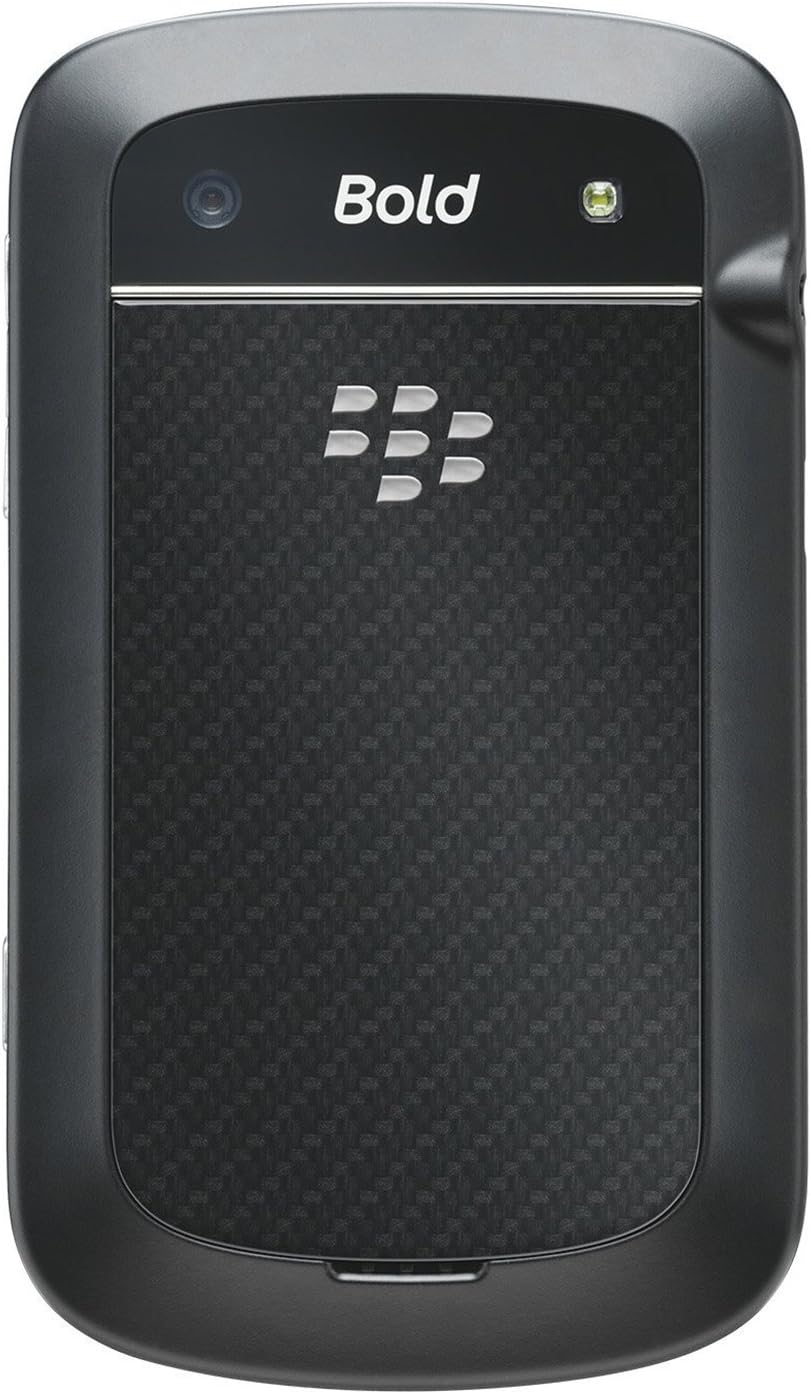
3.2 Posteriore View
Immagine: Posteriore view of the BlackBerry BB 9900 Bold Touch, featuring the 5-megapixel camera lens, LED flash, and the BlackBerry logo.
Fotocamera 5MP: Primary camera with autofocus and LED flash.
Coperchio della batteria: Removable cover for battery and SIM card access.
3.3 Lato View
Immagine: Lato view of the BlackBerry BB 9900 Bold Touch, illustrating the placement of the volume control buttons and a customizable convenience key.
Pulsanti del volume: Regola i livelli audio.
Convenience Key: Pulsante di scelta rapida personalizzabile.
4. Impostazione
4.1 Inserimento della scheda SIM
Rimuovere il coperchio della batteria dal retro del dispositivo.
Individua lo slot della scheda SIM.
Inserire la scheda SIM con i contatti dorati rivolti verso il basso e l'angolo tagliato allineato con lo slot.
Assicurarsi che la scheda SIM sia saldamente inserita.
4.2 Inserimento della batteria
After inserting the SIM card, align the battery's gold contacts with the contacts in the battery compartment.
Premere delicatamente la batteria in posizione finché non scatta in posizione.
Riposizionare il coperchio della batteria.
4.3 Ricarica del dispositivo
Connect the USB cable to the charging port on your device.
Plug the other end of the USB cable into the wall charger, then into a power outlet.
Lasciare che il dispositivo si carichi completamente prima del primo utilizzo. L'indicatore della batteria sullo schermo mostrerà lo stato di carica.
4.4 Accensione/Spegnimento
Per accendere: Press and hold the Power/Lock button (usually located on the top edge) until the BlackBerry logo appears.
Per spegnere: Press and hold the Power/Lock button until the 'Power Off' option appears on the screen. Tap 'Power Off' to confirm.
5. Istruzioni per l'uso
5.1 Navigazione tramite touch screen
Rubinetto: Touch the screen briefly to open applications, select items, or activate buttons.
Scorri: Drag your finger across the screen to scroll through lists or switch between home screen panels.
Pizzica per ingrandire: Use two fingers to zoom in or out on photos, web pagine o mappe.
5.2 Utilizzo della tastiera QWERTY
The physical QWERTY keyboard allows for fast and accurate text entry. Each key corresponds to a letter, number, or symbol. Use the 'Alt' key for alternate characters and the 'Shift' key for capitalization.
5.3 Effettuare chiamate
From the home screen, tap the Phone icon or press the green Call button.
Enter the phone number using the keyboard.
Premere il pulsante verde Chiama per avviare la chiamata.
Per terminare una chiamata, premere il pulsante rosso Termina chiamata.
5.4 Invio di messaggi
Tap the Messages icon from the home screen.
Select 'Compose New' or similar option.
Inserisci il numero del destinatario o selezionalo dai contatti.
Type your message using the QWERTY keyboard.
Tap 'Send'.
5.5 Utilizzo della fotocamera
Tocca l'icona della fotocamera per aprire l'applicazione della fotocamera.
Inquadra il tuo scatto usando lo schermo come viewcercatore.
Tap the screen or press the convenience key (if configured) to take a photo.
The 5MP camera features autofocus and an LED flash for improved image quality.
5.6 Connessione al Wi-Fi
Go to 'Options' > 'Networks and Connections' > 'Wi-Fi'.
Turn Wi-Fi on. The device will scan for available networks.
Seleziona la rete desiderata e inserisci la password se richiesta.
Once connected, the Wi-Fi indicator will appear in the status bar.
5.7 Using NFC (Near Field Communication)
The BlackBerry BB 9900 Bold Touch supports NFC for short-range wireless communication. This allows for quick pairing with compatible accessories or sharing data with other NFC-enabled devices by tapping them together.
Assicurati che la tecnologia NFC sia abilitata nelle impostazioni del tuo dispositivo.
Hold your device close to another NFC-enabled device or tag.
Follow on-screen prompts to complete the desired action (e.g., pairing, data transfer).
6. Manutenzione
6.1 Pulizia del dispositivo
Utilizzare un panno morbido e privo di lanugine per pulire lo schermo e il corpo del dispositivo.
Evitare l'uso di prodotti chimici aggressivi, detergenti abrasivi o spray aerosol.
Non esporre il dispositivo a umidità eccessiva.
6.2 Cura della batteria
Evitare temperature estreme, che possono compromettere le prestazioni della batteria.
Utilizzare solo il caricabatterie originale o approvato.
Non forare o danneggiare la batteria.
6.3 Aggiornamenti software
Periodically check for software updates to ensure your device has the latest features and security enhancements. Updates can typically be found in the device's 'Options' or 'Settings' menu under 'Software Updates'.
7. Risoluzione Dei Problemi
7.1 Il dispositivo non si accende
Assicurarsi che la batteria sia inserita e caricata correttamente.
Collegare il dispositivo al caricabatterie e attendere qualche minuto prima di provare ad accenderlo nuovamente.
Se il problema persiste, prova a rimuovere e reinserire la batteria.
7.2 Problemi di connettività di rete
Check if your SIM card is correctly inserted and activated with your carrier.
Verify that cellular data or Wi-Fi is enabled in your device settings.
Riavviare il dispositivo.
If using Wi-Fi, ensure your router is working and you have entered the correct password.
7.3 Il touch screen non risponde
Riavviare il dispositivo.
Assicurarsi che lo schermo sia pulito e privo di detriti o umidità.
If the issue is intermittent, check for any recent software installations that might be causing conflicts.
8. Specifiche
Caratteristica
Dettaglio
Nome del modello
BB9900
Sistema operativo
BlackBerry OS 7
Display
2.8-inch Capacitive Touchscreen, 640 x 480 Resolution
Processore
Not specified (typically 1.2 GHz for this model)
Memoria RAM
768 MB
Memoria interna
8 GB
Telecamera posteriore
5 MP, Autofocus, LED Flash
Connettività
Wi-Fi 802.11 b/g/n, NFC, Bluetooth, GPS
Supporto di rete
Quad-band GSM/GPRS/EDGE, Tri-band HSPA+
Dimensioni
4.53 x 2.6 x 0.41 pollici (115 x 66 x 10.5 mm)
Peso
4.6 once (130 grammi)
Presa audio
3.5 millimetri
9. Supporto e garanzia
9.1 Assistenza clienti
For technical assistance, troubleshooting beyond this manual, or service inquiries, please visit the official BlackBerry support website or contact your local service provider. Refer to the packaging or official websito per dettagli di contatto specifici.
9.2 Informazioni sulla garanzia
Your BlackBerry BB 9900 Bold Touch is covered by a limited warranty. Please refer to the warranty card included in your product packaging or visit the official BlackBerry webPer termini e condizioni dettagliati, inclusi il periodo di garanzia e le specifiche della copertura, consultare il sito. Conservare la prova d'acquisto per eventuali reclami in garanzia.
Ask a question about this manual
Ask about setup, troubleshooting, compatibility, parts, safety, or missing instructions. Manuals+ will review the question and use this page’s manual context to help answer it.