
1. Introduzione e oltreview
The ORICO 8628SUS3-C is a versatile, tool-free docking station designed for 2.5-inch and 3.5-inch SATA hard drives and SSDs. It provides high-speed connectivity to your computer via SuperSpeed USB 3.0 and eSATA interfaces, facilitating data backup, transfer, and drive management. Its top slot-loading design ensures easy installation and removal of drives. This docking station also supports standalone cloning, allowing you to duplicate drives without a host computer connection.
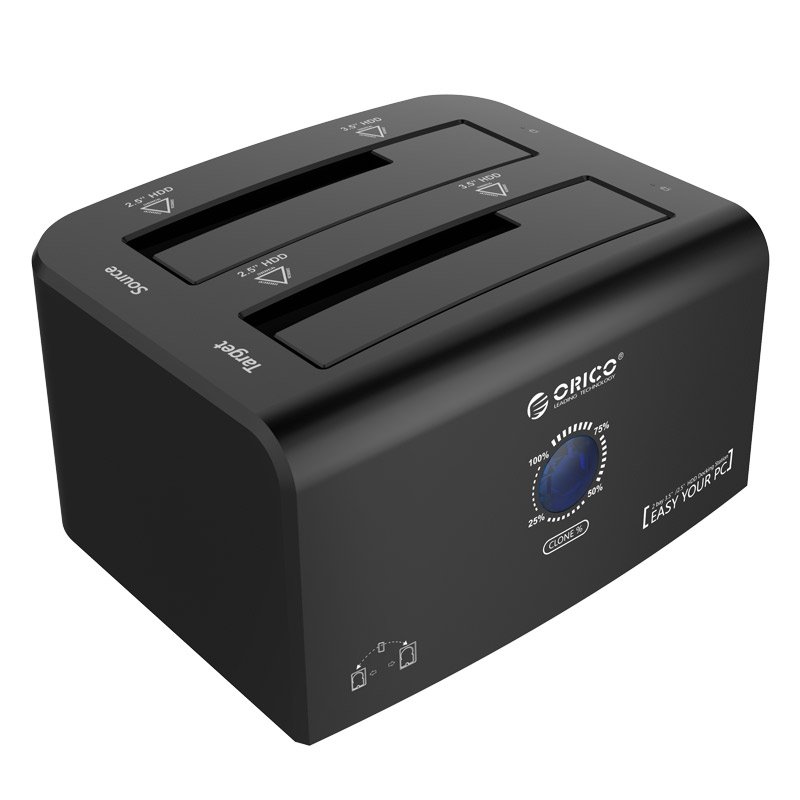
The ORICO 8628SUS3-C docking station, showcasing its dual slots accommodating both 2.5-inch and 3.5-inch SATA hard drives or SSDs.
2. Cosa c'è nella scatola
Si prega di verificare che tutti gli articoli siano presenti nel pacco:
- 1 x ORICO 2.5 & 3.5 inch Hard Drive Docking Station (Model: 8628SUS3-C)
- 1 x adattatore di alimentazione 12V4A
- 1 x 3.3Ft. USB 3.0 Cable
- 1 cavo eSATA
- 1 x Manuale utente (questo documento)
- Scheda di servizio 1 x
3. Istruzioni per l'installazione
Follow these steps to set up your ORICO docking station:
- Collegare l'adattatore di alimentazione: Collegare l'adattatore di alimentazione 12V4A alla porta CC sul retro della docking station e quindi a una presa di corrente.
- Connessione al computer: Scegli il metodo di connessione che preferisci:
- Porta USB 3.0: Connect one end of the provided USB 3.0 cable to the USB 3.0 port on the docking station and the other end to an available USB 3.0 port on your computer.
- eSATA: Connect one end of the provided eSATA cable to the eSATA port on the docking station and the other end to an available eSATA port on your computer.
- Inserire i dischi rigidi: Gently slide your 2.5-inch or 3.5-inch SATA HDD/SSD into the designated slots on top of the docking station. Ensure the drive is fully seated. The docking station supports two drives simultaneously.
- Accensione: Premere l'interruttore di alimentazione sul retro della docking station per accenderla. Gli indicatori LED si illumineranno.

An illustrative diagram detailing the connection process: 1) DC adapter, 2) USB cable to PC, 3) SSD/HDD insertion, and 4) power on/off button.
4. Istruzioni per l'uso
4.1. Modalità di trasferimento dati
Once connected to your computer and powered on, the inserted drives will be recognized by your operating system. You can then access them like any other external storage device.
- SuperSpeed USB 3.0: Offers data transfer rates up to 5Gbps. It is backward compatible with USB 2.0 and 1.1.
- eSATA: Provides data transfer rates up to 3Gbps.
- Collega e usa: The device supports hot-swapping, allowing you to insert or remove drives while the docking station is powered on, without needing to restart your computer. No drivers are typically required for Windows, Linux, or Mac operating systems.

This image illustrates the ORICO docking station connected to a laptop via USB, with both 2.5-inch and 3.5-inch drives inserted, highlighting its broad compatibility.
4.2. Standalone Clone Function (Offline Duplication)
The ORICO 8628SUS3-C supports standalone cloning, allowing you to duplicate a source drive to a target drive without connecting to a computer.
- Preparare le unità: Ensure both the Source drive (the drive you want to copy FROM) and the Target drive (the drive you want to copy TO) are unformatted or contain data you are willing to overwrite. The Target drive must be equal to or larger in capacity than the Source drive.
- Inserire le unità: Insert the Source drive into the 'Source' slot and the Target drive into the 'Target' slot on the docking station.
- Disconnetti dal PC: Ensure the docking station is disconnected from your computer (USB or eSATA cable).
- Accensione: Turn on the docking station using the power switch.
- Avvia Clone: Press and hold the 'Clone' button (often labeled 'PC-Clone Button' or similar) on the back of the docking station for approximately 3-5 seconds until the cloning process begins. The progress indicator LEDs will light up, showing the cloning status (e.g., 25%, 50%, 75%, 100%).
- Completamento: The cloning process is complete when all progress indicator LEDs are solid. Power off the docking station and safely remove the drives.
Nota importante: All data on the Target drive will be erased during the cloning process. Back up any important data on the Target drive before proceeding.

This image provides a close-up of the docking station's rear panel, showing the PC-Clone button, Power Switch, DC Port, USB 3.0, and eSATA interfaces. The top view highlights the Source and Target drive slots and LED lights.

The docking station is shown performing an offline clone operation, capable of cloning up to 8TB. Product dimensions are provided: W 217x D 142 x H 80 (mm) or W 8.54x D 5.59 x H 3.14 (in).
5. Manutenzione
To ensure the longevity and optimal performance of your ORICO docking station:
- Mantenere il dispositivo pulito e privo di polvere. Utilizzare un panno morbido e asciutto per la pulizia.
- Avoid exposing the docking station to extreme temperatures, humidity, or direct sunlight.
- Do not block the ventilation openings, if any, to prevent overheating.
- Handle hard drives carefully when inserting or removing them to prevent damage to the drive connectors or the docking station slots.
- Always power off the docking station before disconnecting the power adapter.
6. Risoluzione Dei Problemi
If you encounter issues with your ORICO docking station, refer to the following common problems and solutions:
| Problema | Possibile causa/soluzione |
|---|---|
| Drive not detected by computer |
|
| Velocità di trasferimento dati lenta |
|
| Cloning process fails or does not start |
|
| Docking station not powering on |
|
7. Specifiche
| Caratteristica | Descrizione |
|---|---|
| Numero di modello | ORICO 8628SUS3-C |
| Interfaccia Hardware | USB 3.0, eSATA |
| Unità compatibili | 2.5 inch / 3.5 inch SATA HDD & SSD |
| Supported Devices Quantity | 2 |
| Data Transfer Rate (USB 3.0) | Fino a 5 Gigabit al secondo (Gbps) |
| Data Transfer Rate (eSATA) | Fino a 3 Gigabit al secondo (Gbps) |
| Offline Clone Capacity | Fino a 8 TB |
| Compatibilità del sistema operativo | Windows XP/7/8/8.1, Linux, Mac 9.1 or later |
| Adattatore di alimentazione | 12V4A |
| Dimensioni (L x P x A) | 217 x 142 x 80 mm (8.54 x 5.59 x 3.14 pollici) |
| Peso dell'articolo | 1.7 libbre |
8. Garanzia e supporto
Your ORICO 8628SUS3-C Hard Drive Docking Station comes with a service card. For warranty information, technical support, or any inquiries regarding your product, please refer to the contact details provided on the service card or visit the official ORICO websito. Conservare la prova d'acquisto per eventuali reclami in garanzia.