
1. Introduzione
The D-Link Wireless N300 Dual Band PCI Express Desktop Adapter (DWA-566) provides high-speed wireless connectivity for your desktop computer. Utilizing Wireless N technology, it maximizes the speed and range of your wireless signal, offering superior performance compared to Wireless G devices. The dual-band capability supports both 2.4GHz and 5GHz wireless signals, allowing for flexible network usage, such as browsing on 2.4GHz and HD streaming or gaming on the clearer 5GHz band.
This adapter is designed to fit into any standard PCI Express slot, offering a higher performance interface than legacy PCI. It supports secure wireless networks with WPA or WPA2 encryption.

Figure 1.1: D-Link DWA-566 Wireless N300 Dual Band PCI Express Desktop Adapter with antennas.
2 Caratteristiche
The DWA-566 adapter includes the following key features:
- IEEE 802.11n, 802.11g, and 802.11a Compliant
- Dual Band Technology for Superior Wireless Performance (2.4GHz or 5GHz)
- Access secure wireless networks using advanced WPA or WPA2 encryption
- Fits into any standard PCI Express slot
- PCI Express Interface provides higher performance than a legacy PCI interface
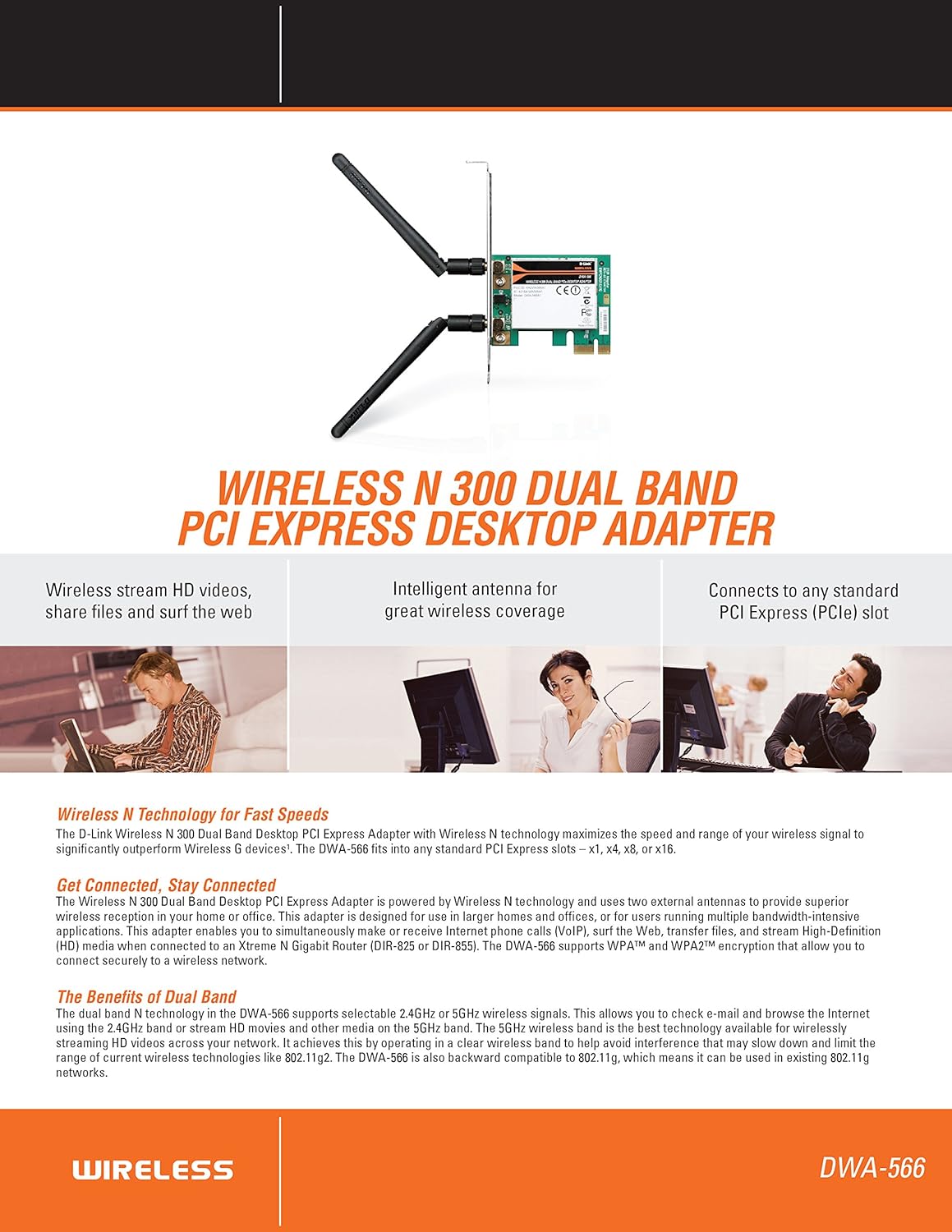
Figura 2.1: Oltreview of DWA-566 features and benefits.
3. Contenuto della confezione
Verifica che il pacco contenga i seguenti articoli:
- Wireless N 300 Dual Band PCI Express Adapter (DWA-566)
- Two detachable antennas
- a basso profilofile staffa di montaggio
- Guida di installazione rapida
- CD-ROM with:
- Gestione connessione wireless D-Link
- Autisti
- Documentazione del prodotto
4. Requisiti di sistema
Before installing the DWA-566, ensure your system meets the following minimum requirements:
- Computer with an available PCI Express slot
- Windows operating system (Windows XP, Vista, 7, 8, 10)
- CD-ROM drive (for driver installation from included CD)
- Internet Explorer 7 or Firefox 3.0 and above (for viewing documentation)
- Abbonamento con un provider di servizi Internet (ISP)
For optimal performance, a D-Link Wireless N router (DIR-655 or DIR-825) is recommended.

Figure 4.1: Detailed technical specifications, minimum requirements, and network diagram.
5. Configurazione e installazione
5.1 Installazione hardware
- Spegnere il computer: Spegnere il computer e scollegare il cavo di alimentazione.
- Aprire il case del computer: Rimuovere il coperchio del case del computer.
- Individuare lo slot PCI Express: Find an available PCI Express slot on your motherboard.
- Inserisci adattatore: Carefully insert the DWA-566 adapter into the PCI Express slot, ensuring it is seated firmly.
- Adattatore sicuro: Secure the adapter with a screw to the computer chassis.
- Collegare le antenne: Screw the two included antennas onto the connectors on the adapter.
- Chiudere la custodia e accendere: Richiudi il coperchio del case del computer, collega il cavo di alimentazione e accendi il computer.

Figure 5.1: DWA-566 adapter with antennas attached, ready for installation.
5.2 Installazione del software
After hardware installation, proceed with driver and utility installation:
- Inserire il CD di installazione: Insert the DWA-566 installation CD into your computer's CD-ROM drive. The setup wizard should launch automatically. If not, navigate to the CD drive and run the 'Setup.exe' file.
- Seguire le istruzioni sullo schermo: Follow the prompts of the D-Link setup wizard to install the drivers and the D-Link Wireless Connection Manager utility.
- Riavvia il computer: Una volta completata l'installazione, riavviare il computer quando richiesto.
Nota: For Windows 7/8 64-bit systems, ensure you are using the latest drivers available from the official D-Link support website to avoid potential compatibility issues.
6. Istruzioni per l'uso
Once the drivers are installed, you can connect to a wireless network:
- Launch Connection Manager: Open the D-Link Wireless Connection Manager utility or use the built-in Windows wireless network utility.
- Ricerca reti: L'utilità eseguirà la scansione delle reti wireless disponibili nella tua zona.
- Seleziona rete: Seleziona la rete wireless desiderata (SSID) dall'elenco.
- Inserisci la chiave di sicurezza: If the network is secured, enter the correct WPA/WPA2 security key or passphrase.
- Collegare: Click 'Connect' to establish a wireless connection.
A successful connection will be indicated by a strong signal strength and internet access.
7. Manutenzione
Per garantire prestazioni ottimali e longevità dell'adattatore DWA-566:
- Mantieni aggiornati i driver: Controllare periodicamente il supporto D-Link website for the latest drivers and firmware updates.
- Garantire una ventilazione adeguata: Make sure your computer case has adequate airflow to prevent overheating of internal components, including the wireless adapter.
- Posizionamento dell'antenna: Adjust the antennas for the best possible signal reception.
- Fattori ambientali: Avoid placing your computer near large metal objects or other devices that may cause wireless interference.
8. Risoluzione Dei Problemi
Se riscontri problemi con l'adattatore DWA-566, tieni presente quanto segue:
8.1 Nessuna connessione wireless
- Verify Hardware Installation: Ensure the adapter is correctly seated in the PCI Express slot and antennas are securely attached.
- Controlla i driver: Confirm that the drivers are installed correctly. Check Device Manager for any error symbols next to the network adapter. Reinstall drivers if necessary.
- Stato del router: Ensure your wireless router is powered on and broadcasting a signal.
- Chiave di sicurezza: Double-check that the correct wireless security key (WPA/WPA2 passphrase) is entered.
- Impostazioni del firewall: Temporarily disable your computer's firewall to see if it is blocking the connection. If it resolves the issue, configure your firewall to allow the D-Link utility.
8.2 Slow Connection Speed or Frequent Disconnections
- Regolazione dell'antenna: Try repositioning the antennas for better signal reception.
- Interferenza: Move the computer away from potential sources of interference (e.g., cordless phones, microwaves, Bluetooth devices).
- Prossimità del router: Ensure the computer is within the effective range of your wireless router.
- Dual Band Usage: If your router supports it, try connecting to the 5GHz band for less interference and potentially higher speeds, especially for streaming or gaming.
- Aggiornamento driver: Update the adapter drivers to the latest version from the D-Link websito.
9. Specifiche
| Caratteristica | Specificazione |
|---|---|
| Marca | D-Link |
| Numero di modello | DWA-566 |
| Interfaccia Hardware | PCI-Espresso |
| Protocollo di collegamento dati | IEEE 802.11n, 802.11g, 802.11a |
| Velocità di trasferimento dati | Fino a 300 Megabit al secondo |
| Banda di frequenza | 2.4 GHz / 5 GHz (doppia banda) |
| Sicurezza | WPA, WPA2 |
| Dispositivi compatibili | Computer desktop |
| Peso dell'articolo | 0.4 libbre (circa 181 grammi) |
| Certificazione di test esterni | FCC B, IC B, CE, C-Tick |
10. Garanzia e supporto
The D-Link Wireless N300 Dual Band PCI Express Desktop Adapter (DWA-566) comes with a Garanzia limitata di 1 anno. For specific terms and conditions, please refer to the warranty documentation included with your product or visit the official D-Link websito.
D-Link provides 24/7 Basic Installation Support to assist with initial setup and configuration. For technical assistance, driver downloads, and further product information, please visit the D-Link support websito o contattare il loro servizio clienti.
Supporto D-Link Websito: https://support.dlink.com/