
1. Prodotto finitoview
The Brother MFC-J430W is a compact, wireless all-in-one inkjet printer designed for home or small office use. It integrates printing, scanning, copying, and faxing capabilities into a single device. Its wireless networking feature helps reduce cable clutter, allowing for flexible placement.
Le caratteristiche principali includono:
- Wireless connectivity for easy setup and shared use.
- Fast printing speeds: up to 10 pages per minute in black, 8 in color (ISO standard).
- 20-sheet automatic document feeder (ADF) for efficient multi-page scanning, copying, and faxing.
- 1.9-inch color screen for previewscattare foto e navigare nei menu.
- High-resolution printing up to 6000 x 1200 dpi for professional-quality output.
- Energy Star compliant design for energy efficiency.
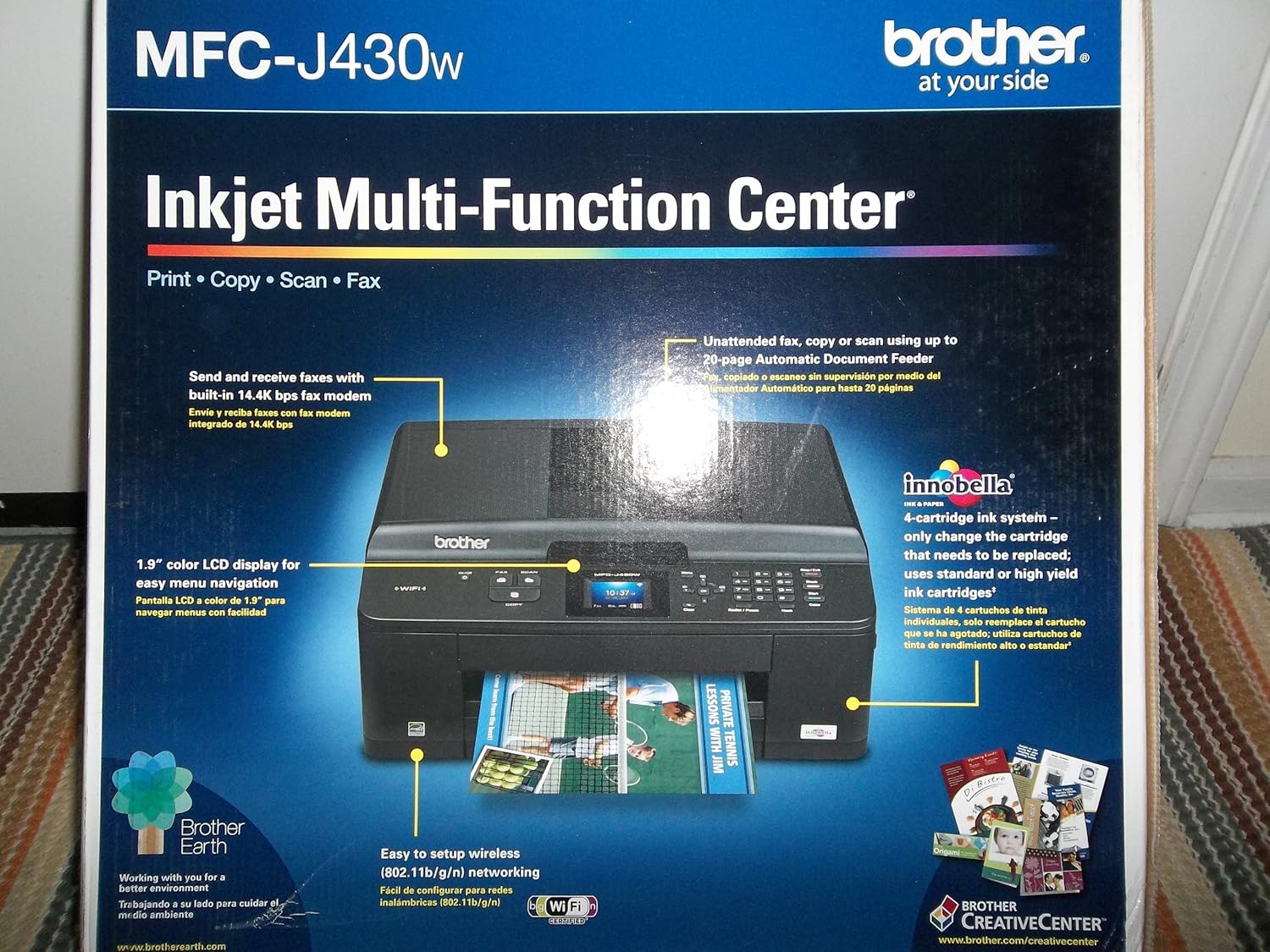
Figura 1.1: Fronte view of the Brother MFC-J430W packaging, highlighting key features like wireless connectivity and the 1.9-inch color LCD.
2. Guida all'installazione
2.1 Disimballaggio e posizionamento iniziale
Carefully remove the printer from its packaging. Ensure all protective tapes and packing materials are removed from the exterior and interior of the device. Place the printer on a stable, flat surface with adequate space for paper trays and cable connections.
2.2 Collegamento di alimentazione
Connect the power cord to the printer and then to a grounded electrical outlet. Do not connect the USB cable yet if you plan to use a USB connection.
2.3 Installazione della cartuccia d'inchiostro
Open the ink cartridge cover and install the included ink cartridges into their corresponding slots. Ensure each cartridge clicks into place. The MFC-J430W uses separate ink cartridges for each color (Black, Cyan, Magenta, Yellow).
2.4 Caricamento carta
Open the paper tray and load paper. The printer supports various paper sizes including Letter, Legal, Executive, A4, and photo sizes (4"x6", 3.5"x5", 5"x7", 5"x8", 8"x10"). Ensure the paper guides are adjusted to fit the paper size snugly.
2.5 Installazione di software e driver
For wireless setup, follow the on-screen instructions on the printer's 1.9-inch color LCD. For a wired connection, connect the USB cable to the printer's USB port, which is located under the scanner bed. Install the printer drivers and software from the provided CD-ROM or download the latest versions from the official Brother support website. The printer supports Windows and Mac operating systems.

Figura 2.1: Posteriore view of the Brother MFC-J430W packaging, detailing system requirements and wireless networking capabilities.
3. Istruzioni per l'uso
3.1 Stampa
To print a document or photo, select the print option from your computer's application. Choose the Brother MFC-J430W as your printer and adjust settings such as paper size, print quality, and color options as needed. The printer supports both black and white and color printing.
3.2 Copia
Place the document face down on the scanner glass or face up in the Automatic Document Feeder (ADF). Use the printer's control panel to select the "Copy" function. You can adjust settings like number of copies, zoom, and quality before initiating the copy process. The ADF can handle up to 20 sheets for unattended copying.
3.3 Scansione
Documents can be scanned using either the flatbed scanner or the ADF. Select the "Scan" function from the printer's control panel or initiate a scan from your computer using the installed software. Scanned documents can be saved to your computer as various file types, including PDF.
3.4 Invio di fax
The MFC-J430W includes a built-in 14.4K bps fax modem. To send a fax, place the document on the scanner glass or in the ADF. Enter the recipient's fax number using the control panel and press the "Fax" button. Ensure your phone line is connected to the printer's LINE jack.
4. Manutenzione
4.1 Sostituzione delle cartucce d'inchiostro
When an ink cartridge is low or empty, a message will appear on the printer's display. To replace, open the ink cartridge cover, press the release lever for the empty cartridge, and remove it. Insert a new genuine Brother ink cartridge firmly until it clicks into place. Close the cover.
4.2 Pulizia della testina di stampa
If print quality deteriorates (e.g., missing lines, streaky prints), the print head may need cleaning. Access the cleaning utility through the printer's control panel menu or the printer driver on your computer. Perform a nozzle check first to confirm the issue, then run the cleaning cycle. Multiple cleaning cycles may be required for severe clogs.
4.3 Cleaning the Scanner Glass and ADF
Regularly clean the scanner glass and the white plastic strip under the ADF cover with a soft, lint-free cloth dampcon un detergente delicato per vetri. Questo previene striature e macchie sui documenti scansionati o copiati.
5. Risoluzione Dei Problemi
5.1 La stampante non risponde
- Assicurarsi che la stampante sia accesa e collegata al computer o alla rete.
- Controllare eventuali messaggi di errore sul display della stampante.
- Verificare che nella finestra di dialogo di stampa del computer sia selezionata la stampante corretta.
- Riavviare sia la stampante che il computer.
5.2 Print Quality Issues (Streaks, Faded Prints)
- Controllare i livelli di inchiostro e sostituire le cartucce vuote o quasi vuote.
- Perform a print head cleaning cycle (refer to Section 4.2).
- Assicurati di utilizzare la carta adatta alle tue impostazioni di stampa.
5.3 Inceppamenti della carta
- Spegnere la stampante e scollegarla.
- Aprire con cautela tutti i coperchi e rimuovere la carta inceppata, tirandola nella direzione del percorso della carta.
- Assicurarsi che all'interno non rimangano piccoli pezzi di carta.
- Chiudere tutti i coperchi, collegare la stampante e accenderla.
5.4 Ink Cartridge Not Recognized
If the printer displays a message indicating an ink cartridge cannot be read, first ensure the cartridge is correctly installed. Remove and reinsert the cartridge firmly. If the issue persists, try a new genuine Brother cartridge. Ensure the cartridge is not expired or damaged.
5.5 Problemi di connessione wireless
- Verifica che il router Wi-Fi sia acceso e funzioni correttamente.
- Assicurati che la stampante si trovi nel raggio di azione del router wireless.
- Re-enter your Wi-Fi network password on the printer's control panel.
- Consult your router's manual for network settings or interference issues.
6. Specifiche
| Caratteristica | Specificazione |
|---|---|
| Nome del modello | MFC-J430W |
| Tecnologia di stampa | Getto d'inchiostro |
| Funzioni | Stampa, copia, scansione, fax |
| Connettività | Wi-Fi, Micro USB 2.0 Type AB |
| Velocità di stampa massima (nero) | 33 ppm (monocromatico) |
| Velocità massima di stampa (colore) | 26 ppm (Color) |
| Risoluzione di stampa | Fino a 6000 x 1200 dpi |
| Alimentatore automatico di documenti (ADF) | 20 fogli |
| Display | LCD a colori da 1.9" |
| Paper Handling Size | Letter, Legal, Executive, Envelope, A4, Photo (various sizes) |
| Capacità del foglio di input | 15 fogli (max input) |
| Peso dell'articolo | 19.8 libbre |
| Dimensioni del prodotto | 14.9 x 7.1 x 15.9 pollici |
| Capacità di archiviazione della memoria | 40 MB |
| Consumo energetico | 430 watt (massimo) |
7. Garanzia e supporto
The Brother MFC-J430W comes with a Limited Warranty. For specific warranty terms and conditions, please refer to the documentation included with your product or visit the official Brother support websito.
Per assistenza tecnica, download di driver e domande frequenti, visitare il sito Supporto fratello Websito. You may also contact Brother customer service for further assistance.
Al momento non sono disponibili video ufficiali del venditore per questo modello.


