
1. Prodotto finitoview
The Philips HDP1590 Screeneo is a smart ultra-short throw projector designed for versatile media display. It incorporates LED technology for long-lasting projection and offers various connectivity options for integration with multiple devices.
- Projects an image up to 100 inches when placed 18 inches from a wall.
- Utilizes DLP (Digital Light Processing) LED technology, providing up to 30,000 hours of projection.
- Supports multiple connectivity options for set-top boxes, DVD/Blu-ray players, game consoles, and media servers.
- Enables audio streaming from smartphones or tablets via Bluetooth or Wi-Fi/DLNA.
- Wireless screen mirroring from tablets or smartphones is possible using Miracast.
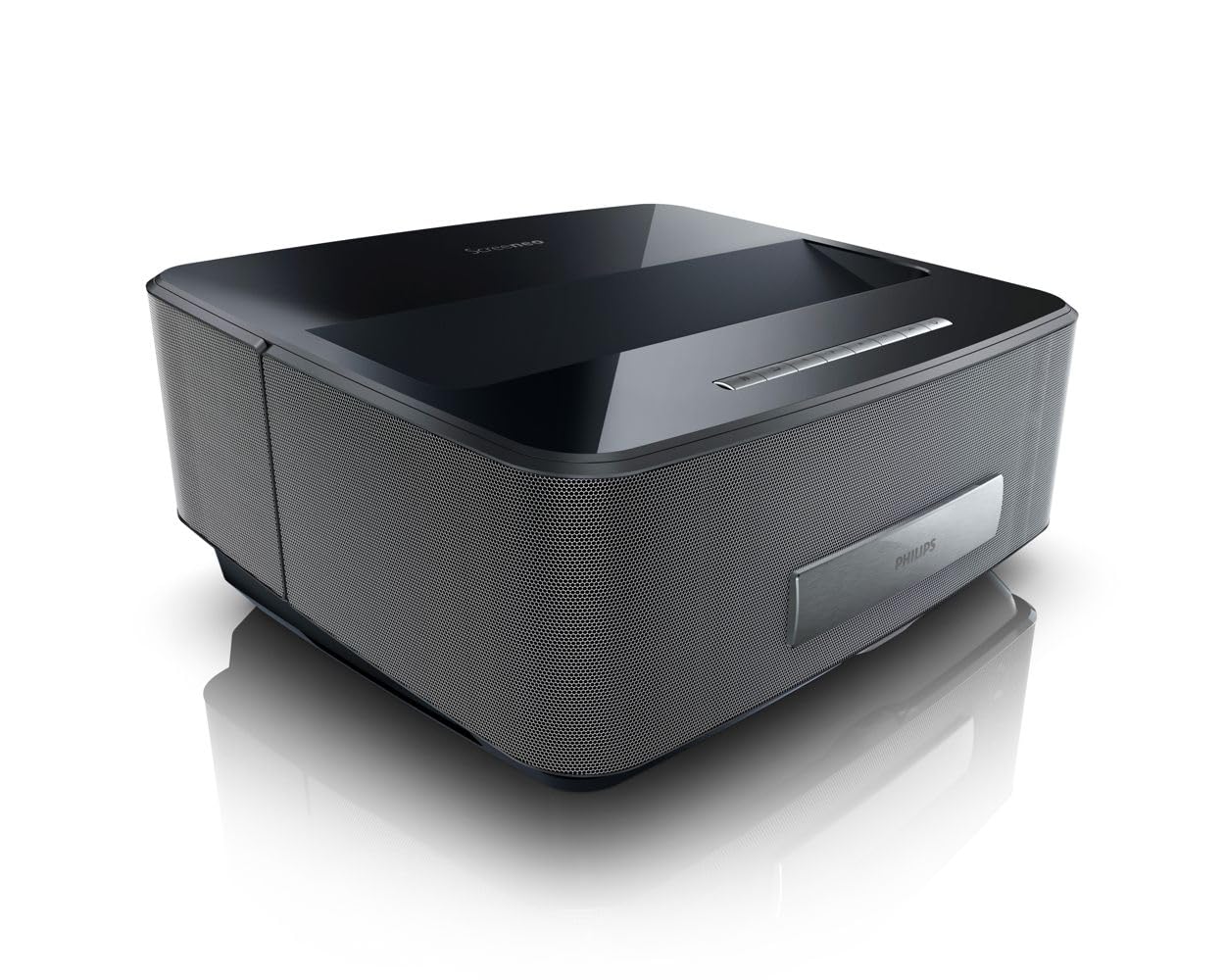
Figura 1: Fronte view of the Philips HDP1590 Screeneo Smart Projector.
2. Contenuto della confezione
Verificare che tutti gli articoli siano presenti nel pacco:
- Philips HDP1590 Screeneo Smart Projector
- Cavo di alimentazione
- Telecomando (con 2 batterie AAA incluse)
- Guida rapida
- Other accessories as specified on the packaging
Video 1: Unboxing e inizialiview of the Philips HDP1590 Screeneo Smart Projector.
3. Impostazione
- Posizionamento: Position the projector on a stable, flat surface. For a 100-inch image, place the projector approximately 18 inches from the projection surface (wall or screen). Ensure the projection path is clear of obstructions.
- Collegamento elettrico: Collegare il cavo di alimentazione all'ingresso di alimentazione del proiettore e quindi a una presa elettrica idonea.
- Connessione alla sorgente:
- For HDMI devices (e.g., Blu-ray player, game console, set-top box), connect an HDMI cable from the device to an HDMI input port on the projector.
- For USB media, insert a USB drive into the designated USB port.
- Accensione iniziale: Press the power button on the projector or the remote control to turn on the device. Follow any on-screen prompts for initial setup, such as language selection.
4. Funzionamento
- Accensione/spegnimento: Premere il pulsante di accensione sul proiettore o sul telecomando per accendere o spegnere l'unità.
- Navigazione nel menu: Use the arrow keys and 'OK' button on the remote control to navigate through the on-screen menus.
- Selezione della fonte: Access the input source menu to select between connected HDMI devices, USB, or internal smart features.
- Messa a fuoco e correzione trapezoidale: Adjust the focus manually or via the menu. Utilize the digital keystone correction feature to square the image if the projector is not perfectly perpendicular to the screen.
- Controllo del volume: Adjust the audio volume using the dedicated volume buttons on the remote control.
5. Connettività
The Philips HDP1590 Screeneo offers a range of connectivity options:
- HDMI: Multiple HDMI ports are available for connecting external video sources such as Blu-ray players, gaming consoles, and cable/satellite boxes.
- Wifi: Integrated Wi-Fi allows for network access, enabling smart features, streaming, and DLNA connectivity.
- Bluetooth: Connect Bluetooth-enabled audio devices, such as speakers or headphones, for wireless sound output.
- Miracast: Wirelessly mirror the screen of compatible Android smartphones and tablets directly to the projector.
- USB: USB ports support playback of media files da dispositivi di archiviazione USB.
6. Manutenzione
Una manutenzione regolare garantisce prestazioni ottimali e longevità del proiettore:
- Pulizia delle lenti: Utilizzare un panno morbido e privo di lanugine, specificamente progettato per lenti ottiche, per pulire delicatamente la lente del proiettore. Evitare materiali abrasivi o sostanze chimiche aggressive.
- Rimozione della polvere: Periodically clean the projector's exterior with a soft, dry cloth. Ensure ventilation openings are free from dust accumulation to prevent overheating.
- Magazzinaggio: Quando non viene utilizzato per lunghi periodi, conservare il proiettore in un luogo fresco e asciutto, al riparo dalla polvere e dalla luce solare diretta.
7. Risoluzione Dei Problemi
If you encounter issues with your Philips HDP1590 Screeneo, consider the following:
- Nessun potere: Ensure the power cable is securely connected to both the projector and the electrical outlet. Verify the outlet is functional.
- Nessuna immagine: Check that the correct input source is selected. Verify that the video source device is powered on and functioning correctly. Ensure all video cables (e.g., HDMI) are securely connected.
- Immagine sfocata: Adjust the focus settings. Ensure the projector is placed at the recommended distance from the projection surface.
- Nessun suono: Check the volume level on both the projector and the connected source device. Verify that audio cables are correctly connected or that Bluetooth audio is properly paired.
- Scarsa qualità dell'immagine: Ensure the projection surface is clean and flat. Check the resolution settings of the source device to match the projector's native resolution (1280 x 800).
8. Specifiche
| Caratteristica | Dettaglio |
|---|---|
| Marca | Philips |
| Numero di modello | HDP1590/F7 |
| Peso dell'articolo | 10.72 libbre |
| Dimensioni del prodotto | 11.29 x 13.34 x 5.83 pollici |
| Batterie | 2 batterie AAA (incluse per il telecomando) |
| Colore | Nero |
| Caratteristiche speciali | Short Throw, Built-in Speakers |
| Tipo di altoparlante | Built-In, Subwoofer |
| Tecnologia di connettività | Senza fili (Wi-Fi, Bluetooth) |
| Risoluzione dello schermo | 1280x800 |
| Tecnologia di proiezione | LED a luce diretta |
9. Garanzia e supporto
For warranty information, technical support, or service inquiries, please refer to the warranty card included with your product or visit the official Philips support websito. Conservare la prova d'acquisto per eventuali reclami in garanzia.
Online resources and frequently asked questions may also be available on the Philips product support pages.