
1. Introduzione
The Microsoft Surface 3 is a versatile 10.8-inch tablet designed for productivity and portability. Running on Windows 10 and powered by an Intel Atom processor, it offers a full PC experience in a compact form factor. This manual provides essential information for setting up, operating, maintaining, and troubleshooting your device.

Image: Microsoft Surface 3 Tablet with an attached red Type Cover keyboard and a silver Surface Pen. The screen displays a colorful image with digital annotations, demonstrating its versatility.
2. Cosa c'è nella scatola
Upon unboxing your Microsoft Surface 3, verify that all standard components are present:
- Microsoft Surface 3 Tablet
- Power Supply Unit (Charger)
- Guida rapida (se inclusa)
Nota: The Surface Pen and Type Cover keyboard are optional accessories and are typically sold separately. Ensure you have these if your purchase included them.
3. Dispositivo suview
Familiarize yourself with the physical features and ports of your Surface 3 tablet.
3.1 Porte e pulsanti
- Porta USB 3.0: Per collegare dispositivi USB come unità esterne, mouse o tastiere.
- Porta di ricarica micro USB: Utilizzato per caricare il dispositivo.
- Mini DisplayPort: Per il collegamento a display o proiettori esterni.
- Jack per cuffie: Per l'uscita audio su cuffie o altoparlanti esterni.
- Slot per scheda MicroSD: For expanding storage with a microSDXC card.
- Pulsanti del volume: Per regolare i livelli audio.
- Pulsante di accensione: Per accendere/spegnere il dispositivo o metterlo in modalità sospensione.
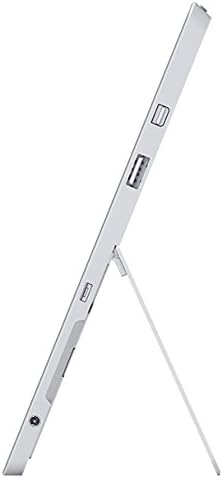
Immagine: Lato view of the Microsoft Surface 3, illustrating the various ports including USB, Mini DisplayPort, and the kickstand in an open position.

Immagine: Primo piano view of the microSD card slot on the Microsoft Surface 3, with a microSD card partially inserted, demonstrating storage expansion capability.
3.2 Telecamere
- Telecamera posteriore: 8 MP per scattare foto e registrare video.
- Fotocamera frontale: 3.5 MP per videochiamate e selfie.
4. Impostazione
4.1 Addebito iniziale
Before first use, connect the Surface 3 to the power supply using the Micro USB charging port and allow it to charge fully. The battery indicator on the screen will show charging status.
4.2 Accensione e installazione di Windows
- Premere e tenere premuto il tasto Pulsante di accensione until the Microsoft logo appears on the screen.
- Follow the on-screen prompts to complete the Windows 10 setup process. This includes selecting your language, connecting to a Wi-Fi network, and creating or signing in with a Microsoft account.
- Allow the system to download and install any pending updates for optimal performance and security.
4.3 Attaching Optional Accessories
- Copertina del tipo: Align the Type Cover with the magnetic connector at the bottom edge of the Surface 3 until it clicks into place.
- Penna per Surface: The Surface Pen can be magnetically attached to the side of the Surface 3 for storage. For initial pairing, follow the instructions provided with the pen or in Windows settings.
5. Operativo
5.1 Navigazione
- Schermo tattile: Per la navigazione, usa gesti come tocco, scorrimento e pizzicamento per ingrandire.
- Penna per Surface: Use the pen for precise input, drawing, writing, and annotating.
- Copertina tipografica (facoltativa): Provides a traditional keyboard and trackpad experience.

Image: Microsoft Surface 3 in use with a Type Cover keyboard and Surface Pen, displaying a Windows 10 interface with various applications.
5.2 Funzionalità di Windows 10
- Menu di avvio: Accedi ad applicazioni, impostazioni e opzioni di risparmio energia.
- Centro operativo: Swipe from the right edge of the screen to access quick settings and notifications.
- Compito View: View open applications and virtual desktops.
- Modalità Tablet: Switch to Tablet Mode for a touch-optimized interface.
5.3 Connessione al Wi-Fi
- Aprire il Centro operativo by swiping from the right edge of the screen or clicking the icon in the taskbar.
- Tocca il Wifi icona.
- Seleziona la rete desiderata dall'elenco e inserisci la password se richiesta.
6. Manutenzione
6.1 Pulizia
- Utilizzare un panno morbido e privo di lanugine dampened with water or a screen cleaner specifically designed for electronics to clean the screen.
- Evitare prodotti chimici aggressivi, materiali abrasivi o umidità eccessiva.
- Clean the device exterior with a soft, dry cloth.
6.2 Aggiornamenti software
Regularly check for and install Windows updates to ensure your device has the latest security patches and performance improvements. Go to Impostazioni > Aggiornamento e sicurezza > Windows Update.
6.3 Cura della batteria
- Evitare temperature estreme, poiché possono ridurre la durata della batteria.
- For optimal battery longevity, avoid consistently draining the battery to 0% or keeping it at 100% for extended periods.
- The Surface 3 has an average battery life of up to 8 hours under typical usage conditions.
7. Risoluzione Dei Problemi
7.1 Il dispositivo non si accende
- Assicurarsi che il dispositivo sia carico. Collegare l'alimentatore e attendere qualche minuto prima di riprovare ad accenderlo.
- Perform a force restart by holding the Pulsante di accensione for 10-15 seconds, then release and press it again briefly.
7.2 Problemi di connettività Wi-Fi
- Toggle Wi-Fi off and on in the Action Center.
- Restart your Surface 3 and your Wi-Fi router.
- Ensure you are within range of the Wi-Fi network and have the correct password.
7.3 Prestazioni lente
- Chiudere le applicazioni non necessarie in esecuzione in background.
- Controlla e installa eventuali aggiornamenti di Windows in sospeso.
- Assicurati di avere sufficiente spazio di archiviazione libero.
8. Specifiche
| Caratteristica | Dettaglio |
|---|---|
| Numero di modello | 7G6-00014 |
| Dimensioni dello schermo | 10.8 pollici |
| Risoluzione dello schermo | 1920x1280 pixel |
| Processore | Intel Atom x7-Z8700 (2.4 GHz) |
| Memoria RAM | 4 GB |
| Magazzinaggio | SSD da 128 GB |
| Sistema operativo | Finestre 10 |
| Coprocessore grafico | Quad-core Intel Atom x7-Z8700 processor |
| Tipo senza fili | Wi-Fi 802.11ac, Bluetooth 4.0 |
| Porte USB | 1x USB 2.0, 1x USB 3.0 |
| Durata media della batteria | 8 ore |
| Peso dell'articolo | 1.37 libbre |
| Dimensioni del prodotto | 14.02 x 8.64 x 1.58 pollici |
| Posteriore WebRisoluzione della camma | 8 MP |
| Davanti WebRisoluzione della camma | 3.5 MP |
9. Garanzia e supporto
Your Microsoft Surface 3 Tablet is covered by a limited manufacturer's warranty. For detailed warranty information, including terms and conditions, please refer to the documentation provided with your purchase or visit the official Microsoft support websito.
For technical assistance, software updates, and additional resources, please visit the official Microsoft Support website or contact their customer service. Keep your device's serial number (located on the back of the tablet or in Windows settings) readily available when seeking support.


