
Introduzione
The Philips Hue Bridge (2nd Generation) is the central hub for your Philips Hue smart lighting system. It allows you to connect and control up to 50 Philips Hue lights and accessories, enabling smart features such as scheduling, remote control, and integration with smart home platforms like Apple HomeKit.
Le caratteristiche principali includono:
- The heart of your Philips Hue system.
- Connects up to 50 Philips Hue lights.
- New connectivity system compatible with Apple HomeKit.
Impostare
1. Unboxing and Initial Connection
Carefully remove the Philips Hue Bridge from its packaging. The box contains the Bridge unit, a power adapter, and an Ethernet cable.
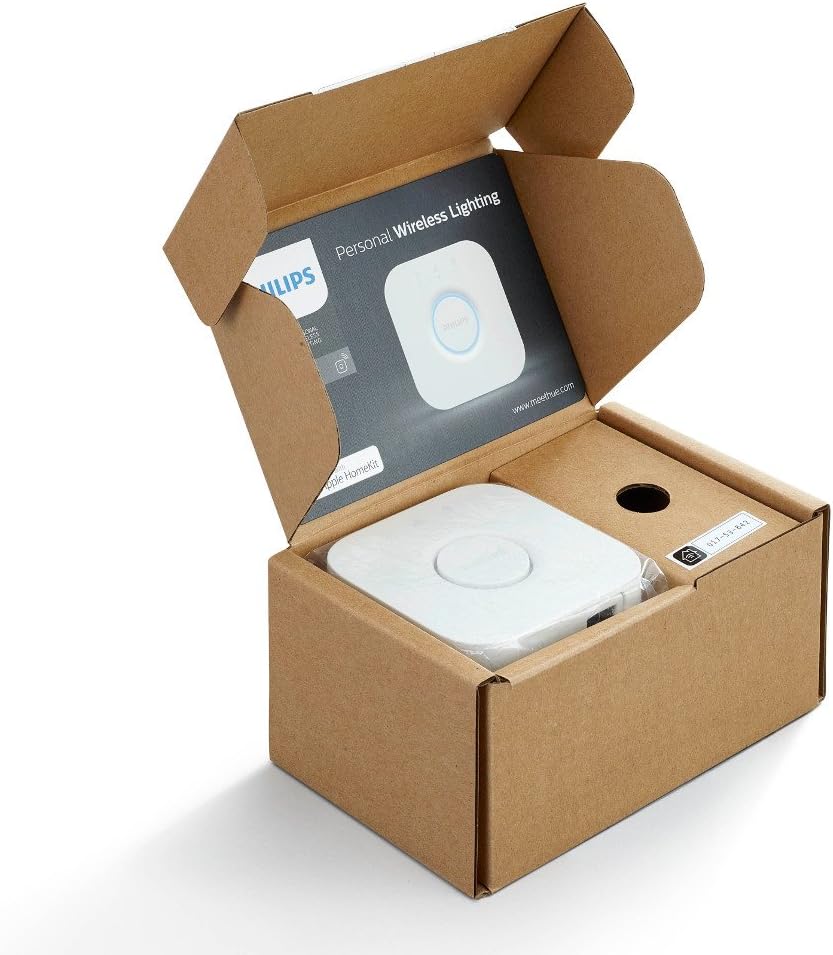
The Philips Hue Bridge (2nd Generation) as it appears when unboxed, showing the device and initial documentation.
- Connect one end of the provided Ethernet cable to the Philips Hue Bridge and the other end to an available LAN port on your Wi-Fi router.
- Connect the power adapter to the Bridge and plug it into a power outlet.
- Wait for the three indicator lights on the Bridge to illuminate steadily. This indicates that the Bridge is powered on and connected to your network.

This image illustrates the process of connecting the Ethernet cable to the Philips Hue Bridge, which is necessary for network connectivity.
2. Installazione e associazione dell'app
- Download the official Philips Hue app from your smartphone's app store (available for iOS and Android).
- Open the Philips Hue app and follow the on-screen instructions to set up your Bridge. The app will search for your Bridge on the network.
- When prompted, press the large circular button on the top of the Philips Hue Bridge to pair it with the app.
- Once paired, you can begin adding your Philips Hue lights and accessories within the app.

The Philips Hue Bridge is shown mounted on a wall, demonstrating its compact size and how it can be discreetly placed in a home environment.
Operating the Philips Hue System
Controlling Lights via the App
The Philips Hue app provides comprehensive control over your lighting. You can:
- Accendi/spegni le luci.
- Adjust brightness and color (for color-capable lights).
- Create custom scenes and routines.
- Set schedules for lights to turn on or off automatically.
- Group lights into rooms for easier control.

A woman stands in a living room, using her smartphone to adjust the Philips Hue lighting, demonstrating app-based control.
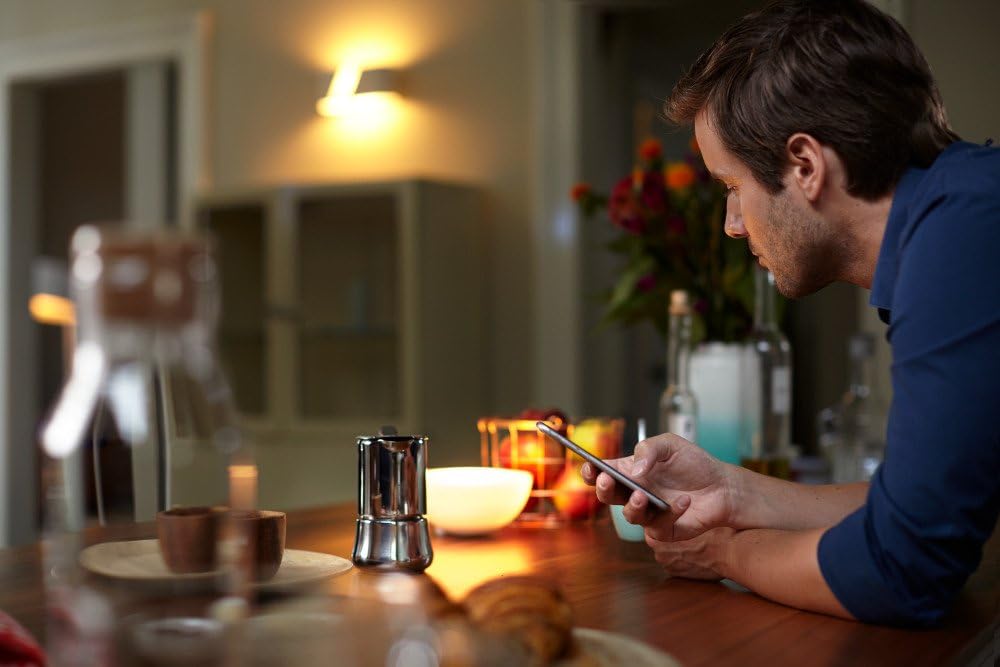
A man is shown at a kitchen table, interacting with his smartphone, which can be used to manage the Philips Hue lighting system.
Controllo vocale e integrazione con la casa intelligente
The Philips Hue Bridge (2nd Generation) supports integration with various smart home ecosystems, including Apple HomeKit. This allows for voice control of your lights using virtual assistants like Siri.
- Apple HomeKit: Use the Apple Home app to add your Hue Bridge and control lights with Siri commands.
- Altre piattaforme: The Bridge is compatible with other smart home platforms. Refer to the respective platform's documentation for integration instructions.

A family celebrating a birthday, with the room illuminated by various colorful Philips Hue lights, showcasing the ambiance possibilities.
Manutenzione
To ensure optimal performance of your Philips Hue Bridge:
- Aggiornamenti software: Regularly check the Philips Hue app for available software updates for your Bridge. Updates often include new features, performance improvements, and security enhancements.
- Pulizia: Keep the Bridge clean and free from dust. Use a soft, dry cloth to wipe its surface. Do not use liquid cleaners.
- Posizionamento: Ensure the Bridge is placed in a well-ventilated area, away from direct heat sources or moisture.
- Stabilità della rete: A stable internet connection is crucial for the Bridge's functionality. Ensure your router is working correctly.
Risoluzione dei problemi
If you encounter issues with your Philips Hue Bridge, try the following steps:
- Bridge Not Found:
- Ensure the Bridge is powered on and connected to your router via Ethernet.
- Check that all three indicator lights on the Bridge are steadily lit.
- Restart your Wi-Fi router and the Philips Hue Bridge by unplugging them for 10 seconds and then plugging them back in.
- Ensure your smartphone is connected to the same Wi-Fi network as the Bridge.
- Le luci non rispondono:
- Verify that the lights are powered on and within range of the Bridge.
- Try resetting the individual light (refer to the light's specific manual for instructions).
- Check the Philips Hue app for any error messages or connectivity issues.
- Problemi di connettività dell'app:
- Close and reopen the Philips Hue app.
- Riavvia il tuo smartphone.
- Assicurati che la tua app sia aggiornata all'ultima versione.
For further assistance, please visit the official Philips Hue support websito o contattare il loro servizio clienti.
Specifiche
| Produttore | Illuminazione Philips |
| Numero di parte | 458489 |
| Stile | Ponte di Hue |
| Voltage | 240 Volt |
| Quantità del pacchetto dell'articolo | 1 |
| Caratteristiche speciali | Motion Sensor (Note: This feature refers to compatibility with Hue motion sensors, not built-in to the Bridge itself.) |
| Batterie richieste | NO |
| Dimensioni del prodotto | 18.21 x 11.61 x 8.1 cm; 158.76 g (7.17 x 4.57 x 3.19 pollici) |
| Numero di modello | 466516 |
| ASIN | B014H2P42K |
Garanzia e supporto
For information regarding the product warranty, please refer to the warranty card included in the product packaging or visit the official Philips Hue website. Philips provides customer support for their products.
Supporto online: Visit the Philips Hue support page for FAQs, troubleshooting guides, and contact options.
Contatta il servizio clienti: Details for contacting customer service can be found on the official Philips websito.