
Modello M337
Logitech M337 Wireless Bluetooth Mouse User Manual
Modello: M337
Introduzione
The Logitech M337 Wireless Bluetooth Mouse is a compact and portable input device designed for use with virtually any Bluetooth-enabled computer, laptop, or tablet. It offers a comfortable curved shape, precise optical tracking, and a long battery life, making it ideal for on-the-go productivity across various operating systems including Mac, Windows, Chrome OS, and Android.
Impostare
Cosa c'è nella scatola
- Logitech M337 Wireless Bluetooth Mouse
- 1 batteria AA (preinstallata o inclusa separatamente)
- Documentazione utente
Installazione della batteria
- Individuare il vano batteria sul lato inferiore del mouse.
- Aprire il coperchio del vano batterie.
- Inserire la batteria AA inclusa, assicurandosi della corretta polarità (+/-).
- Chiudere saldamente il coperchio del vano batterie.
Accoppiamento Bluetooth
The M337 mouse connects wirelessly via Bluetooth, freeing up USB ports. Follow these steps to pair your mouse with your device:
- Turn on the mouse using the On/Off switch located on the underside. The LED indicator on the top of the mouse should start blinking rapidly, indicating it's in pairing mode. If not, press and hold the Bluetooth connect button (usually near the battery compartment or on the top, below the scroll wheel) until the LED blinks.
- On your computer, laptop, or tablet, navigate to the Bluetooth settings:
- Finestre: Go to Start > Settings > Devices > Bluetooth & other devices. Turn Bluetooth On, then click "Add Bluetooth or other device" and select "Bluetooth".
- Mac OS: Go to Apple menu > System Preferences > Bluetooth. Ensure Bluetooth is On.
- Sistema operativo Chrome: Click the status area (bottom right) > Bluetooth > Enable Bluetooth.
- Androide: Go to Settings > Connected devices > Connection preferences > Bluetooth. Turn Bluetooth On.
- In the Bluetooth device list, select "Logitech M337" or a similar name.
- Follow any on-screen prompts to complete the pairing process. The LED indicator on the mouse will turn solid blue for a few seconds and then turn off once successfully connected.
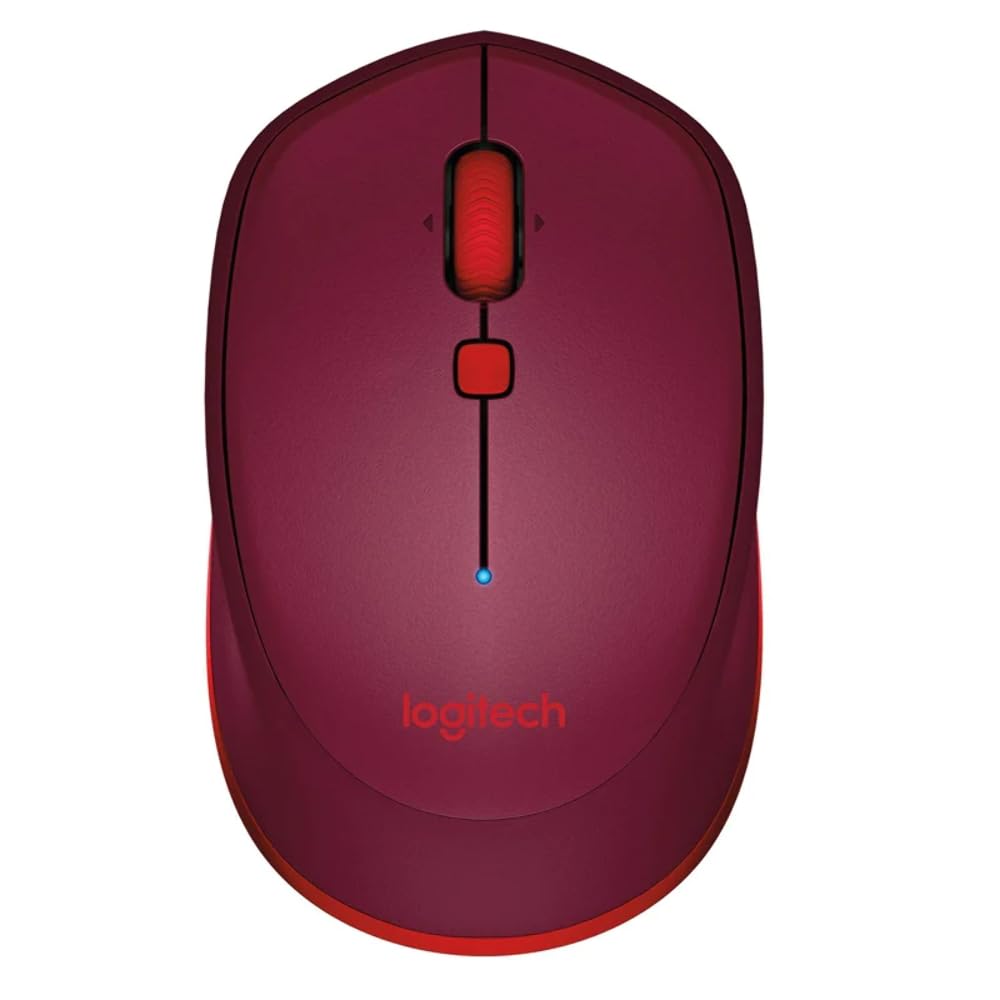
This image displays the Logitech M337 Wireless Bluetooth Mouse from a top-down perspective, highlighting its compact design, the red scroll wheel, and the central navigation button. The Logitech logo is visible at the bottom.
Utilizzo del mouse
Funzioni di base
- Clic sinistro: Pulsante principale per selezionare gli elementi e interagire con il software.
- Clic destro: Pulsante secondario per menu contestuali e opzioni aggiuntive.
- Rotella di scorrimento: Scorrere verso l'alto o verso il basso i documenti e web pagine.
- Ruota di inclinazione: Tilt the scroll wheel left or right for horizontal scrolling (if supported by software).
- Pulsante di navigazione: The button located below the scroll wheel. By default, this button can be configured to perform various functions, such as opening the task view on Windows or Mission Control on Mac. Customization is available through Logitech Options software.
Comfort e portabilità
The M337 features a comfortable curved shape with rubber grips, designed for extended use by both right and left-handed users. Its compact size allows for easy portability, fitting conveniently into laptop bags or pockets.

Un angolo view of the Logitech M337 mouse, showcasing its comfortable curved shape and the textured rubber grips on the sides, designed for both right and left-handed users.
Manutenzione
Sostituzione della batteria
The Logitech M337 mouse boasts an average battery life of up to 19 months. When the battery is low, the LED indicator on the mouse may blink red. To replace the battery, follow the battery installation steps outlined in the Setup section.
Pulizia
Per mantenere prestazioni e igiene ottimali, pulisci periodicamente il mouse:
- Utilizzare un panno morbido e privo di lanugine leggermente damplucidato con acqua o una soluzione detergente delicata.
- Evitare di utilizzare prodotti chimici aggressivi, detergenti abrasivi o di immergere il mouse in liquidi.
- Pulisci delicatamente la superficie del mouse, prestando attenzione alle zone che entrano più frequentemente in contatto con la mano.
- Per il sensore ottico, utilizzare un batuffolo di cotone asciutto per rimuovere con cautela polvere o detriti.
Risoluzione dei problemi
Problemi di connettività
- Il mouse non si connette: Ensure the mouse is turned on and the battery has sufficient charge. Re-initiate pairing mode on the mouse and re-scan for Bluetooth devices on your computer.
- Connessione intermittente: Move the mouse closer to your device. Ensure there are no large metal objects or other wireless devices causing interference between the mouse and your computer.
- Bluetooth not found on computer: Verify that your computer's Bluetooth is enabled and its drivers are up to date.
Problemi di tracciamento
- Movimento irregolare del cursore: Clean the optical sensor on the underside of the mouse. Ensure you are using the mouse on a clean, non-reflective, and uniform surface.
- Nessun movimento del cursore: Check battery level. Ensure the mouse is properly paired.
Altri problemi
- I pulsanti non rispondono: Check battery. If using Logitech Options software, ensure button assignments are correct.
- La rotellina di scorrimento non funziona: Clean around the scroll wheel to remove any debris.
Specifiche
| Caratteristica | Dettaglio |
|---|---|
| Marca | Logitech |
| Numero di modello | Numero di modello: M337 |
| Tecnologia di connettività | Bluetooth |
| Tecnologia di rilevamento del movimento | Ottico |
| Colore | Rosso |
| Fonte di alimentazione | Alimentato a batteria (1 batteria AA) |
| Durata media della batteria | Fino a 19 mesi |
| Compatibilità del sistema operativo | Android, Chrome OS, Mac, Windows |
| Dimensioni articolo (LxPxA) | Dimensioni: 18.6 x 12.6 x 8.3 cm |
| Peso dell'articolo | 82 grammi |
Garanzia e supporto
Informazioni sulla garanzia
The Logitech M337 Wireless Bluetooth Mouse typically comes with a 1 anno di garanzia hardware limitata dalla data di acquisto. Si prega di conservare la prova d'acquisto per eventuali reclami in garanzia. La garanzia copre difetti di materiali e fabbricazione in normali condizioni d'uso.
Assistenza clienti
Per ulteriore assistenza, supporto tecnico o richieste di garanzia, visitare il supporto ufficiale Logitech website or contact their customer service. You can usually find detailed FAQs, troubleshooting guides, and driver downloads on their websito.
Supporto Logitech Websito: support.logi.com
Ask a question about this manual
Ask about setup, troubleshooting, compatibility, parts, safety, or missing instructions. Manuals+ will review the question and use this page’s manual context to help answer it.