
1. Finitaview
The HDWR HD-PS6C is a versatile 2-in-1 device that combines the functionality of a wireless barcode reader and a data collector. This integrated solution significantly enhances daily work comfort and convenience, making tasks easier and more efficient. It is designed for various applications requiring efficient 1D barcode scanning and data storage, such as inventory management, retail, and logistics.
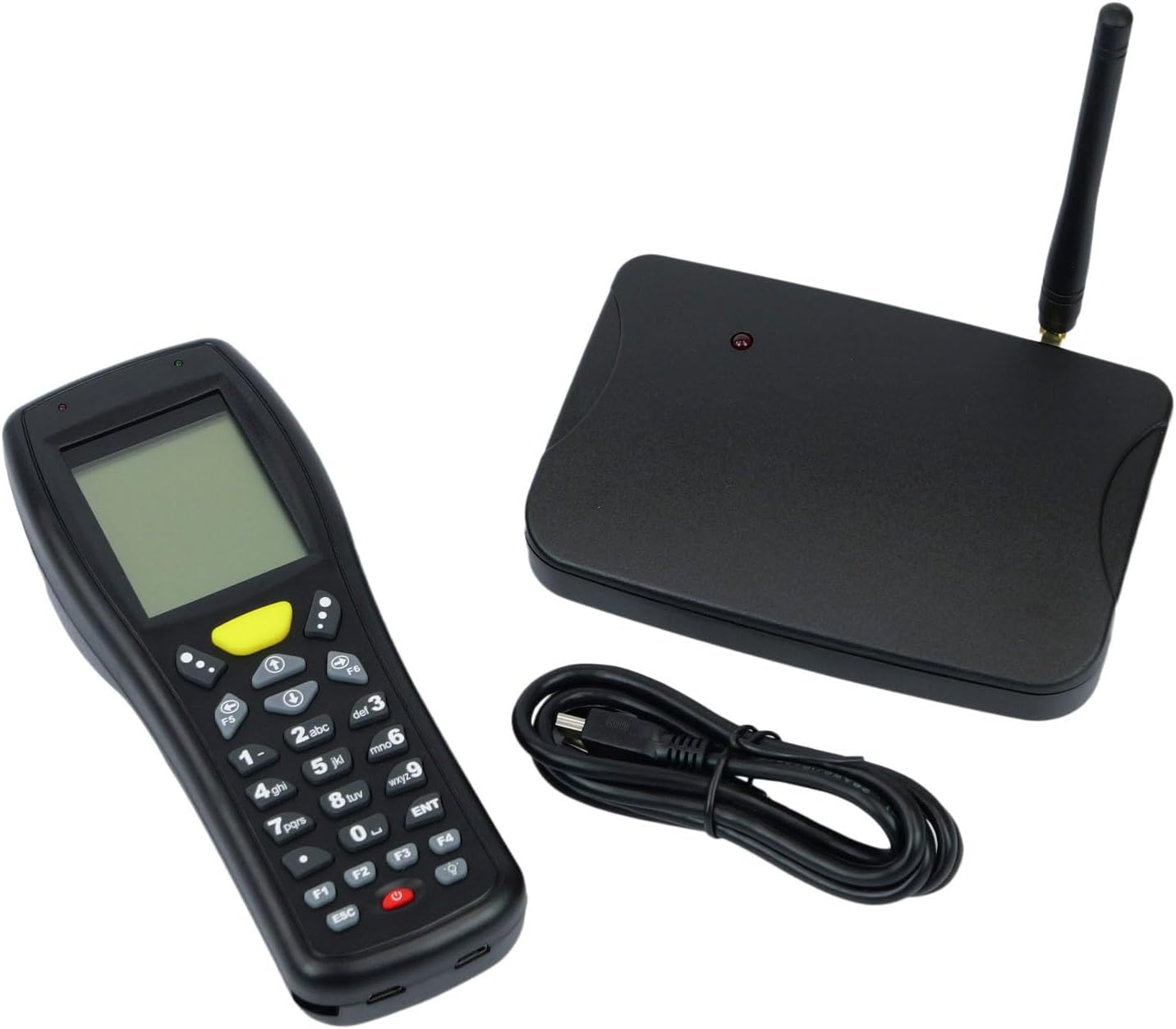
Image: The HDWR HD-PS6C wireless data collector shown with its wireless receiver and USB cable, illustrating the complete package.
2. Caratteristiche principali
- Two-in-One Functionality: Combines a wireless barcode reader and a data collector in a single device.
- Interfaccia intuitiva: Equipped with a clear screen and a practical keyboard for easy navigation and manual data entry, especially for damaged or unclear codes.
- Modalità inventario: Allows storage of up to 50,000 scanned codes in its integrated memory, ideal for extensive inventory tasks.
- Compatibilità codici a barre 1D: Supports a wide range of 1D barcode types including EAN13, EAN8, Code 39, Code 93, Code 128, Interleaved 2 of 5 (IT25), Codabar, UPCA, UPCE, and more.
- Ampio supporto del sistema operativo: Compatible with Windows XP/7/8/8.1/10, Android, and iOS operating systems.

Image: The HD-PS6C highlighting its dual functionality as a data collector and barcode scanner.

Immagine: un primo piano view of the integrated laser barcode scanner, capable of reading 1D codes.

Image: Visual representation of the wireless USB receiver, 50,000 code internal memory, and the clear screen with keyboard for easy navigation.
3. Guida all'installazione
3.1. Contenuto della confezione
Prima di iniziare, assicurati che tutti gli articoli siano presenti nella confezione:
- HDWR HD-PS6C Wireless Data Collector
- Ricevitore USB senza fili
- Cavo USB
- 2 batterie AA (incluse)
3.2. Installazione della batteria
- Locate the battery compartment on the back of the HD-PS6C device.
- Aprire il coperchio del vano batterie.
- Inserire le 2 batterie AA, assicurandosi della corretta polarità (+/-).
- Chiudere saldamente il coperchio del vano batterie.
3.3. Collegamento del ricevitore wireless
- Plug the wireless USB receiver into an available USB port on your computer or host device.
- The system should automatically detect and install the necessary drivers. If not, refer to the Troubleshooting section.
3.4. Accensione iniziale
- Press and hold the power button (usually red) on the HD-PS6C until the screen illuminates.
- The device will boot up and display the main menu or a default mode.
Video: Un oltreview of the HDWR HD-PS6C, showcasing its design, features, and how it sits on its charging/communication base. This video provides a visual introduction to the product.
4. Istruzioni per l'uso
4.1. Navigazione di base
- Use the arrow keys (up, down, left, right) to navigate through menu options on the screen.
- Press the 'ENT' (Enter) key to select an option or confirm an action.
- Press the 'ESC' key to go back to the previous menu or cancel an operation.
- The numeric keypad can be used for manual data input.

Immagine: Frontale view of the HDWR HD-PS6C, clearly showing the screen and the full alphanumeric keypad for navigation and data entry.
4.2. Modalità inventario
In Inventory Mode, the device stores scanned barcodes in its internal memory for later transfer.
- From the main menu, select 'Inventory Mode' (or similar option).
- Point the scanner window at a 1D barcode and press the scan button (often a large yellow button or a trigger).
- The scanned code will appear on the screen and be stored in memory.
- Repeat for all items. The device can store up to 50,000 codes.
4.3. Scansione del codice a barre
The HD-PS6C is designed to read various 1D barcodes:
- EAN13, EAN8
- Codice 39, Codice 93, Codice 128
- Interleaved 2 of 5 (IT25)
- Codabar
- UPCA, UPCE
- E altri codici 1D standard.
Ensure the barcode is clean and well-lit for optimal scanning performance.
4.4. Manual Data Entry
If a barcode is damaged or unreadable, you can manually enter the code:
- Navigate to the manual entry option within the device's menu.
- Use the numeric and alphanumeric keys on the keypad to type the barcode.
- Press 'ENT' to confirm and save the entry.
4.5. Trasferimento dei dati
To transfer collected data to your computer:
- Connect the HD-PS6C to your computer using the provided USB cable.
- On the device, select the 'Data Transfer' or 'Upload' option.
- Follow the on-screen prompts or software instructions on your computer to complete the transfer. Data is typically transferred as a text file.
5. Manutenzione
5.1. Pulizia
- Pulisci il dispositivo con un panno morbido e asciutto.
- Per lo sporco ostinato utilizzare una spugna leggermente damp panno con sapone neutro, quindi asciugare immediatamente.
- Non utilizzare prodotti chimici aggressivi, solventi o detergenti abrasivi.
- Keep the scanner window clean and free of dust or smudges for accurate scanning.
5.2. Cura della batteria
- Sostituire le batterie quando sullo schermo compare l'indicatore di batteria scarica.
- Se il dispositivo non verrà utilizzato per un periodo prolungato, rimuovere le batterie per evitare perdite.
- Smaltire le batterie usate secondo le normative locali.
6. Risoluzione Dei Problemi
| Problema | Possibile causa | Soluzione |
|---|---|---|
| Il dispositivo non si accende. | Batterie scariche o esaurite; batterie installate in modo errato. | Replace batteries with new ones; ensure batteries are installed with correct polarity. |
| Impossibile scansionare i codici a barre. | Barcode is damaged or unclear; scanner window is dirty; incorrect scanning mode. | Try scanning a different barcode; clean the scanner window; ensure the device is in the correct scanning mode. Use manual entry if necessary. |
| Data transfer fails or device not recognized by PC. | Missing or incorrect drivers; loose USB connection; incompatible OS. | Ensure the wireless receiver is properly connected; try a different USB port or cable. For Windows, check Device Manager for driver issues. If drivers are missing, search for 'HDWR HD-PS6C drivers' online. Verify your OS is supported (Windows XP/7/8/8.1/10, Android, iOS). |
| Lo schermo è vuoto o non risponde. | Dispositivo bloccato; batteria scarica. | Try restarting the device by holding the power button. If unresponsive, remove and reinsert batteries. Check battery level. |
7. Specifiche tecniche
| Caratteristica | Dettaglio |
|---|---|
| Numero di modello | HDPS6C |
| Marca | HDWR |
| Tecnologia di connettività | USB (Wireless 2.4G via receiver) |
| Fonte di alimentazione | Alimentato a batteria (2 batterie AA incluse) |
| Dispositivi compatibili | Computer da tavolo |
| Volume di eserciziotage | 5 Volt |
| Massima temperatura di conservazione | 50 gradi Celsius |
| Peso dell'articolo | 349 grammi |
| Paese di origine | Cina |
8. Garanzia e supporto
The HDWR HD-PS6C comes with a Garanzia di 2 anno dalla data di acquisto. La presente garanzia copre difetti di fabbricazione e malfunzionamenti in normali condizioni d'uso.
For technical support, warranty claims, or further assistance, please contact HDWR customer service through your retailer or the official HDWR website. Please have your purchase receipt and product model number (HDPS6C) ready when contacting support.