
Introduzione
This manual provides instructions for the setup, operation, and maintenance of your Logitech Harmony 700 Rechargeable Remote Control. The Harmony 700 is designed to simplify your home entertainment experience by controlling multiple devices with a single remote.

Immagine 1: anteriore view of the Logitech Harmony 700 Rechargeable Remote Control, displaying its color screen and button layout.
Impostare
1. Ricarica iniziale
Before first use, ensure the remote is fully charged. The Harmony 700 uses 2 AA rechargeable batteries (included). Insert the batteries into the compartment on the back of the remote. Connect the remote to a power source using the provided USB cable and power adapter. The screen will indicate charging status.
2. Software Installation and Device Configuration
The Harmony 700 requires configuration via a computer. Visit the official Logitech Harmony website to download the Harmony software. Follow the on-screen instructions to install the software.
- Connect the Harmony 700 remote to your computer using the USB cable.
- Launch the Harmony software.
- Create a new account or log in to an existing one.
- Follow the prompts to add your home entertainment devices (e.g., TV, cable box, DVD player, audio receiver). You will need the brand and model number for each device.
- Configure "Activities" (e.g., "Watch TV," "Watch a Movie," "Listen to Music"). Activities allow you to control multiple devices with a single button press.
- Synchronize the settings to your remote.

Immagine 2: Angolata view of the Logitech Harmony 700, highlighting the color screen interface and various control buttons.
Operating Your Harmony 700
1. Accensione/Spegnimento
Premere il tasto Tutto spento button located at the top left to turn off all devices configured in your current activity. To power on, select an activity from the remote's screen or press a dedicated activity button if configured.
2. Selecting Activities
The color screen displays available activities. Use the navigation buttons around the OK button to scroll through and select an activity. Once an activity is selected, the remote will send the necessary commands to power on and switch inputs for all associated devices.
3. Controlling Devices within an Activity
During an activity, the remote's buttons automatically control the appropriate device. For example, in "Watch TV" activity:
- Volume buttons control your audio receiver or TV.
- Channel buttons control your cable/satellite box.
- Playback buttons (Play, Pause, Stop, Rewind, Fast Forward) control your DVR or media player.
4. Using the Help Button
If devices do not respond correctly during an activity, press the Aiuto button. The remote will guide you through steps to correct the issue, such as confirming if a device is on or off.
5. Modalità dispositivo
To control a single device directly, select Dispositivi from the remote's screen. Choose the specific device you wish to control. The remote's buttons will then function as if it were the original remote for that device.
Manutenzione
1. Pulizia
Wipe the remote with a soft, dry cloth. Do not use abrasive cleaners or solvents. Avoid getting moisture into any openings.
2. Cura della batteria
The Harmony 700 uses rechargeable AA batteries. For optimal performance, charge the remote regularly. If the remote will not be used for an extended period, fully charge it before storage and recharge periodically to maintain battery health.
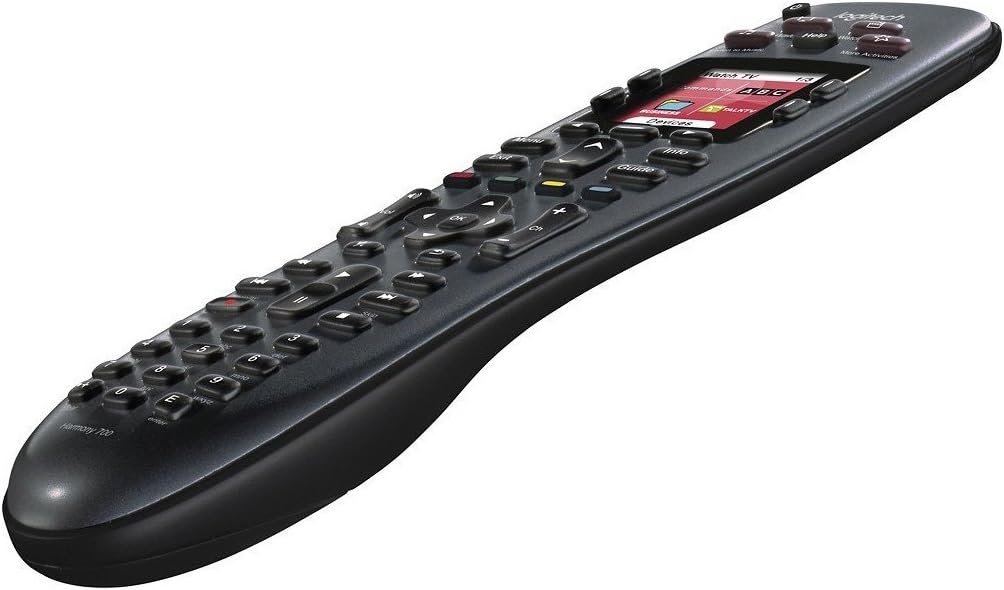
Image 3: Side angled view of the Logitech Harmony 700, illustrating its ergonomic design.
Risoluzione dei problemi
Il telecomando non risponde
- Controllare la batteria: Ensure the remote is charged. Connect it to the power adapter.
- Restart Remote: Rimuovere e reinserire le batterie.
- Use Help Button: If an activity is not working correctly, press the Aiuto pulsante sul telecomando.
Devices Not Responding to Activities
- Linea di vista: Ensure there is a clear line of sight between the remote and your devices.
- Configurazione del dispositivo: Verify that all devices are correctly added and configured in the Harmony software. Check model numbers and input settings.
- Stato di potenza: Confirm that all devices are powered on and in the correct input state before starting an activity.
- Risincronizzare: Connect the remote to your computer and resynchronize the settings using the Harmony software.
Remote Screen is Blank or Frozen
- Ricaricare: The battery may be depleted. Charge the remote.
- Reset: Remove the batteries for 10 seconds, then reinsert them.
Specifiche
| Marca | Logitech |
| Nome del modello | Armonia 700 |
| Numero di modello | 915-000162-PB-RCB |
| Dimensioni del prodotto | 9.75 x 2.25 x 4.5 pollici |
| Peso dell'articolo | 11.2 once |
| Batterie | 2 batterie ricaricabili AA (incluse) |
| Numero massimo di dispositivi supportati | 8 |
| Dispositivi compatibili | Television and other home entertainment components |
| Caratteristica speciale | Universal, Rechargeable, Color Screen |
| Colore | Nero |
Garanzia e supporto
Informazioni sulla garanzia
Per informazioni dettagliate sulla garanzia, fare riferimento alla scheda di garanzia inclusa con il prodotto o visitare il sito Web ufficiale Logitech website. Warranty terms may vary based on region and product condition (e.g., new vs. renewed).
Assistenza clienti
For technical assistance, software downloads, or further support, please visit the Logitech support websito. Puoi trovare FAQ, guide alla risoluzione dei problemi e informazioni di contatto per il servizio clienti.
- Supporto Logitech Websito: support.logi.com
- Harmony Software Download: Cercare "Logitech Harmony Software" on the official Logitech websito.