
1. Introduzione
The StarTech.com USB-C Multiport Adapter DKT30CHV is designed to expand the connectivity of your USB-C enabled laptop, tablet, or smartphone. This portable travel dock allows you to connect to a 4K HDMI or 1080p VGA display, a Gigabit Ethernet network, and a 5Gbps USB-A 3.0 peripheral, all through a single USB-C port on your host device. It is bus-powered, eliminating the need for an external power adapter, making it ideal for mobile use.
Caratteristiche principali:
- 4-in-1 Portable Dock: Provides 4K 30Hz HDMI or 1080p VGA video output, one USB-A (USB 3.1 Gen 1 5Gbps) port, and Gigabit Ethernet.
- Ampia compatibilità del dispositivo: Compatible with USB-C and Thunderbolt 3 (TB3) devices from various brands including HP, Dell, Lenovo, Apple MacBook Pro/Air, and Chromebooks.
- Ampia compatibilità con i sistemi operativi: Supports Windows, macOS, Ubuntu, and Chrome OS.
- Compact & Light Design: Easily fits into a laptop bag or pocket for travel.

Image 1: The StarTech.com USB-C Multiport Adapter DKT30CHV, a compact black device with various ports.
2. Contenuto della confezione
- 1x USB-C Multiport Adapter (DKT30CHV)
- 1x Manuale di istruzioni
3. Impostazione
Follow these steps to set up your StarTech.com USB-C Multiport Adapter:
- Connetti al dispositivo host: Plug the integrated USB-C cable from the adapter into an available USB-C or Thunderbolt 3 port on your laptop, tablet, or smartphone. Ensure your host device's USB-C port supports video (DisplayPort Alternate Mode) for video output functionality.
- Connetti Display: Connect an HDMI cable from your monitor to the adapter's HDMI port for up to 4K 30Hz resolution, or connect a VGA cable to the adapter's VGA port for up to 1080p resolution. The adapter supports one video output at a time.
- Connetti alla rete: Connect an Ethernet cable from your network router or switch to the adapter's Gigabit Ethernet port for a wired network connection.
- Collegare le periferiche USB: Plug your USB-A devices (e.g., mouse, keyboard, external hard drive) into the adapter's USB 3.0 (USB 3.1 Gen 1) port.

Immagine 2: Un primo piano view of the adapter's ports, including Gigabit Ethernet, USB-A 3.0, VGA, and HDMI.
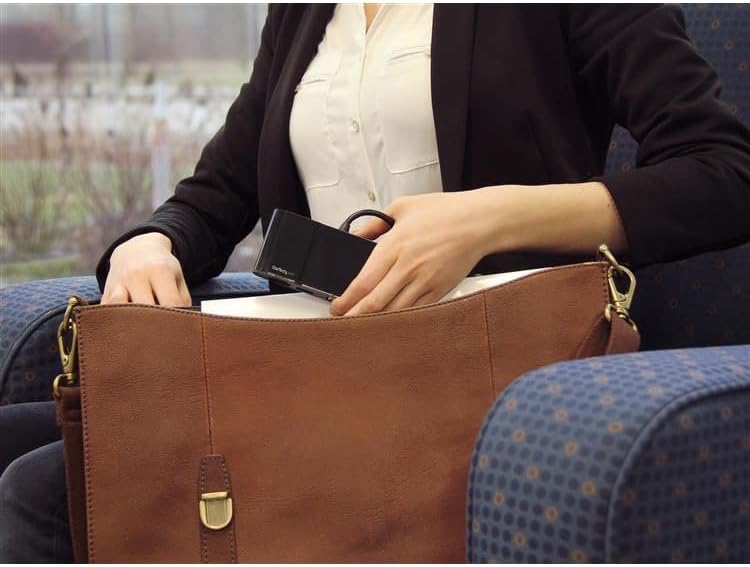
Image 3: The compact USB-C Multiport Adapter being stored in a bag, highlighting its portability.
4. Istruzioni per l'uso
Once connected, the adapter functions as an extension of your host device's capabilities. Most operating systems provide native support, meaning drivers are often not required for basic functionality. However, for optimal performance, especially with the Gigabit Ethernet port, it is recommended to check the Supporto StarTech.com websito for the latest drivers specific to your operating system.
Uscita di visualizzazione:
The adapter supports either HDMI or VGA output, but not simultaneously. Your operating system should automatically detect the connected display. You can configure display settings (e.g., extended desktop, duplicate display) through your computer's display preferences.
Porta USB 3.0:
The USB 3.0 port provides 5Gbps data transfer speeds for connecting peripherals. It is backward compatible with USB 2.0 devices.
Gigabit:
The Gigabit Ethernet port provides a stable and fast wired network connection. Ensure the Ethernet cable is securely connected to both the adapter and your network device.
Video 1: An official StarTech.com video demonstrating the general benefits and ease of use of their docking stations and adapters for various professional scenarios.
5. Manutenzione
To ensure the longevity and optimal performance of your StarTech.com USB-C Multiport Adapter, follow these maintenance guidelines:
- Pulizia: Use a soft, dry cloth to clean the adapter. Avoid using harsh chemicals or abrasive cleaners.
- Magazzinaggio: Conservare l'adattatore in un luogo fresco e asciutto, lontano dalla luce solare diretta e da temperature estreme.
- Gestione: Handle the adapter with care. Avoid dropping it or subjecting it to strong impacts. Do not pull on the integrated cable forcefully.
6. Risoluzione Dei Problemi
If you encounter issues with your USB-C Multiport Adapter, refer to the following common troubleshooting steps:
- Nessuna uscita di visualizzazione:
- Ensure your host laptop's USB-C port supports video (DisplayPort Alternate Mode). Not all USB-C ports have this capability.
- Verify that the video cable (HDMI or VGA) is securely connected to both the adapter and the display.
- Try connecting the display directly to your laptop (if possible) to rule out display or cable issues.
- Riavvia il dispositivo host.
- No Network Connection (Gigabit Ethernet):
- Assicurarsi che il cavo Ethernet sia collegato saldamente sia all'adattatore sia al dispositivo di rete.
- Controlla le impostazioni di rete del tuo dispositivo host per assicurarti che l'adattatore Ethernet sia riconosciuto e abilitato.
- Visitare il Supporto StarTech.com websito to download and install the latest Ethernet drivers for your operating system, if necessary.
- USB Peripherals Not Recognized:
- Ensure the USB peripheral is properly connected to the adapter's USB 3.0 port.
- Try connecting the USB peripheral directly to your host device (if possible) to confirm it is functional.
- If connecting a high-power USB device, ensure your host device can provide sufficient power through its USB-C port. The DKT30CHV is bus-powered and does not support USB Power Delivery to charge other devices.
- Intermittent Connections or Performance Issues:
- Ensure all cables are firmly seated and not loose.
- Avoid excessive bending or strain on the integrated USB-C cable.
- Reduce the number of simultaneously active high-bandwidth devices if experiencing slowdowns, as all ports share the USB 3.0 bandwidth.
7. Specifiche

Image 4: Diagram showing the dimensions of the StarTech.com USB-C Multiport Adapter: 4.5 inches (11.4 cm) length, 2.1 inches (5.4 cm) width, and 0.7 inches (1.7 cm) height.
| Caratteristica | Specificazione |
|---|---|
| Marca | StarTech.com |
| Numero di modello | DKT30CHV |
| Colore | Nero |
| Interfaccia Hardware | Thunderbolt, USB, USB 2.0, USB 3.0, USB 3.1 Type C, USB Type C |
| Caratteristica speciale | Portatile |
| Dispositivi compatibili | Audio/Video Device, Chromebook, Docking Station, Monitors, Network Device, Notebook, Projectors, Workstation |
| Porte USB totali | 1 (USB-A 3.0) |
| Velocità di trasferimento dati | 5 Gigabit al secondo |
| Numero di porte | 4 (HDMI, VGA, USB-A 3.0, Gigabit Ethernet) |
| Sistema operativo | Chrome OS, Linux, macOS, Windows |
| Materiale di recinzione | Metallo |
| Dimensioni articolo (L x P x A) | 4.5"L x 2.1"W x 0.7"H (11.4 cm x 5.4 cm x 1.7 cm) |
| Peso dell'articolo | 0.16 libbre (72.57 g) |
| Codice UPC | 662919087369, 065030864695 |
8. Garanzia e supporto
The StarTech.com USB-C Multiport Adapter DKT30CHV is backed by a Garanzia di 3 anno. StarTech.com also offers free lifetime technical support to assist you with any questions or issues you may encounter.
For technical assistance, product information, or to download drivers, please visit the official StarTech.com support websito: www.startech.com/support