
1. Introduzione
This manual provides detailed instructions for the installation, operation, and maintenance of the NVIDIA E220370 Video Card. This graphics card is designed to enhance the visual performance of your desktop computer, supporting various display outputs and applications.
Please read this manual thoroughly before attempting installation or operation to ensure proper usage and to prevent damage to the product or your system.
2. Informazioni sulla sicurezza
Observe the following safety precautions to prevent injury and damage to your equipment:
- Scollegare sempre l'alimentazione dal computer prima di installare o rimuovere qualsiasi componente.
- Wear an anti-static wrist strap or frequently touch a grounded metal object to discharge static electricity before handling the video card. Static discharge can damage electronic components.
- Handle the video card by its edges. Avoid touching the gold connector pins or other components on the board.
- Assicurare una corretta ventilazione all'interno del case del computer per evitare il surriscaldamento.
- Keep the video card away from liquids and excessive moisture.
3. Configurazione e installazione
Follow these steps to install the NVIDIA E220370 Video Card into your desktop computer.
3.1. Preparazione
- Spegnere il computer e scollegare il cavo di alimentazione dalla presa a muro.
- Open your computer case. Refer to your computer's manual for specific instructions on how to open the case.
- Locate an available PCI Express x16 slot on your motherboard. This card requires a PCI Express x16 slot for optimal performance.
- Remove the metal bracket cover from the back of the computer case corresponding to the chosen PCI Express slot.
3.2. Card Installation
- Carefully align the video card with the PCI Express x16 slot.
- Press down firmly and evenly on both ends of the card until it is fully seated in the slot. You should hear a click as the retention clip engages.
- Secure the video card to the computer case with a screw or the case's retention mechanism.
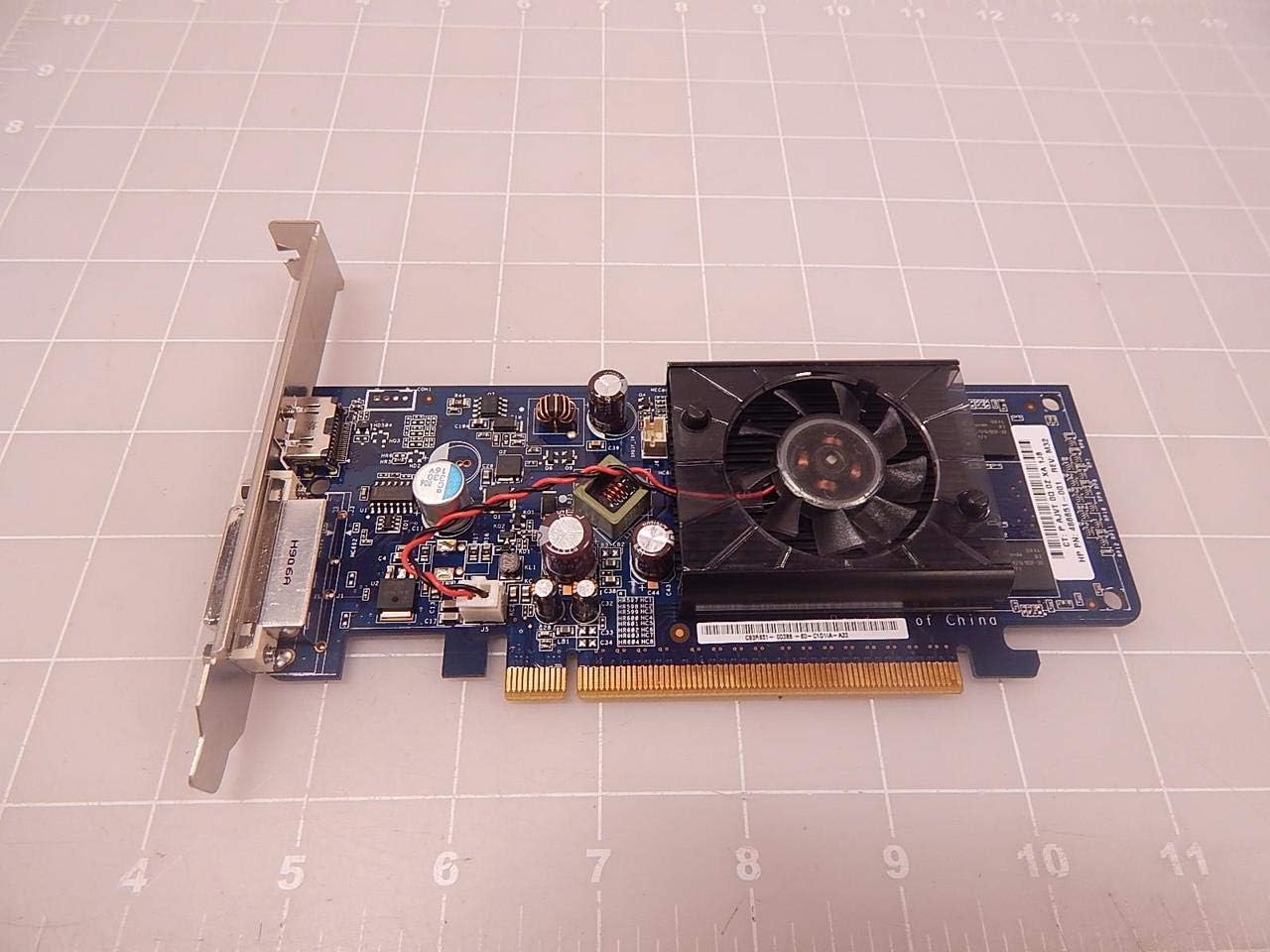
Figura 3.2.1: in alto view of the NVIDIA E220370 Video Card, showing the cooling fan and general layout. This view helps in identifying the card for installation.
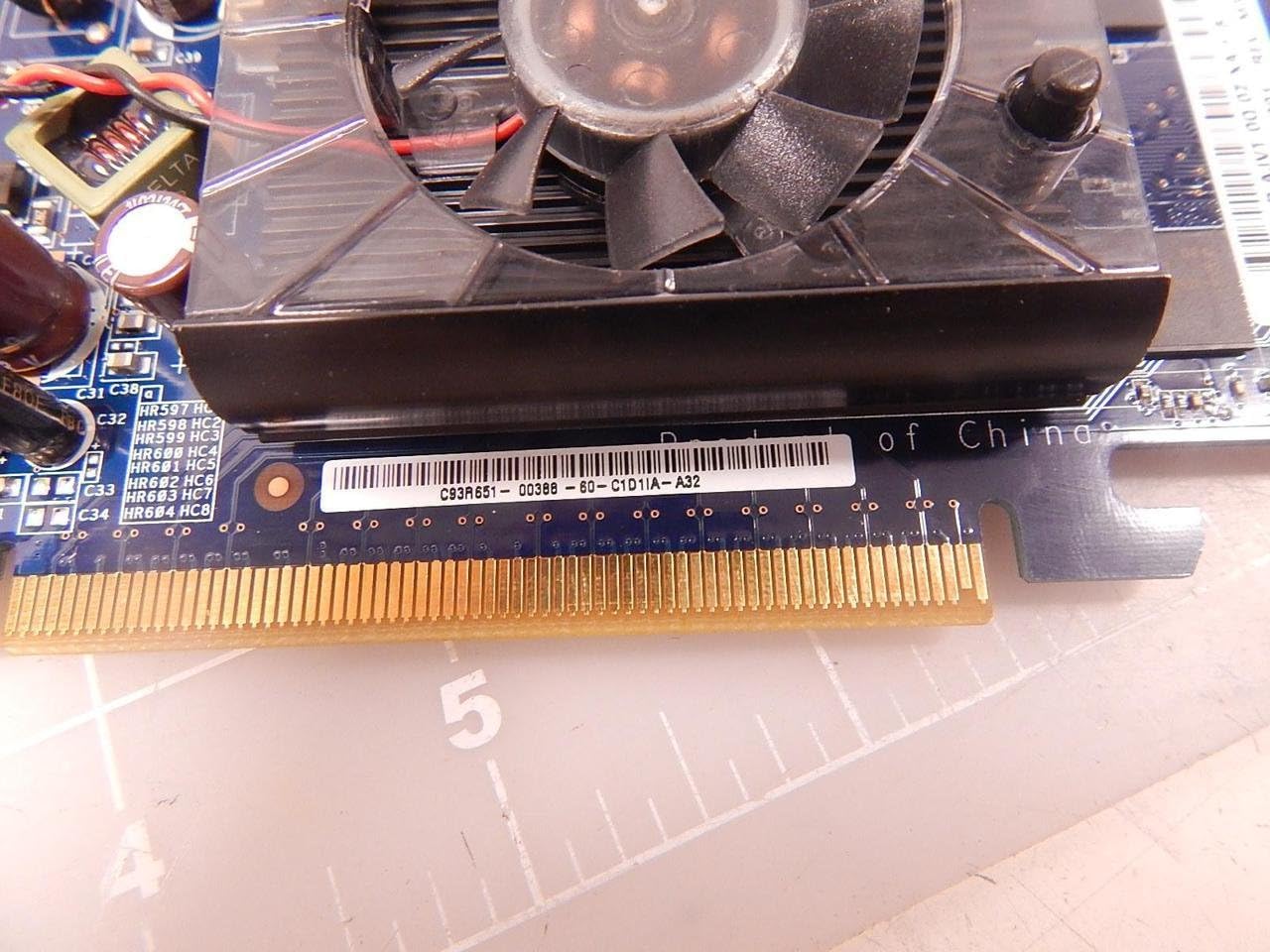
Figure 3.2.2: Close-up of the PCI Express connector (gold pins) on the NVIDIA E220370 Video Card. This connector must be fully seated into the motherboard's PCI Express slot.
3.3. Installazione del driver
- Chiudere il case del computer e ricollegare il cavo di alimentazione.
- Connect your monitor to one of the video card's output ports (HDMI or DVI).
- Accendi il computer.
- Once the operating system loads, download the latest drivers for the NVIDIA E220370 from the official NVIDIA webposto (www.nvidia.com/drivers).
- Seguire le istruzioni visualizzate sullo schermo per completare l'installazione del driver. Potrebbe essere necessario riavviare il sistema.
4. Operating the Video Card
Once installed and drivers are updated, your NVIDIA E220370 Video Card will automatically handle graphics processing for your system.
4.1. Collegamento dei display
The video card supports multiple display outputs. You can connect your monitor(s) to the available ports:
- HDMI: Per video e audio digitali ad alta definizione.
- Ingresso DVI: Per l'uscita video digitale.
- Porta Display: For high-resolution digital video and audio (if available on your specific model variant).
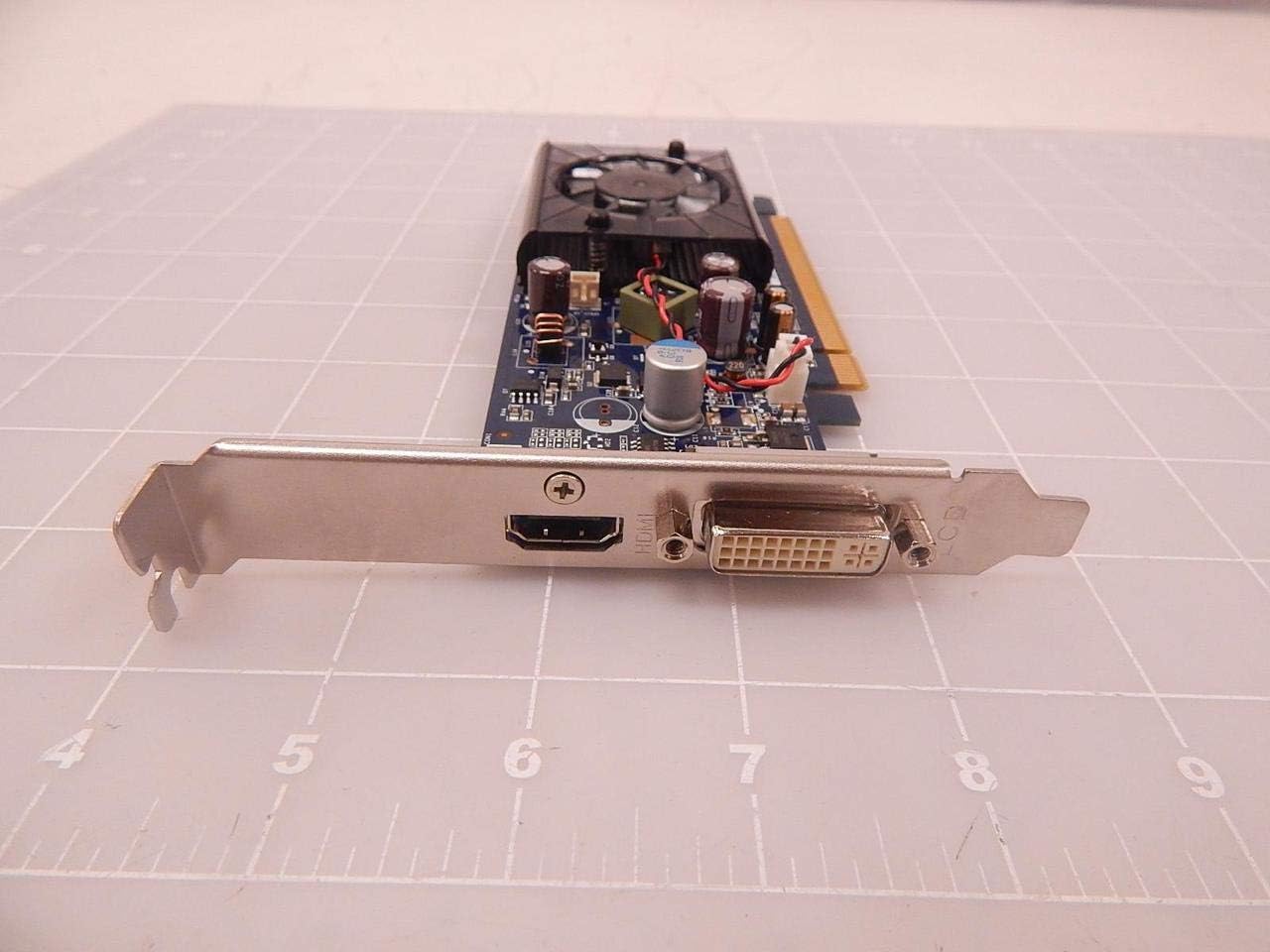
Figure 4.1.1: The output panel of the NVIDIA E220370 Video Card, showing the HDMI and DVI ports for connecting displays.
4.2. Graphics Settings
You can adjust graphics settings through the NVIDIA Control Panel (usually accessible via your desktop's right-click context menu or Windows Control Panel). This allows you to:
- Configure display resolution and refresh rates.
- Manage multiple displays.
- Optimize 3D settings for games and applications.
- Aggiornare i driver.
5. Manutenzione
Regular maintenance helps ensure the longevity and optimal performance of your video card.
- Rimozione della polvere: Periodically clean the cooling fan and heatsink to prevent dust buildup, which can impede airflow and lead to overheating. Use compressed air to gently blow dust away from the fan blades and heatsink fins. Ensure the fan is held stationary while cleaning to prevent damage.
- Flusso d'aria: Ensure your computer case has adequate airflow. Keep vents clear and consider additional case fans if temperatures are consistently high.
- Aggiornamenti driver: Keep your graphics drivers updated. NVIDIA regularly releases new drivers that include performance improvements, bug fixes, and compatibility updates.
6. Risoluzione Dei Problemi
If you encounter issues with your NVIDIA E220370 Video Card, refer to the following troubleshooting steps:
6.1. Nessuna uscita di visualizzazione
- Controllare le connessioni: Ensure the monitor cable is securely connected to both the video card and the monitor. Try a different cable or monitor if possible.
- Posti a sedere per le carte: Power off the computer, unplug it, and re-seat the video card firmly into its PCI Express slot.
- Alimentazione elettrica: Verify that your power supply unit (PSU) meets the minimum wattage requirements for your system, including the video card.
- Impostazioni BIOS/UEFI: Check your motherboard's BIOS/UEFI settings to ensure the primary display output is set to PCI Express (PEG) if applicable.
6.2. Display Artifacts or Glitches
- Problemi con i driver: Uninstall current drivers using Display Driver Uninstaller (DDU) in Safe Mode, then install the latest drivers from NVIDIA's websito.
- Surriscaldamento: Monitor the GPU temperature using third-party software. If temperatures are high, clean the heatsink and fan, and ensure proper case airflow.
- Card Fault: If issues persist after driver and temperature checks, the card itself might be faulty.
6.3. Instabilità o arresti anomali del sistema
- Conflitti tra driver: Ensure all other system drivers are up to date.
- Alimentazione elettrica: Un'alimentazione insufficiente o difettosa può causare instabilità.
- Surriscaldamento: As mentioned, high temperatures can lead to system crashes.
7. Specifiche
The following are key specifications for the NVIDIA E220370 Video Card:
| Caratteristica | Specificazione |
|---|---|
| Marca | NVIDIA |
| Nome del modello | E220370 |
| Numeri di parte | E220370, BTC-202B, 466851-001 |
| Graphics Co-processor | NVIDIA |
| Tipo di RAM grafica | Memoria GDDR5 |
| Interfaccia di uscita video | Porta Display, HDMI |
| Interfaccia della scheda grafica | PCI-Espresso |
| Usi consigliati del prodotto | Gaming, Professional Use |
| Dispositivi compatibili | Scrivania |
| Cosatage | 2.16 watt |
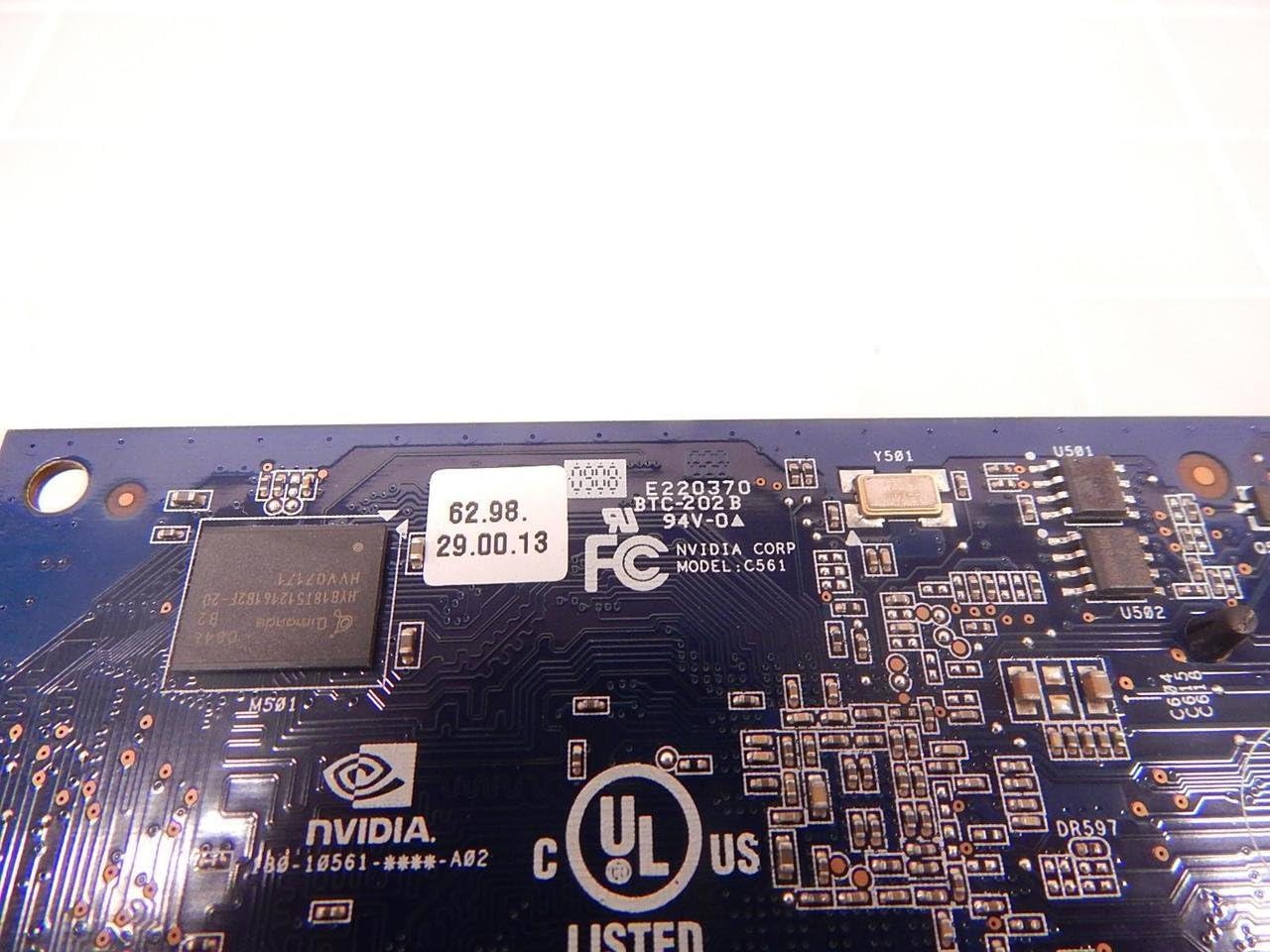
Figura 7.1: dettagliata view of the NVIDIA E220370 PCB, showing the model number E220370 and BTC-202B, along with other manufacturing details.
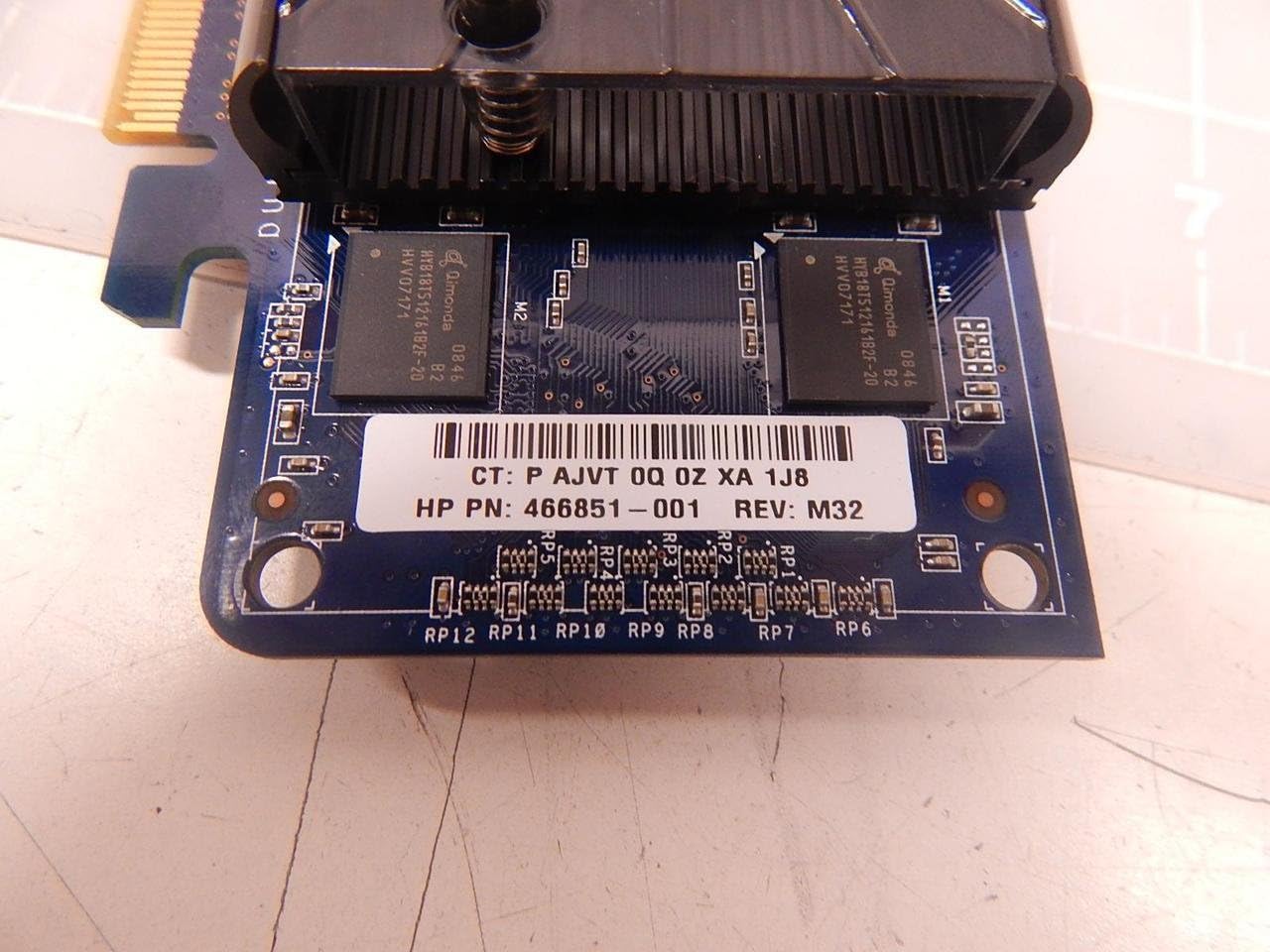
Figure 7.2: Close-up showing the HP Part Number 466851-001, which is associated with this NVIDIA E220370 video card.
8. Garanzia e supporto
For warranty information and technical support, please refer to the documentation provided with your original purchase or visit the official NVIDIA support websito.
- Supporto NVIDIA: www.nvidia.com/support
- Registrazione del prodotto: Registering your product may be required for warranty claims.
- Prova di acquisto: Conservare la prova d'acquisto per la convalida della garanzia.