
Accessorio per Logitech MK850
Logitech MK850 Performance Wireless Keyboard and Mouse Set User Manual
Modello: MK850 | Marca: Logitech
1. Prodotto finitoview
The Logitech MK850 Performance Wireless Keyboard and Mouse Set offers a comfortable and productive computing experience. This versatile set features dual connectivity options (Logitech Unifying USB receiver or Bluetooth Smart technology) and Easy-Switch functionality, allowing seamless transition between multiple devices. The keyboard includes a padded palm rest and carefully designed keys for extended comfort, while the ergonomically shaped mouse for right-handers boasts a hyper-fast scroll wheel and customizable buttons via Logitech DuoLink software.

Figura 1.1: The Logitech MK850 Performance Wireless Keyboard and Mouse Set, showcasing the full-size keyboard with integrated palm rest and the ergonomic mouse.
2. Guida all'installazione
2.1 Contenuto della confezione
- Tastiera wireless Logitech MK850
- Mouse wireless Logitech MK850
- Ricevitore USB Logitech Unifying
- AA Batteries (for mouse)
- AAA Batteries (for keyboard)
2.2 Installazione della batteria
The keyboard requires 2 AAA batteries and the mouse requires 1 AA battery. Batteries are typically included.
- Individuare gli scomparti delle batterie nella parte inferiore della tastiera e del mouse.
- Aprire i coperchi delle batterie.
- Inserire le batterie, rispettando la corretta polarità (+/-).
- Chiudere bene i coperchi delle batterie.
2.3 Collegamento dei dispositivi
The MK850 set offers two connection methods: Logitech Unifying USB Receiver or Bluetooth Smart technology.
2.3.1 Using the Logitech Unifying Receiver
- Collega il ricevitore USB Logitech Unifying a una porta USB disponibile sul tuo computer.
- Accendere la tastiera e il mouse utilizzando i rispettivi interruttori di alimentazione.
- The devices should automatically connect to the receiver. If not, press and hold one of the Easy-Switch buttons (1, 2, or 3) on the keyboard and mouse until the LED blinks rapidly, then release. The device is now in pairing mode.
- For advanced pairing, download and install the Logitech Options software from the official Logitech websito.
2.3.2 Using Bluetooth Smart Technology
- Accendere la tastiera e il mouse utilizzando i rispettivi interruttori di alimentazione.
- Press and hold one of the Easy-Switch buttons (1, 2, or 3) on the keyboard and mouse until the LED blinks rapidly. This indicates pairing mode.
- Sul tuo computer o dispositivo, apri le impostazioni Bluetooth.
- Select "Logitech MK850 Keyboard" and "Logitech MK850 Mouse" from the list of available devices to pair.
- Seguire le istruzioni visualizzate sullo schermo per completare il processo di associazione.
3. Istruzioni per l'uso
3.1 Funzioni della tastiera
- Padded Palm Rest: Provides ergonomic support for comfortable typing over extended periods.
- Tasti funzione (F1-F12): Perform various system functions. Some keys may have secondary functions accessible via the 'Fn' key.
- QWERTZ Layout: Standard German keyboard layout.
- Easy-Switch Buttons (1, 2, 3): Located above the numeric keypad, these buttons allow you to instantly switch the keyboard's connection between up to three paired devices.
3.2 Funzioni del mouse
- Forma ergonomica: Designed for comfortable use by right-handed users.
- Rotellina di scorrimento iperveloce: Consente lo scorrimento rapido di documenti lunghi o web pagine. Premi il pulsante dietro la rotellina di scorrimento per passare dallo scorrimento iperveloce a quello a clic.
- Pulsanti programmabili: The mouse features additional buttons that can be customized using Logitech Options software for specific functions.
- Easy-Switch Buttons (1, 2, 3): Located on the side of the mouse, these buttons allow you to instantly switch the mouse's connection between up to three paired devices.
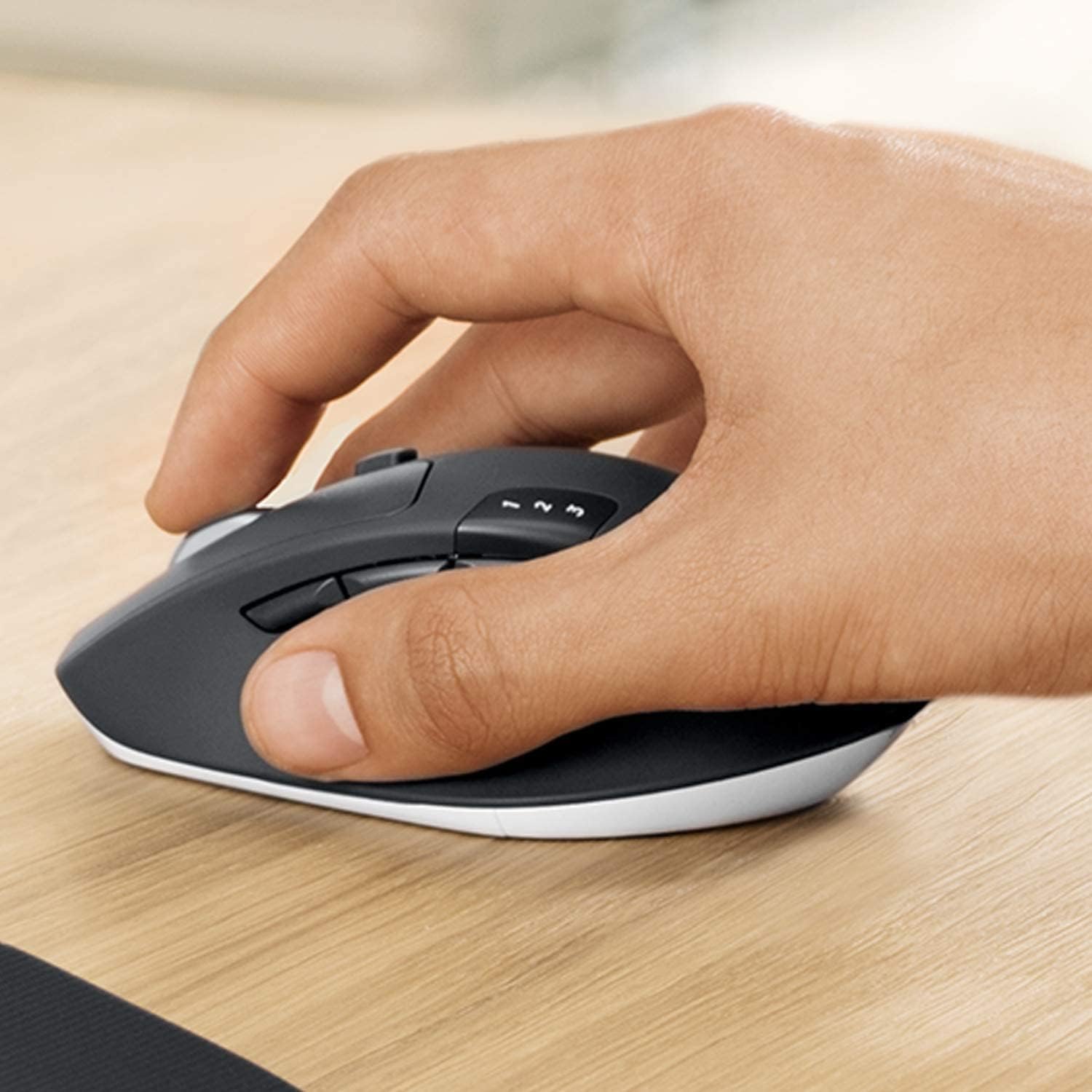
Figura 3.1: A hand demonstrating the ergonomic grip on the Logitech MK850 mouse.

Figura 3.2: Un dettagliato view of the Logitech MK850 mouse, highlighting its scroll wheel and Easy-Switch buttons.
3.3 DuoLink Software
Logitech DuoLink is a feature within Logitech Options software that allows the mouse and keyboard to work together for enhanced functionality. For example, holding the Fn key on the keyboard can change the mouse's button functions.
Download Logitech Options from the official Logitech website to customize your device settings, program buttons, and enable DuoLink.
4. Cura e manutenzione
- Pulizia: Utilizzare un panno morbido e privo di lanugine leggermente dampUtilizzare acqua o una soluzione detergente delicata per pulire le superfici della tastiera e del mouse. Evitare prodotti chimici aggressivi o materiali abrasivi.
- Sostituzione della batteria: Replace batteries when the low battery indicator light illuminates. Ensure to use the correct battery type (AAA for keyboard, AA for mouse).
- Magazzinaggio: Quando non vengono utilizzati per lunghi periodi, spegnere i dispositivi per preservare la durata della batteria. Conservare in un luogo fresco e asciutto.
5. Risoluzione Dei Problemi
5.1 Problemi di connessione
- Nessuna connessione: Ensure the keyboard and mouse are turned on. Check battery levels. For Unifying receiver, try plugging it into a different USB port. For Bluetooth, ensure Bluetooth is enabled on your device and the devices are in pairing mode.
- Interferenza: Move the devices closer to the receiver or Bluetooth-enabled device. Avoid placing them near other wireless devices that might cause interference (e.g., Wi-Fi routers, cordless phones).
- Riassociazione: If connection is lost, try re-pairing the devices using the steps in Section 2.3.
5.2 Problemi di prestazioni
- Ritardo o ritardo: Ensure sufficient battery power. Reduce distance between devices and receiver/Bluetooth host. Close other applications that might be consuming system resources.
- Problemi di tracciamento del mouse: Clean the mouse sensor. Use the mouse on a suitable surface (non-reflective, non-transparent).
6. Specifiche tecniche
| Caratteristica | Specificazione |
|---|---|
| Marca | Logitech |
| Modello | MK850 |
| Tecnologia di connettività | Bluetooth Smart, Logitech Unifying (2.4 GHz wireless) |
| Dispositivi compatibili | PC (Windows 10/11 or later), Mac (macOS 10.15 or later), Chrome OS, Linux, iPadOS 13.4 or later, Android 7 or later |
| Dimensioni della tastiera (L x P x A) | Circa. 43 x 21 x 2.5 cm |
| Dimensioni del mouse (L x P x A) | ca. 99 x 60 x 39 mm |
| Peso dell'articolo | Approx. 845 g (total for set) |
| Tipo di batteria | Keyboard: 2 x AAA; Mouse: 1 x AA |
| Durata della batteria | Up to 36 months (keyboard), up to 24 months (mouse) - May vary based on usage. |
| Colore | Nero |

Figura 6.1: Dimensions of the Logitech MK850 mouse.
7. Garanzia e supporto
Logitech products are manufactured to high quality standards and are designed to provide reliable performance. For detailed warranty information specific to your region and product, please refer to the warranty card included with your product or visit the official Logitech support websito.
For technical support, FAQs, and driver downloads, please visit the Logitech support websito:
- Supporto Logitech Websito: support.logi.com
When contacting support, please have your product model (MK850) and serial number ready.
Ask a question about this manual
Ask about setup, troubleshooting, compatibility, parts, safety, or missing instructions. Manuals+ will review the question and use this page’s manual context to help answer it.