
1. Introduzione
This manual provides detailed instructions for setting up, operating, and maintaining your Epson L485 Wi-Fi Inktank Printer. Please read this manual thoroughly to ensure proper use and to maximize the performance and longevity of your device.
Prodotto finitoview
The Epson L485 is a versatile all-in-one printer offering print, scan, and copy functionalities with the added convenience of Wi-Fi Direct. It features an innovative ink tank system designed for high-volume printing with impressive page yields and a high print resolution for quality output.

Figura 1: Fronte view of the Epson L485 Wi-Fi Inktank Printer.
Cosa c'è nella scatola
- Unità stampante Epson L485
- Software CD
- Cavo di alimentazione
- Scheda di garanzia
- Set of Original Epson Ink Bottles (Black, Cyan, Magenta, Yellow)
Video 1: Un overview of the Epson L485 Wi-Fi Inktank Printer's features and design.
2. Guida all'installazione
Follow these steps to set up your Epson L485 printer for the first time.
Video 2: Step-by-step guide on how to set up your Epson InkTank Printer.
2.1 Initial Printer Preparation
- Disimballare la stampante: Estrarre con cautela la stampante dall'imballaggio. Rimuovere tutti i nastri e i materiali protettivi.
- Posizione della valvola di ritegno: Locate the ink tank valve on the side of the printer. Ensure it is in the upright (printing) position.
- Open Ink Tank Unit: Gently unhook the ink tank unit from the side of the printer and open its lid to access the ink tanks.
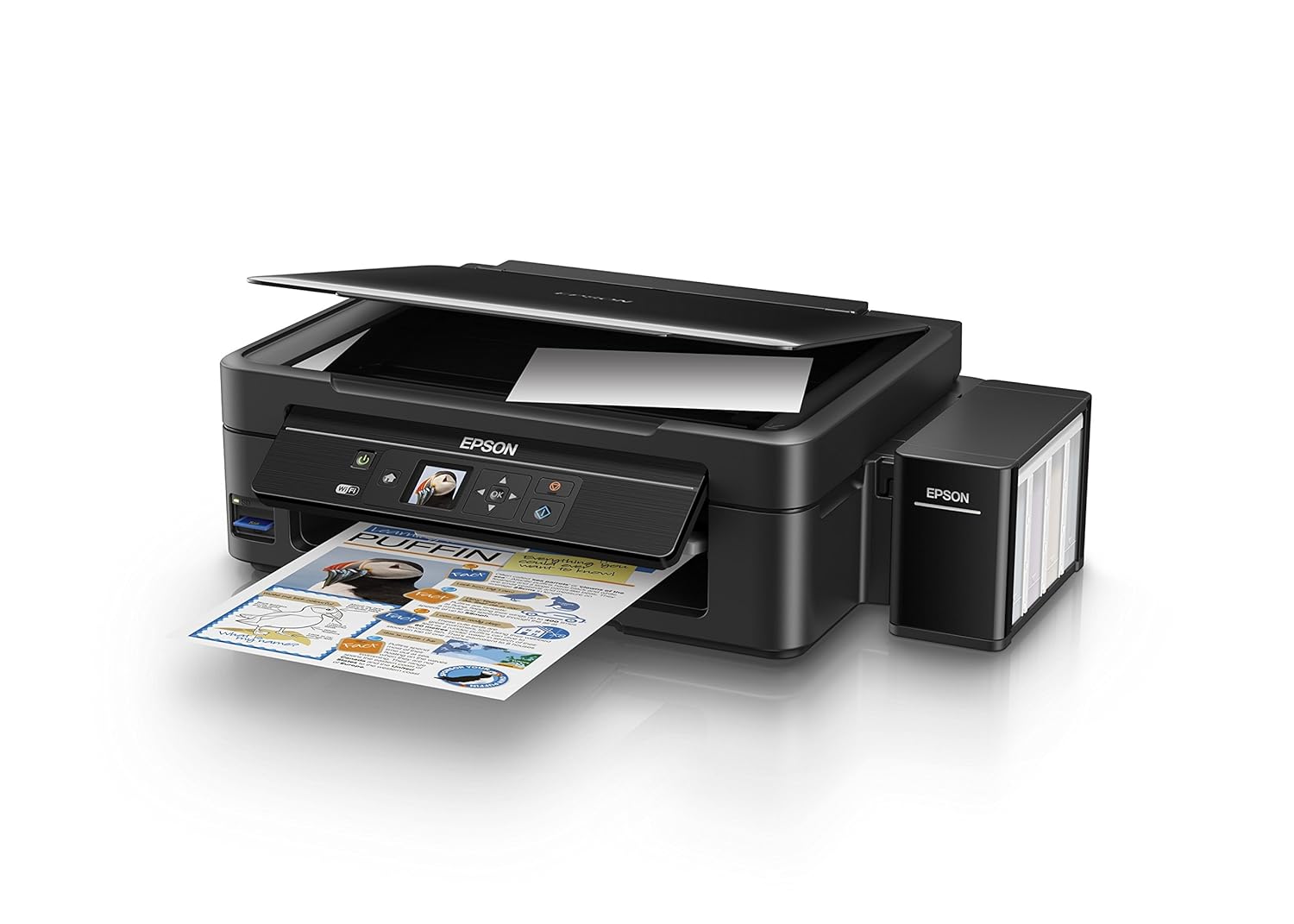
Figure 2: The ink tank unit unhooked and open, showing the ink reservoirs.
2.2 Riempimento dei serbatoi di inchiostro
- Prepare Ink Bottles: Snap off the tip of each ink bottle and remove the cap.
- Riempire i serbatoi di inchiostro: Match the color of the ink bottle with the corresponding ink tank. Carefully pour the entire contents of each ink bottle into its respective tank. Do not overfill.
- Tappi di sicurezza: Once all tanks are filled, replace the caps securely on the ink tanks.
- Close Ink Tank Unit: Close the lid of the ink tank unit and re-hook it to the printer.

Figure 3: Demonstrating the process of filling an ink tank with a yellow ink bottle.

Figure 4: The four color ink bottles used for the Epson L485 printer.
2.3 Power On and Ink Charging
- Connetti alimentazione: Plug the power cable into the printer and then into a wall outlet.
- Turn On Printer: Premere il pulsante di alimentazione per accendere la stampante.
- Initiate Ink Charge: Press and hold the 'Ink Charge' button (usually indicated by a droplet icon) for 3 seconds until the lights start blinking. The initial ink charging process takes approximately 20 minutes. Do not turn off or unplug the printer during this process.
- Completamento: The lights will stop blinking when ink charging is complete.
2.4 Installazione del driver
- Inserire il CD del software: Insert the provided Software CD into your computer's CD/DVD drive. If your computer does not have a CD drive, download the latest drivers from the official Epson support websito.
- Seguire le istruzioni sullo schermo: Follow the prompts on your computer screen to install the printer drivers and utilities. Agree to the license agreement and select 'Start & Connection' for setup.
- Connect USB Cable (if prompted): If setting up via USB, connect the USB cable between the printer and your computer when prompted by the installation software.
2.5 Configurazione della connettività
The Epson L485 supports both USB and Wi-Fi connectivity.
Connessione USB
Connect the USB cable from the printer to an available USB port on your computer. The printer should be recognized automatically after driver installation.
Configurazione Wi-Fi
The printer features an LCD screen for easy Wi-Fi setup without needing a PC.
- Access Wi-Fi Setup: On the printer's control panel, navigate to the 'Wi-Fi Setup' option using the arrow keys and press 'OK'.
- Seleziona rete: Choose your desired wireless network from the list and enter the password if required.
- Conferma connessione: Once connected, the Wi-Fi indicator light will be solid, and the LCD screen will confirm the setup is complete.

Figure 5: Demonstrating wireless printing from a smartphone to the Epson L485 printer.
3. Utilizzo della stampante
3.1 Stampa
The Epson L485 delivers high-quality prints with a resolution of 5760 dpi. It offers print speeds of up to 33 ppm for black and 15 ppm for color documents.
- Caricare la carta: Caricare la carta nell'alimentatore posteriore. Regolare le guide della carta in base al formato della carta.
- Seleziona il processo di stampa: Dal tuo computer o dispositivo mobile, seleziona il documento o l'immagine che desideri stampare.
- Regola impostazioni: Choose your print settings (e.g., paper size, print quality, color/black & white) in the print dialog box.
- Stampa: Fare clic su "Stampa" per inviare il lavoro alla stampante.

Figure 6: The Epson L485 printer in action, producing a vibrant print.
3.2 Scansione
The printer features a sheetfed scanner with an optical resolution of 1200 dpi x 2400 dpi for clear and detailed scans.
- Inserisci documento: Lift the scanner lid and place your document face-down on the scanner glass, aligning it with the corner mark.
- Avvia scansione: Dal computer, aprire il software Epson Scan oppure utilizzare la funzione di scansione sul pannello di controllo della stampante.
- Regola impostazioni: Selezionare le impostazioni di scansione quali risoluzione, modalità colore e cartella di destinazione.
- Inizia scansione: Begin the scanning process.

Figure 7: The scanner bed of the Epson L485 printer with the lid open.
3.3 Copia
Effettua copie direttamente dal pannello di controllo della stampante.
- Inserisci documento: Place the document you wish to copy on the scanner glass.
- Seleziona la funzione Copia: On the printer's LCD screen, navigate to the 'Copy' option.
- Regola impostazioni: Select the number of copies, color or black & white, and other copy settings.
- Start Copy: Premere il pulsante "Avvia" per iniziare la copia.
3.4 Wi-Fi diretto
Wi-Fi Direct allows you to connect your mobile devices directly to the printer without a router, enabling convenient wireless printing.
- Enable Wi-Fi Direct: On the printer's control panel, go to 'Wi-Fi Setup' and select 'Wi-Fi Direct'. Follow the on-screen instructions to enable it and view il nome della rete e la password.
- Connetti dispositivo mobile: On your mobile device, go to Wi-Fi settings, find the printer's Wi-Fi Direct network, and connect using the provided password.
- Stampa: Use an Epson printing app (e.g., Epson iPrint) or your device's native print function to print directly to the printer.
4. Manutenzione
4.1 Ricarica di inchiostro
When ink levels are low, refill the tanks using genuine Epson ink bottles. Refer to section 2.2 for detailed ink filling instructions. Always use the correct color ink for each tank.
4.2 Pulizia
Una pulizia regolare aiuta a mantenere la qualità di stampa e prolunga la durata della stampante.
- Pulizia esterna: Pulire l'esterno della stampante con un panno morbido eamp stoffa. Evitare l'uso di detergenti abrasivi.
- Pulizia della testina di stampa: If print quality declines (e.g., missing lines, incorrect colors), perform a print head cleaning using the printer's utility software on your computer or through the printer's control panel menu.
- Controllo degli ugelli: Run a nozzle check pattern to diagnose print quality issues before performing a head cleaning.
5. Risoluzione Dei Problemi
Questa sezione affronta i problemi più comuni che potresti riscontrare con la stampante Epson L485.
5.1 La stampante non risponde
- Assicurarsi che la stampante sia accesa e collegata saldamente alla presa di corrente.
- Check the USB cable connection to both the printer and computer, or verify the Wi-Fi connection status.
- Riavviare sia la stampante che il computer/dispositivo mobile.
5.2 Scarsa qualità di stampa
- Perform a nozzle check to identify clogged nozzles. If necessary, run a print head cleaning cycle.
- Controllare i livelli di inchiostro e riempire i serbatoi in esaurimento.
- Ensure you are using genuine Epson ink and appropriate paper types for your print job.
5.3 Inceppamenti della carta
- Turn off the printer and carefully remove any jammed paper from the paper tray, output tray, or inside the printer.
- Assicurarsi che la carta sia caricata correttamente e non sia piegata o curled.
6. Specifiche
| Marca | Epson |
| Nome del modello | L485 |
| Tecnologia di connettività | Wifi |
| Tecnologia di stampa | Getto d'inchiostro |
| Caratteristica speciale | Slot per scheda di memoria |
| Colore | Nero |
| Uscita della stampante | Colore |
| Velocità massima di stampa (a colori) | 15 ppm |
| Velocità di stampa massima (monocromatica) | 33 ppm |
| Peso dell'articolo | 6001 grammi |
| Tipo di stampante | Getto d'inchiostro |
| Tipo di scanner | Alimentato a foglio |
| Velocità massima di copia (bianco e nero) | 33 ppm |
| Tipo di visualizzazione | LCD |
| Dispositivi compatibili | Smartphone |
| Colore dell'inchiostro | Nero, Ciano, Magenta, Giallo |
| Risoluzione | 5760 x 5760 DPI |
| Funzioni aggiuntive della stampante | Tutto in uno (stampa, scansione, copia) |
| Dimensione massima del supporto | A4 |
| Formato della carta | A4 |
| Stampa fronte-retro | NO |
7. Garanzia e supporto
Your Epson L485 Wi-Fi Inktank Printer comes with a free installation service and an onsite warranty.
7.1 Free Installation and Onsite Warranty
To avail free installation for your printer, please contact Epson support after receiving your product. The onsite warranty covers manufacturing defects and ensures professional assistance at your location.
7.2 Contatta l'assistenza
For installation, support, or any technical assistance, please contact Epson customer service:
- Telefono: 1860 3000 1600 (Timings: 9 am - 6 pm)