
1. Introduzione
The Rocketek TFU3R is a compact and portable USB 3.0 card reader designed for Micro SD (TF) cards. It allows for high-speed data transfer between your Micro SD card and USB-enabled devices such as laptops and tablets. This device supports plug-and-play functionality and hot-swapping, making it convenient for various applications.
Caratteristiche principali:
- Piccolo e portatile: Designed for easy portability, fitting conveniently in a wallet or pocket.
- Collega e usa: Per la maggior parte dei sistemi operativi non sono richiesti driver.
- Sostituzione a caldo: Allows insertion and removal of the device without restarting the computer.
- Alimentato tramite USB: Operates without external power or batteries.
- SuperSpeed USB 3.0: Offers data transfer speeds up to 5 Gbps, backward compatible with USB 2.0/1.1.
- Design durevole: Constructed with an aluminum case for enhanced durability and efficient heat dissipation.
2. Istruzioni per l'installazione
Follow these steps to set up and begin using your Rocketek TFU3R Micro SD Card Reader.
2.1 Inserimento della scheda Micro SD
- Locate the Micro SD card slot on the Rocketek TFU3R card reader.
- Gently insert your Micro SD (TF) card into the slot until it clicks into place. Ensure the card is oriented correctly to avoid damage.
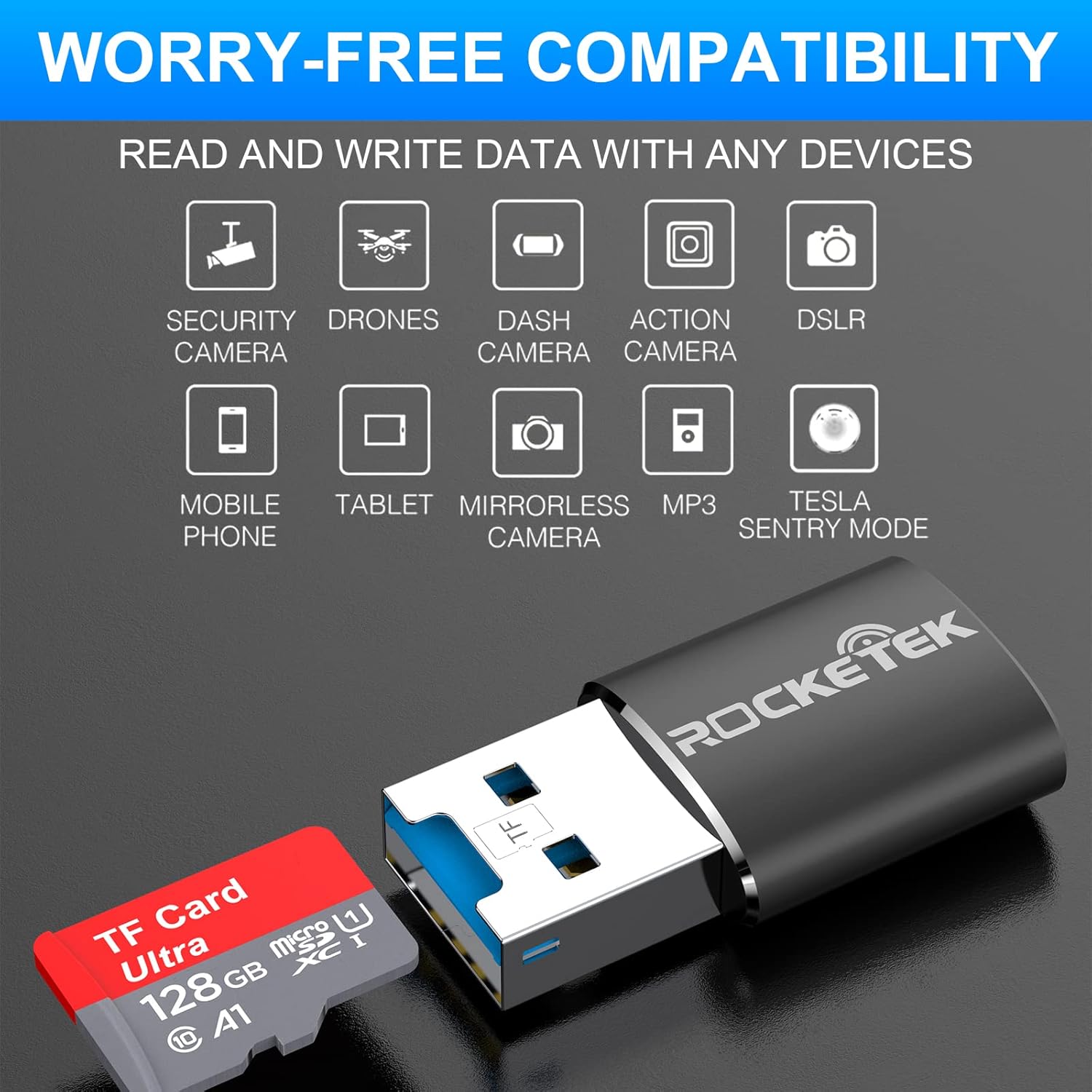
Image: Hands inserting a Micro SD card into the Rocketek TFU3R USB 3.0 card reader.
2.2 Connessione al dispositivo
- Locate an available USB 3.0 or USB 2.0 port on your computer, laptop, or tablet.
- Plug the Rocketek TFU3R card reader, with the Micro SD card inserted, into the USB port.
- The device is plug-and-play; your operating system should automatically detect it and install any necessary generic drivers.
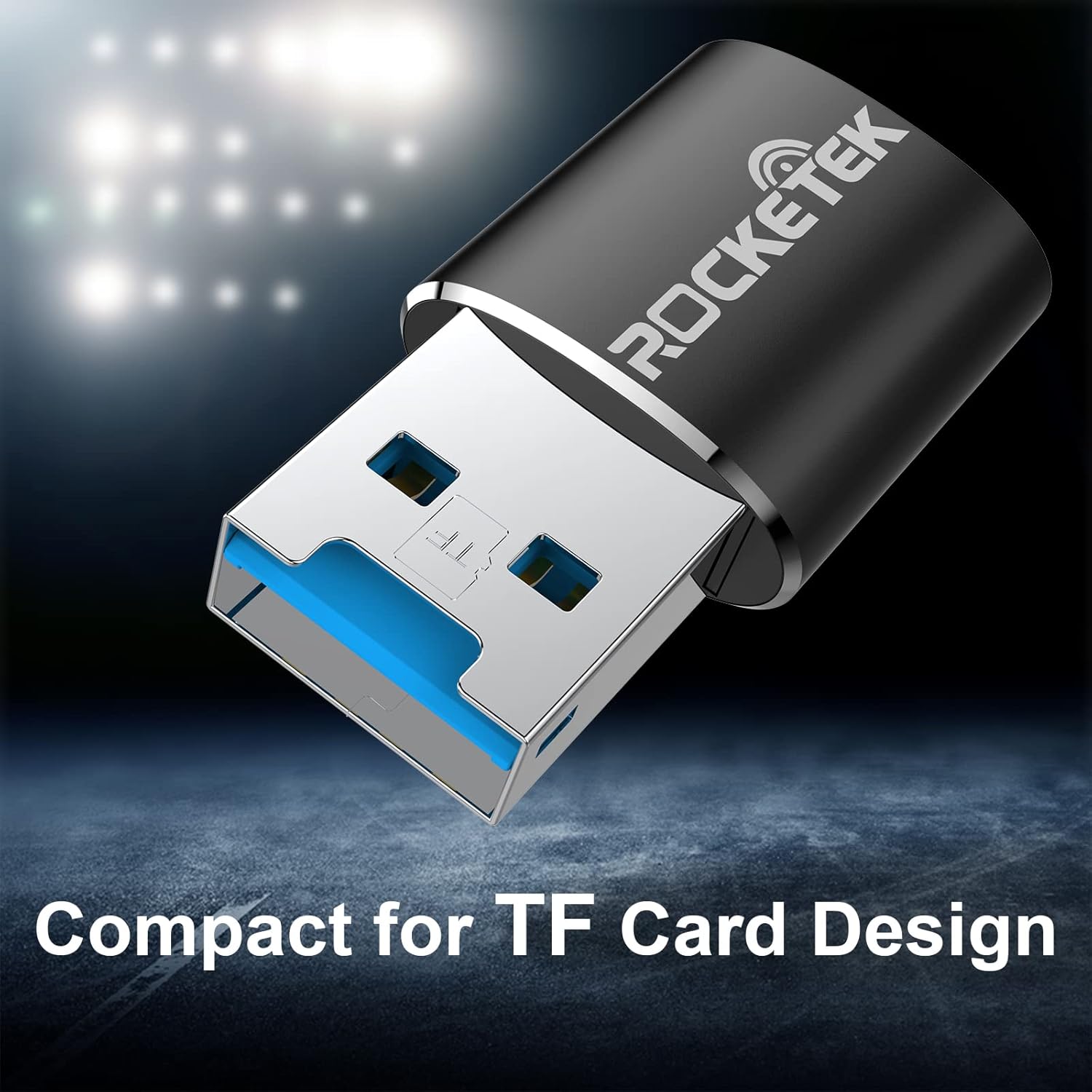
Image: Rocketek TFU3R USB 3.0 card reader plugged into a laptop's USB port, displaying 'Plug & Play'.
Video: A short demonstration showing how to insert a TF card into the Rocketek reader and connect it to a laptop for immediate use, highlighting its portability and plug-and-play functionality.
3. Istruzioni per l'uso
Once connected, the Rocketek TFU3R functions like any standard external storage device.
3.1 Trasferimento dati
- After connecting the card reader to your device, open your computer's file explorer (Windows) or Finder (Mac OS).
- The Micro SD card will appear as a removable drive.
- Ora puoi trascinare e rilasciare files to and from the Micro SD card, or use copy/paste functions to transfer data.
- The USB 3.0 interface provides SuperSpeed data transfer up to 5 Gbps, ensuring quick transfers of large files.
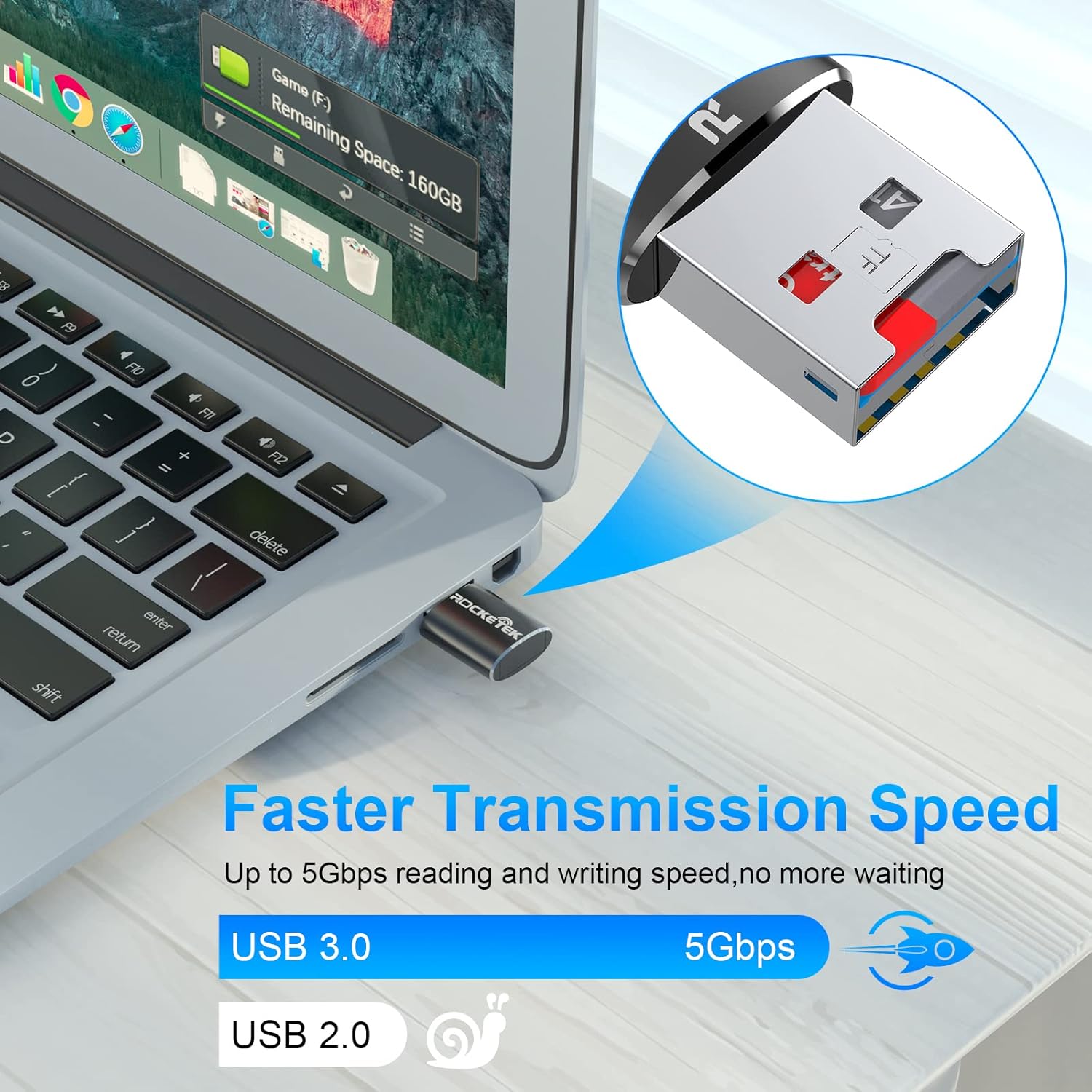
Image: Laptop screen showing file transfer with the Rocketek TFU3R plugged in, indicating 'Faster Transmission Speed' and 'USB 3.0 5Gbps'.
3.2 Rimozione sicura
To prevent data corruption, always safely remove the card reader before unplugging it from your computer.
- Finestre: Right-click on the drive icon in 'This PC' or the taskbar's 'Safely Remove Hardware' icon, then select 'Eject'.
- Mac OS: Trascina l'icona dell'unità nel Cestino oppure fai clic sul pulsante Espelli accanto al nome dell'unità nel Finder.
4. Compatibilità
The Rocketek TFU3R card reader offers broad compatibility with various devices and operating systems.
4.1 Dispositivi supportati
- Computer portatili
- compresse
- Computer desktop
- Other USB-enabled devices

Image: Diagram illustrating the Rocketek TFU3R's compatibility with tablets and laptops, showing a Micro SD card being inserted.
4.2 Sistemi operativi supportati
- Windows 7 / 8 / 8.1 / 10+
- Sistema operativo Mac
- Linux

Image: The Rocketek TFU3R is compatible with a wide range of devices, including security cameras, drones, dash cameras, action cameras, DSLRs, mobile phones, tablets, mirrorless cameras, MP3 players, and for Tesla Sentry Mode.
5. Specifiche
| Caratteristica | Dettaglio |
|---|---|
| Numero di modello | TFU3R (RT-TFU3R-B) |
| Marca | Rocketek |
| Tipo di supporto | Micro SD (TF) |
| Tecnologia di connettività | USB |
| Interfaccia Hardware | USB 3.0 (retrocompatibile con USB 2.0/1.1) |
| Velocità di trasferimento dati | Fino a 5 Gigabit al secondo (USB 3.0) |
| Slot Count | 1 (for Micro SD/TF cards) |
| Caratteristica speciale | Portable, Plug & Play, Hot Swapping |
| Materiale | Custodia in alluminio |
| Compatibilità del sistema operativo | Windows 7/8/8.1/10+, Mac OS, Linux |
6. Risoluzione Dei Problemi
If you encounter issues with your Rocketek TFU3R, refer to the following common troubleshooting steps.
6.1 Dispositivo non riconosciuto
- Verifica connessione: Assicurarsi che il lettore di schede sia completamente inserito nella porta USB.
- Prova un'altra porta USB: Connect the card reader to a different USB port on your computer.
- Prova un altro dispositivo: Test the card reader on another computer or compatible device to rule out a port issue.
- Check Micro SD Card: Ensure the Micro SD card is properly inserted into the card reader and is not damaged. Test the Micro SD card in another device if possible.
- Riavvia il computer: A volte un semplice riavvio può risolvere i problemi di rilevamento.
6.2 Velocità di trasferimento dati lenta
- Utilizzare la porta USB 3.0: For optimal speeds (up to 5 Gbps), ensure the card reader is plugged into a USB 3.0 port (often identified by a blue interior). Connecting to a USB 2.0 port will result in slower speeds.
- Check Micro SD Card Speed Class: The actual transfer speed is also limited by the speed class of your Micro SD card. Use a high-speed card for better performance.
- Evita altri dispositivi USB: Disconnect other high-bandwidth USB devices if you are experiencing unusually slow speeds.
6.3 La carta non viene letta
- Reinserisci la carta: Remove and reinsert the Micro SD card, ensuring it is seated correctly.
- Contatti puliti: Gently clean the metal contacts on the Micro SD card with a soft, dry cloth.
- Check Card Format: Ensure the Micro SD card is formatted in a file system compatible with your operating system (e.g., FAT32, exFAT, NTFS).
7. Manutenzione
Proper care and maintenance will extend the lifespan of your Rocketek TFU3R card reader.
- Mantenere asciutto: Evitare di esporre il dispositivo a umidità o liquidi.
- Pulisci delicatamente: Utilizzare un panno morbido e asciutto per pulire l'esterno. Non utilizzare prodotti chimici aggressivi o materiali abrasivi.
- Conservare correttamente: Quando non in uso, conservare il lettore di schede in un luogo fresco e asciutto, lontano dalla luce solare diretta e da temperature estreme.
- Maneggiare con cura: Evitare di far cadere o sottoporre il dispositivo a forti impatti.
8. Garanzia e supporto
Rocketek stands behind the quality of its products.
8.1 Informazioni sulla garanzia
The Rocketek TFU3R USB 3.0 Micro SD Card Reader comes with a hassle-free 24-month warranty dalla data di acquisto. La presente garanzia copre i difetti di fabbricazione e garantisce prestazioni affidabili in condizioni di utilizzo normali. Si prega di conservare la prova d'acquisto per eventuali reclami in garanzia.
8.2 Assistenza clienti
For technical assistance, warranty claims, or any questions regarding your Rocketek TFU3R, please contact our customer support team:
- E-mail: support@rocketek.com (Examp(per informazioni sul contatto effettivo, fare riferimento alla confezione del prodotto)
- Websito: Visit the official Rocketek websito per FAQ e risorse aggiuntive.