
1. Introduzione
This manual provides essential information for the safe and efficient operation of your Xerox AltaLink C8030 Multifunction Printer. Please read these instructions carefully before using the device and retain them for future reference. This device integrates printing, scanning, copying, and faxing capabilities to support various office tasks.
2. Informazioni sulla sicurezza
Always follow basic safety precautions to reduce the risk of fire, electric shock, and injury. Ensure the device is connected to a grounded power outlet. Do not block ventilation openings. Keep the device away from water and excessive humidity. Refer to the safety labels on the product for specific warnings.
3. Prodotto finitoview
The Xerox AltaLink C8030 is a color multifunction printer designed for high-volume office environments. It features a 10-inch touchscreen for intuitive navigation and control. Key capabilities include:
- Print Speed: Up to 30 pages per minute (ppm) for both color and monochrome.
- Copy Resolution: 600 x 600 DPI.
- Memory: 8 GB RAM, 1 GB RAM, 250 GB HDD.
- Connectivity: NFC, Wireless, USB.
- Paper Supply: Multiple trays including 2 x 520-sheet trays, a 2,000-sheet high-capacity tandem tray, and a 100-sheet bypass tray.
- Features: Single Pass DADF, Data Security, Job Accounting, PostScript Kit, Network Scanning, Server Fax, iFax, Standard Output Tray, Office Finisher LX.
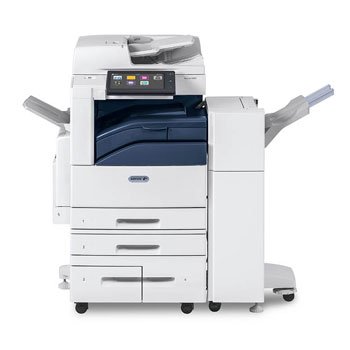
Immagine: Frontale view of the Xerox AltaLink C8030 multifunction printer, showing its various paper trays and the integrated touchscreen control panel.
4. Impostazione
4.1 Disimballaggio e posizionamento
- Estrarre con attenzione la stampante dall'imballaggio.
- Posizionare la stampante su una superficie stabile e piana, adeguatamente ventilata.
- Ensure sufficient space around the printer for maintenance and paper loading.
4.2 Collegamento di alimentazione
- Collegare il cavo di alimentazione alla stampante e poi a una presa elettrica dotata di messa a terra.
- Premere il pulsante di accensione per accendere il dispositivo.
4.3 Caricamento carta
- Open the desired paper tray (e.g., Tray 1, Tray 2, or Bypass Tray).
- Regolare le guide della carta in base al formato della carta.
- Caricare la risma di carta assicurandosi che non superi la linea di riempimento massimo.
- Chiudere saldamente il vassoio della carta.
4.4 Rete e connessione USB
- Rete: Connect an Ethernet cable to the printer's network port and to your network router/switch. Configure network settings via the touchscreen if necessary.
- Senza fili: Access the network settings on the touchscreen, select your Wi-Fi network, and enter the password.
- USB: Connect a USB cable from your computer to the printer's USB port for direct connection.
5. Istruzioni per l'uso
5.1 Stampa
- Dal tuo computer o dispositivo mobile, apri il documento che desideri stampare.
- Selezionare "Stampa" dal menu dell'applicazione.
- Choose the Xerox AltaLink C8030 as your printer.
- Adjust print settings (e.g., number of copies, color/monochrome, paper size) as needed.
- Fare clic su "Stampa".
5.2 Scansione
- Place your document face-down on the scanner glass or face-up in the Automatic Document Feeder (ADF).
- Sul touchscreen della stampante, selezionare la funzione "Scansione".
- Scegli la destinazione della scansione (ad esempio, e-mail, cartella di rete, unità USB).
- Configure scan settings (e.g., resolution, file format, color mode).
- Premere 'Avvia' per iniziare la scansione.
5.3 Copia
- Posizionare il documento sul vetro dello scanner o nell'ADF.
- On the touchscreen, select the 'Copy' function.
- Enter the desired number of copies.
- Adjust copy settings (e.g., enlargement/reduction, 2-sided, color/monochrome).
- Premere 'Start' per iniziare la copia.
5.4 Invio di fax
- Posizionare il documento sul vetro dello scanner o nell'ADF.
- Sul touchscreen, selezionare la funzione "Fax".
- Inserisci il numero di fax del destinatario.
- Configure fax settings (e.g., resolution, delayed send).
- Press 'Start' to send the fax.
6. Manutenzione
6.1 Sostituzione delle cartucce del toner
- Aprire il coperchio anteriore della stampante.
- Identificare la cartuccia del toner vuota.
- Grasp the handle and pull the cartridge out.
- Estrarre la nuova cartuccia del toner dalla confezione e agitarla delicatamente.
- Inserire la nuova cartuccia finché non scatta in posizione.
- Chiudere il coperchio anteriore.
6.2 Pulizia del vetro dello scanner
- Spegnere la stampante e scollegare il cavo di alimentazione.
- Aprire il coperchio dello scanner.
- Wipe the scanner glass with a soft, lint-free cloth dampened with a mild glass cleaner.
- Ensure the glass is dry before closing the cover and restoring power.
7. Risoluzione Dei Problemi
7.1 Inceppamenti della carta
- Seguire le istruzioni visualizzate sullo schermo per individuare e rimuovere la carta inceppata.
- Open all accessible covers and trays to check for jammed paper.
- Tirare delicatamente la carta nella direzione del percorso della carta.
7.2 Problemi di qualità di stampa
- Check toner levels and replace cartridges if low.
- Eseguire la pulizia o la calibrazione della testina di stampa dal menu di manutenzione della stampante.
- Assicurati di utilizzare tipi di carta appropriati per il tuo lavoro di stampa.
7.3 Problemi di connettività
- Verify all cables (Ethernet, USB) are securely connected.
- For wireless connections, check Wi-Fi signal strength and network settings.
- Restart the printer, router, and computer/device.
8. Specifiche
| Caratteristica | Specificazione |
|---|---|
| Marca | Fotocopiatrice |
| Nome del modello | AltaLink C8030 |
| Tecnologia di stampa | Laser |
| Uscita della stampante | Colore |
| Velocità di stampa massima (monocromatica) | 30 ppm |
| Velocità massima di copia (bianco e nero) | 30 ppm |
| Tecnologia di connettività | NFC, senza fili |
| Peso dell'articolo | 349 libbre |
| Metodo di controllo | Telecomando, tocco |
| Dispositivi compatibili | PC |
| GTIN / UPC | 095205880151 |
9. Garanzia e supporto
For warranty information, please refer to the documentation included with your product or visit the official Xerox website. For technical support, driver downloads, or service requests, please contact Xerox customer support through their official channels. Keep your product's serial number and purchase date readily available when contacting support.
Risorse online: Ufficiale Xerox Websito