
EinCar BR.AN60218GNN1
EinCar Android 10 Car Stereo User Manual
Model: BR.AN60218GNN1
Brand: EinCar
Introduzione
This manual provides detailed instructions for the installation, operation, and maintenance of your EinCar Android 10 Car Stereo. Please read this manual thoroughly before using the product to ensure proper functionality and safety. Keep this manual for future reference.
Informazioni sulla sicurezza
- Non utilizzare il dispositivo in modo da distrarti dalla guida. Dai sempre priorità alla sicurezza stradale.
- Assicurarsi che tutti i cavi siano collegati correttamente per evitare cortocircuiti o danni. In caso di dubbi, consultare un professionista per l'installazione.
- Evitare di esporre l'unità a temperature estreme, alla luce solare diretta per periodi prolungati o a umidità eccessiva.
- Non tentare di smontare o modificare l'unità. Ciò potrebbe invalidare la garanzia e causare danni.
- Mantieni il volume a un livello che ti consenta di sentire i rumori del traffico esterno.
Contenuto della confezione
Verificare che tutti gli articoli siano presenti nel pacco:
- EinCar Android 10 Car Stereo Head Unit (10.1-inch display)
- Antenna GPS
- Cablaggio di alimentazione
- Cavi USB
- Cavi RCA
- Microfono esterno (se incluso)
- Posteriore View Camera (with necessary cables)
- Staffe di montaggio e viti
- Manuale d'uso
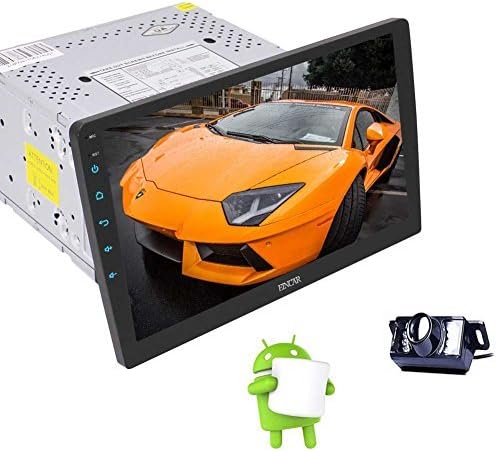
Image: The EinCar Android 10 Car Stereo head unit, featuring a 10.1-inch display, shown alongside a backup camera and the Android operating system logo, representing the main components of the product.
Guida all'installazione
1. Controlli pre-installazione
- Prima di iniziare l'installazione, scollegare il terminale negativo della batteria del veicolo.
- Ensure the mounting space in your dashboard is compatible with a double DIN unit.
- Test all functions of the unit before final installation.
2. Collegamenti elettrici
Connect the power harness, speaker wires, and other accessory wires according to your vehicle's wiring diagram and the stereo's labels. Common connections include:
- Giallo: Potenza costante 12V
- Rosso: 12V Accessory Power (Ignition Switched)
- Nero: Terra
- Arancia: Illumination/Dimmer
- Blu: Antenna elettrica/AmpAccensione remota lifier
- Marrone: Controllo del volante (SWC)
- Cavo della retromarcia: Connect to vehicle's reverse light signal for automatic camera display.
3. Installazione dell'antenna GPS
Montare l'antenna GPS in una posizione con una vista libera view of the sky, such as on the dashboard or under the windshield, away from metal obstructions.
4. Posteriore View Installazione della telecamera
Installa la parte posteriore view camera at the back of your vehicle, ensuring it has a clear view. Connect its power to the reverse light circuit and the video signal to the dedicated camera input on the head unit.
5. Montaggio dell'unità principale
Secure the head unit into the dashboard using the provided mounting brackets and screws. Ensure the display is positioned correctly and can be adjusted if it features a rotating mechanism.
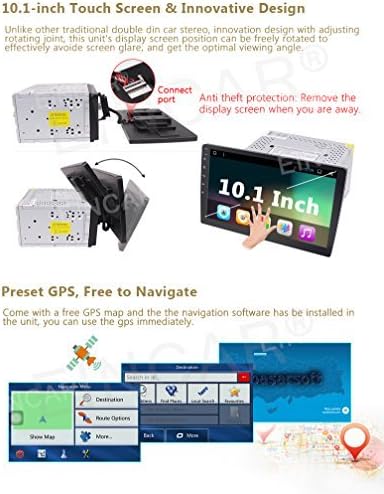
Image: The 10.1-inch display of the EinCar car stereo, demonstrating its rotating screen capability and the anti-theft feature where the display can be detached from the main unit.
Configurazione e configurazione iniziale
1. Prima accensione
After installation, reconnect the vehicle's battery. The unit should power on automatically or by pressing the power button. Follow any on-screen prompts for initial language and time zone settings.
2. Connessione di rete (Wi-Fi)
To access online features and download apps, connect the unit to a Wi-Fi hotspot (e.g., from your smartphone). Go to Impostazioni > Rete e Internet > Wi-Fi, seleziona la tua rete e inserisci la password.
3. GPS Configuration
Ensure the GPS antenna is properly connected. Open the pre-installed navigation application. The system will acquire satellite signals. You may need to download map data for offline use if not already pre-loaded.

Image: A visual representation of the EinCar car stereo's Android operating system interface, highlighting the quick settings menu accessible by swiping down from the top of the screen.
Istruzioni per l'uso
1. Navigazione di base dell'interfaccia
The 10.1-inch touchscreen allows for intuitive control. Swipe, tap, and drag just like a smartphone. The home screen provides access to frequently used applications. Swipe down from the top of the screen to access quick settings and notifications.
2. Navigazione GPS
Tap the "Navigation" icon on the home screen to launch the GPS application. Enter your destination, and the system will provide turn-by-turn voice guidance and visual map directions. Ensure map data is up-to-date for optimal performance.
3. Connettività Bluetooth
Associazione di un dispositivo:
- Vai a Impostazioni > Dispositivi connessi > Associa nuovo dispositivo.
- Abilita il Bluetooth sul tuo dispositivo mobile e cerca i dispositivi disponibili.
- Select "EinCar" or a similar name from the list on your phone.
- Confermare il codice di associazione su entrambi i dispositivi.
4. Radio FM/AM
Tap the "Radio" icon. Use the on-screen controls to scan for stations, save presets, and switch between FM and AM bands. Ensure the radio antenna is properly connected for clear reception.
5. Media Playback (USB/SD/Mirrorlink)
- USB/SD: Insert a USB drive or SD card into the designated port/slot. The system will automatically detect media files. Use the "Music" or "Video" app to browse and play content.
- Mirrorlink: Connect your smartphone via USB and follow the on-screen instructions to enable screen mirroring. This allows your phone's display to be shown on the car stereo screen.
6. Posteriore View Telecamera
Quando il veicolo viene innestato in retromarcia, il display passerà automaticamente alla marcia posteriore view feed della telecamera, fornendo una chiara view dell'area dietro il tuo veicolo.
7. Installazione Wi-Fi e app
Once connected to Wi-Fi, you can access the Google Play Store to download and install various applications, including navigation apps, music streaming services, and more.
8. Controllo del volante (SWC)
If your vehicle supports it and the SWC wires are connected, you can configure the steering wheel buttons to control functions like volume, track skipping, and mode switching. Access the SWC settings in the system menu to program the buttons.
Manutenzione
- Pulizia dello schermo: Utilizzare un panno morbido e privo di lanugine per pulire delicatamente il touchscreen. Per le macchie ostinate, strofinare leggermenteampPulisci il panno con acqua o con un detergente per schermi specifico per dispositivi elettronici. Evita prodotti chimici aggressivi.
- Aggiornamenti software: Controlla periodicamente la disponibilità di aggiornamenti software di sistema tramite il menu delle impostazioni per garantire prestazioni ottimali e l'accesso a nuove funzionalità. Per gli aggiornamenti è necessaria una connessione Wi-Fi stabile.
- Cura generale: Mantenere l'unità libera da polvere e detriti. Evitare di appoggiare oggetti pesanti sull'unità o di esporla a urti diretti.
Risoluzione dei problemi
| Problema | Possibile causa | Soluzione |
|---|---|---|
| L'unità non si accende. | Incorrect wiring (power/ground), blown fuse, vehicle battery disconnected. | Controllare i collegamenti di alimentazione e di terra. Ispezionare i fusibili del veicolo. Assicurarsi che la batteria sia collegata. |
| Nessun suono dagli altoparlanti. | Speaker wires incorrectly connected, volume too low, mute activated, ampproblema del lificatore. | Verify speaker wiring. Increase volume. Check if mute is active. Ensure external amplifier (se utilizzato) è alimentato. |
| Segnale GPS non trovato. | GPS antenna not connected, antenna obstructed, unit in an area with poor satellite reception. | Assicurarsi che l'antenna GPS sia collegata saldamente e posizionata in modo trasparente view del cielo. Spostatevi in un'area aperta. |
| Il dispositivo Bluetooth non riesce ad associarsi. | Bluetooth not enabled on unit or phone, device already paired, incorrect pairing code. | Ensure Bluetooth is active on both devices. Delete previous pairings and try again. Verify pairing code. |
| Posteriore view la fotocamera non visualizza. | Telecamera non alimentata, cavo video allentato, filo di attivazione della retromarcia non collegato. | Check camera power and video connections. Ensure the reverse trigger wire is correctly connected to the vehicle's reverse light signal. |
Specifiche
| Caratteristica | Dettaglio |
|---|---|
| Sistema operativo | Androide 10.0 |
| Processore | Quad-Core |
| Memoria RAM | 2 GB |
| Memoria interna (ROM) | 16 GB |
| Dimensioni dello schermo | 10.1 pollici |
| Tipo di visualizzazione | LCD, touchscreen |
| Dimensioni del telaio | Double DIN (Note: Product title and description indicate Double DIN, while one spec entry states Single DIN. Double DIN is assumed based on primary product description.) |
| Navigazione GPS | Built-in, Satellite Map Type |
| Bluetooth | Yes (Hands-free calling, music streaming, OBD2, SWC support) |
| Wifi | Built-in module for hotspot connection |
| Sintonizzatore radio | Ricevitore FM/AM |
| Riproduzione multimediale | USB, SD, Mirrorlink, AAC, FLAC, MP3, WMA |
| Uscita video | Support for headrest monitors |
| Posteriore View Telecamera | Included, IP67 waterproof, night vision |
| Peso dell'articolo | 6.46 libbre |
| Dimensioni del pacco | 12.95 x 9.76 x 9.29 pollici |