
Introduzione
The Mercusys MW150US N150 Wireless Nano USB Adapter is a compact and convenient device designed to provide wireless internet connectivity to your desktop or laptop computer. With wireless speeds of up to 150 Mbps, it is suitable for essential internet activities such as web browsing, email, and stable online communication. Its miniature design allows it to remain connected to a USB port without obstruction.
This adapter also features a Soft AP function, enabling your computer to act as a Wi-Fi hotspot, sharing its wired internet connection with other wireless devices like smartphones and tablets.
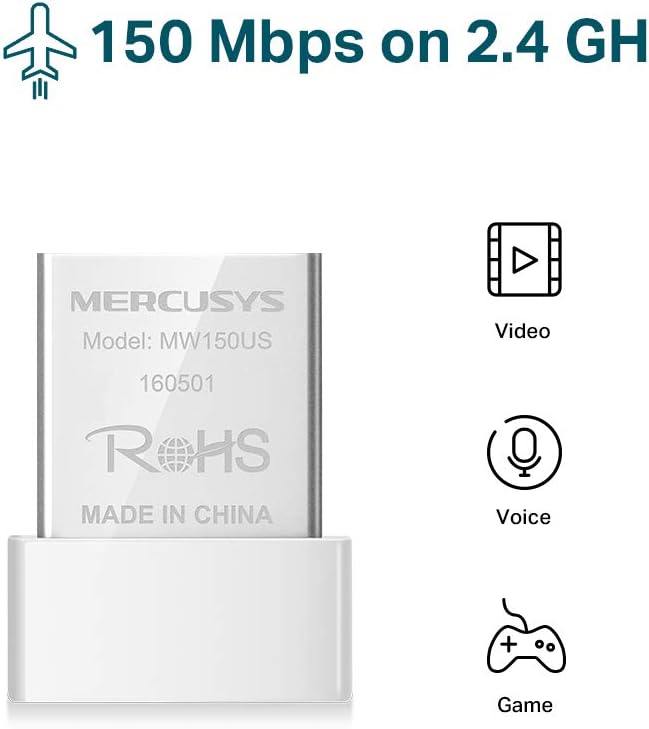
Image: The Mercusys MW150US N150 Wireless Nano USB Adapter, a compact device for wireless connectivity.
Guida all'installazione
Follow these steps to install and set up your Mercusys MW150US N150 Wireless Nano USB Adapter:
- Inserisci l'adattatore: Carefully insert the MW150US adapter into an available USB port on your computer.
- Installa i driver:
- Using the included CD: Insert the driver CD into your computer's CD-ROM drive and follow the on-screen instructions to install the necessary drivers.
- Downloading from Mercusys websito: If your computer does not have a CD-ROM drive, or if you prefer the latest drivers, visit the official Mercusys websito (ad esempio, www.mercusys.com/en/download/MW150US) to download the drivers for your specific operating system.
- Nota per gli utenti di Windows 10: In many cases, Windows 10 may automatically install the necessary drivers upon insertion, making manual installation unnecessary.
- Connetti a una rete: After driver installation, your computer should detect available Wi-Fi networks. Select your desired network from the list and enter the password to connect.

Image: Visual guide for the three easy setup steps: insert, install software, and connect to Wi-Fi.

Image: The Mercusys MW150US adapter is compatible with Windows 10, 8.1, 8, 7, and XP.
Istruzioni per l'uso
Connessione a una rete Wi-Fi
Once the adapter is installed and drivers are loaded, you can connect to any available Wi-Fi network.
- Fare clic sull'icona Wi-Fi nella barra delle applicazioni del computer (solitamente nell'angolo in basso a destra in Windows).
- A list of available wireless networks will appear. Select the name (SSID) of your desired network.
- Click "Connect" and enter the network's security key or password when prompted.
- Once connected, the Wi-Fi icon will indicate a successful connection, and you can access the internet.
Using Soft AP Function (Wi-Fi Hotspot)
The Soft AP function allows your computer to share its wired internet connection wirelessly. This feature requires your computer to have a wired internet connection.
- Assicurati che il tuo computer sia connesso a Internet tramite un cavo Ethernet.
- Open the Mercusys utility software (usually installed with the drivers).
- Individuare e abilitare la funzione "Soft AP" o "Hotspot" all'interno dell'utilità.
- Configure the hotspot's name (SSID) and password.
- Other wireless devices can now connect to your computer's Wi-Fi hotspot using the configured SSID and password.
Manutenzione
The Mercusys MW150US adapter is designed for durability and requires minimal maintenance.
- Mantenere pulito: Periodically wipe the adapter with a soft, dry cloth to remove dust. Avoid using liquid cleaners.
- Proteggere dai danni: While its nano size is convenient, avoid bending or applying excessive force to the adapter when it's plugged into a USB port.
- Magazzinaggio: When not in use, store the adapter in a clean, dry place away from extreme temperatures.

Image: The miniature design of the Mercusys MW150US adapter, highlighting its compact size for portability and convenience.
Risoluzione dei problemi
If you encounter issues with your Mercusys MW150US adapter, refer to the following common solutions:
- Adattatore non rilevato:
- Ensure the adapter is fully inserted into a working USB port. Try a different USB port.
- Verify that the drivers are correctly installed. Check Device Manager (Windows) for any yellow exclamation marks next to the network adapter. Reinstall drivers if necessary.
- Riavvia il computer.
- Impossibile connettersi alla rete Wi-Fi:
- Controlla attentamente la password del Wi-Fi.
- Assicurati che il router Wi-Fi sia acceso e che trasmetta un segnale.
- Avvicinati al router Wi-Fi per migliorare la potenza del segnale.
- Restart your Wi-Fi router and your computer.
- Bassa velocità di Internet:
- Ensure you are within a reasonable range of your Wi-Fi router.
- Verificare la presenza di possibili interferenze da parte di altri dispositivi elettronici (ad esempio forni a microonde, telefoni cordless).
- Verify that your internet service provider (ISP) is delivering the expected speed.
- Update the adapter's drivers to the latest version from the Mercusys websito.
Specifiche
| Marca | MERCUSIO |
| Numero di modello | MW150US |
| Interfaccia Hardware | USB |
| Velocità di trasferimento dati | 150 Mbps |
| Dispositivi compatibili | Desktop, Laptop, Smartphone (for Soft AP) |
| Sistemi operativi compatibili | Windows (XP, 7, 8, 8.1, 10) |
| Peso dell'articolo | 50 grammi |
| Colore | Rosso |
Informazioni sulla garanzia
The Mercusys MW150US N150 Wireless Nano USB Adapter comes with a Garanzia di 4 anno directly from the manufacturer. Please retain your proof of purchase for warranty claims.
Supporto
For technical assistance, driver downloads, or warranty inquiries, please contact Mercusys customer support directly. Support services are provided by the manufacturer.
You can typically find contact information and support resources on the official Mercusys websito: www.mercusys.com.