
1. Introduzione
Grazie per l'acquistoasing the GAOMON PD1560 15.6-inch Pen Display. This device is designed to enhance your digital art and design workflow with its high-resolution display and precise pen input. This manual provides essential information for setting up, operating, maintaining, and troubleshooting your pen display to ensure optimal performance and a seamless creative experience.
2. Contenuto della confezione
Si prega di controllare il contenuto della confezione per assicurarsi che siano presenti tutti gli articoli:
- Display interattivo GAOMON PD1560
- Penna stilo ricaricabile
- Supporto regolabile
- Pen Holder (includes 8 replacement nibs and a nib remover)
- 3-in-1 Integrated Cable (USB, HDMI, Power)
- Adattatore di alimentazione
- Cavo USB
- Guanto da disegno

Image: All items included in the GAOMON PD1560 package, including the pen display, stylus, stand, cables, and accessories.
3. Prodotto finitoview
3.1. Caratteristiche dello schermo
- IPS Full HD Screen: Enjoy vibrant colors and sharp details with a 1920 x 1080 resolution (16:9 aspect ratio). The IPS panel offers a wide 178° viewing angle, ensuring consistent image quality from various perspectives.
- Area attiva: The screen provides an active drawing area of 344.16 x 193.59 mm (approximately 13.5 x 7.6 inches).
- Segnala rapporto: A rapid 233 PPS (Points Per Second) report rate ensures smooth and responsive line rendering.

Image: The GAOMON PD1560 display showcasing its 178-degree wide viewangolo di ing.

Image: Diagram illustrating the dimensions and active work area of the GAOMON PD1560 pen display.
3.2. Pen Features
- 8192 Livelli di pressione: The rechargeable stylus offers 8192 levels of pressure sensitivity, allowing for precise control over line thickness and opacity.
- Design ricaricabile: The pen is rechargeable, ensuring continuous use without the need for batteries.
- Portapenne: The included pen holder conveniently stores the stylus and contains 8 replacement nibs and a built-in nib remover for easy maintenance.

Image: Close-up of the GAOMON PD1560 rechargeable stylus, highlighting its 8192 pressure sensitivity.
3.3. Controlli personalizzabili
- 10 tasti di scelta rapida: Ten customizable shortcut keys are located on the side of the display, allowing you to program frequently used functions for increased efficiency.
- 5 Menu Keys: Dedicated menu keys (AUTO / + / - / MENU / POWER) are positioned on the left side for easy access to display settings.

Immagine: Primo piano view of the GAOMON PD1560's customizable shortcut keys and menu buttons.
3.4. Design ergonomico
- Supporto regolabile: The included stand allows for stepless adjustment of the display angle from 10 to 90 degrees, providing a comfortable working posture.
- Integrated Interface & Cable: The display features an integrated interface and a new 3-in-1 cable design to minimize cable clutter and ensure stable connections.
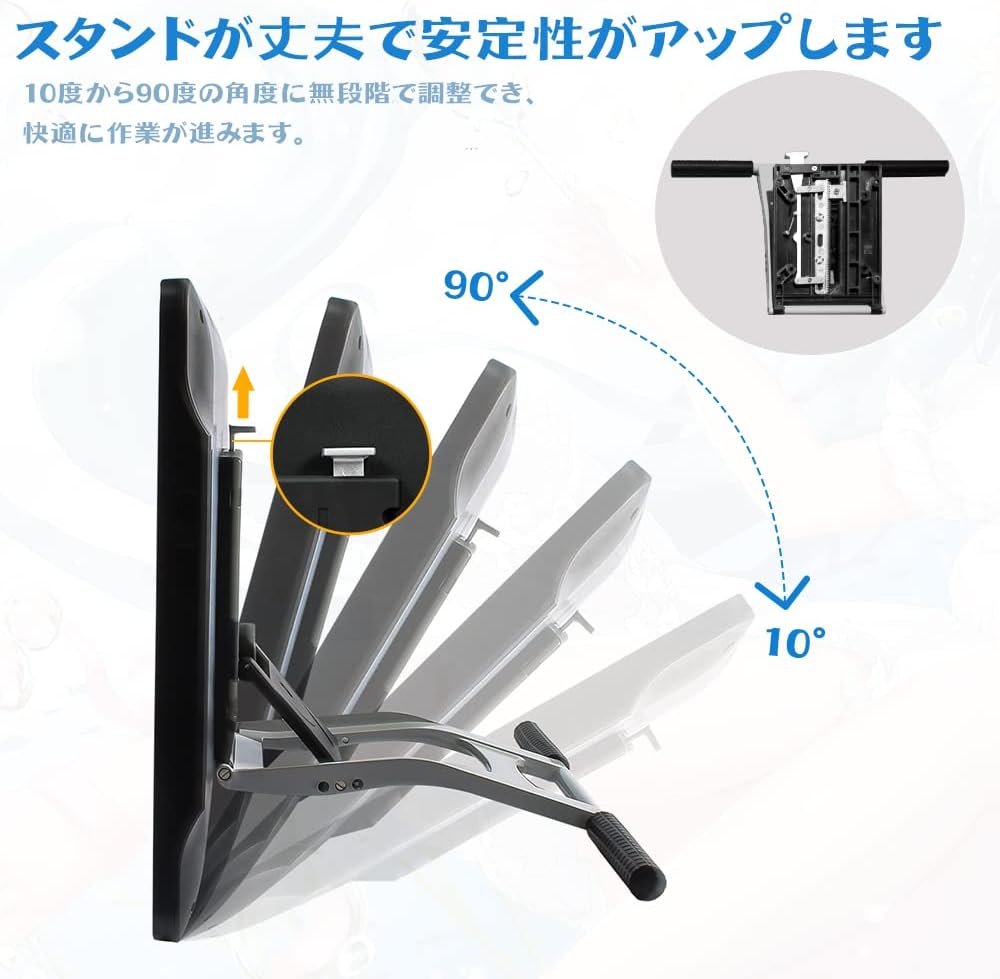
Image: The GAOMON PD1560 pen display shown with its adjustable stand, demonstrating various angle settings.
4. Istruzioni per l'installazione
4.1. Installazione del driver
- Before connecting the PD1560, uninstall any existing tablet drivers from your computer to avoid conflicts.
- Download the latest driver for the GAOMON PD1560 from the official GAOMON websito.
- Esegui il programma di installazione e segui le istruzioni sullo schermo. Riavvia il computer se richiesto.
4.2. Connessione hardware
- Connect the 3-in-1 cable to the PD1560.
- Connect the HDMI connector of the 3-in-1 cable to your computer's HDMI port.
- Connect the USB connector of the 3-in-1 cable to an available USB port on your computer. Ensure it is a USB 3.0 port for optimal performance if available.
- Connect the power adapter to the 3-in-1 cable and plug it into a power outlet.
- Power on the PD1560 using the power button on the side.
4.3. Display Settings (Windows/Mac)
After connecting, your computer should detect the PD1560 as an extended display. You may need to adjust display settings:
- Risoluzione: Set the display resolution to 1920x1080 for the PD1560. On Windows, go to Display Settings > Display resolution. On Mac, go to System Preferences > Displays.
- Scalabilità: Ensure display scaling is set to 100% for the PD1560 to prevent cursor offset issues. On Windows, check "Change the size of text, apps, and other items" in Display Settings.
- Extend/Duplicate Display: Configure your display mode (Extend or Duplicate) as desired.
4.4. Pen Calibration
Open the GAOMON driver software. Navigate to the "Work Area" or "Calibration" section. Select the PD1560 as the target display and perform screen calibration by tapping the crosshairs on the screen with your stylus. This ensures accurate cursor tracking.
5. Istruzioni per l'uso
5.1. Utilizzo della penna stilo
- The stylus functions like a mouse. Tap the screen to click, or hold down to drag.
- The pen's pressure sensitivity allows for varying line thickness and opacity in compatible software.
- The two buttons on the pen can be customized within the GAOMON driver software for functions like right-click, undo, or zoom.
- To recharge the pen, connect it to a USB port using the provided charging cable.
5.2. Personalizzazione dei tasti di scelta rapida
The 10 shortcut keys on the side of the PD1560 can be assigned to various functions:
- Open the GAOMON driver software.
- Navigate to the "Express Keys" or "Shortcut Keys" section.
- Select each key and assign your desired function (e.g., Ctrl+Z for Undo, Spacebar for Pan, Brush size adjustment).
- Salva le tue impostazioni.
5.3. Using Menu Keys
The 5 menu keys on the left side control the display's on-screen display (OSD) menu:
- ENERGIA: Accende o spegne il display.
- MENU: Opens the OSD menu. Press again to exit.
- +: Consente di spostarsi verso l'alto o di aumentare i valori nel menu OSD.
- -: Consente di spostarsi verso il basso o di diminuire i valori nel menu OSD.
- AUTO: Automatically adjusts the display settings for optimal image quality.
5.4. Compatibilità del software
The GAOMON PD1560 is compatible with popular creative software, including but not limited to:
- Adobe Photoshop (PS)
- Strumento di pittura SAI
- Illustratore di Adobe
- SketchBook Pro
- MediBang Paint Pro
- Corel Painter
- ZBrush
- maya

Image: The GAOMON PD1560 in use with various compatible creative software logos displayed.
6. Manutenzione
6.1. Pulizia del display
- Prima di pulire il dispositivo, spegnerlo sempre e scollegarlo dalla presa di corrente.
- Utilizzare un panno morbido e privo di lanugine leggermente dampcon acqua o un detergente per schermi.
- Non utilizzare alcol, solventi o detergenti abrasivi, poiché potrebbero danneggiare la superficie dello schermo.
6.2. Sostituzione delle punte della penna
- When the pen nib wears down, use the nib remover tool located at the bottom of the pen holder to gently pull out the old nib.
- Inserire saldamente una nuova punta nella penna.
6.3. Conservazione
- Store the pen display in a cool, dry place away from direct sunlight and extreme temperatures.
- Evitare di posizionare oggetti pesanti sul display.
7. Risoluzione Dei Problemi
If you encounter issues with your GAOMON PD1560, please refer to the following common solutions:
7.1. No Signal / Display Not Showing
- Controllare le connessioni: Ensure all cables (HDMI, USB, Power) are securely connected to both the pen display and your computer.
- Accensione: Confirm the PD1560 is powered on.
- Sorgente di input: Use the display's menu buttons to ensure the correct input source (HDMI) is selected.
- HDMI Adapter: If using an HDMI adapter, ensure it is functioning correctly and is of good quality. Some users reported issues with cheaper adapters.
- Impostazioni dello schermo del computer: Verify your computer's display settings recognize the PD1560 and are configured to extend or duplicate the display.
7.2. Pen Not Responding / Cursor Offset
- Autista: Reinstall the latest GAOMON driver. Ensure all other tablet drivers are uninstalled.
- Calibrazione: Perform pen calibration through the GAOMON driver software.
- Screen Scaling: On Windows, ensure display scaling for the PD1560 is set to 100% (not 150% or other magnified settings).
- Pen Charge: Ensure the stylus pen is sufficiently charged.
- Pennini: Check if the pen nib is worn or loose. Replace if necessary.
7.3. Color Inconsistency
- Menu OSD: Use the display's menu buttons to adjust color settings (e.g., brightness, contrast, color temperature) to match your preferences or main monitor.
- Impostazioni software: Some creative software allows for color profile aggiustamenti.
7.4. Shortcut Keys Not Working
- Software del driver: Ensure the GAOMON driver software is running and the keys are properly configured.
- Focus dell'applicazione: Some shortcut keys may only function when the specific application they are configured for is in focus.
8. Specifiche
| Marca | GAOMONE |
| Numero di modello | PD1560 |
| Dimensioni dello schermo | 15.6 pollici |
| Tipo di visualizzazione | Schermo LCD IPS |
| Risoluzione nativa | 1920 x 1080 (Full HD) |
| Proporzioni | 16:9 |
| Viewangolo di ing | 178° |
| Area attiva | 344.16 x 193.59 millimetri |
| Pen Pressure Sensitivity | 8192 livelli |
| Tasso di segnalazione | 233 PPS |
| Resolution (LPI) | 5080 LPI |
| Tipo di stilo | Penna ricaricabile |
| Tasti di scelta rapida | 10 tasti rapidi personalizzabili |
| Tasti del menu | 5 (AUTO / + / - / MENU / POWER) |
| Connettività | Cavo 3 in 1 (HDMI, USB, alimentazione) |
| Compatibilità del sistema operativo | Windows 7/8/8.1/10, Mac OS 10.11.0 and later |
| Dimensioni del prodotto (L x P) | Dimensioni: 45.2 cm x 25.2 cm |
| Peso del prodotto | 3600 grammi |
| Colore | Nero |
9. Garanzia e supporto
9.1. Informazioni sulla garanzia
The GAOMON PD1560 comes with a Garanzia di 1 anno from the date of purchase. This warranty covers manufacturing defects and malfunctions under normal use. Please note that damage caused by user oversight, accidents, misuse, or unauthorized modifications is not covered under this warranty.
9.2. Assistenza clienti
For technical assistance, troubleshooting, or warranty claims, please contact GAOMON customer support. You can find contact information on the official GAOMON website. When contacting support, please have your product model (PD1560) and purchase details ready.