
Modello: G603
Manuale utente del mouse da gioco wireless Logitech G603 Lightspeed
Model: G603 (P/N: 910-005103)
Introduzione
The Logitech G603 Lightspeed Wireless Gaming Mouse is engineered to deliver exceptional performance and reliability for gamers. Featuring the revolutionary HERO optical sensor and Lightspeed wireless technology, it provides precise tracking and ultra-fast response times. The G603 also boasts an impressive battery life, offering flexibility with its dual connectivity options (Lightspeed and Bluetooth) and customizable settings through Logitech G HUB software.
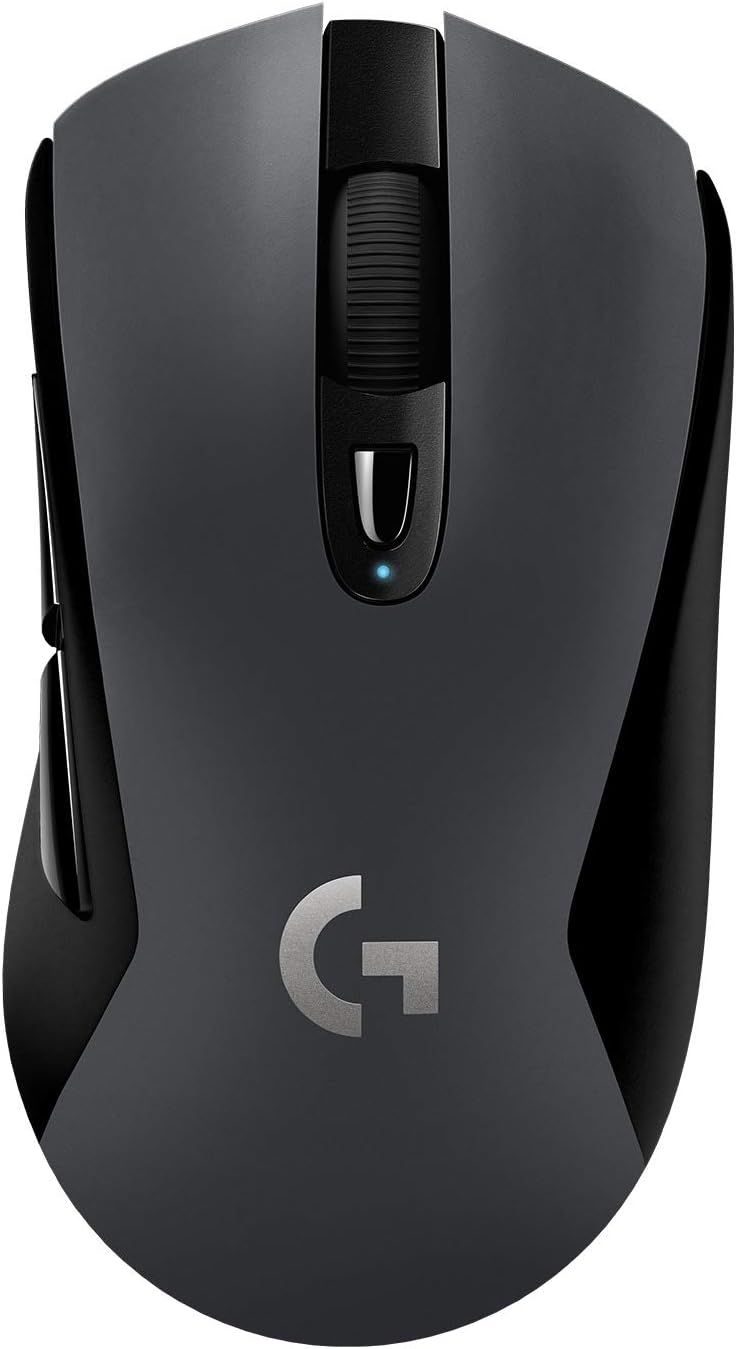
The Logitech G603 Lightspeed Wireless Gaming Mouse, showcasingrazie al suo design ergonomico e alla rotellina di scorrimento centrale.
Impostare
Contenuto della confezione
Prima di iniziare, assicurati che tutti i componenti siano presenti nella confezione:
- Mouse da gioco wireless Logitech G603
- Lightspeed USB Nano Receiver
- USB Receiver Extender Cable
- 2 batterie AA (preinstallate o incluse separatamente)

Illustration of the Logitech G603 mouse and its included accessories: two AA batteries, a Lightspeed USB nano receiver, and a receiver extender cable.
Installazione della batteria
The G603 mouse operates on two AA batteries. You can use one or two batteries to adjust the mouse's weight and balance to your preference. The mouse functions normally with a single battery.
- Gently lift the top cover of the mouse from the rear to reveal the battery compartment.
- Insert one or two AA batteries, ensuring correct polarity (+/-).
- Riposizionare il coperchio superiore, allineandolo correttamente finché non scatta in posizione.

The removable top cover of the G603 mouse, showing the internal compartment for battery and USB receiver storage.
Connettività
The G603 offers dual connectivity options: Lightspeed wireless and Bluetooth.
- Lightspeed Wireless: For optimal gaming performance, connect via the Lightspeed USB Nano Receiver. Plug the receiver into an available USB port on your computer. For best signal, use the included extender cable to position the receiver closer to the mouse.
- Bluetooth: For general use or connecting to multiple devices, switch the mouse to Bluetooth mode using the switch on the bottom of the mouse. Pair it with your Bluetooth-enabled device through your device's Bluetooth settings.

The bottom of the G603 mouse, highlighting the Lightspeed and Bluetooth connectivity indicators and the mode switch.
Utilizzo del mouse
Power Modes (HI/LO)
The G603 features a power mode switch on its underside, allowing you to toggle between HI (High) and LO (Low) modes, or turn the mouse OFF.
- Modalità CIAO: Provides peak performance with a 1ms report rate, ideal for gaming. Offers up to 500 hours of continuous gaming on two AA batteries.
- Modalità LO: Extends battery life with an 8ms report rate, suitable for general desktop use. Can last up to 18 months on two AA batteries.

Close-up of the G603's power mode switch, indicating HI (1ms), LO (8ms), and OFF settings.
Programmable Buttons and DPI Shifting
The G603 comes with 6 programmable buttons, including on-the-fly DPI shifting. You can customize these buttons and up to 5 sensitivity settings using the Logitech G HUB software.
- Pulsante DPI: Located below the scroll wheel, this button allows you to cycle through your pre-configured DPI settings.
- Logitech G HUB: Download and install Logitech G HUB from the official Logitech website to unlock full customization. You can assign custom commands, configure macros, and store configuration profiles directly on the mouse's onboard memory.

Un dettagliato view of the G603's scroll wheel and the DPI cycle button located just below it.
Indicatore di stato della batteria
The LED status indicator on the mouse and the Logitech G HUB software will notify you when the battery level reaches 15%, allowing you to replace batteries before they run out during critical moments.

Visual representation of the G603's extended battery life, indicating up to 500 hours of use with two AA batteries.
Manutenzione
Pulizia
To maintain optimal performance and appearance, regularly clean your G603 mouse:
- Use a soft, lint-free cloth to wipe the exterior of the mouse.
- Per sporco ostinato, leggermente dampPulisci il panno con acqua o una soluzione detergente delicata. Evita prodotti chimici aggressivi.
- Use a can of compressed air to clear dust and debris from around the scroll wheel and buttons.
- Assicurarsi che il sensore ottico nella parte inferiore sia pulito e libero da ostruzioni.
Cura della batteria
To maximize battery life and prevent issues:
- Remove batteries if the mouse will not be used for an extended period.
- Utilizzare batterie alcaline di alta qualità o batterie AA ricaricabili.
- Conservare le batterie in un luogo fresco e asciutto.
Risoluzione dei problemi
If you encounter issues with your Logitech G603 mouse, try the following solutions:
- Il mouse non risponde:
- Check the power mode switch on the bottom of the mouse and ensure it is set to HI or LO, not OFF.
- Verificare che le batterie siano installate correttamente e abbiano una carica sufficiente. Sostituirle se necessario.
- If using Lightspeed, ensure the USB Nano Receiver is securely plugged into a working USB port. Try a different USB port.
- If using Bluetooth, ensure Bluetooth is enabled on your device and the mouse is properly paired.
- Connessione lenta o intermittente:
- Ridurre la distanza tra il mouse e il ricevitore/dispositivo.
- Use the USB extender cable to bring the Lightspeed receiver closer to the mouse.
- Move the mouse away from other wireless devices that might cause interference (e.g., Wi-Fi routers, cordless phones).
- DPI or button customization not working:
- Ensure Logitech G HUB software is installed and up to date.
- Check if the mouse is recognized in G HUB and that your profilesono attivi.
- Mouse cursor erratic or not tracking:
- Pulisci il sensore ottico nella parte inferiore del mouse.
- Assicurati di utilizzare il mouse su una superficie adatta (ad esempio un tappetino per mouse). Evita superfici altamente riflettenti o trasparenti.
Specifiche
| Caratteristica | Dettaglio |
|---|---|
| Marca | Logitech |
| Nome del modello | Modello: G603 |
| Numero modello articolo | 910-005103 |
| Tecnologia di connettività | Bluetooth, USB (Lightspeed Wireless) |
| Tecnologia di rilevamento del movimento | Optical (HERO Sensor) |
| Gamma DPI | Da 200 a 12,000 DPI |
| Report Rate (Lightspeed) | 1 ms (HI Mode) |
| Report Rate (LO Mode) | 8 millisecondi |
| Numero di pulsanti | 6 (Programmabile) |
| Fonte di alimentazione | Alimentato a batteria (2 batterie AA) |
| Battery Life (HI Mode) | Fino a 500 ore |
| Battery Life (LO Mode) | Fino a 18 mesi |
| Dimensioni (L x P x A) | Dimensioni: 12.4 x 6.8 x 4.3 cm |
| Peso dell'articolo | 88 g (mouse only, without batteries) |
| Colore | Nero |
| Piattaforma hardware | PC |
| Sistema operativo | Windows 7 e versioni successive |

Diagram illustrating the approximate dimensions of the Logitech G603 mouse.
Garanzia e supporto
I prodotti Logitech sono realizzati secondo i più elevati standard qualitativi. Per informazioni dettagliate sulla garanzia, consultare la scheda di garanzia inclusa con il prodotto o visitare il sito ufficiale del supporto Logitech. websito.
For further assistance, troubleshooting guides, and driver downloads (including Logitech G HUB), please visit the official Logitech Support page:
Ask a question about this manual
Ask about setup, troubleshooting, compatibility, parts, safety, or missing instructions. Manuals+ will review the question and use this page’s manual context to help answer it.