
BenQ EX3501R
BenQ EX3501R Ultrawide Curved Gaming Monitor User Manual
Model: EX3501R
1. Impostazione
1.1 Disimballaggio del monitor
Rimuovere con attenzione tutti i componenti dall'imballaggio. Assicurarsi che siano presenti tutti gli articoli elencati di seguito:
- BenQ EX3501R Monitor
- Supporto per monitor (base e collo)
- Adattatore di alimentazione
- Cavo di alimentazione
- Cavo HDMI
- Cavo DisplayPort
- Cavo USB-C
- Manuale dell'utente (questo documento)
1.2 Montaggio del supporto
Per fissare il supporto al monitor, seguire questi passaggi:
- Posizionare il monitor a faccia in giù su un panno morbido e pulito per evitare graffi.
- Fissare il collo del supporto al retro del monitor. Assicurarsi che scatti saldamente in posizione.
- Connect the stand base to the neck, tightening any screws as indicated in the quick start guide.

Figura 1: Fronte view of the BenQ EX3501R monitor with its stand.
1.3 Cavi di collegamento
Connect the necessary cables to the monitor and your computer. The monitor supports various input options:
- Energia: Collegare l'adattatore di alimentazione al monitor e poi a una presa di corrente.
- Ingresso video: Use either the HDMI, DisplayPort, or USB-C cable to connect your computer to the monitor.
- USB-C: The USB-C port supports video, data transfer, and power delivery, allowing for a single-cable connection with compatible devices.
- Porte USB: 3.0 Utilize the integrated USB 3.0 ports for connecting peripherals.
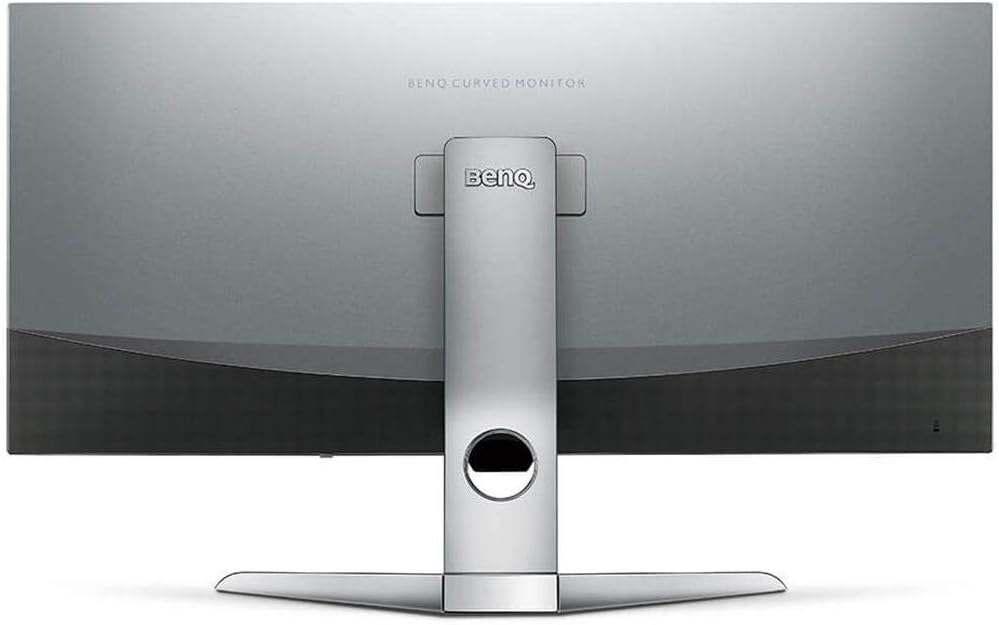
Figura 2: Posteriore view of the monitor displaying the connectivity ports.
2. Funzionamento del monitor
2.1 Accensione/spegnimento
Press the power button, usually located on the bottom right side of the monitor, to turn it on or off. The power indicator light will illuminate when the monitor is active.
2.2 Navigazione su schermo (OSD)
Use the joystick or buttons located on the monitor's underside to navigate the On-Screen Display (OSD) menu. This menu allows you to adjust various settings such as brightness, contrast, color modes, and input sources.
2.3 Display Features and Eye-Care Technology
The BenQ EX3501R incorporates several technologies designed to enhance viewing experience and reduce eye strain:
- Brightness Intelligence Plus (BI+): This patented technology automatically senses ambient lighting conditions and adjusts the screen's brightness and color temperature to provide optimal viewing comfort and protect your eyes during extended use.
- Bassa luce blu: Filters out harmful blue light emissions to reduce eye fatigue. Multiple levels of blue light reduction are available.
- ZeroFlicker™: Eliminates screen flickering at all brightness levels, further reducing eye strain and discomfort.
- HDR (alta gamma dinamica): Offers enhanced brightness and contrast, bringing greater detail and vibrancy to HDR video content.
Video 1: Un overview of BenQ's Eye-Care technology, including Low Blue Light, ZeroFlicker, and Brightness Intelligence Plus, demonstrating how these features work to reduce eye strain and adjust screen settings automatically based on ambient light.
2.4 Risoluzione e frequenza di aggiornamento
The monitor features a QHD (3440x1440) resolution and a 100Hz refresh rate, providing a smooth and detailed visual experience. The 21:9 ultrawide aspect ratio offers ample screen space for multitasking, such as viewing multiple documents side-by-side without needing a second monitor.
2.5 AMD FreeSync
For a fluid gaming experience, the monitor supports AMD FreeSync technology, which synchronizes the monitor's refresh rate with your graphics card's frame rate to eliminate screen tearing and stuttering.
3. Manutenzione
3.1 Pulizia del monitor
To maintain optimal performance and appearance, regularly clean your monitor:
- Schermo: Pulisci delicatamente lo schermo con un panno morbido e privo di lanugine. Per le macchie ostinate, utilizza una soluzione detergente specifica per monitor, applicata sul panno e non direttamente sullo schermo.
- Esterno: Utilizzare un panno morbido e asciutto per pulire la polvere e i detriti dal monitor casing e stare in piedi.
Avoid using abrasive cleaners, waxes, or solvents as they can damage the monitor's surface.
3.2 Consigli generali per la cura
- Non ostruire le aperture di ventilazione del monitor.
- Evitare di posizionare il monitor alla luce diretta del sole o vicino a fonti di calore.
- Maneggiare il monitor con cura per evitare danni fisici.
4. Risoluzione Dei Problemi
If you encounter issues with your BenQ EX3501R monitor, refer to the following common troubleshooting steps:
4.1 No Display or Black Screen
- Assicurarsi che il cavo di alimentazione sia collegato saldamente sia al monitor sia alla presa di corrente.
- Verificare che il cavo video (HDMI, DisplayPort o USB-C) sia saldamente collegato sia al monitor sia al computer.
- Check if the correct input source is selected in the monitor's OSD menu.
- Riavvia il computer.
4.2 Flickering or Unstable Image
- Ensure the ZeroFlicker™ feature is enabled in the OSD menu.
- Controllare che i collegamenti dei cavi video non siano allentati.
- Aggiorna i driver della tua scheda grafica alla versione più recente.
- If using AMD FreeSync, ensure it is properly configured in your graphics card settings.
4.3 Color or Brightness Issues
- Regola le impostazioni di luminosità, contrasto e colore tramite il menu OSD.
- Enable or disable Brightness Intelligence Plus (B.I.+) to see if it resolves the issue.
- Perform a factory reset through the OSD menu.
5. Specifiche
Key technical specifications for the BenQ EX3501R monitor:
| Caratteristica | Specificazione |
|---|---|
| Dimensioni dello schermo | 35 pollici |
| Risoluzione massima dello schermo | 3440 x 1440 Pixels (QHD Ultrawide) |
| Proporzioni | 21:9 |
| Frequenza di aggiornamento | Frequenza 100 Hz |
| Curvatura | 1800R |
| Tipo di pannello | VA (Allineamento verticale) |
| Connettività | USB-C, HDMI, DisplayPort |
| Caratteristiche speciali | AMD FreeSync, Brightness Intelligence Plus, Low Blue Light, ZeroFlicker |
| Peso dell'articolo | 21.3 libbre |
| Dimensioni del prodotto | 6.88 x 3.47 x 12.93 pollici |
6. Garanzia e supporto
6.1 Garanzia del prodotto
The BenQ EX3501R monitor typically comes with a 3-year manufacturer's warranty. Please refer to the warranty card included in your product packaging for specific terms and conditions, or visit the official BenQ websito per informazioni dettagliate sulla garanzia.
6.2 Assistenza clienti
For further assistance, technical support, or warranty claims, please contact BenQ customer service. You can find contact information and support resources on the official BenQ websito: www.benq.com/en-us/support.html
Ask a question about this manual
Ask about setup, troubleshooting, compatibility, parts, safety, or missing instructions. Manuals+ will review the question and use this page’s manual context to help answer it.