
1. Prodotto finitoview
The Maxwest Nitro 5N is an Android 7.0 smartphone designed for reliable communication and multimedia use. It features a 5-inch display, a Quad Core processor, and dual SIM capability, making it suitable for various global GSM networks.

Immagine 1.1: Fronte e retro view of the Maxwest Nitro 5N smartphone, showcasing its sleek black design and display.
2. Cosa c'è nella scatola
Upon opening your Maxwest Nitro 5N package, please ensure all the following items are present:
- Maxwest Nitro 5N Smartphone
- Batteria (2000 mAh)
- Adattatore per caricabatterie
- Cavo USB
- Protective Case Cover
3. Configurazione iniziale
3.1. Inserimento della/e scheda/e SIM e della batteria
- Spegni: Ensure your Maxwest Nitro 5N is powered off before proceeding.
- Rimuovere la cover posteriore: Rimuovere con cautela la cover posteriore del telefono.
- Inserire la/le scheda/e SIM: Locate the SIM card slots. This device supports dual SIM cards. Insert your GSM SIM card(s) into the designated slots with the gold contacts facing down. Ensure they are securely seated.
- Inserire la batteria: Place the 2000 mAh battery into its compartment, aligning the gold contacts on the battery with those in the phone.
- Sostituisci la cover posteriore: Carefully reattach the back cover until it clicks into place.
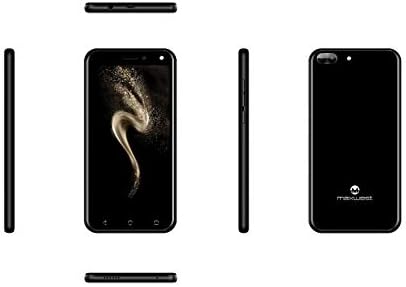
Immagine 3.1: Lato views of the Maxwest Nitro 5N, illustrating the location of buttons and ports for SIM/battery access.
3.2. Accensione e configurazione iniziale
- Accensione: Press and hold the Power button (usually on the side) until the Maxwest logo appears.
- Selezione della lingua: Segui le istruzioni sullo schermo per selezionare la lingua preferita.
- Connessione Wi-Fi: Connettiti a una rete Wi-Fi per completare la procedura di configurazione e scaricare gli aggiornamenti necessari.
- Account Google: Accedi con il tuo account Google o creane uno nuovo. Questo è essenziale per accedere al Google Play Store e ad altri servizi Google.
- Data e ora: Imposta la data e l'ora corrette oppure lascia che la rete le imposti automaticamente.
- Sicurezza: Configure screen lock options such as PIN, pattern, or password for device security.
Nota importante: This device is designed to work with GSM carriers such as AT&T, T-Mobile, and Metro PCS. It will NOT work with CDMA carriers like Verizon, Sprint, or Boost Mobile.
4. Operating Your Maxwest Nitro 5N
4.1. Navigazione di base
- Schermo tattile: Interact with the device by tapping, swiping, pinching, and spreading on the 5-inch LCD display.
- Schermata iniziale: L'hub centrale per le tue app e i tuoi widget. Scorri verso sinistra o verso destra per accedere a schermate aggiuntive.
- Pannello notifiche: Scorri verso il basso dalla parte superiore dello schermo per accedere alle notifiche e alle impostazioni rapide.
- Pulsanti di navigazione: Use the on-screen navigation buttons (Back, Home, Recent Apps) at the bottom of the display.
4.2. Effettuare chiamate e inviare messaggi
- Applicazione per telefono: Tocca l'icona Telefono per accedere al dialer, ai registri delle chiamate e ai contatti.
- App Messaggi: Tap the Messages icon to send and receive SMS/MMS messages.
4.3. Utilizzo della fotocamera
Your Nitro 5N is equipped with 5MP front and rear cameras.
- Apri fotocamera: Tocca l'icona della fotocamera nella schermata iniziale o nel cassetto delle applicazioni.
- Cambia telecamera: Tocca l'icona di commutazione della fotocamera per passare dalla fotocamera anteriore a quella posteriore e viceversa.
- Scatta foto/video: Tocca il pulsante di scatto per scattare una foto o avviare/interrompere la registrazione video.
4.4. Screen Pinning Feature
Screen Pinning allows you to lock your phone to a single application, preventing others from accessing other apps or settings. This is useful when sharing your phone temporarily.
- Enable Screen Pinning: Vai a Settings > Security > Screen pinning e accenderlo.
- Pin an App: Open the app you wish to pin. Tap the Recent Apps button (square icon). Swipe up on the app's preview and tap the pin icon.
- Unpin an App: To unpin, simultaneously press and hold the Back and Recent Apps buttons. You may need to enter your PIN/pattern/password if required by your security settings.
5. Manutenzione e cura
5.1. Cura della batteria
- Ricarica: Use only the provided charger and USB cable. Avoid overcharging by disconnecting the charger once the battery is full.
- Temperatura: Evitare di esporre il telefono a temperature estreme, poiché ciò potrebbe ridurre la durata della batteria.
- Magazzinaggio: If storing the phone for an extended period, ensure the battery is partially charged (around 50%).
5.2. Pulizia del dispositivo
- Schermo: Utilizzare un panno morbido e privo di lanugine, leggermente dampened with water or a screen cleaner, to gently wipe the display.
- Corpo: Use a soft, dry cloth to clean the phone's body. Avoid harsh chemicals or abrasive materials.
5.3. Aggiornamenti software
Controlla periodicamente gli aggiornamenti del sistema per garantire prestazioni e sicurezza ottimali. Vai a Impostazioni > Info sul telefono > Aggiornamenti di sistema per verificare e installare gli aggiornamenti disponibili.
6. Risoluzione dei problemi comuni
| Problema | Possibile soluzione |
|---|---|
| Il telefono non si accende. | Assicurarsi che la batteria sia inserita correttamente e carica. Collegare il caricabatterie e riprovare. |
| Nessun segnale di rete. | Verify SIM card insertion. Check if you are within network coverage. Ensure your carrier is GSM compatible (e.g., AT&T, T-Mobile). Restart the phone. |
| Le app sono lente o si bloccano. | Chiudi le app in background. Cancella la cache delle app (Impostazioni > App > [Nome app] > Archiviazione > Cancella cache). Restart the phone. Ensure sufficient storage space. |
| La batteria si scarica rapidamente. | Reduce screen brightness. Disable Wi-Fi, Bluetooth, and GPS when not in use. Close unnecessary background apps. Check battery usage in settings to identify power-hungry apps. |
| Impossibile connettersi al Wi-Fi. | Assicurati che il Wi-Fi sia abilitato. Riavvia il router e il telefono. Ignora la rete e riconnettiti. |
7. Specifiche del prodotto
| Caratteristica | Dettaglio |
|---|---|
| Nome del modello | Nitro 5N |
| Sistema operativo | Androide 7.0 |
| Processore | Quad Core 1.2 GHz (1.2GHz Cortex A9 Processor) |
| Memoria RAM | 1 GB |
| Memoria interna | 8 GB (approximately 5.6 GB user available) |
| Display | 5.0 inch LCD, 480 x 854 pixels, 2.5D TP |
| Telecamera posteriore | 5 MP |
| Fotocamera frontale | 5 MP |
| Capacità della batteria | 2000 mAh agli ioni di litio |
| Compatibilità di rete | 3G H+ 850/1900/2100 MHz, 2G: 850/900/1800/1900 MHz (GSM Carriers only) |
| Connettività | USB, Cellular, GPS, Wi-Fi, Bluetooth (Wireless) |
| Presa audio | 3.5 millimetri |
| Dimensioni (L x P x A) | 5.73 x 2.83 x 0.38 pollici |
| Peso | 5.4 once (153 grammi) |
| Colore | Nero |
8. Informazioni sulla garanzia
The Maxwest Nitro 5N comes with a garanzia di un anno su parti e manodopera dalla data di acquisto. La presente garanzia copre difetti di fabbricazione e di lavorazione in condizioni di normale utilizzo. Non copre danni causati da uso improprio, incidenti, riparazioni non autorizzate o normale usura.
Conservare la prova d'acquisto per eventuali richieste di garanzia.
9. Assistenza clienti
For technical assistance, troubleshooting beyond this manual, or warranty inquiries, please contact Maxwest customer support. Refer to the contact information provided with your product packaging or visit the official Maxwest websito per i dettagli di supporto più aggiornati.
When contacting support, please have your product model (Nitro 5N) and proof of purchase readily available.