
Bytech BYTECH Wireless Optical Mouse
BYTECH Wireless Optical Mouse User Manual
Model: BYTECH Wireless Optical Mouse
Introduzione
This manual provides detailed instructions for the setup, operation, maintenance, and troubleshooting of your BYTECH Wireless Optical Mouse. Please read this manual thoroughly before using the device to ensure optimal performance and longevity.
Prodotto finitoview
The BYTECH Wireless Optical Mouse is designed for comfortable and efficient navigation. It features a precise optical sensor, a scroll wheel, and a DPI adjustment button for customizable sensitivity. Its ergonomic design and wireless connectivity provide a clutter-free workspace.

Figura 1: Dall'alto verso il basso view of the BYTECH Wireless Optical Mouse. The mouse is black with a silver stripe along its sides. A scroll wheel and a DPI button are visible on the top surface.
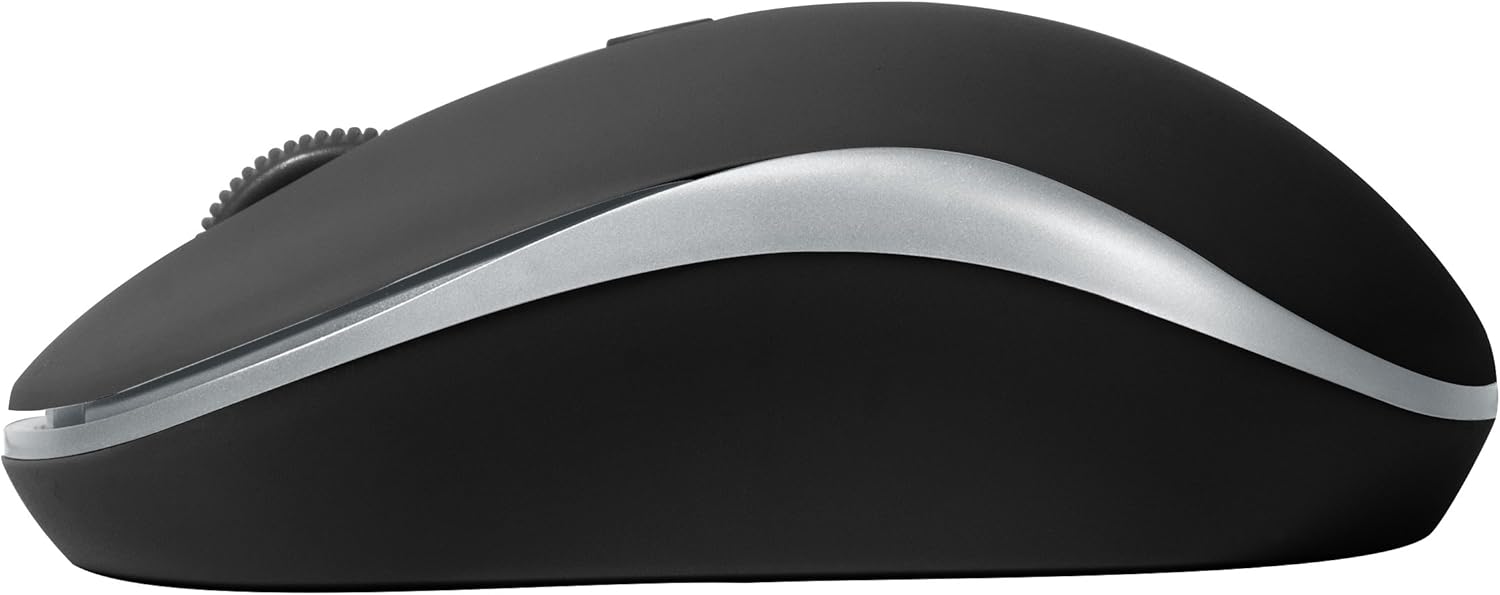
Figura 2: lato view of the BYTECH Wireless Optical Mouse. This angle highlights the ergonomic curve and the silver accent line that runs along the side of the mouse.
Impostare
1. Installazione della batteria
- Individuare il vano batteria sul lato inferiore del mouse.
- Aprire il coperchio del vano batterie.
- Insert one AA battery (not included) into the compartment, ensuring the correct polarity (+/-) as indicated inside.
- Chiudere saldamente il coperchio del vano batterie.
2. Collegamento del ricevitore USB
- Rimuovere il ricevitore USB dal suo alloggiamento, solitamente situato all'interno del vano batteria o nelle sue vicinanze.
- Collega il ricevitore USB a una porta USB disponibile sul tuo computer o laptop.
- Il sistema operativo dovrebbe rilevare e installare automaticamente i driver necessari. L'operazione potrebbe richiedere alcuni istanti.
3. Accensione
- Locate the On/Off switch on the underside of the mouse.
- Slide the switch to the "On" position. The mouse should now be ready for use.
Istruzioni per l'uso
Funzioni di base
- Clic sinistro: Premere il tasto sinistro per selezionare elementi, aprire collegamenti o attivare funzioni.
- Clic destro: Premere il tasto destro per aprire i menu contestuali o accedere ad opzioni aggiuntive.
- Rotella di scorrimento: Ruotare la rotellina verso l'alto o verso il basso per scorrere i documenti o web pagine. Premi la rotellina di scorrimento per la funzionalità del clic centrale (ad esempio, per aprire i link in nuove schede).
Regolazione DPI
The mouse features a DPI (Dots Per Inch) button, typically located behind the scroll wheel. Press this button to cycle through different sensitivity settings. Each press will change the cursor speed, allowing you to find the optimal setting for your task.
- Premere il tasto Pulsante DPI once to switch to the next sensitivity level.
- Repeat until you find your preferred cursor speed.
Modalità di risparmio energetico
To conserve battery life, the BYTECH Wireless Optical Mouse is designed to automatically enter a sleep mode after a period of inactivity. To wake the mouse, simply move it or click any button.
Manutenzione
Pulizia
- Prima di procedere alla pulizia, assicurarsi che il mouse sia spento.
- Utilizzare un panno morbido e privo di lanugine leggermente damplucidato con acqua o una soluzione detergente delicata.
- Wipe the surface of the mouse gently. Avoid excessive moisture.
- Per il sensore ottico, utilizzare un batuffolo di cotone asciutto per rimuovere con cautela polvere o detriti.
- Non utilizzare detergenti abrasivi, alcol o solventi, poiché potrebbero danneggiare la superficie.
Sostituzione della batteria
When the mouse performance degrades or the cursor becomes erratic, it may be time to replace the battery. Follow the battery installation steps outlined in the "Setup" section.
Magazzinaggio
When not in use for an extended period, it is recommended to turn off the mouse to conserve battery life. The USB receiver can be stored in its dedicated slot on the mouse's underside to prevent loss.
Risoluzione dei problemi
- Il mouse non risponde:
- Assicurati che il mouse sia acceso.
- Controllare il livello della batteria e sostituirla se necessario.
- Verificare che il ricevitore USB sia collegato saldamente a una porta USB funzionante. Provare una porta USB diversa.
- Riavvia il computer.
- Cursor erratic or jumping:
- Pulisci il sensore ottico sul lato inferiore del mouse.
- Ensure you are using the mouse on a suitable surface (non-reflective, non-transparent). A mouse pad is recommended.
- Verificare la presenza di forti interferenze elettromagnetiche provenienti da altri dispositivi.
- Problemi di connettività:
- Ridurre la distanza tra il mouse e il ricevitore USB.
- Remove any large metal objects or electronic devices that might be obstructing the wireless signal.
- Se si utilizza un hub USB, provare a collegare il ricevitore direttamente al computer.
Specifiche
| Caratteristica | Dettaglio |
|---|---|
| Marca | Tecnologia Bytech |
| Modello | BYTECH Wireless Optical Mouse |
| Tecnologia di connettività | Senza fili (ricevitore USB) |
| Tecnologia di rilevamento del movimento | Ottico |
| Colore | Nero |
| Fonte di alimentazione | Alimentato a batteria (1x AA, non incluse) |
| Compatibilità del sistema operativo | macOS, Android (and generally Windows) |
| Peso dell'articolo | 3.56 once |
| Dimensioni del prodotto (LxWxH) | 1 x 1 x 1 pollici (approssimativo) |
Nota: le specifiche sono soggette a modifiche senza preavviso.
Garanzia e supporto
Bytech products are manufactured to the highest quality standards. For information regarding warranty coverage, technical support, or service, please refer to the warranty card included with your product or visit the official Bytech websito. Conservare la ricevuta d'acquisto come prova d'acquisto per eventuali reclami in garanzia.
For further assistance, please contact Bytech customer support through their official channels.
Ask a question about this manual
Ask about setup, troubleshooting, compatibility, parts, safety, or missing instructions. Manuals+ will review the question and use this page’s manual context to help answer it.