
1. Introduzione
The wsdcam TVI to HDMI Converter is designed to display high-definition video from various security cameras on an HDMI-compatible monitor or television. This device supports multiple analog video formats including TVI, CVBS, AHD, and CVI. It is capable of accepting input resolutions up to 8MP (4K) and outputs a standard 1080p HDMI video signal. This converter is ideal for public view monitors or connecting security camera feeds to a DVR.
2. Contenuto della confezione
Si prega di verificare che tutti gli articoli elencati di seguito siano inclusi nel pacchetto:
- 1 x wsdcam TVI to HDMI Converter
- 1 x adattatore di alimentazione
- 1 cavo BNC
- 1 x cavo di alimentazione USB

Image: Package contents of the wsdcam TVI to HDMI Converter.
3. Prodotto finitoview
Familiarize yourself with the ports and indicators on the wsdcam TVI to HDMI Converter:
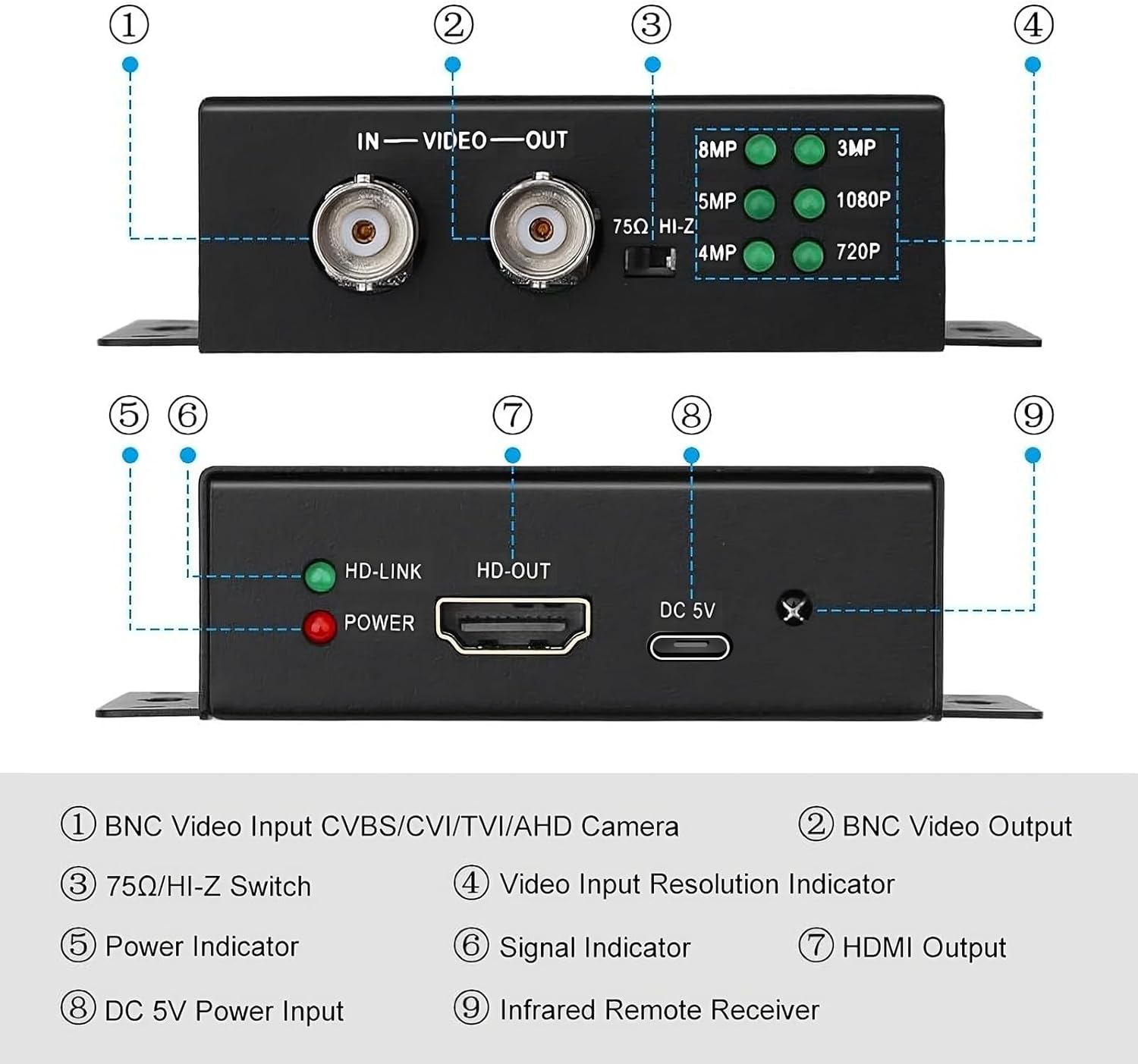
Immagine: anteriore e posteriore view of the converter with labeled ports and indicators.
- BNC Video Input: Connects to CVBS, CVI, TVI, or AHD cameras.
- Uscita video BNC: Provides a 4K BNC video loop out for connecting to another device like a DVR or camera tester.
- 75Ω/HI-Z Switch: Set to 75Ω for HDMI output only. Set to HI-Z if using the BNC loop output.
- Video Input Resolution Indicators: LEDs illuminate to show the detected input resolution (8MP, 5MP, 4MP, 3MP, 1080P, 720P).
- Indicatore di alimentazione: Il LED rosso indica che il dispositivo è acceso.
- Signal Indicator (HD-LINK): Green LED indicates a stable video signal input.
- Uscita HDMI (HD-OUT): Connects to an HDMI display for 1080p video output.
- Ingresso alimentazione CC 5 V: Collegare l'adattatore di alimentazione fornito.
- Infrared Remote Receiver: For future or optional remote control functionality (remote not included).
4. Configurazione e connessione
4.1 Connecting to a Single Monitor
Follow these steps to connect your security camera to a single HDMI monitor:
- Connect your security camera's BNC output to the BNC Video Input porta sul convertitore.
- Collegare un cavo HDMI dal Uscita HDMI port on the converter to the HDMI input on your monitor or TV.
- Collegare l'adattatore di alimentazione fornito al DC 5V Input di alimentazione port on the converter and plug it into a power outlet.
- Assicurare il 75Ω/HI-Z Switch è impostato su 75Ω if you are only using the HDMI output.
- Power on your camera and monitor. The converter will automatically detect the input resolution and display it on the HDMI monitor.

Image: Connection diagram for a single monitor setup.
4.2 Connecting to Multiple HDMI Monitors (Video Splitter Function)
Multiple wsdcam TVI to HDMI converters can be used in series to display a single analog camera feed on several HDMI monitors. This utilizes the BNC Video Loop Out feature.
- Connect your security camera's BNC output to the BNC Video Input port of the first converter.
- Collegare un cavo HDMI dal Uscita HDMI of the first converter to your first HDMI monitor.
- Collegare un cavo BNC dal Uscita video BNC of the first converter to the BNC Video Input of the second converter.
- Collegare un cavo HDMI dal Uscita HDMI of the second converter to your second HDMI monitor.
- Repeat step 3 and 4 for additional converters and monitors as needed.
- Connect power adapters to all converters.
- Assicurare il 75Ω/HI-Z Switch on all converters is set to HI-Z if you are using the BNC loop output.

Image: Connection diagram for multiple HDMI monitors.
5. Istruzioni per l'uso
The wsdcam TVI to HDMI Converter is designed for plug-and-play operation, requiring no driver installation.
- Once all connections are made and power is supplied, the converter will automatically detect the incoming video signal type (CVBS, TVI, CVI, AHD) and its resolution.
- The corresponding LED on the converter (720P, 1080P, 3MP, 4MP, 5MP, 8MP) will illuminate to indicate the detected input resolution.
- The video signal will then be converted and outputted via the HDMI port at 1080p resolution to your connected display.
6. Manutenzione
To ensure the longevity and optimal performance of your converter, please observe the following maintenance guidelines:
- Conservare il dispositivo in un ambiente asciutto, lontano da umidità e temperature estreme.
- Clean the exterior of the converter with a soft, dry cloth. Do not use liquid cleaners or aerosols.
- Evitare di far cadere o sottoporre il dispositivo a forti impatti.
- Garantire un'adeguata ventilazione intorno all'unità per evitare il surriscaldamento.
7. Risoluzione Dei Problemi
If you encounter issues with your wsdcam TVI to HDMI Converter, please refer to the following common problems and solutions:
- No video output on the HDMI display:
- Verify that the power adapter is securely connected to the converter and a working power outlet. The red POWER LED should be on.
- Check all BNC and HDMI cable connections to ensure they are secure and correctly plugged in.
- Confirm that your security camera is powered on and functioning correctly.
- Ensure the HDMI display is set to the correct input source.
- Check the 75Ω/HI-Z switch setting. It should be 75Ω if only using HDMI output.
- Image is black and white:
- This can sometimes occur with certain camera or monitor configurations. Try adjusting the color settings on your HDMI display.
- Ensure the camera itself is outputting a color signal.
- Se il problema persiste, contattare l'assistenza clienti per ulteriore assistenza.
- Power connection is loose or device does not power on:
- Ensure the USB power cable is fully inserted into the DC 5V Power Input port.
- Use the provided power adapter and USB cable. If using a different USB power source, ensure it provides stable 5V DC.
If you require further assistance or are unable to resolve an issue, please contact wsdcam customer support.
8. Specifiche
| Numero di modello | WSDUS0327 |
| Dimensioni del prodotto (L x P x A) | 3.74 x 2.83 x 0.94 pollici (9.5 x 7.2 x 2.4 cm) |
| Peso dell'articolo | 12.3 once |
| Dispositivi compatibili | Cameras, Monitors |
| Tipo di connettore | HDMI, BNC |
| Supported Input Formats | CVBS, TVI, CVI, AHD |
| Supported TVI/AHD Resolutions | 720p, 1080p, 3 MP, 4 MP, 5 MP, 8 MP (4K) |
| Supported CVI Resolutions | 720p, 1080p, 4 MP, 8 MP (4K) |
| Risoluzione uscita HDMI | Formato: 1080p |
| BNC Video Loop Out | Supporta fino a 4K |
| Potenza in ingresso | CC 5V |

Image: Converter dimensions.
9. Garanzia e supporto
Questo prodotto è coperto dalla garanzia standard del produttore. Per dettagli specifici sulla garanzia, fare riferimento alla confezione del prodotto o contattare il rivenditore.
For any technical assistance, questions, or concerns regarding your wsdcam TVI to HDMI Converter, please do not hesitate to contact us. We are committed to providing support and resolving any issues you may encounter.
Informazioni sui contatti: Please refer to the contact details provided with your purchase or visit the official wsdcam websito per opzioni di supporto.