
TOTU TT-HB001C
Manuale di istruzioni dell'hub USB C 9 in 1 TOTU
Model: TT-HB001C
Introduzione
This manual provides detailed instructions for the setup, operation, maintenance, and troubleshooting of your TOTU 9-in-1 USB C Hub. Please read this manual thoroughly before using the product to ensure optimal performance and longevity.
Caratteristiche del prodotto
The TOTU 9-in-1 USB C Hub is designed to expand the connectivity of your USB-C enabled devices, offering a versatile solution for various peripherals.
- Multiport Connectivity: Includes 1 Ethernet/RJ-45 Port, 1 USB Type-C Female PD charging port, 1 HDMI port, 1 Card Reader for SD, 1 Card Reader for TF, 1 USB 2.0 Type-A port, and 2 USB 3.0 Type-A ports.
- Effortless Data Transfer: Connect smartphones, tablets, hard drives, or other USB peripherals via USB 3.0 Ports for high-speed data transfer (up to 5Gbps). The USB 2.0 port is ideal for low-rate devices like mice and keyboards.
- Dual Card Reading: Built-in SD/TF card reader allows simultaneous access to files from universal memory cards.
- Gigabit: 1000Mbps Ethernet port ensures a stable and faster-wired network connection.
- Erogazione di potenza (PD): Supports PD charging at a maximum of 87W, allowing you to securely charge your connected MacBook or other Type-C laptops through the hub.
- Uscita HDMI 4K: Provides high-definition video output up to 4K resolution, perfect for connecting to external monitors, projectors, or HDTVs.
- Compatto e portatile: Lightweight and compact design makes it easy to carry for business travel and on-the-go use.

Figura 1: Oltreview of the TOTU 9-in-1 USB C Hub and its various connectivity options.

Figura 2: dettagliata view of the hub's ports, including USB-C charging, HDMI, TF/SD card readers, Ethernet, USB 2.0, and USB 3.0 ports.

Figure 3: Illustration of the hub providing fast charging and 5Gbps data transfer to connected devices.

Figure 4: The hub enabling 4K HD video output from a laptop to a larger display, such as a monitor, projector, or HDTV.

Figure 5: The hub's USB 3.0 and USB 2.0 ports supporting various high-speed and low-speed devices like thumb drives, keyboards, mice, and phones.

Figure 6: The hub providing instant and stable wired internet access up to 1 Gbps via its Ethernet port.

Figure 7: The non-slip, compact design of the hub, making it an ideal accessory for MacBook Pro and similar devices.
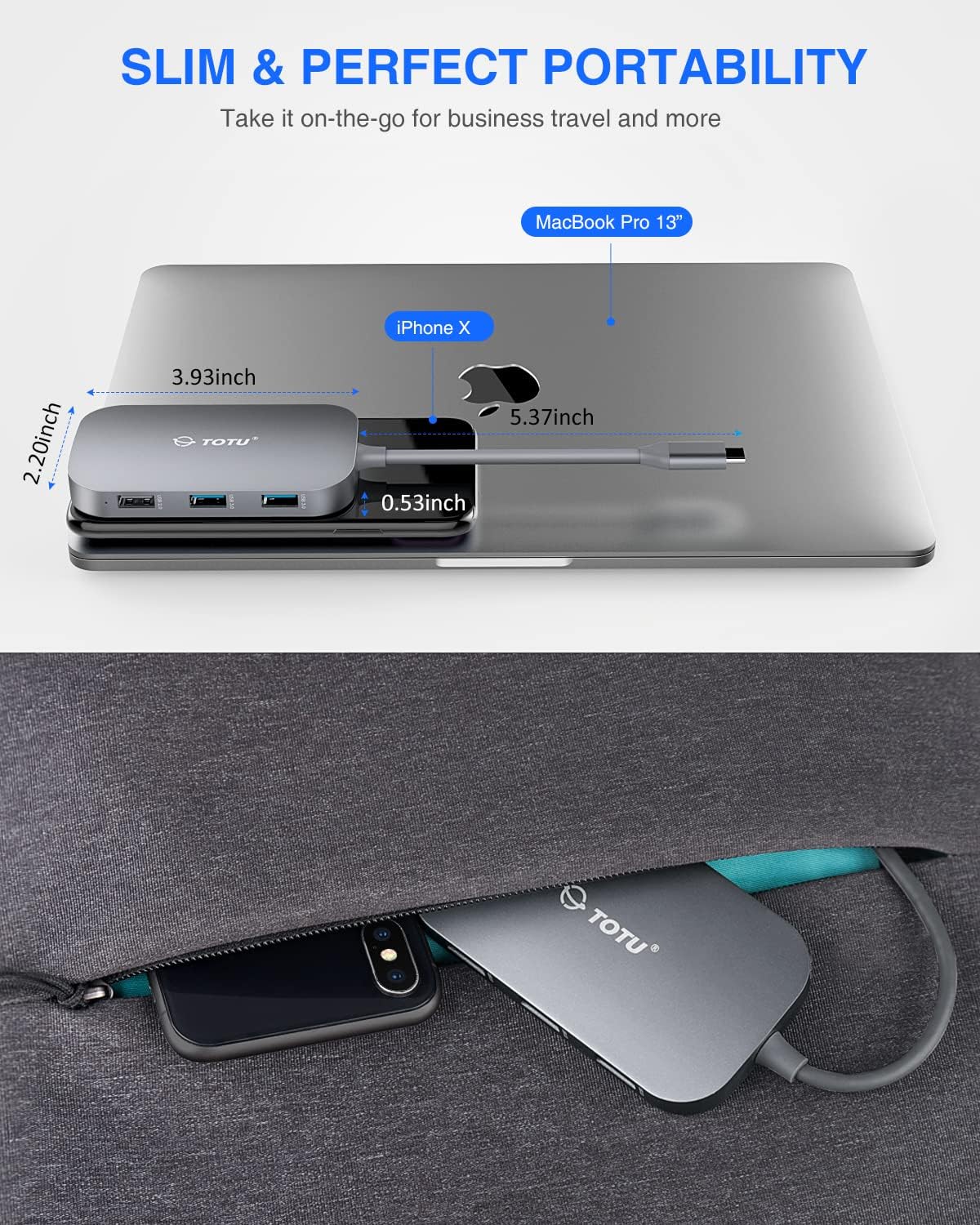
Figure 8: The slim and portable nature of the hub, demonstrating its ease of transport for business or travel.
Contenuto della confezione
Si prega di verificare che tutti gli articoli siano presenti nel pacco:
- 1 x TOTU USB C Hub
- 1 x Manuale utente
Impostare
- Verifica della compatibilità: Ensure your device's USB-C port supports DisplayPort Alt Mode and Power Delivery. Refer to your device's specifications for compatibility.
- Connetti l'Hub: Plug the USB-C connector of the TOTU hub into the USB-C port on your laptop or compatible device.
- Collegamento elettrico (facoltativo): If your laptop requires charging or if you are connecting power-intensive peripherals, connect your laptop's original USB-C power adapter to the USB Type-C Female PD charging port on the hub.
- Connetti le periferiche: Connect your desired peripherals (e.g., HDMI monitor, Ethernet cable, USB drives, SD/TF cards, keyboard, mouse) to the corresponding ports on the hub.
- Installazione del driver: The hub is generally plug-and-play. For certain operating systems (e.g., Windows) or specific functions (e.g., Ethernet, SD card reader), manual driver installation might be required if not automatically recognized. Refer to the troubleshooting section if issues arise.
Istruzioni per l'uso
Once the hub is connected, you can utilize its various ports:
- Porta HDMI: Connect an HDMI cable from the hub to your external monitor, projector, or HDTV. Your device should automatically detect the external display. Adjust display settings (resolution, mirroring/extending) through your operating system's display preferences. Supports up to 4K resolution.
- Porta Ethernet (RJ-45): Connect an Ethernet cable from your router or modem to the RJ-45 port on the hub for a stable wired network connection. Ensure your device's network settings are configured for wired connection.
- Porte USB 3.0 (2x): Use these ports for high-speed data transfer with USB 3.0 compatible devices such as external hard drives, SSDs, or high-speed flash drives. They are also backward compatible with USB 2.0/1.1 devices.
- Porta USB 2.0 (1x): Ideal for connecting low-bandwidth devices like keyboards, mice, or printers to avoid interference with high-speed USB 3.0 devices.
- USB Type-C PD Charging Port: This port is for power input only. Connect your laptop's USB-C power adapter here to charge your laptop while using the hub. It supports up to 87W power delivery. This port does not support data transfer.
- Lettori di schede SD/TF: Insert your SD or TF (microSD) cards into the respective slots. Both card slots can be used simultaneously for data access. Your device will recognize them as removable storage.
Manutenzione
- Pulizia: Per pulire il mozzo, utilizzare un panno morbido e asciutto. Evitare l'uso di detergenti liquidi o spray.
- Magazzinaggio: Conservare l'hub in un luogo fresco e asciutto, lontano dalla luce solare diretta e da temperature estreme.
- Gestione: Evitare di far cadere l'hub o di sottoporlo a forti urti. Non tentare di smontare o modificare il dispositivo.
- Cura del porto: Ensure connectors are inserted gently and correctly into the ports to prevent damage.
Risoluzione dei problemi
- Nessuna uscita video tramite HDMI:
- Assicurati che la porta USB-C del tuo dispositivo supporti la modalità DisplayPort Alt.
- Check the HDMI cable connection between the hub and the display.
- Verify the input source on your monitor is set to the correct HDMI port.
- Prova un altro cavo HDMI o un altro monitor.
- Riavvia il computer.
- Problemi di connessione Ethernet:
- Assicurarsi che il cavo Ethernet sia collegato saldamente sia all'hub che al router/modem.
- Check your computer's network settings to ensure the wired connection is enabled and configured correctly.
- If using Windows, and the Ethernet port is not recognized, you may need to manually install a generic Broadcom NetXtreme driver.
- Prova un cavo Ethernet diverso.
- Dispositivi USB non riconosciuti:
- Ensure the USB device is properly inserted into the hub's port.
- Prova a collegare il dispositivo USB a una porta diversa sull'hub o direttamente al computer per escludere problemi con il dispositivo.
- Some high-power USB devices may require external power if the hub's PD port is not connected to a power source.
- Lettore di schede SD/TF non funzionante:
- Assicurarsi che la scheda sia inserita completamente nello slot corretto.
- Try a different SD/TF card.
- On Windows, if the card reader is not recognized, try reinstalling the generic Microsoft driver and manually assigning a drive letter in Disk Management.
- Problemi di ricarica (porta PD):
- Ensure your laptop's original USB-C power adapter is connected to the hub's PD port.
- Verifica che il tuo laptop supporti USB-C Power Delivery.
- Note that the HDMI output may briefly interrupt (2-3 seconds) if external USB-C power is removed from the hub. This is normal behavior.
Specifiche
| Dimensioni del prodotto | 3.93 x 2.2 x 0.53 pollici |
| Peso dell'articolo | 2.4 once |
| Numero di modello | TT-HB001C |
| Marca | TUTTO |
| Colore | Grigio |
| Interfaccia Hardware | Ethernet, HDMI, USB, USB 2.0, USB 3.0 |
| Caratteristica speciale | Portatile |
| Erogazione di potenza | Fino a 87W |
| Velocità Ethernet | 10/100/1000Mbps |
| Risoluzione HDMI | Fino a 4K |
Garanzia e supporto
For warranty information and technical support, please refer to the official TOTU websito o contattare il servizio clienti. Conservare la ricevuta d'acquisto per eventuali reclami in garanzia.
You can visit the TOTU Store for more information: TOTU Store on Amazon
Ask a question about this manual
Ask about setup, troubleshooting, compatibility, parts, safety, or missing instructions. Manuals+ will review the question and use this page’s manual context to help answer it.