
1. Introduzione
The SUNMI L2 SmartOrder is a rugged industrial terminal designed for various business applications requiring mobility and data capture. It features an Android 7.1 operating system, a 5-inch display, and an integrated 1D/2D Zebra scanner. This manual provides essential information for the proper setup, operation, and maintenance of your device.
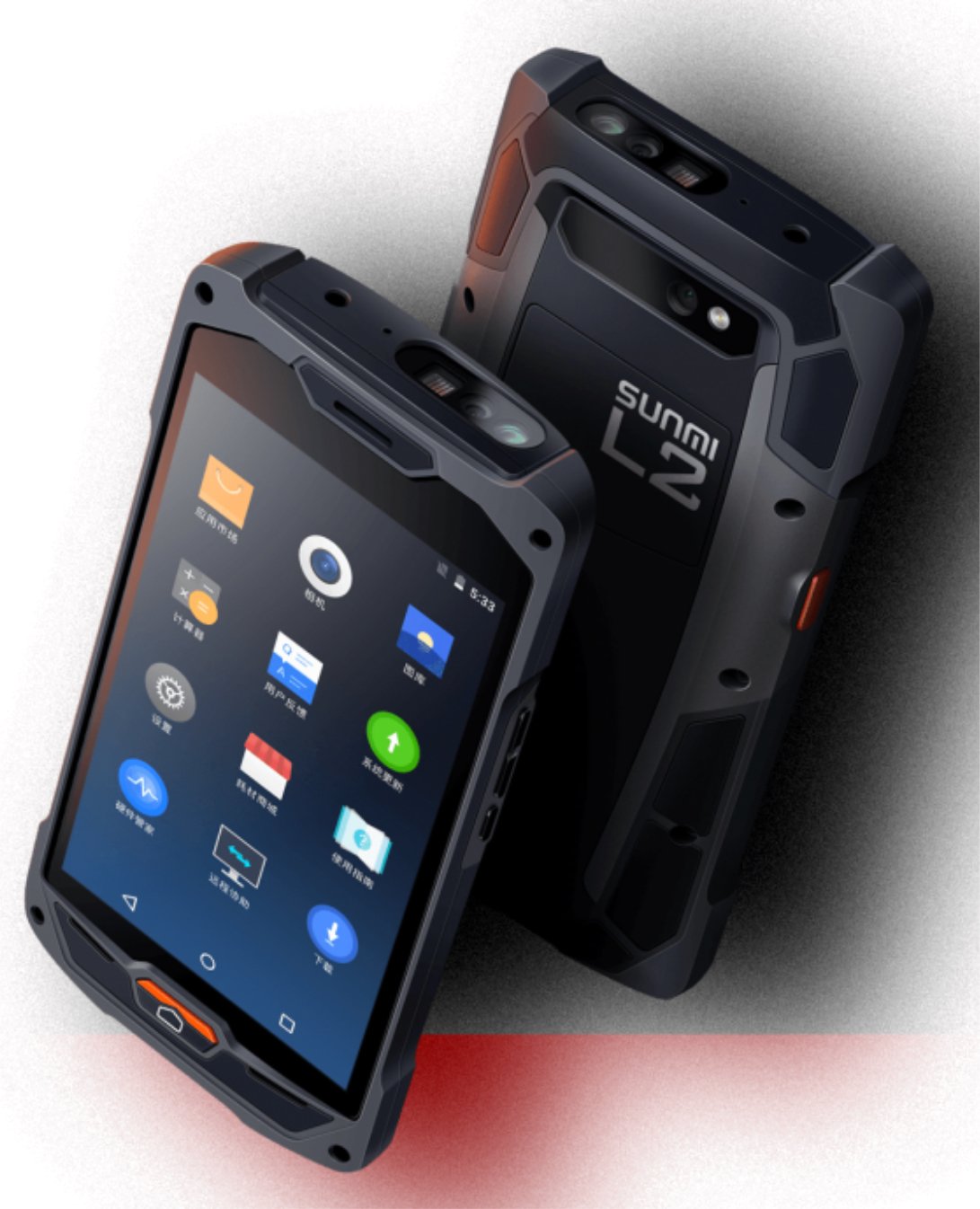
Figura 1: Anteriore e posteriore view of the Sunmi L2 SmartOrder industrial terminal.
2. Informazioni sulla sicurezza
Si prega di leggere attentamente tutte le istruzioni di sicurezza prima di utilizzare il dispositivo per evitare lesioni o danni. Conservare il presente manuale per riferimento futuro.
- Non esporre il dispositivo a temperature estreme, alla luce solare diretta o a elevata umidità.
- Use only SUNMI-approved accessories and power adapters.
- Nonostante il design robusto, evitare di far cadere o sottoporre il dispositivo a urti violenti.
- Non tentare di smontare o riparare il dispositivo da soli. Rivolgersi a personale qualificato.
- Tenere il dispositivo lontano da dispositivi medici, poiché potrebbe interferire con il loro funzionamento.
3. Dispositivo suview
The SUNMI L2 SmartOrder is designed for durability and functionality. Key features include:
- Display da 5 pollici: High-resolution touchscreen for clear visibility.
- 1D/2D Zebra Scanner: Integrated for efficient barcode and QR code scanning.
- Porta USB-C: Per la ricarica e il trasferimento dei dati.
- Slot per scheda SIM: Per la connettività di rete cellulare.
- Slot per schede TF: Per spazio di archiviazione espandibile.
- PSAM Card Slot (Optional): For enhanced security in professional applications.
- Area di induzione NFC: For near-field communication.

Figura 2: Posteriore view showing SIM card slot, TF card slot, PSAM card slot, and NFC induction area.

Figure 3: Three different scanner options for the Sunmi L2: Zebra Code Scanner, Standard Code Scanner, and without scanner.
4. Impostazione
4.1. Installazione e ricarica della batteria
The device is equipped with a 5000mAh high-volume battery. Ensure the battery is fully charged before initial use.
- Connect the provided USB-C cable to the USB-C port on the device.
- Connect the other end of the USB-C cable to a compatible power adapter and plug it into a power outlet.
- The charging indicator will illuminate. Allow the device to charge completely before disconnecting.

Figure 4: Illustration of the 5000mAh high-volume battery with Quick Charge technology.
4.2. Installazione della scheda SIM e TF
To install SIM or TF cards:
- Locate the card slot cover on the rear of the device (refer to Figure 2).
- Aprire con cautela il coperchio.
- Insert the SIM card into the designated SIM card slot with the gold contacts facing down.
- Insert the TF card (microSD) into the TF card slot if additional storage is required.
- Chiudere bene il coperchio dello slot della scheda per mantenere la classificazione IP67 del dispositivo.
4.3. Accensione iniziale
After charging, press and hold the power button located on the side of the device until the screen illuminates and the SUNMI logo appears. The device will boot into the Android 7.1 operating system.
5. Istruzioni per l'uso
5.1. Navigazione di base
The SUNMI L2 operates on Android 7.1. Navigate the interface using the touchscreen. Swipe to unlock, tap icons to open applications, and use the navigation buttons (Home, Back, Recent Apps) as standard for Android devices.
5.2. Using the 1D/2D Zebra Scanner
The integrated Zebra scanner is located at the top of the device.
- Apri l'applicazione di scansione sul tuo dispositivo.
- Point the scanner window at the barcode or QR code you wish to scan.
- Press the dedicated scan button (if available on your model) or trigger the scan via the software interface.
- Ensure the barcode is well-lit and within the scanner's optimal range for accurate reading.

Figura 5: In basso view of the Sunmi L2, highlighting its rugged design and integrated scanner.
5.3. Connettività
Il dispositivo supporta diverse opzioni di connettività:
- WLAN (Wi-Fi): Supports 2.4 GHz and 5 GHz bands. Access Wi-Fi settings from the Android system menu to connect to available networks.
- Bluetooth (BT): Pair with other Bluetooth-enabled devices such as printers or headsets via the Bluetooth settings.
- GPRS/LTE: Utilize cellular data by inserting a SIM card and configuring network settings.
- NFC: For short-range wireless communication, typically used for contactless payments or data exchange.
6. Manutenzione
6.1. Pulizia del dispositivo
Per mantenere le prestazioni e l'aspetto del dispositivo:
- Utilizzare un panno morbido e privo di lanugine leggermente dampcon acqua o un detergente delicato per schermi.
- Avoid using harsh chemicals, abrasive cleaners, or solvents, as these can damage the device's surface and seals.
- Ensure all port covers are securely closed before cleaning to maintain water and dust resistance.
6.2. Cura della batteria
Una corretta manutenzione della batteria ne prolunga la durata:
- Evitare di scaricare completamente la batteria frequentemente.
- Non esporre il dispositivo a temperature estreme, poiché ciò potrebbe compromettere le prestazioni della batteria.
- Se si conserva il dispositivo per un periodo prolungato, caricare la batteria a circa il 50% e conservarla in un luogo fresco e asciutto.
6.3. Conservazione
When not in use, store the SUNMI L2 in a cool, dry environment, away from direct sunlight and corrosive materials.
7. Risoluzione Dei Problemi
This section addresses common issues you might encounter with your SUNMI L2 device.
- Il dispositivo non si accende: Ensure the battery is sufficiently charged. Connect the device to a power source and attempt to power it on again.
- Scanner not working: Verify that the scanning application is active and the scanner is enabled in the device settings. Ensure the barcode is clean, undamaged, and properly illuminated.
- Problemi di connettività (Wi-Fi/Cellulare): Check your Wi-Fi network connection or cellular data settings. Ensure the SIM card is correctly inserted. Try restarting the device.
- Il touchscreen non risponde: Riavvia il dispositivo. Se il problema persiste, contatta l'assistenza.
8. Specifiche
Key technical specifications for the SUNMI L2 SmartOrder:
| Numero di modello | Sunmi L2 Zebra T8900 |
| Sistema operativo | Androide 7.1 |
| Display | 5 pollici |
| processore | Quad-core |
| Memoria RAM | 2 GB |
| ROM | 16 GB |
| Scanner | 1D/2D Zebra Scanner |
| Connettività | USB-C, WLAN 2.4/5 GHz, Bluetooth, GPRS, LTE, NFC |
| Batteria | 5000mAh (up to 2 days use, 30 days standby) |
| Durata | IP67 rated (dust-proof, water-resistant, drop-resistant) |
| Temperatura di esercizio | da -20°C a +55°C |
| Peso | 349.27 grammi |
| Dispositivi compatibili | Desktop computer, Laptop, POS, Smartphone, Tablet |

Figure 6: Sunmi L2 device partially submerged in water, demonstrating its IP67 dust-proof and water-resistant capabilities.
9. Garanzia e supporto
For detailed warranty information, technical support, or service inquiries, please refer to the official SUNMI website or contact your authorized SUNMI distributor. Please retain your purchase receipt as proof of purchase for any warranty claims.