
1. Introduzione
The HyperDrive Tube 6-in-1 USB-C Hub is designed to expand the connectivity of your USB-C enabled device. It provides essential ports for data transfer, video output, network connection, and power delivery, enhancing your productivity and versatility.
2. Prodotto finitoview
This 6-in-1 USB-C hub features a compact design and offers the following ports:
- 1 porta HDMI: Supporta l'uscita video fino a una risoluzione 4K a 30 Hz.
- 1 x Gigabit Ethernet Port: Fornisce una connessione di rete cablata stabile.
- 3 x USB 3.0 Type-A Ports: For connecting USB peripherals and high-speed data transfer.
- 1 x USB-C Power Delivery Port: For charging your host device and data transfer.
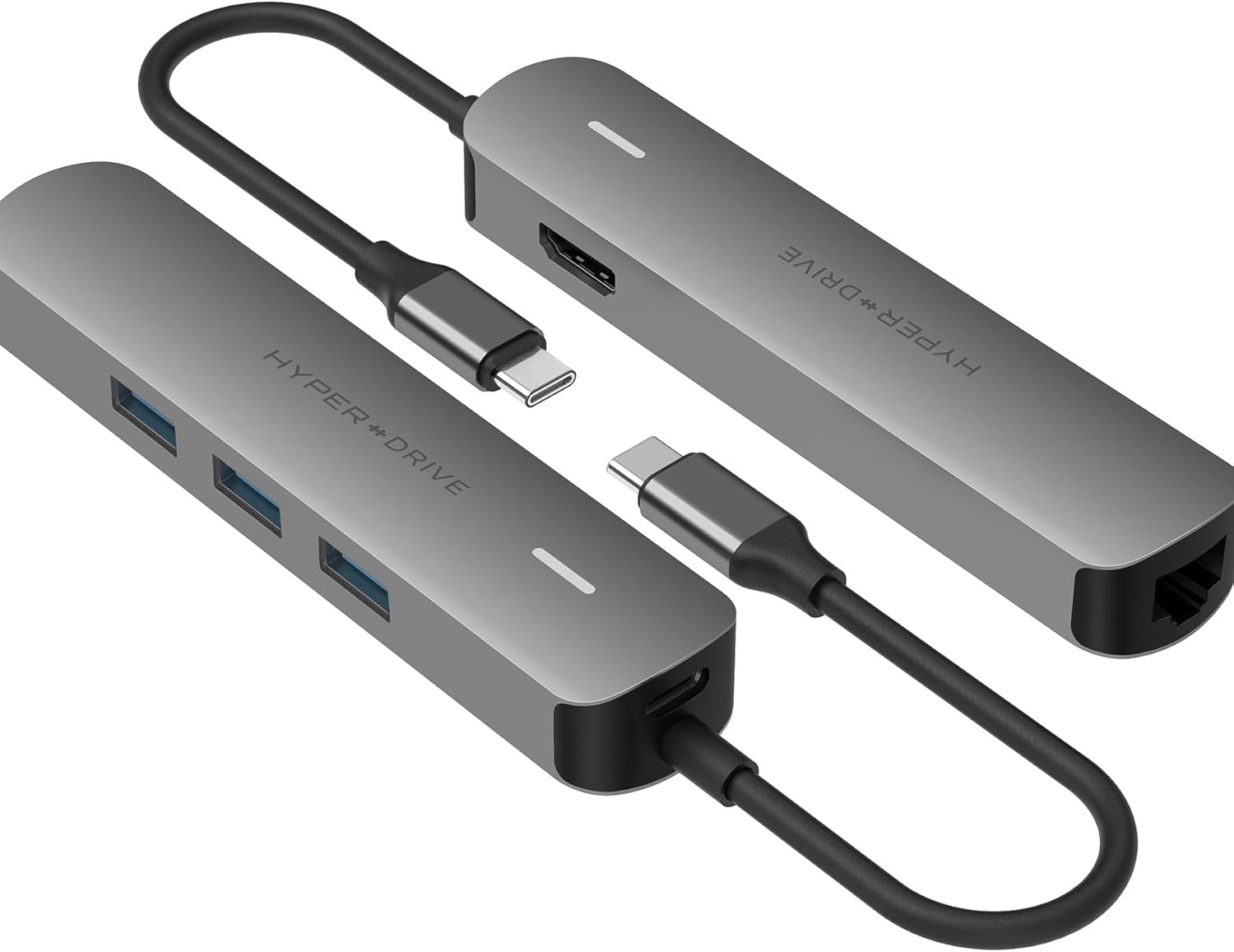
Image: The HyperDrive Tube 6-in-1 USB-C Hub, displaying its various input and output ports, including HDMI, Ethernet, and USB-A ports.
3. Istruzioni per l'installazione
- Collega l'hub al tuo dispositivo: Plug the integrated USB-C cable of the HyperDrive Tube hub into a compatible USB-C port on your laptop, tablet, or smartphone. Ensure the USB-C port on your host device supports DisplayPort Alternate Mode (DP Alt-Mode) for video output and Power Delivery for charging.
- Connetti le periferiche:
- Schermo HDMI: Connect an HDMI cable from your monitor or TV to the hub's HDMI port.
- Rete Ethernet: Connect an Ethernet cable from your router or modem to the hub's Gigabit Ethernet port.
- Dispositivi USB: Plug your USB-A peripherals (e.g., mouse, keyboard, flash drive) into the USB 3.0 Type-A ports.
- Adattatore di alimentazione (opzionale): If your host device requires charging, connect your device's original USB-C power adapter to the hub's USB-C Power Delivery port.
- Verifica connessione: Your operating system should automatically detect the connected devices and external display.

Image: The HyperDrive Tube 6-in-1 USB-C Hub connected to a MacBook Pro, extending its display to an external monitor and providing additional USB ports for peripherals.
4. Istruzioni per l'uso
Once connected, the HyperDrive Tube hub operates automatically. Here are specific functions:
- Uscita video HDMI: The HDMI port supports resolutions up to 4K (3840x2160) at 30Hz. For optimal display settings, adjust your computer's display preferences. Note that 30Hz refresh rate is suitable for general use and coding, but may not be ideal for fast-paced gaming or video editing requiring higher refresh rates.
- Trasferimento dati USB 3.0: The three USB 3.0 Type-A ports provide high-speed data transfer for external hard drives, flash drives, and other USB peripherals. These ports are not designed to support Apple SuperDrive or charge iPads.
- Gigabit: Enjoy a stable and fast wired internet connection. The hub automatically configures the network connection upon plugging in the Ethernet cable.
- Alimentazione tramite USB-C: If your host device supports USB-C Power Delivery, connect your original power adapter to the hub's USB-C port to charge your device while using the hub's other functions.

Immagine: un primo piano view of the HyperDrive Tube 6-in-1 USB-C Hub connected to a MacBook, demonstrating simultaneous use of the Ethernet port and multiple USB devices.
5. Manutenzione
To ensure the longevity and optimal performance of your HyperDrive Tube hub, follow these maintenance guidelines:
- Pulizia: Use a soft, dry cloth to wipe the exterior of the hub. Avoid using liquid cleaners or abrasive materials.
- Magazzinaggio: Quando non viene utilizzato, conservare l'hub in un luogo fresco e asciutto, lontano dalla luce solare diretta e da temperature estreme.
- Gestione: Evitare di far cadere l'hub o di sottoporlo a forti urti. Non piegare o torcere eccessivamente il cavo USB-C integrato.
- Ventilazione: Ensure the hub has adequate ventilation during operation, especially when multiple devices are connected, as it may generate heat.
6. Risoluzione Dei Problemi
If you encounter issues with your HyperDrive Tube hub, refer to the following common solutions:
- Nessuna uscita di visualizzazione:
- Assicurati che la porta USB-C del dispositivo host supporti la modalità alternativa DisplayPort.
- Controllare il collegamento del cavo HDMI tra l'hub e il monitor.
- Verify your monitor's input source is set correctly to HDMI.
- Try connecting the hub to a different USB-C port on your device, if available.
- Dispositivi USB non riconosciuti:
- Assicurarsi che il dispositivo USB sia correttamente collegato all'hub.
- Prova a collegare il dispositivo USB direttamente al computer per verificare che funzioni in modo indipendente.
- Alcuni dispositivi USB ad alta potenza potrebbero richiedere un'alimentazione esterna o un hub USB alimentato.
- Slow Charging / No Charging via Hub:
- Ensure your original power adapter is connected to the hub's USB-C Power Delivery port.
- Verifica che la porta USB-C del tuo dispositivo host supporti Power Delivery.
- Note that connecting multiple power-hungry peripherals to the hub can reduce the power available for charging the host device.
- Hub Gets Warm During Use:
It is normal for the hub to become warm during operation, especially when multiple ports are in use or when charging a device. This is due to power conversion and data processing. If the hub becomes excessively hot, disconnect it and allow it to cool down.
- Problemi di connessione di rete:
- Controllare la connessione del cavo Ethernet sia all'hub che al router/modem.
- Ensure your network settings on your computer are configured for a wired connection.
- Try restarting your router/modem and your host device.
7. Specifiche
| Numero di modello | HD233B-GRAY |
| Dimensioni del prodotto | 4.74 x 1 x 0.65 pollici |
| Peso dell'articolo | 2.08 once |
| Interfaccia Hardware | Ethernet, HDMI, USB 3.0 Type-A (x3), USB Type-C (Power Delivery) |
| Risoluzione HDMI | Fino a 4K (3840x2160) a 30 Hz |
| Dispositivi compatibili | MacBook Pro 2016 or Later, MacBook Air 2018 or Later, MacBook 2015, 2016; iPad Pro 2018 or later, iPad Air 2020 or later; Chrome OS laptop with Thunderbolt 4, USB4, USB 3.0 or later Type C with DP Alt-Mode; Windows OS laptop with Thunderbolt 4, USB4, USB 3.0 or later Type C with DP Alt-Mode; Any other device with USB-C* (*Requires DisplayPort over USB-C + charge + data; USB-A ports will not support Apple SuperDrive or charge iPads.) |
| Caratteristica speciale | Portatile |
| Produttore | Iper |
8. Garanzia e supporto
For warranty information or technical support, please visit the official Hyper websito o contattare il servizio clienti. Conservare la ricevuta d'acquisto per eventuali reclami in garanzia.
Hyper Official Websito: www.hyper.com