
1. Introduzione
This manual provides essential information for setting up, operating, maintaining, and troubleshooting your Acer Predator Orion 3000 (PO3-600) desktop computer. Please read this guide thoroughly to ensure proper use and to maximize your system's performance and longevity.
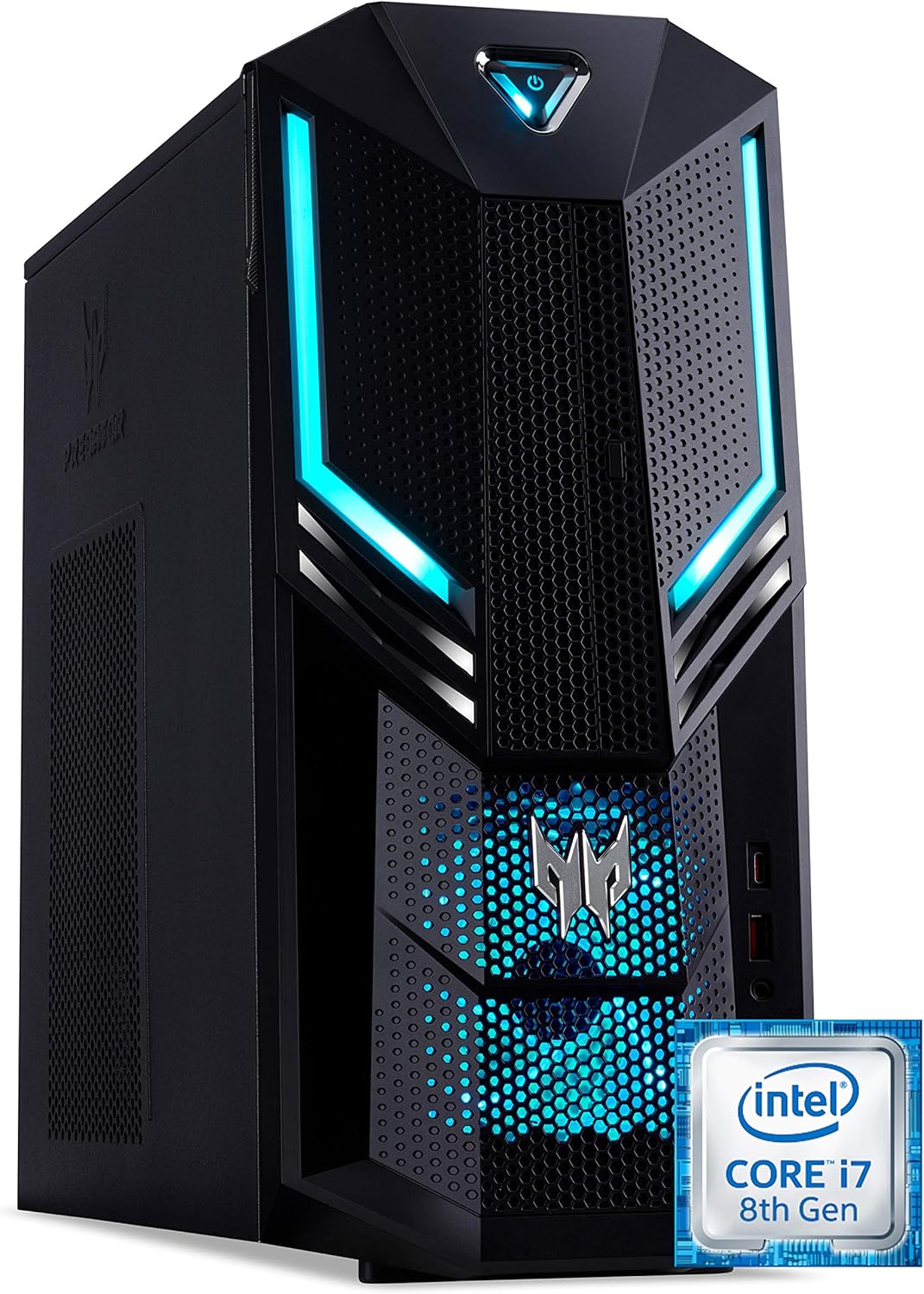
Figura 1.1: Anteriore destro view of the Acer Predator Orion 3000 desktop computer, showcasing its black chassis with blue LED accents and angular design.
2. Impostazione
2.1 Disimballaggio
Carefully remove all components from the packaging. Verify that all items listed in the 'Included Components' section of this manual are present. Retain the packaging for future transport or service needs.
2.2 Collegamento delle periferiche
- Monitorare: Connect your monitor to one of the available video output ports (HDMI, DVI, or DisplayPort) on the graphics card at the rear of the computer.
- Tastiera e mouse: Connect the included Predator USB keyboard and mouse to any available USB ports. The system features both USB 2.0, USB 3.1, and USB 3.1 Type-C ports.
- Rete: For a wired connection, connect an Ethernet cable from your router or modem to the LAN port on the rear of the computer. For wireless, ensure your Wi-Fi antenna (if external) is connected.
- Audio: Connect speakers or headphones to the audio output jacks. The system supports Sound BlasterX Pro Gaming Sound Engine for enhanced audio.
- Energia: Connect the power cable to the power supply unit (PSU) at the rear of the computer, then plug the other end into a grounded electrical outlet.
2.3 Accensione iniziale
Press the power button located on the top front of the computer. The system will boot up, and the blue LED accents will illuminate. Follow the on-screen instructions to complete the Windows 10 Home operating system setup, including language, region, and user account creation.
3. Utilizzo del computer
3.1 Gestione dell'alimentazione
- Accensione: Premere una volta il pulsante di accensione.
- Fermare: From Windows, click the Start button, then Power > Shut down.
- Ricomincia: From Windows, click the Start button, then Power > Restart.
- Sonno: From Windows, click the Start button, then Power > Sleep.
3.2 Windows 10 Home
Your Predator Orion 3000 comes pre-installed with Windows 10 Home. Familiarize yourself with the operating system's interface, settings, and features. Regular updates are recommended for security and performance.
3.3 Caratteristiche di gioco
The system is designed for gaming, featuring an Intel Core i7-8700 processor and NVIDIA GeForce GTX 1060 graphics. It is VR-ready, allowing for immersive virtual reality experiences. The integrated Sound BlasterX Pro Gaming Sound Engine provides high-quality audio for gaming and multimedia.

Figura 3.1: Acer Predator Orion 3000 desktop with gaming headphones, highlighting its gaming capabilities.
4. Manutenzione
4.1 Pulizia
- Esterno: Utilizzare un morbido, damp panno per pulire le superfici esterne. Evitare detergenti abrasivi.
- Vents: Regularly check and clean the air intake vents on the front and left side of the chassis to ensure proper airflow and prevent dust buildup. Use compressed air to gently clear dust.
- Componenti interni: For advanced cleaning of internal components, it is recommended to consult a professional or refer to detailed service guides.
4.2 Aggiornamenti software
Keep your operating system, drivers (especially graphics drivers), and applications updated to ensure optimal performance, security, and compatibility.

Figura 4.1: Interno view of the Acer Predator Orion 3000 desktop computer with the side panel removed, revealing the motherboard, CPU cooler, RAM slots, and storage drive bays. Regular cleaning of these areas is important for system health.
5. Risoluzione Dei Problemi
Questa sezione affronta i problemi più comuni che potresti riscontrare. Per problemi più complessi, consulta le risorse di supporto ufficiali di Acer.
5.1 Nessun potere
- Assicurarsi che il cavo di alimentazione sia collegato saldamente sia al computer sia alla presa elettrica.
- Verificare che la presa elettrica funzioni collegandovi un altro dispositivo.
5.2 Nessuna visualizzazione
- Check that the monitor is powered on and the video cable is securely connected to both the computer and the monitor.
- Assicurati che sul tuo monitor sia selezionata la sorgente di input corretta.
5.3 Il sistema è lento o non risponde
- Chiudere le applicazioni non necessarie in esecuzione in background.
- Verificare la presenza di malware o virus utilizzando un software antivirus affidabile.
- Assicurati di avere spazio libero sufficiente sull'unità principale (SSD).
- Riavviare il computer.
5.4 Rumore eccessivo della ventola
- Ensure the computer's air vents are not obstructed and are free of dust.
- Verify the computer is in a well-ventilated area.
- Monitor CPU and GPU temperatures using system utilities. High temperatures can cause fans to run faster.
6. Specifiche
Below are the key technical specifications for the Acer Predator Orion 3000 (PO3-600) desktop computer.
| Componente | Specificazione |
|---|---|
| Nome del modello | Acer Predator Orion 3000 (PO3-600) |
| Sistema operativo | Windows 10 Casa |
| Processore | Intel Core i7-8700 (6 Cores, 3.2 GHz base, up to 4.6 GHz burst) |
| Scheda grafica | NVIDIA GeForce GTX 1060 (6 GB GDDR5 VRAM) |
| Memoria RAM | 16 GB DDR4 (massimo 16 GB) |
| Magazzinaggio | SSD da 128 GB + HDD da 1 TB |
| Unità ottica | DVD+R |
| Connettività | Ethernet RJ-45, Wi-Fi (802.11ac) |
| Porte anteriori | 1x USB 3.1, 1x USB 3.1 Type-C, Audio Jacks |
| Porte posteriori | 2x USB 3.1, 4x USB 2.0, 1x HDMI, 1x DVI, 3x DisplayPort, 5x Audio Jacks, LAN |
| Slot di espansione | 1x PCIe x16, 1x PCIe x1, 2x M.2 (1x SSD, 1x Wi-Fi) |
| Dimensioni (A x L x P) | Dimensioni: 35 x 16.3 x 34 cm |
| Peso | 6 kg |
| Raffreddamento | Passive, via air intake |
| Periferiche incluse | Predator USB Keyboard (blue), Predator USB Mouse (blue) |

Figura 6.1: Intel Core i7 8th Gen logo, indicating the processor type used in the system.
7. Garanzia e supporto
7.1 Garanzia del produttore
Your Acer Predator Orion 3000 (PO3-600) desktop computer is covered by a Garanzia del produttore di 2 anni. This warranty covers defects in materials and workmanship under normal use. Please refer to the warranty documentation included with your product for full terms and conditions. Your statutory warranty rights remain unaffected.
7.2 Supporto tecnico
For technical assistance, troubleshooting beyond this manual, or warranty claims, please contact Acer customer support. You can typically find contact information on the Acer official websito o nella documentazione fornita con il computer.