
1. Introduzione
Welcome to the user manual for your RugGear RG910 Rugged 8-inch Tablet. This document provides essential information for setting up, operating, maintaining, and troubleshooting your device. The RG910 is engineered for demanding environments, offering superior durability and connectivity for outdoor work and extreme conditions.
Please read this manual carefully to ensure proper use and to maximize the lifespan of your tablet.
2. Prodotto finitoview
The RugGear RG910 is a robust tablet featuring an 8-inch WUXGA touchscreen, designed to withstand harsh conditions. It incorporates advanced sealing technology for high water and dust resistance, and is built to endure drops and impacts.

Figura 2.1: Fronte view of the RugGear RG910 rugged tablet, showcasingrazie al suo design e al suo display durevoli.
Key features include Push-to-Talk (PTT) functionality, a long-lasting 6000 mAh battery, and an Android 8 (Oreo) operating system optimized for performance and power efficiency. The device is IP68 certified, allowing submersion in water up to 1.2 meters for 60 minutes, and is drop-resistant up to 1.5 meters.

Figure 2.2: Infographic highlighting the RG910's reliable performance, PTT capability, long battery life, Android 8 optimization, IP68 rating, and dual stereo speakers.
Connectivity options include 4G LTE, Wi-Fi 802.11b/g/n, and Bluetooth 4.0. It also features 8MP and 2MP cameras, GPS, A-GPS, GLONASS, and Beidou for navigation. The display is protected by Corning Gorilla Glass for enhanced durability and readability in sunlight.
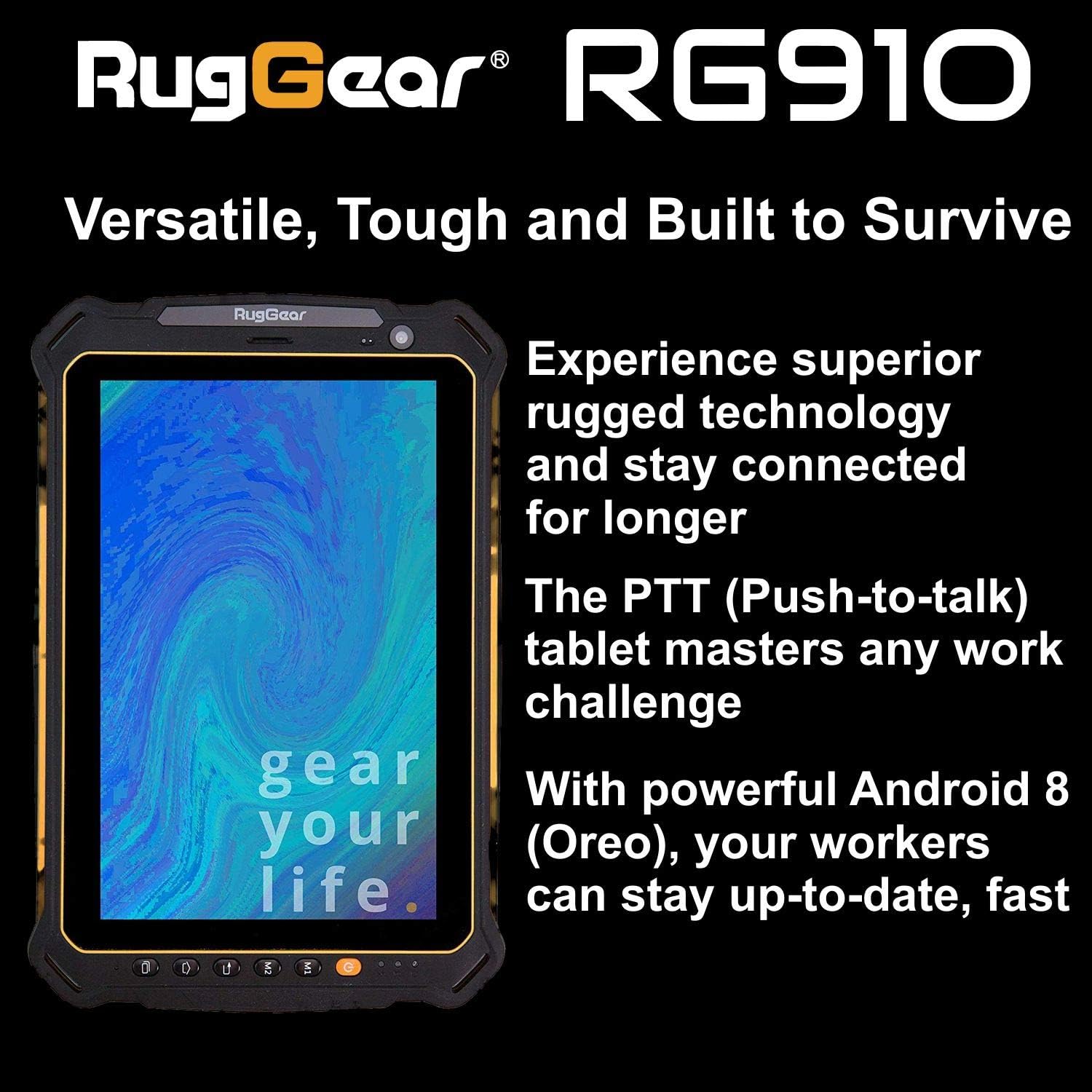
Figure 2.3: The RugGear RG910 tablet being used, illustrating its robust construction and suitability for various tasks.
3. Impostazione
3.1 Ricarica del dispositivo
Before initial use, fully charge the tablet using the provided charger and USB cable. Connect the charger to a power outlet and the USB cable to the tablet's charging port. The charging indicator will show the charging status.
3.2 Inserimento delle schede SIM e Micro-SD
- Locate the SIM/Micro-SD card slot cover on the side of the tablet.
- Aprire con cautela il coperchio.
- Insert the Nano-SIM card into the designated slot with the gold contacts facing down, ensuring it is correctly oriented.
- If using, insert a Micro-SD card (up to 64GB) into its dedicated slot.
- Close the cover securely to maintain the device's water and dust resistance.
3.3 Accensione iniziale e configurazione
Press and hold the Power button until the RugGear logo appears. Follow the on-screen instructions to complete the initial setup, which includes selecting your language, connecting to a Wi-Fi network, and setting up your Google account.
4. Istruzioni per l'uso
4.1 Accensione/spegnimento
- Per accendere: Tenere premuto il pulsante di accensione finché lo schermo non si illumina.
- Per spegnere: Tenere premuto il pulsante di accensione finché non vengono visualizzate le opzioni di alimentazione, quindi selezionare "Spegni".
- Ricominciare: Tenere premuto il pulsante di accensione finché non vengono visualizzate le opzioni di alimentazione, quindi selezionare "Riavvia".
4.2 Navigazione di base
The RG910 uses a capacitive touchscreen. Use standard Android gestures:
- Rubinetto: Seleziona un elemento o apri un'applicazione.
- Scorri: Scorri gli elenchi o passa da una schermata iniziale all'altra.
- Pizzico: Ingrandisci o rimpicciolisci le immagini e web pagine.
- Premere a lungo: Accedi ai menu contestuali o sposta le icone.
4.3 Funzionalità Push-to-Talk (PTT)
The RG910 supports Push-to-Talk (PTT) communication. A dedicated PTT button may be present on the device. Consult your service provider or PTT application instructions for specific setup and usage details.
4.4 Funzionamento della fotocamera
To use the cameras:
- Apri l'applicazione Fotocamera dalla schermata iniziale o dal cassetto delle applicazioni.
- Tocca lo schermo per mettere a fuoco.
- Tocca il pulsante Otturatore per scattare una foto o avviare/interrompere la registrazione video.
- Passa dalla fotocamera anteriore a quella posteriore utilizzando l'icona di attivazione/disattivazione della fotocamera.
4.5 Connettività
- Wifi: Vai a Impostazioni > Rete e Internet > Wi-Fi per connettersi alle reti disponibili.
- 4G LTE: Assicurati che la tua scheda SIM sia inserita e che i dati mobili siano abilitati in Impostazioni > Rete e Internet > Rete mobile.
- Bluetooth: Abilita Bluetooth in Impostazioni > Dispositivi connessi > Bluetooth per associarlo ad altri dispositivi.
5. Manutenzione
5.1 Pulizia del dispositivo
Per pulire il tablet, utilizzare un panno morbido eamp cloth. Avoid using harsh chemicals, abrasive cleaners, or solvents, as these can damage the device's ruggedized coating and seals. Ensure all port covers are securely closed before cleaning with moisture.
5.2 Resistenza all'acqua e alla polvere (IP68)
The RG910 is IP68 certified, meaning it is protected against dust ingress and can withstand submersion in fresh water up to 1.2 meters for 60 minutes. To maintain this rating:
- Ensure all port covers (USB, SIM/Micro-SD slot) are firmly closed before exposure to water or dust.
- Do not expose the device to salt water, chlorinated water, or other liquids.
- If the device gets wet, dry it thoroughly with a clean cloth before opening any covers or charging.
5.3 Cura della batteria
- Evitare temperature estreme, che possono compromettere le prestazioni della batteria.
- Utilizzare solo il caricabatterie e il cavo originali o certificati compatibili.
- Non forare, smontare o modificare la batteria.
5.4 Aggiornamenti software
Controlla e installa regolarmente gli aggiornamenti software per garantire prestazioni ottimali, sicurezza e accesso alle nuove funzionalità. Vai a Impostazioni > Sistema > Aggiornamento di sistema.
6. Risoluzione Dei Problemi
This section addresses common issues you might encounter with your RugGear RG910 tablet.
| Problema | Possibile soluzione |
|---|---|
| Il dispositivo non si accende | Assicurarsi che la batteria sia carica. Collegare il caricabatterie e attendere qualche minuto prima di riprovare ad accendere il dispositivo. Se il dispositivo non risponde, eseguire un riavvio forzato tenendo premuto il pulsante di accensione per 10-15 secondi. |
| Lo schermo non risponde | Riavvia il dispositivo. Se il problema persiste, assicurati che lo schermo sia pulito e asciutto. |
| Impossibile connettersi al Wi-Fi/4G | Check Wi-Fi settings and ensure the network password is correct. For 4G, verify SIM card insertion, mobile data is enabled, and you have network coverage. Restart the tablet. |
| La batteria si scarica rapidamente | Reduce screen brightness, close unused applications, disable unnecessary connectivity features (Bluetooth, GPS), and check for background app activity in settings. |
| Il dispositivo è lento o si blocca | Close background applications. Clear cache for problematic apps. Restart the device. Consider a factory reset if the issue is persistent (back up data first). |
7. Specifiche
Detailed technical specifications for the RugGear RG910 tablet:
| Caratteristica | Descrizione |
|---|---|
| Marca | Rug Gear |
| Numero di modello | 98300000 |
| Sistema operativo | Android 8 (Oreo) |
| Display | 8-inch WUXGA (1920 x 1200 pixels) with Corning Gorilla Glass |
| Processore | Qualcomm Snapdragon 625 |
| Memoria RAM | 3 GB |
| Memoria interna | 32 GB (expandable up to 64 GB via Micro-SD) |
| Batteria | 6000 mAh agli ioni di litio |
| Connettività | 4G LTE, Wi-Fi 802.11b/g/n, Bluetooth 4.0, GPRS |
| Telecamere | Posteriore: 8 MP, Anteriore: 2 MP |
| Navigazione | GPS, A-GPS, GLONASS, Beidou |
| Durata | IP68 certified (water/dust resistant), Drop-resistant up to 1.5 meters |
| Dimensioni (L x P x A) | Dimensioni: 21.3 x 14.1 x 2 cm |
| Peso | 906 grammi |
| Caratteristiche speciali | Ruggedized Construction, Push-to-Talk (PTT) functionality, Adjustable back strap |
| Anno del modello | 2018 |
8. Garanzia e supporto
Your RugGear RG910 tablet is covered by a manufacturer's warranty. Please refer to the warranty card included with your product packaging for specific terms and conditions, including warranty duration and coverage details. For technical support, service, or further assistance, please contact RugGear customer service or your authorized dealer.