1. Introduzione
The ENHANCE Infiltrate USB Gaming Mouse is designed for an enhanced gaming experience, featuring customizable controls and dynamic lighting. This manual provides instructions for setting up, operating, and maintaining your gaming mouse.

Image: The ENHANCE Infiltrate USB Gaming Mouse, showcasing its ergonomic design and sleek black finish.
2. Caratteristiche principali
- Multi-Color LED Light: Dynamic rainbow lighting pattern illuminates the mouse accents, slowly fading between colors.
- Regolazione DPI al volo: Quickly select from 4 DPI intervals (800, 1200, 1600, 2400) using the dedicated DPI button.
- Ergonomic Design with Smooth Rubber Grip: The top features a sleek rubber coating, while the side includes two extra thumb buttons with a textured grip for comfort.
- 6 pulsanti programmabili: Customize your gaming experience with additional buttons for macros or specific functions.
- Design plug-and-play: Connects easily to your PC via a gold-plated USB connector for immediate use.
- Cavo intrecciato resistente: Designed for longevity and resistance to tangles.
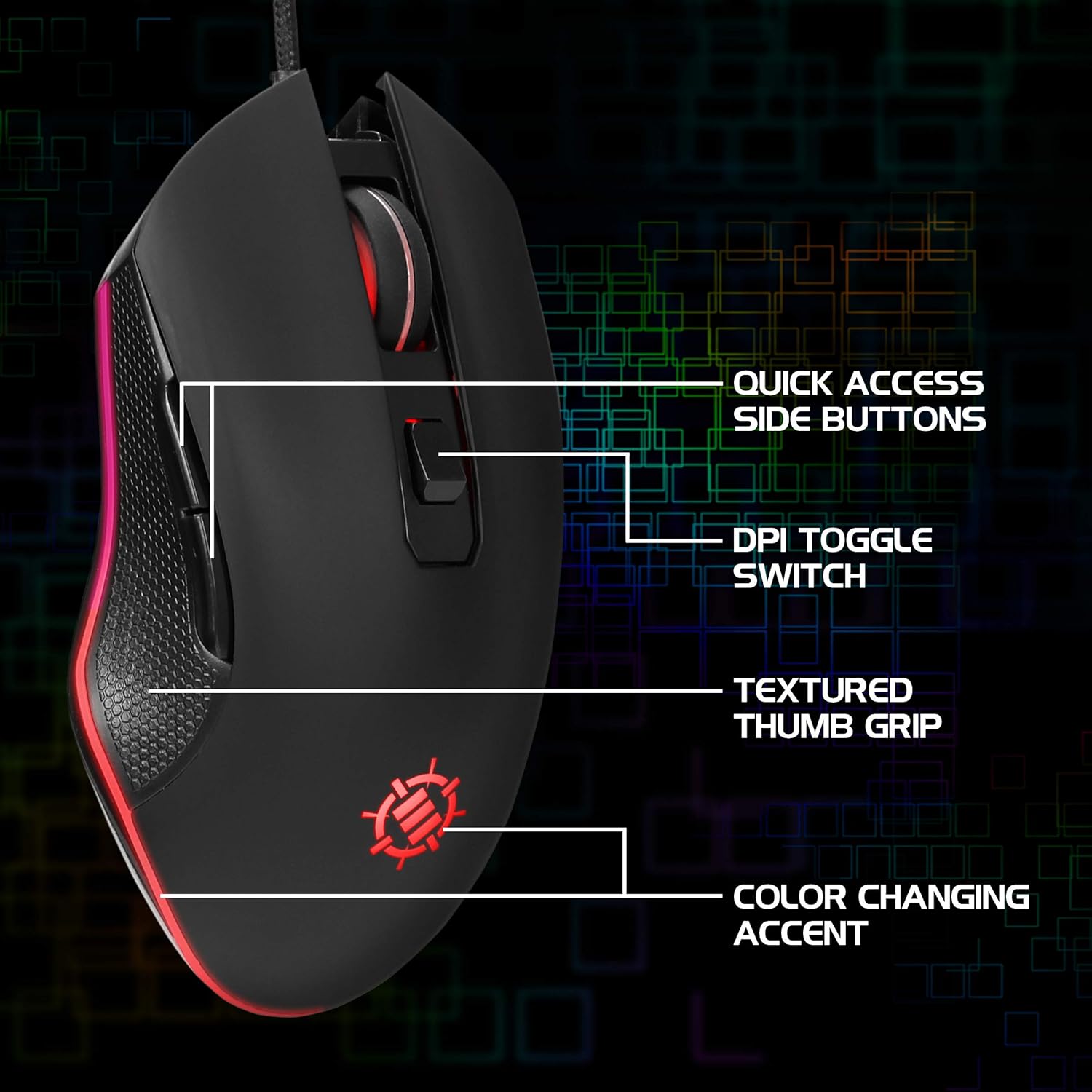
Image: Diagram highlighting key features of the ENHANCE Infiltrate mouse, including quick access side buttons, DPI toggle switch, textured thumb grip, and color-changing accent.
3. Guida all'installazione
- Disimballare il mouse: Carefully remove the ENHANCE Infiltrate USB Gaming Mouse from its packaging.
- Connessione al computer: Locate an available USB port on your computer. Insert the gold-plated USB connector of the mouse into the USB port. The mouse is plug-and-play, so no additional drivers are typically required for basic functionality.
- Riconoscimento iniziale: Il sistema operativo dovrebbe rilevare e installare automaticamente i driver necessari. Questo processo potrebbe richiedere alcuni istanti.
- Verifica funzionalità: Once installed, the mouse's LED lighting should activate, and you should be able to move the cursor on your screen.

Immagine: un primo piano view of the heavy-duty braided cable and gold-plated USB connector, ready for connection.
For a visual guide on connecting and using the mouse, please watch the official product video below.
Video: Official product video demonstrating the ENHANCE Infiltrate USB Gaming Mouse, including connection and feature highlights.
4. Istruzioni per l'uso
4.1 Funzioni di base del mouse
The ENHANCE Infiltrate mouse functions like a standard USB mouse. It includes left-click, right-click, and a scroll wheel with a clickable middle button.

Image: A hand demonstrating the ergonomic grip of the ENHANCE Infiltrate Gaming Mouse on a gaming mouse pad.
4.2 Regolazione DPI
The mouse features a dedicated DPI button located behind the scroll wheel. Press this button to cycle through four preset DPI (Dots Per Inch) sensitivity levels:
- 800 DPI
- 1200 DPI
- 1600 DPI
- 2400 DPI
Each DPI setting may correspond to a different LED color on the mouse, providing visual feedback for the current sensitivity level.
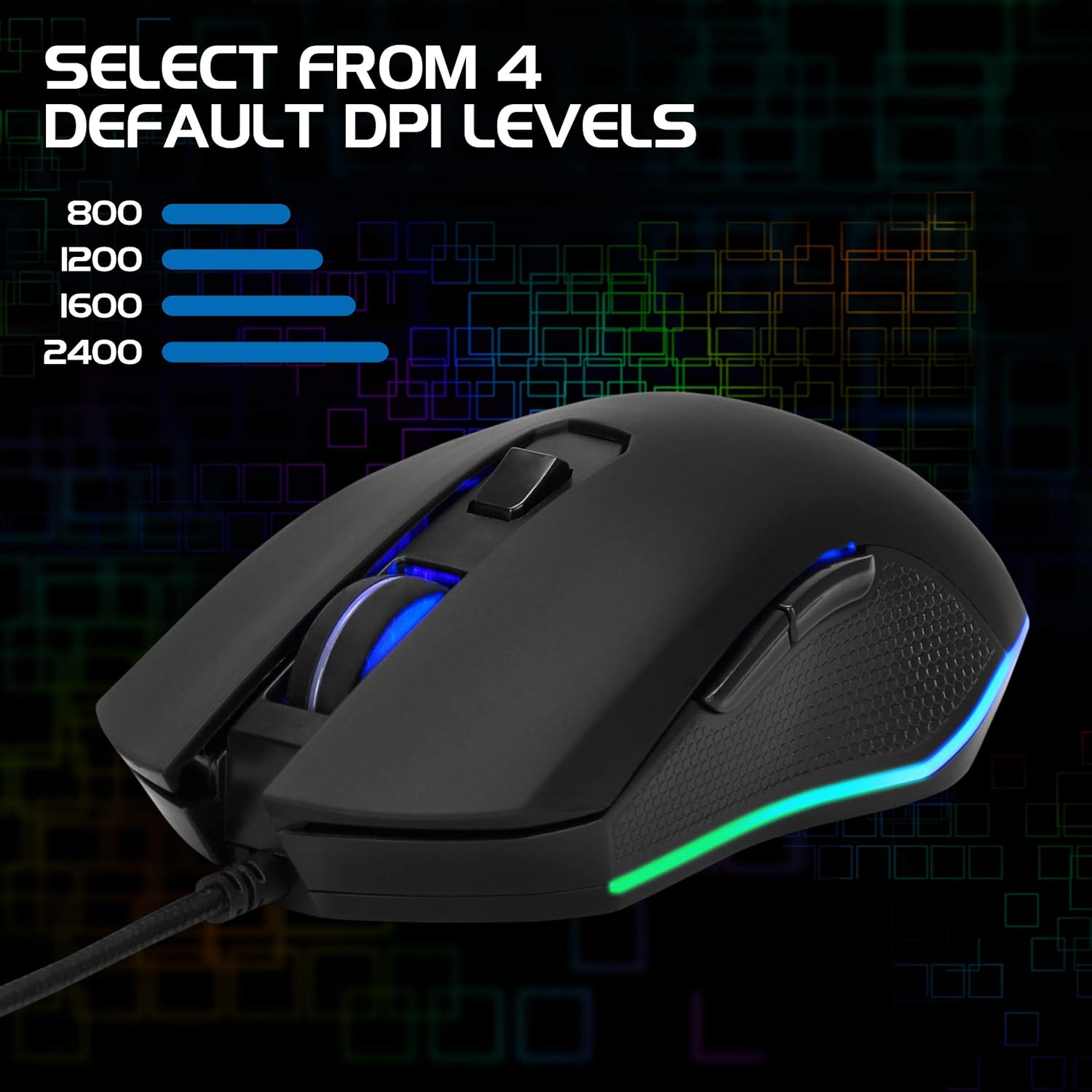
Image: The ENHANCE Infiltrate Gaming Mouse illustrating the four selectable DPI levels (800, 1200, 1600, 2400) and their corresponding LED indicators.
4.3 Multi-Color LED Lighting
The Infiltrate mouse features dynamic multi-color LED lighting that cycles through a rainbow pattern. This lighting is automatic and provides an aesthetic enhancement to your gaming setup.

Image: The ENHANCE Infiltrate Gaming Mouse displaying its sleek color-changing lighting accents.

Immagine: Pro lateralefile of the ENHANCE Infiltrate Gaming Mouse, showcasing its blue LED lighting.
4.4 pulsanti programmabili
The mouse includes 6 programmable buttons. For advanced customization and programming of these buttons, please refer to your operating system's mouse settings or any third-party software compatible with generic gaming mice. Specific software for this model is not provided by the manufacturer.
5. Manutenzione
- Pulizia: Utilizzare un panno morbido e asciutto per pulire la superficie del mouse. Per lo sporco ostinato, un panno leggermenteamp è possibile utilizzare un panno, assicurandosi che non penetri umidità nei componenti interni.
- Sensore ottico: Periodically clean the optical sensor area on the underside of the mouse with a cotton swab to ensure optimal tracking performance.
- Cura del cavo: Per evitare danni, evitare di piegare bruscamente o tirare eccessivamente il cavo USB intrecciato.
- Magazzinaggio: Quando non lo si utilizza, conservare il mouse in un ambiente pulito e asciutto, lontano da temperature estreme.
6. Risoluzione Dei Problemi
- Il mouse non risponde:
- Assicurati che il cavo USB sia collegato saldamente a una porta USB funzionante del tuo computer.
- Prova a collegare il mouse a una porta USB diversa.
- Riavvia il computer.
- Prova il mouse su un altro computer per determinare se il problema riguarda il mouse o il sistema.
- Il movimento del cursore è irregolare o saltellante:
- Pulisci il sensore ottico sul lato inferiore del mouse.
- Assicurati di utilizzare il mouse su una superficie pulita e non riflettente. Si consiglia l'uso di un tappetino per mouse.
- Check for any software conflicts or outdated drivers on your computer.
- Luci LED non funzionanti:
- Verify the mouse is properly connected to your computer.
- The LED lighting is automatic and should activate upon connection. If not, try a different USB port or computer.
- Il pulsante DPI non cambia la sensibilità:
- Ensure the mouse is fully recognized by your computer.
- Premere con decisione il pulsante DPI.
7. Specifiche
| Marca | MIGLIORARE |
| Numero di modello | ENINMNU100BOEW |
| Piattaforma hardware | Mac, PC |
| Peso dell'articolo | 4.4 once |
| Dimensioni del prodotto (LxWxH) | 4.92 x 2.68 x 1.56 pollici |
| Colore | Nero |
| Fonte di alimentazione | Elettrico con filo (USB) |
| Tecnologia di connettività | USB |
| Caratteristica speciale | Design ergonomico |
| Tecnologia di rilevamento del movimento | Ottico |
| Livelli DPI | 800, 1200, 1600, 2400 |
8. Garanzia e supporto
The ENHANCE Infiltrate USB Gaming Mouse is backed by a Garanzia del produttore di 3 annoLa presente garanzia copre i difetti di materiali e di fabbricazione in normali condizioni di utilizzo.
For warranty claims or technical support, please contact ENHANCE customer service. Keep your proof of purchase for warranty validation.
For further assistance, visit the official ENHANCE Gaming websito o contattare i loro canali di supporto.