
1. Introduzione
Thank you for choosing the Gembird MUS-6B-01 Optical USB Mouse. This manual provides essential information for setting up, operating, maintaining, and troubleshooting your new mouse. Please read these instructions carefully to ensure optimal performance and longevity of your device.

Image: The official Gembird brand logo, featuring the company name in a stylized font with a geometric design.
2. Prodotto finitoview
The Gembird MUS-6B-01 is a reliable 6-button optical USB mouse designed for comfortable and precise navigation. Its ambidextrous design makes it suitable for both left and right-handed users.
Caratteristiche principali:
- Tracciamento ottico: Provides smooth and accurate cursor control.
- 6 Pulsanti: Includes standard left/right click, scroll wheel, DPI adjustment, and two side buttons for enhanced functionality.
- Connettività USB: Simple plug-and-play connection to your computer.
- Design ambidestro: Comodo sia per i mancini che per i destrorsi.
Componenti:
- Pulsante clic sinistro
- Pulsante clic destro
- Rotellina di scorrimento (funziona anche come pulsante centrale)
- Pulsante di regolazione DPI
- Pulsante Avanti (laterale)
- Pulsante Indietro (laterale)
- Optical Sensor (underside)
- USB Connector (at the end of the cable)
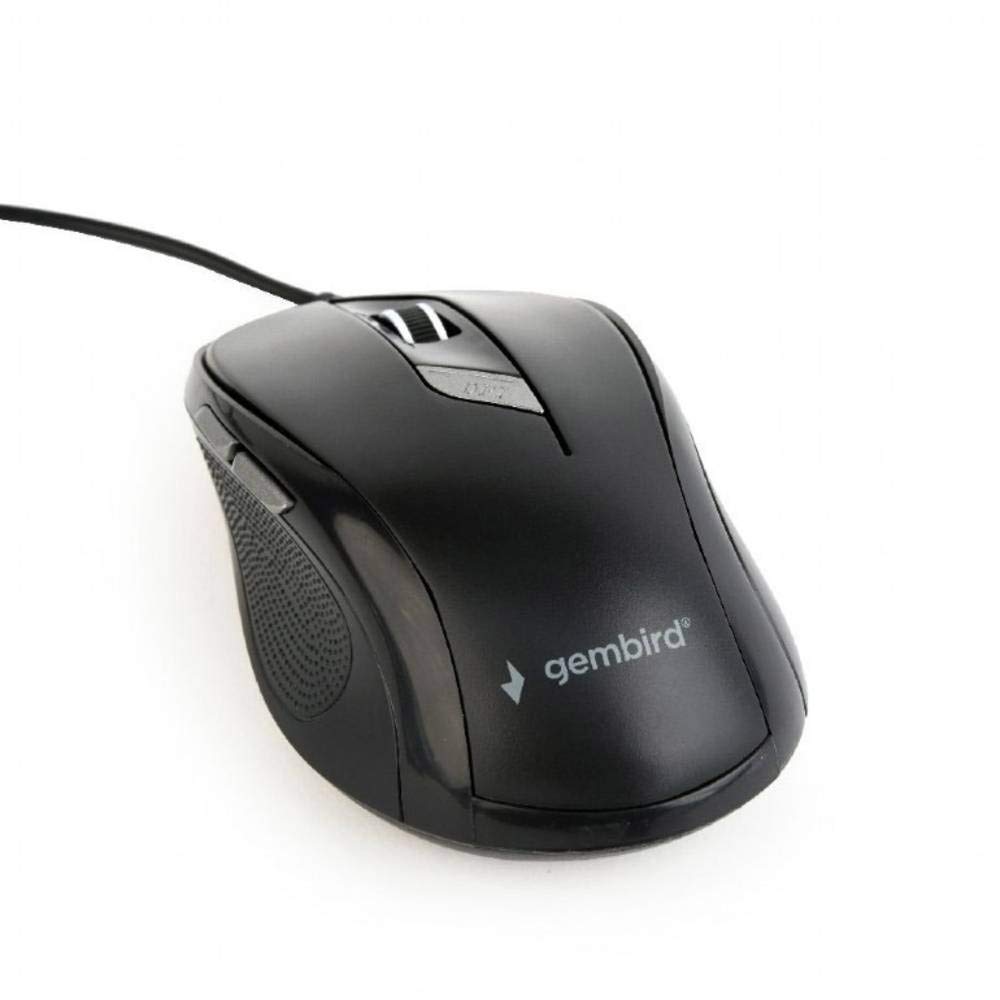
Immagine: dall'alto verso il basso view of the Gembird MUS-6B-01 optical USB mouse. The mouse is black with a matte finish, featuring a scroll wheel, left and right click buttons, a DPI button, and two side buttons. A black USB cable extends from the front of the mouse.
3. Impostazione
Setting up your Gembird MUS-6B-01 mouse is a simple plug-and-play process.
Fasi di installazione:
- Individua una porta USB disponibile sul tuo computer.
- Plug the USB connector of the Gembird MUS-6B-01 mouse firmly into the USB port.
- Your operating system (Windows, Linux) will automatically detect and install the necessary drivers. This process may take a few moments.
- Una volta installati i driver, il mouse è pronto per l'uso.
In genere non è richiesta l'installazione di software aggiuntivo per le funzionalità di base.
4. Istruzioni per l'uso
Familiarize yourself with the functions of each button on your Gembird MUS-6B-01 mouse.
Funzioni di base:
- Clic sinistro: Primary action, selecting items, opening files.
- Clic destro: Opens context menus, provides additional options.
- Rotella di scorrimento: Scorrere verso l'alto o verso il basso i documenti e web pagine.
- Clic centrale (pressione della rotellina di scorrimento): Often used to open links in new tabs or for specific application functions.
Funzioni avanzate:
- Pulsante di regolazione DPI: Located behind the scroll wheel, this button allows you to cycle through different sensitivity (DPI) settings. Press it to change the cursor speed to suit your preference.
- Pulsante Avanti (laterale): Typically navigates forward in web browser o file esploratori.
- Pulsante Indietro (laterale): Typically navigates backward in web browser o file esploratori.
The functionality of the side buttons may vary depending on the application or operating system settings. Some operating systems allow customization of these buttons.
5. Manutenzione
Proper care will help extend the life of your Gembird MUS-6B-01 mouse.
Pulizia:
- Scollegare il mouse dal computer prima di pulirlo.
- Utilizzare una pasta morbida e leggermenteamp, lint-free cloth to wipe the surface of the mouse.
- For stubborn dirt, a small amount of mild soap solution can be applied to the cloth (not directly to the mouse).
- Use a cotton swab or compressed air to clean around the scroll wheel and between buttons.
- Ensure the optical sensor on the underside is clean and free of dust or debris.
- Non utilizzare prodotti chimici aggressivi, detergenti abrasivi e non immergere il mouse in acqua.
Magazzinaggio:
Quando non lo si utilizza per lunghi periodi, conservare il mouse in un ambiente pulito e asciutto, lontano da temperature estreme e dalla luce solare diretta.
6. Risoluzione Dei Problemi
If you encounter issues with your Gembird MUS-6B-01 mouse, try the following troubleshooting steps:
| Problema | Possibile soluzione |
|---|---|
| Il mouse non risponde |
|
| Erratic or jumpy cursor movement |
|
| Pulsanti non funzionanti |
|
7. Specifiche
Detailed technical specifications for the Gembird MUS-6B-01 Optical USB Mouse:
| Caratteristica | Specificazione |
|---|---|
| Marca | Uccello gemma |
| Nome del modello | MUS-6B-01 |
| Tecnologia di connettività | Cablato (USB) |
| Tecnologia di rilevamento del movimento | Ottico |
| Quantità del pulsante | 6 |
| Orientamento della mano | Ambidestro |
| Sistemi operativi compatibili | Linux, Windows 7, Windows XP (e versioni più recenti) |
| Piattaforma hardware | Personal computer |
| Lunghezza del cavo | 5.0 metri |
| Peso dell'articolo | 74 grammi |
| Materiale | Plastica |
| Colore | Nero |
| Batterie richieste | NO |
8. Informazioni sulla sicurezza
Si prega di osservare le seguenti linee guida di sicurezza:
- Non esporre il mouse all'acqua o a umidità eccessiva.
- Evitare di far cadere il mouse o di sottoporlo a forti urti.
- Non tentare di smontare o riparare il mouse da soli. Rivolgersi a personale qualificato.
- Tenere il dispositivo lontano da temperature estreme e dalla luce solare diretta.
- Smaltire i rifiuti elettronici in modo responsabile, nel rispetto delle normative locali.
9. Garanzia e supporto
Gembird products are designed for reliability and performance. For specific warranty terms and conditions, please refer to the warranty card included with your product or visit the official Gembird website. For technical support or further assistance, please contact your retailer or the Gembird customer service department.