
1. Introduzione
The Autel MaxiLink ML519 is an advanced OBDII/EOBD scanner designed to assist in diagnosing vehicle issues. This tool provides comprehensive diagnostic functions, including reading and clearing trouble codes, viewing live data, performing I/M readiness tests, and more. It is compatible with most OBDII-compliant vehicles manufactured from 1996 onwards in the US, and from 2000 for EU-based and Asian cars.
2. Prodotto finitoview
2.1 Caratteristiche principali
- Reads and clears generic (P0, P2, P3, U0) and manufacturer-specific (P1, P3, U1) codes, and pending codes.
- Spegne la spia di controllo motore (MIL), cancella i codici e reimposta i monitor.
- Patented One-Click I/M Readiness Status Key for quick emissions readiness check.
- Views congela i dati.
- Displays live PCM data stream in text and graphing formats.
- Performs O2 Monitor Test, On-Board Monitor Test (Mode 6), and Component Test.
- Retrieves vehicle identification information (VIN, CALID, and CVN).
- Built-in DTC lookup library for code definitions.
- Memory backup for off-vehicle data review e analisi.
- Internet updatable for software and language.
- Prints data via Windows-based PC.
2.2 Contenuto della confezione
The Autel MaxiLink ML519 package typically includes the following items:
- MaxiLink ML519 Unit
- OBD II Connector Cable
- Linea dati USB
- Guida veloce
- Borsa portaoggetti

Image: Contents of the Autel MaxiLink ML519 package, including the scanner unit, cables, quick guide, and storage bag.
3. Impostazione
3.1 Connecting the Scanner to the Vehicle
- Turn the vehicle's ignition off.
- Individuare il connettore di collegamento dati (DLC) a 16 pin del veicolo. Il DLC si trova solitamente sotto il cruscotto, lato conducente.
- Connect the OBD II connector cable from the ML519 scanner to the vehicle's DLC. Ensure a secure connection.
- Ruotare l'accensione del veicolo in posizione ON (motore spento). Lo scanner si accenderà automaticamente.
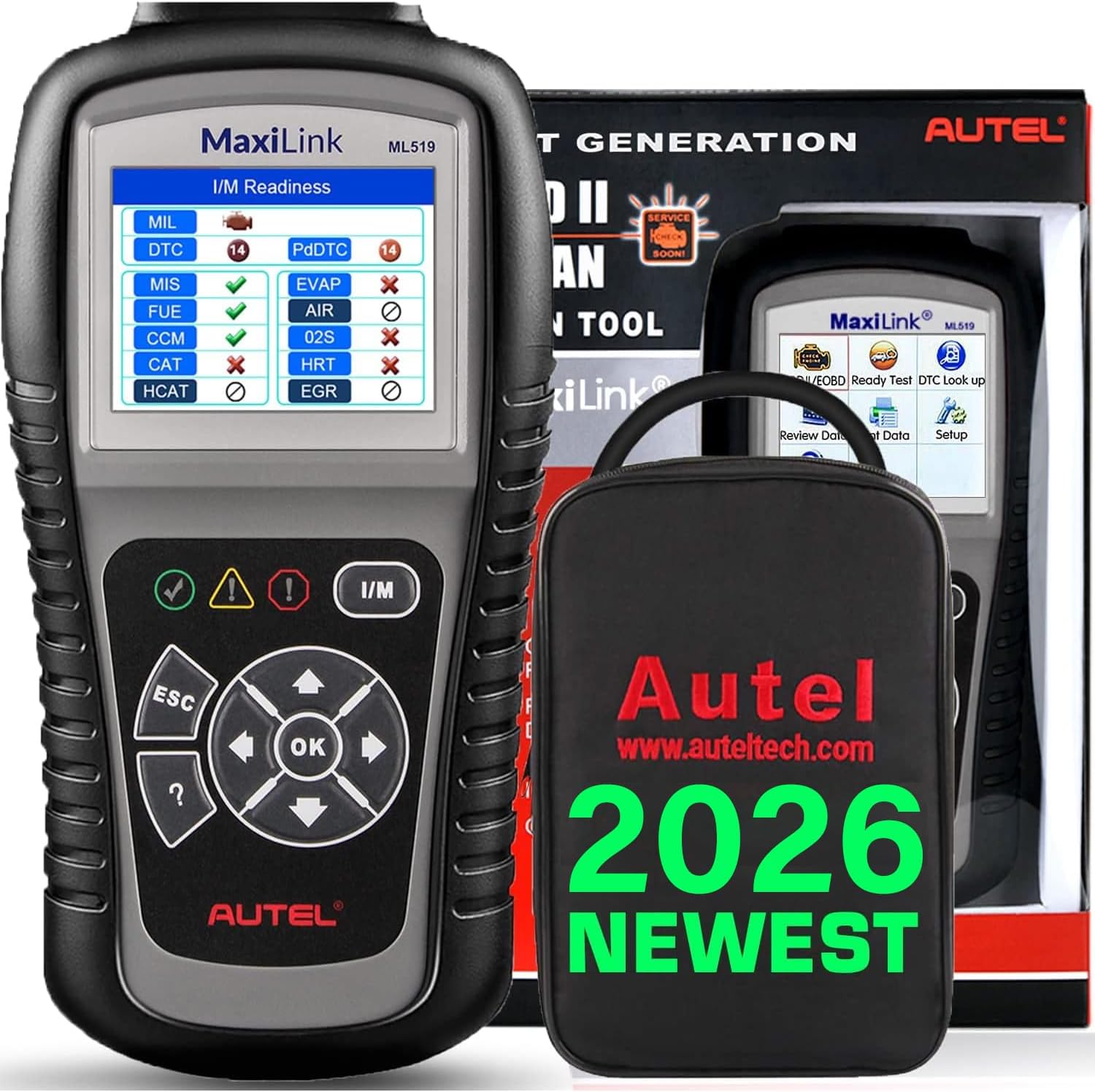
Image: The Autel MaxiLink ML519 scanner connected to a vehicle's OBD-II port, displaying its main menu.
4. Istruzioni per l'uso
4.1 Full OBDII Scan Tool Functions
The ML519 supports all 10 modes of OBD II operation, providing comprehensive diagnostic capabilities.

Immagine: Un overview of the Autel MaxiLink ML519's full OBDII scan tool functions, including erase codes, DTC definition, live data, and more.
4.2 Lettura e cancellazione dei codici di errore diagnostici (DTC)
To read DTCs:
- Dal menu principale, seleziona 'Read Codes'.
- The scanner will display any stored or pending DTCs.
To clear DTCs:
- Dal menu principale, seleziona 'Erase Codes'.
- Confirm the action when prompted. This will turn off the Check Engine Light (MIL) and reset monitors.
4.3 One-Click I/M Readiness (Ready Test)
This function allows you to quickly check the readiness status of the vehicle's emission system, which is crucial for annual emission tests. The ML519 provides visual and audible indications.
- Premere il tasto dedicato Prontezza I/M pulsante sullo scanner.
- The screen will display the status of various monitors (e.g., Misfire, Fuel System, O2 Sensors, EVAP). A green checkmark indicates readiness, while an 'X' indicates not ready.

Image: The Autel MaxiLink ML519 displaying the I/M Readiness screen, showing the status of various emission monitors with checkmarks and 'X' symbols.
4.4 Viewdati in tempo reale
The ML519 can display real-time sensor data from the vehicle's Powertrain Control Module (PCM) in both text and graphical formats. This allows for detailed analysis of vehicle performance.
- Dal menu principale, seleziona 'Live Data'.
- Choose between 'View Data' (text list) or 'Graph Data' (graphical representation).
- Use the navigation buttons to scroll through parameters or zoom in/out on graphs.

Image: The Autel MaxiLink ML519 displaying live data, showing RPM in a graphical format and a list of data parameters.
4.5 DTC Lookup Function
The built-in DTC lookup library provides detailed definitions for generic and manufacturer-specific trouble codes, helping you understand the cause of a fault.
- Dal menu principale, seleziona 'DTC Lookup'.
- Enter the DTC code using the scanner's buttons.
- Lo scanner visualizzerà la definizione del codice inserito.

Image: The Autel MaxiLink ML519 displaying the DTC Lookup function, showing how to input a code and view la sua definizione.
4.6 Other Diagnostic Tests
- Test del monitor O2: Recupera i risultati dei test del monitor del sensore O2 per i test completati più di recente dal computer di bordo del veicolo.
- Test del monitor di bordo (modalità 6): Recupera i risultati dei test sui componenti e sui sistemi del gruppo propulsore correlati alle emissioni che non vengono monitorati costantemente.
- Prova dei componenti: Consente di avviare un test di tenuta per il sistema EVAP del veicolo.
- Recupera informazioni sul veicolo: Visualizza il numero di identificazione del veicolo (VIN), l'ID di calibrazione (CALID) e il numero di verifica della calibrazione (CVN).
4.7 Stampa dei dati
The ML519 allows you to print diagnostic data via a Windows-based PC. Connect the scanner to your PC using the provided USB cable and use the Autel PC Suite software (available for download from the Autel website) to manage and print data.
5. Manutenzione
5.1 Cura generale
- Keep the scanner dry and clean. Avoid exposure to moisture or extreme temperatures.
- Do not use abrasive cleaners or solvents on the unit. Use a soft, damp panno per la pulizia.
- Store the scanner in its protective storage bag when not in use to prevent damage.
6. Risoluzione Dei Problemi
6.1 Problemi comuni e soluzioni
- Lo scanner non si accende: Ensure the OBD II cable is securely connected to the vehicle's DLC and the vehicle's ignition is in the ON position. Check the vehicle's battery voltage (must be 8.0 to 18.0 V).
- Link error: Verify the vehicle is OBDII compliant. Check the connection of the OBD II cable. Turn the ignition off, wait 10 seconds, then turn it back on.
- Nessuna comunicazione con il veicolo: Confirm the vehicle supports OBDII protocols. Try connecting to a different OBDII-compliant vehicle to rule out scanner issues.
- Screen freezes: Disconnect the scanner from the vehicle, then reconnect. If the issue persists, perform a software update.
7. Specifiche
| Specificazione | Valore |
|---|---|
| Display | Display a colori TFT (320 x 240 dpi) |
| Temperatura di esercizio | da 0°C a 60°C (da 32°F a 140°F) |
| Temperatura di conservazione | -20°C a 70°C (-4°F a 158°F) |
| Alimentazione esterna | Da 8.0 a 18.0 V tramite batteria del veicolo |
| Dimensioni dello schermo | 3.5 pollici |
| Sistema operativo (per la connessione al PC) | Windows XP (or later for updates) |
| Peso dell'articolo | 300 grammi |
8. Aggiornamenti software
The Autel MaxiLink ML519 comes with lifetime free software updates. Regular updates ensure compatibility with newer vehicle models and provide enhanced features. To update the software:
- Download the Autel PC Suite software from the official Autel websito.
- Install the software on a Windows-based PC.
- Connect the ML519 scanner to your PC using the provided USB cable.
- Follow the on-screen instructions in the PC Suite to download and install the latest software updates to your device.
9. Garanzia e supporto
9.1 Informazioni sulla garanzia
The Autel MaxiLink ML519 is backed by a 12-month warranty against defects in materials and workmanship from the date of purchase. This warranty covers repair or replacement of the product under normal use conditions.
9.2 Assistenza clienti
For any questions, technical assistance, or warranty claims, please contact Autel customer service. Refer to the official Autel website for the most current contact information or use the email provided in your product documentation.