
1. Prodotto finitoview
The Nilox USB Barcode Scanner (model NX-LKLET18) is a 1D CCD barcode reader designed for fast and accurate scanning. It offers reliable performance with a scanning speed of 200 scans per second and is built to withstand drops from up to 1.2 meters. This scanner is capable of reading common 1D barcodes.
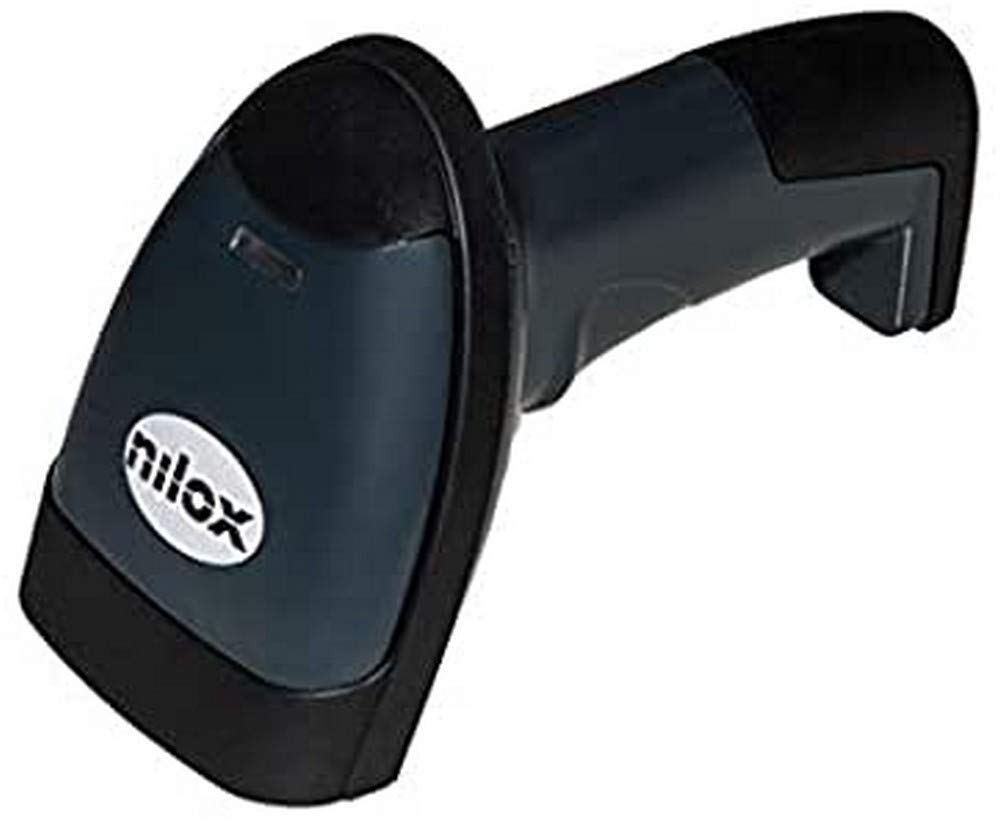
Figura 1: Nilox USB Barcode Scanner NX-LKLET18. This image shows the front view of the barcode scanner, highlighting its ergonomic design and scanning window.
2. Impostazione
Follow these steps to set up your Nilox USB Barcode Scanner:
- Disimballare lo scanner: Carefully remove the scanner and its USB cable from the packaging.
- Connessione al computer: Collegare il cavo USB dello scanner a una porta USB disponibile sul computer.
- Installazione del driver: The scanner is typically plug-and-play and does not require specific driver installation for most operating systems (Windows, macOS, Linux). The system should automatically detect and install the necessary drivers.
- Prova di connessione: Open a text editor (e.g., Notepad, WordPad) or any application that accepts keyboard input. Scan any barcode. The barcode data should appear in the text editor, indicating successful setup.
If the scanner does not respond, try connecting it to a different USB port or restarting your computer.
3. Istruzioni per l'uso
To operate the Nilox USB Barcode Scanner:
- Accensione: The scanner powers on automatically when connected to a USB port. There is no separate power button.
- Mira e scansiona: Hold the scanner with the scanning window facing the barcode. Press the trigger button to activate the scan beam.
- Distanza ottimale: For best results, hold the scanner at an appropriate distance from the barcode, typically between 0-550 mm, allowing the red scan line to fully cover the barcode.
- Conferma: A successful scan is usually indicated by an audible beep and/or a visual LED indicator on the scanner. The scanned data will be transmitted to your connected device as keyboard input.
- Codici a barre supportati: The scanner supports common 1D barcodes including EAN/JAN-8, EAN/JAN-13, UPC-A, UPC-E, CODE-128, CODE-93, RSS-Standard, RSS-Limited, RSS-Expanded, CODE-39, Inter-Leaved 2/5, Standard 2/5, Matrix 2/5, Industrial 2/5, China-Post, MSI, MSI-PLESSEY, CODE-BAR, CODE-11.
4. Manutenzione
Una corretta manutenzione garantisce la longevità e le prestazioni ottimali dello scanner:
- Pulizia della finestra di scansione: Regularly clean the scanning window with a soft, lint-free cloth. If necessary, use a mild, non-abrasive cleaning solution applied to the cloth, not directly to the scanner. Ensure the window is dry before use.
- Ispezione dei cavi: Controllare periodicamente il cavo USB per verificare la presenza di segni di usura, tagli o danni. Sostituirlo se necessario per prevenire problemi di connettività.
- Magazzinaggio: Quando non lo si utilizza, conservare lo scanner in un ambiente pulito e asciutto, lontano dalla luce solare diretta e da temperature estreme.
- Resistenza alla caduta: While the scanner is designed to resist drops up to 1.2 meters, avoid unnecessary drops to prevent potential internal damage.
5. Risoluzione Dei Problemi
If you encounter issues with your scanner, refer to the following troubleshooting guide:
| Problema | Possibile causa | Soluzione |
|---|---|---|
| Lo scanner non si accende. | Cavo USB non collegato correttamente o porta USB difettosa. | Assicurarsi che il cavo USB sia collegato saldamente sia allo scanner che al computer. Provare una porta USB diversa. |
| Lo scanner non legge i codici a barre. |
|
|
| I dati scansionati sono errati o incompleti. |
|
|
| Lo scanner emette un segnale acustico ma non vengono visualizzati dati. |
|
|
6. Specifiche
| Caratteristica | Dettaglio |
|---|---|
| Numero di modello | NX-LKLET18 |
| Marca | Nilox |
| Tecnologia di connettività | Cablato (cavo USB) |
| Tecnologia di scansione | Sensore CCD 1D |
| Velocità di scansione | 200 scansioni/secondo |
| Distanza di lettura | 0-550 millimetri |
| Resistenza alla caduta | Fino a 1.2 metri |
| Codici a barre supportati | EAN/JAN-8, EAN/JAN-13, UPC-A, UPC-E, CODE-128, CODE-93, RSS-Standard, RSS-Limited, RSS-Expanded, CODE-39, Inter-Leaved 2/5, Standard 2/5, Matrix 2/5, Industrial 2/5, China-Post, MSI, MSI-PLESSEY, CODE-BAR, CODE-11 |
| Fonte di alimentazione | Cable Electric (USB powered) |
| Batteria | 1 Lithium-ion (included, primarily USB powered) |