
Prodotto finitoview
The TOPVISION TOP402 security camera system is a comprehensive surveillance solution designed for both indoor and outdoor monitoring. This kit includes a 4-channel Digital Video Recorder (DVR) and two 1080p lite bullet cameras, providing clear video capture and reliable performance.
Caratteristiche principali:
- Two 1080p 2MP Cameras: Plastic bullet cameras with 2.8mm lenses, suitable for indoor/outdoor use, equipped with infrared LEDs for night vision.
- 4-Channel 1080p Lite DVR: One digital video recorder supporting 4 video channels plus 1 IP channel.
- Archiviazione espandibile: DVR supports up to an 8TB hard drive (HDD not included). A WD Purple hard drive is recommended for recording.
- Plug-and-Play Cables: Two 18-meter pre-terminated cables with BNC connectors for easy installation.
- Accessori completi: Includes power adapters, power splitters, and a USB mouse.
- Uscita video versatile: Supports simultaneous HDMI and VGA video output (cables not included).

Image: The TOPVISION TOP402 kit, showing the 4-channel DVR unit and two 1080p bullet-style security cameras.
Contenuto della confezione
Si prega di verificare che tutti gli articoli elencati di seguito siano inclusi nel pacco. Se alcuni articoli risultano mancanti o danneggiati, contattare l'assistenza clienti.
- 1 x TOPVISION 4-Channel 1080p Lite DVR (Model: XDVR-1004)
- 2 x TOPVISION 1080p 2MP Bullet Cameras
- 2 x 18-meter BNC Video/Power Cables
- 1 x adattatore di alimentazione per DVR
- 1 x adattatore di alimentazione per fotocamere
- 1 cavo splitter di alimentazione da 1 a 2 per telecamere
- Mouse 1 x USB
- 1 x Manuale utente (questo documento)

Image: All components of the TOPVISION TOP402 security system, including the DVR, two cameras, cables, power supplies, and a mouse.
Informazioni sulla sicurezza
Please read and follow these safety guidelines to prevent damage to the product and ensure user safety.
- Utilizzare solo gli adattatori di alimentazione forniti con il sistema.
- Ensure proper ventilation for the DVR to prevent overheating.
- Do not expose the DVR or cameras to extreme temperatures, humidity, or direct water.
- Avoid placing the DVR near strong magnetic fields or sources of electrical interference.
- In caso di dubbi su alcuni passaggi, l'installazione deve essere eseguita da personale qualificato.
- Scollegare l'alimentazione prima di eseguire qualsiasi procedura di manutenzione o installazione.
Guida all'installazione
1. Disimballaggio e preparazione
- Rimuovere con attenzione tutti i componenti dalla confezione.
- Inspect all items for any signs of damage.
- Choose a suitable location for the DVR, ensuring it is dry, well-ventilated, and away from direct sunlight.
- Plan the camera placement to cover desired areas, considering cable length and power access.
2. Connessione DVR
Connect the necessary peripherals to the DVR before powering it on.
- Monitorare la connessione: Connect a monitor to the DVR's HDMI or VGA port using a compatible cable (not included).
- Collegamento del mouse: Collegare il mouse USB in dotazione a una delle porte USB del DVR.
- Connessione di rete (facoltativa): Per telecomando viewPer farlo, collega un cavo Ethernet dalla porta LAN del DVR al router.
- Installazione del disco rigido (facoltativa): If you plan to record video, install a compatible 3.5-inch SATA hard drive (up to 8TB, WD Purple recommended) inside the DVR. Refer to the separate HDD installation guide if provided, or consult online resources.

Image: The DVR unit, showing the front panel and the rear panel with various ports including BNC video inputs, audio inputs/outputs, HDMI, VGA, LAN, and USB ports.
3. Installazione della telecamera
Mount the cameras in desired locations and connect them to the DVR.
- Montaggio: Use screws and anchors (not included) to securely mount the cameras to a wall or ceiling. Adjust the camera angle as needed.
- Connessione via cavo: Connect one end of the 18-meter BNC cable to the camera's video and power ports.
- Connessione DVR: Connect the other end of the BNC cable's video connector to an available BNC input port on the DVR (e.g., Video In 1, Video In 2).
- Collegamento elettrico: Connect the power end of the BNC cable to the 1-to-2 power splitter, then connect the splitter to the camera power adapter.

Image: Two TOPVISION 1080p bullet cameras, highlighting their night vision capability and compatibility with mobile viewapplicazioni.
4. Accensione iniziale
- Once all connections are secure, plug the DVR power adapter into an electrical outlet.
- Plug the camera power adapter into an electrical outlet.
- The DVR will power on automatically. Follow the on-screen instructions for initial setup, which may include setting the language, date/time, and creating a password.
Istruzioni per l'uso
1. Basic DVR Operation
- Vivere View: After booting, the DVR will display the live feed from all connected cameras on the monitor.
- Navigazione nel menu: Use the USB mouse to navigate the DVR's on-screen menu. Right-click to access the main menu.
- Impostazioni di sistema: Access the 'System' or 'Configuration' menu to adjust video settings, network settings, user accounts, and other system parameters.
2. Remoto ViewInstallazione
A view your cameras remotely on a smartphone or tablet, follow these general steps:
- Collegare il DVR alla rete: Assicurati che il DVR sia collegato al router tramite un cavo Ethernet.
- Scarica l'app: Cercare the official TOPVISION security app (often named 'XMeye' or similar for generic DVRs) on your smartphone's app store (iOS or Android).
- Registra conto: Crea un account all'interno dell'app.
- Aggiungi dispositivo: Use the app to scan the QR code displayed on the DVR's monitor (usually found in the 'Network' or 'P2P' settings) or manually enter the DVR's serial number to add it to your account.
- Vivere View: Una volta aggiunto, dovresti essere in grado di view your camera feeds remotely.
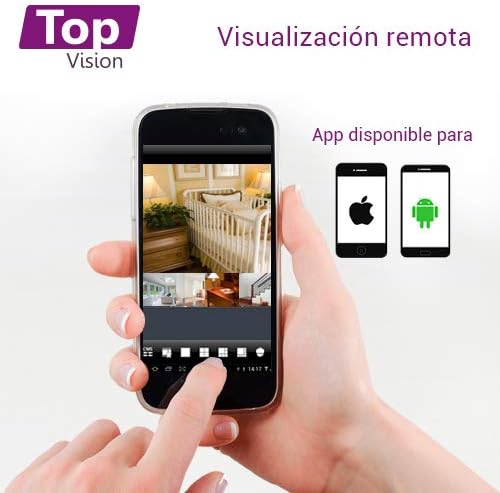
Image: A smartphone screen showing multiple live camera feeds, demonstrating the remote viewing capability of the security system.
3. Registrazione e riproduzione
- Impostazioni di registrazione: Access the 'Record' menu on the DVR to configure recording schedules, motion detection recording, and continuous recording options.
- Riproduzione: Dal menu principale, seleziona 'Riproduzione' per riprodurreview registrato footage. È possibile effettuare la ricerca per data, ora e tipo di evento.
- Backup: Connect a USB flash drive to the DVR's USB port to back up recorded video files.
Manutenzione
Una manutenzione regolare garantisce prestazioni ottimali e longevità del tuo sistema di sicurezza.
- Pulizia: Periodically clean the camera lenses with a soft, dry cloth to remove dust and smudges. Clean the DVR exterior with a soft, damp stoffa. Non utilizzare prodotti chimici aggressivi.
- Aggiornamenti del firmware: Controllare il produttore website for available firmware updates for your DVR. Firmware updates can improve performance, add features, and fix bugs. Follow update instructions carefully.
- Stato del disco rigido: If a hard drive is installed, regularly check its health status through the DVR's system settings. Back up important footage periodicamente.
- Ispezione dei cavi: Ispezionare periodicamente tutti i cavi per verificare che non siano usurati, danneggiati o allentati.
Risoluzione dei problemi
This section addresses common issues you might encounter with your TOPVISION TOP402 system.
| Problema | Possibile causa | Soluzione |
|---|---|---|
| Nessuna visualizzazione video sul monitor | Cavo video allentato, ingresso selezionato in modo errato sul monitor, DVR non acceso. | Controllare i collegamenti dei cavi HDMI/VGA. Assicurarsi che il monitor sia sull'ingresso corretto. Verificare l'alimentazione del DVR. |
| La fotocamera non mostra il video | Loose BNC cable, camera not receiving power, faulty camera/cable. | Check BNC video and power connections for the specific camera. Ensure power adapter and splitter are working. Test with a different cable or camera if possible. |
| Nessun telecomando viewing | DVR non connesso alla rete, impostazioni di rete errate, app non configurata correttamente. | Verify Ethernet cable connection to router. Check DVR network settings (DHCP enabled). Ensure correct device ID/QR code is added to the mobile app. |
| Nessuna registrazione | No hard drive installed, hard drive full, recording schedule not set. | Install a compatible hard drive. Check HDD status in DVR settings. Configure recording schedules. |
| La visione notturna non funziona | IR LEDs blocked, insufficient power to camera. | Ensure nothing is obstructing the camera's IR LEDs. Verify camera power supply. |
Specifiche
| Caratteristica | Specificazione |
|---|---|
| Numero di modello | TOP402 |
| Marca | VISIONE D'ALTA QUALITÀ |
| Canali DVR | 4 Video Channels + 1 IP Channel |
| Risoluzione di acquisizione video | 1080p Lite |
| Risoluzione della fotocamera | 2 Megapixel (1080p) |
| Obiettivo della fotocamera | 2.8mm |
| Caratteristica speciale | Night Vision (Infrared LEDs) |
| Tecnologia di connettività | Cablato |
| Supporto per dischi rigidi | Up to 8TB (3.5-inch SATA, HDD not included) |
| Uscita video | HDMI, VGA (simultaneous) |
| Dimensioni del prodotto (DVR) | Circa 30 x 25 x 7 cm |
| Peso del prodotto | Approximately 3.6 kg (total kit) |
Garanzia e supporto
TOPVISION products are designed for reliability and performance. For specific warranty details, please refer to the warranty card included with your product or visit the official TOPVISION websito.
If you encounter any issues or require technical assistance, please contact TOPVISION customer support through the contact information provided on the official website or your purchase platform. When contacting support, please have your product model number (TOP402) and purchase details ready.
For the latest drivers, software, and FAQs, please visit the TOPVISION support page online.


