
1. Introduzione
The BoxWave miniSync Retractable Portable Sync Cable is designed for convenient data synchronization and device charging. Its retractable design minimizes tangles and offers portability, making it suitable for various uses with compatible devices such as the 3Q Meta (RC7802F).

Image: The miniSync cable demonstrating its compact and portable design, fitting easily into a pocket.
2. Setup and Extension
To use the miniSync cable, gently pull both ends of the cable simultaneously. The cable will extend to one of its pre-set lengths. To retract, pull both ends slightly again, and the cable will automatically retract into its compact housing.
- Estensione: Pull both connector ends away from the central housing until the desired length is reached. The cable features multiple locking points.
- Ritrattazione: Pull both connector ends slightly further out, then release. The cable will retract smoothly.
Important: Always pull from both ends. Do not pull from only one end or from the middle of the cable, as this can damage the retraction mechanism.
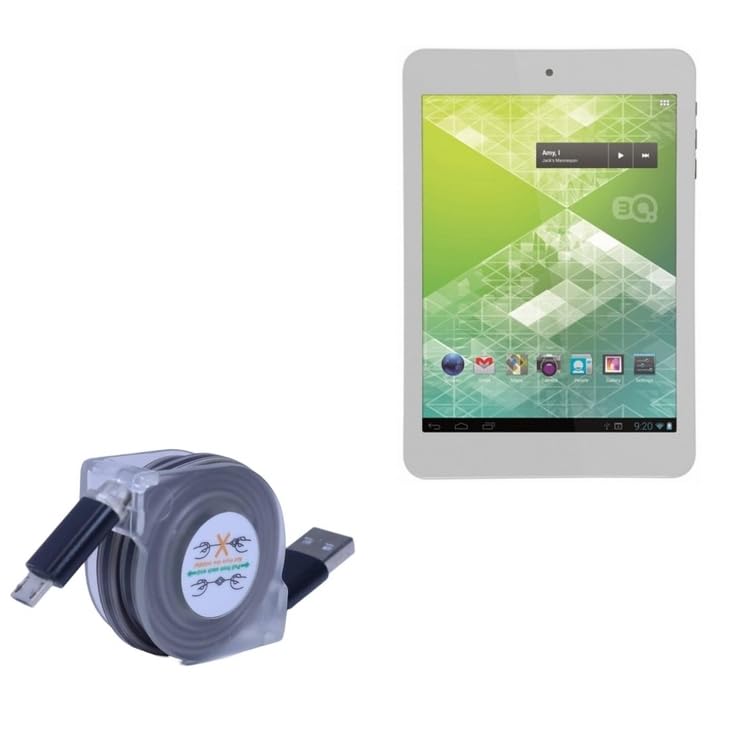
Immagine: dettagliata view of the miniSync's retraction mechanism, showing the correct method for extension and retraction.

Image: A user demonstrating the proper way to extend the miniSync cable by pulling both ends.
3. Istruzioni per l'uso
3.1. Ricarica del dispositivo
Connect the Micro-USB end of the miniSync cable to your device (e.g., 3Q Meta RC7802F). Connect the USB-A end to a standard USB power adapter, a computer's USB port, or a power bank. The cable supports charging up to 15W, depending on the power source and device capabilities.
3.2. Sincronizzazione dei dati
To synchronize data, connect your device to a computer using the miniSync cable. Ensure your device is recognized by the computer's operating system. The cable supports high-speed USB 2.0 data transfers, allowing for efficient backup and transfer of files.

Image: The miniSync cable connecting a smartphone to a laptop for charging or data transfer.
3.3. Adjustable Lengths
The miniSync cable offers multiple adjustable lengths for user convenience. These lengths typically range from approximately 3 inches (7.6 cm) when fully retracted to 25 inches (63.5 cm) when fully extended, providing flexibility for various usage scenarios.

Image: The miniSync cable in use, demonstrating its adjustable length feature for comfortable device access.
4. Manutenzione
To ensure the longevity and optimal performance of your BoxWave miniSync cable, follow these maintenance guidelines:
- Proper Retraction: Always retract the cable by pulling both ends simultaneously to avoid stressing the internal mechanism.
- Pulizia: Use a soft, dry cloth to clean the cable and its housing. Avoid using harsh chemicals or abrasive materials.
- Magazzinaggio: Store the cable in a cool, dry place when not in use. Its compact design makes it easy to store without tangling.
- Evitare una forza eccessiva: Do not yank or forcefully pull the cable, especially at the connector points. The cable features reinforced strain reliefs to prevent kinks and splitting, but proper handling is still recommended.

Image: Detail of the reinforced strain relief, highlighting the durable construction designed to prevent cable damage.
5. Risoluzione Dei Problemi
If you encounter issues with your miniSync cable, refer to the following common problems and solutions:
| Problema | Possibile causa | Soluzione |
|---|---|---|
| Il dispositivo non si carica. | Collegamento allentato, fonte di alimentazione difettosa, dispositivo incompatibile. | Ensure both ends of the cable are securely connected. Try a different USB port or power adapter. Verify device compatibility. |
| Il trasferimento dei dati non funziona. | Loose connection, incorrect computer settings, driver issues. | Check connections. Ensure your device is set to "File Transfer" or "MTP" mode. Restart your computer and device. Update USB drivers if necessary. |
| Cable not retracting smoothly. | Improper retraction technique, internal mechanism obstruction. | Ensure you are pulling both ends simultaneously before releasing. Avoid twisting the cable during retraction. If the issue persists, the mechanism may be damaged. |
6. Specifiche
- Modello: miniSync Retractable Portable Sync Cable
- Compatibilità: Designed for devices with Micro-USB ports, such as 3Q Meta (RC7802F)
- Connettori: Da USB-A a Micro-USB
- Velocità di trasferimento dati: USB 2.0 High Speed (up to 480 Mbps)
- Uscita di carica: Up to 15W (dependent on power source and device)
- Lunghezza retratta: Circa 3 pollici (7.6 cm)
- Lunghezza estesa: Fino a 25 pollici (63.5 cm)
- Materiale: Durable high-quality polycarbonate housing, heavy-duty ribbon-style cable with reinforced strain reliefs.
- Peso: 1.3 once (circa 36.85 grammi)
- Marca: ScatolaWave
7. Garanzia e supporto
7.1. Informazioni sulla garanzia
Specific warranty details for the BoxWave miniSync cable are typically provided at the point of purchase or on the manufacturer's official website. Please refer to your purchase documentation for comprehensive warranty terms and conditions.
7.2. Supporto tecnico
For technical assistance or inquiries regarding your BoxWave miniSync cable, you may contact BoxWave Corporation directly. Limited third-party technical support for your device (up to 3 inquiries via messaging) may be available, though this is not affiliated with or endorsed by 3Q.
For further support, visit the official BoxWave websito o contattare il loro servizio clienti.