
NEWYES Syncpen 1.0
NEWYES Smart Pen Syncpen 1.0 Instruction Manual
Model: Syncpen 1.0
Introduzione
This manual provides detailed instructions for the setup, operation, maintenance, and troubleshooting of your NEWYES Smart Pen Syncpen 1.0. Please read this manual thoroughly before using the device to ensure proper functionality and to maximize your experience.
1. Impostazione
1.1 Contenuto della confezione
Verifica che tutti gli articoli siano presenti nel tuo pacco:
- NEWYES Smart Pen Syncpen 1.0
- NEWYES Notebook
- Cavo di ricarica USB (Micro USB)
- Ricariche di inchiostro
- Manuale di istruzioni (questo documento)
1.2 Charging the Smart Pen
Before first use, fully charge the Smart Pen. Connect the provided Micro USB cable to the charging port located at the end of the pen and plug the other end into a USB power source. A full charge typically takes approximately 1.5 hours and provides up to 8 hours of continuous use.
1.3 Downloading the NEWYES Note App
The NEWYES Smart Pen requires the NEWYES Note application to synchronize your notes. Download the app from your device's app store:
- For Android devices: Search "NEWYES Note" on Google Play Store.
- For iOS devices: Search "NEWYES Note" on Apple App Store.
1.4 Pairing the Smart Pen with Your Device
- Ensure your Smart Pen is charged and powered on.
- Abilita il Bluetooth sul tuo dispositivo mobile.
- Apri l'app NEWYES Note.
- Follow the in-app instructions to connect your Smart Pen via Bluetooth. The app will guide you through the pairing process.
 Image: The NEWYES Smart Pen captures handwritten notes from a special notebook and displays them digitally on a connected mobile device.
2. Istruzioni per l'uso
2.1 Basic Note-Taking and Synchronization
Use the NEWYES Smart Pen with the provided NEWYES Notebook. The pen's built-in camera lens captures your writing or drawings on the specialized microdot paper. When connected to the app, your notes synchronize in real-time to your mobile device. If the pen is not connected, it stores notes internally and will sync them once reconnected to the app.
2.2 Riconoscimento della scrittura a mano
The NEWYES Note app features handwriting recognition, converting your handwritten notes into editable digital text. This function supports both cursive and print. Minor adjustments to your writing style may enhance recognition accuracy.
 Image: A user writes in a notebook with the Smart Pen, and the corresponding digital text appears on a smartphone screen, illustrating handwriting recognition.
2.3 Registrazione audio
The app allows you to record audio while taking notes. This feature links the audio to your written content, enabling you to review both simultaneously. This is particularly useful for meetings or lectures.
 Image: The Smart Pen is used to write in a notebook while a smartphone displays the NEWYES Note app with an active audio recording function.
2.4 Note Playback
The NEWYES Note app offers a playback feature that reconstructs your writing process. You can watch your notes being drawn or written stroke by stroke, which can be helpful for reviewing complex diagrams or sequences of thoughts.
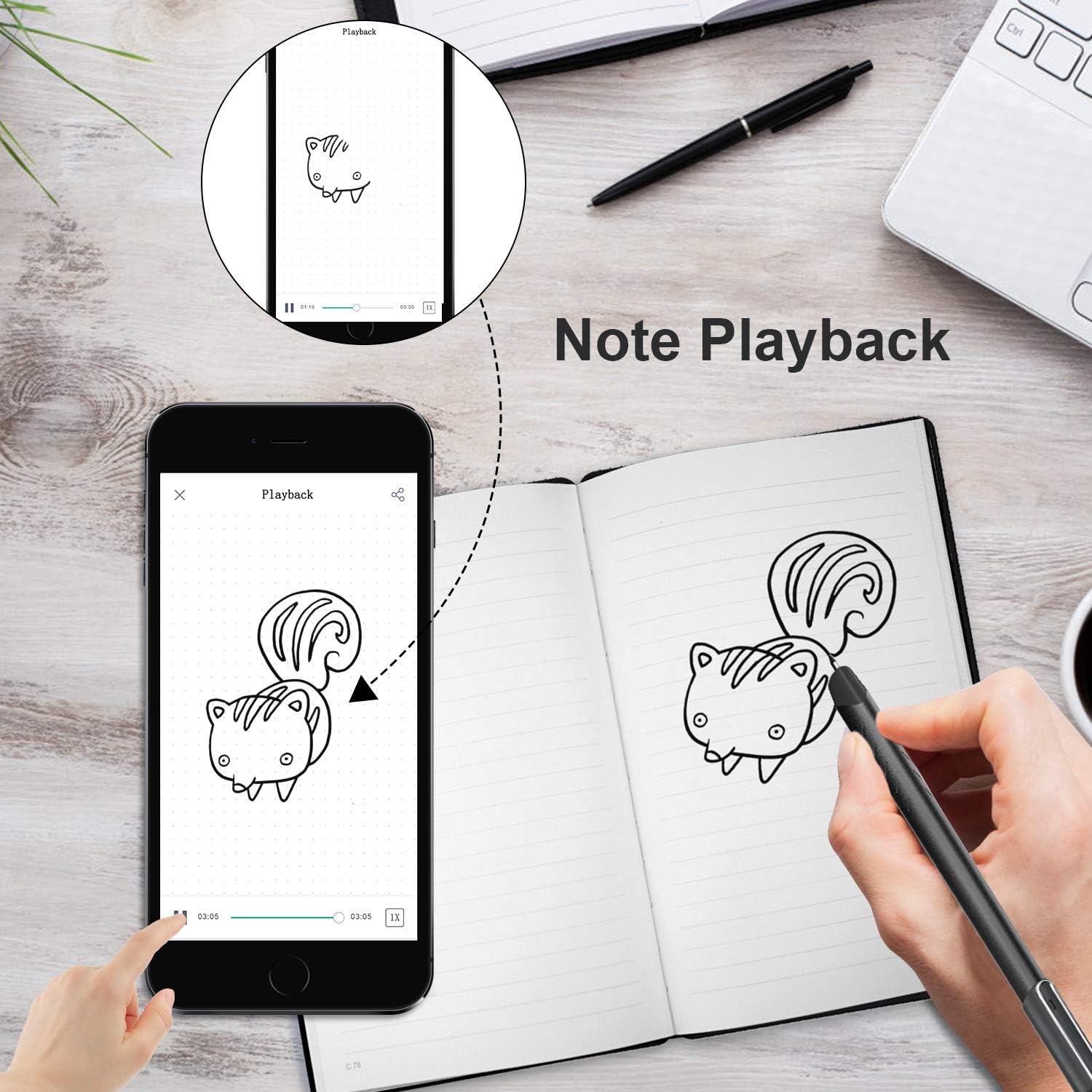 Image: A drawing made with the Smart Pen in a notebook is shown being replayed on a smartphone screen via the note playback feature.
2.5 Editing and Sharing Notes
Within the app, you can edit your digitized notes, including changing text color, erasing content, and making other modifications. Once finalized, notes can be exported as images or PDF files and shared directly to various social media platforms or via email.
 Image: A smartphone screen displays options to save notes as a picture or PDF, and to share them via Facebook, WhatsApp, Instagram, Twitter, or email.
2.6 Video ufficiale del prodotto
For a visual demonstration of the NEWYES Smart Pen's features, please watch the official product video below.
Video: This video demonstrates the NEWYES Smart Pen's functionality, including how it syncs notes to mobile devices via the app.
3. Manutenzione
3.1 Replacing Ink Refills
When the ink runs out, replace the refill with a compatible NEWYES refill. Gently pull out the old refill and insert the new one until it clicks into place. The refills are approximately 67mm (2.64in) long and 4mm (0.16in) in diameter.
3.2 Cleaning the Smart Pen
Wipe the pen's body with a soft, dry cloth. Avoid using harsh chemicals or abrasive materials that could damage the pen's finish or internal components. Ensure the camera lens is clean for optimal performance.
3.3 Notebook Care
Handle the NEWYES Notebook with care. Avoid bending or tearing pages, as this may affect the pen's ability to accurately capture notes. Keep the notebook away from liquids and extreme temperatures.
 Image: This image provides dimensional specifications for the NEWYES Smart Pen (170mm/6.7in length, 10mm/0.4in diameter), the NEWYES Notebook (211mm/8.3in x 149mm/5.87in), ink refills (67mm/2.64in length, 4mm/0.16in diameter), and the USB charger (333mm/13.1in length).
4. Risoluzione Dei Problemi
4.1 Pen Not Connecting to App
- Assicurarsi che la penna sia completamente carica.
- Verifica che il Bluetooth sia abilitato sul tuo dispositivo mobile.
- Restart both the Smart Pen and the NEWYES Note app.
- Try unpairing and re-pairing the pen in your device's Bluetooth settings and within the app.
4.2 Notes Not Synchronizing
- Confirm the pen is connected to the app via Bluetooth.
- Ensure you are writing on a NEWYES Notebook with microdot paper.
- If writing offline, ensure the app is open to the correct note page when reconnecting to sync. Opening a new note in the app before syncing offline content may create a new, blank note.
- Controlla gli aggiornamenti dell'app e assicurati di utilizzare la versione più recente.
4.3 Inaccurate Handwriting Recognition
- Ensure you are writing clearly and legibly.
- Adjust your writing style if necessary; some users find minor adjustments improve accuracy.
- Verify the pen's camera lens is clean and unobstructed.
- Check the app settings for language selection and ensure it matches your writing language.
5. Specifiche
| Modello | Syncpen 1.0 |
| Marca | NUOVOSI |
| Materiale | Alluminio |
| Dimensioni della penna | 170mm (6.7 inches) length, 10mm (0.4 inches) diameter |
| Notebook Dimensions | 211 mm (8.3 pollici) x 149 mm (5.87 pollici) |
| Refill Dimensions | 67mm (2.64 inches) length, 4mm (0.16 inches) diameter |
| Peso dell'articolo | 1.31 libbre (peso totale del pacco) |
| Durata della batteria | Fino a 8 ore |
| Tempo di ricarica | Circa 1.5 ore |
| Dispositivi compatibili | Smartphone (Android, iOS) |
6. Garanzia e supporto
6.1 Informazioni sulla garanzia
For specific warranty details regarding your NEWYES Smart Pen Syncpen 1.0, please refer to the warranty card included with your product or visit the official NEWYES websito. I termini di garanzia coprono in genere i difetti di fabbricazione in condizioni di normale utilizzo.
6.2 Assistenza clienti
If you encounter any issues not covered in the troubleshooting section or require further assistance, please contact NEWYES customer support. Contact information can usually be found on the NEWYES website or within the NEWYES Note application.
Ask a question about this manual
Ask about setup, troubleshooting, compatibility, parts, safety, or missing instructions. Manuals+ will review the question and use this page’s manual context to help answer it.