
Introduzione
Grazie per l'acquistoasing the Retro-Bit Official SEGA Mega Drive USB 6-Button Controller. This controller is designed to provide an authentic classic gaming experience with modern compatibility. It features a classic 6-button layout, a durable 3-meter cable, and is officially licensed by SEGA.
This manual provides essential information for setting up, operating, maintaining, and troubleshooting your controller. Please read it thoroughly before use.

Immagine: Angolata view of the Retro-Bit Official SEGA Mega Drive USB 6-Button Controller in clear blue.
Impostare
Contenuto della confezione
- 1 x Retro-Bit Official SEGA Mega Drive USB 6-Button Controller
Collegamento del controller
- Locate an available USB port on your compatible device (SEGA Mega Drive Mini, PC, Mac, Steam, PS3, or Nintendo Switch).
- Insert the USB connector of the controller firmly into the USB port.
- For most systems (e.g., Windows 10), the controller will be automatically detected as a 'USB Gamepad' without requiring additional drivers.
- Once detected, the controller is ready for use.

Image: Close-up of the USB connector for the controller.
Compatibilità
The Retro-Bit Official SEGA Mega Drive USB 6-Button Controller is compatible with the following platforms:
- SEGA Mega Drive Mini
- PC (finestre)
- Mac
- Vapore
- PlayStation 3 (PS3)
- Interruttore Nintendo
- RetroPie
- Lampone Pi
Istruzioni per l'uso
Layout del controller

Immagine: in alto view of the controller, highlighting the D-pad, Start button, and six action buttons.
- Pad direzionale (D-Pad): Located on the left, used for movement and menu navigation.
- Pulsante di avvio: Red button in the center, typically used to pause games or confirm selections.
- Pulsanti di azione (A, B, C, X, Y, Z): Six buttons on the right side for in-game actions.
- Pulsante MODE: Located on the top right edge of the controller. This button is specifically designed for the SEGA Mega Drive Mini to return to the system menu.
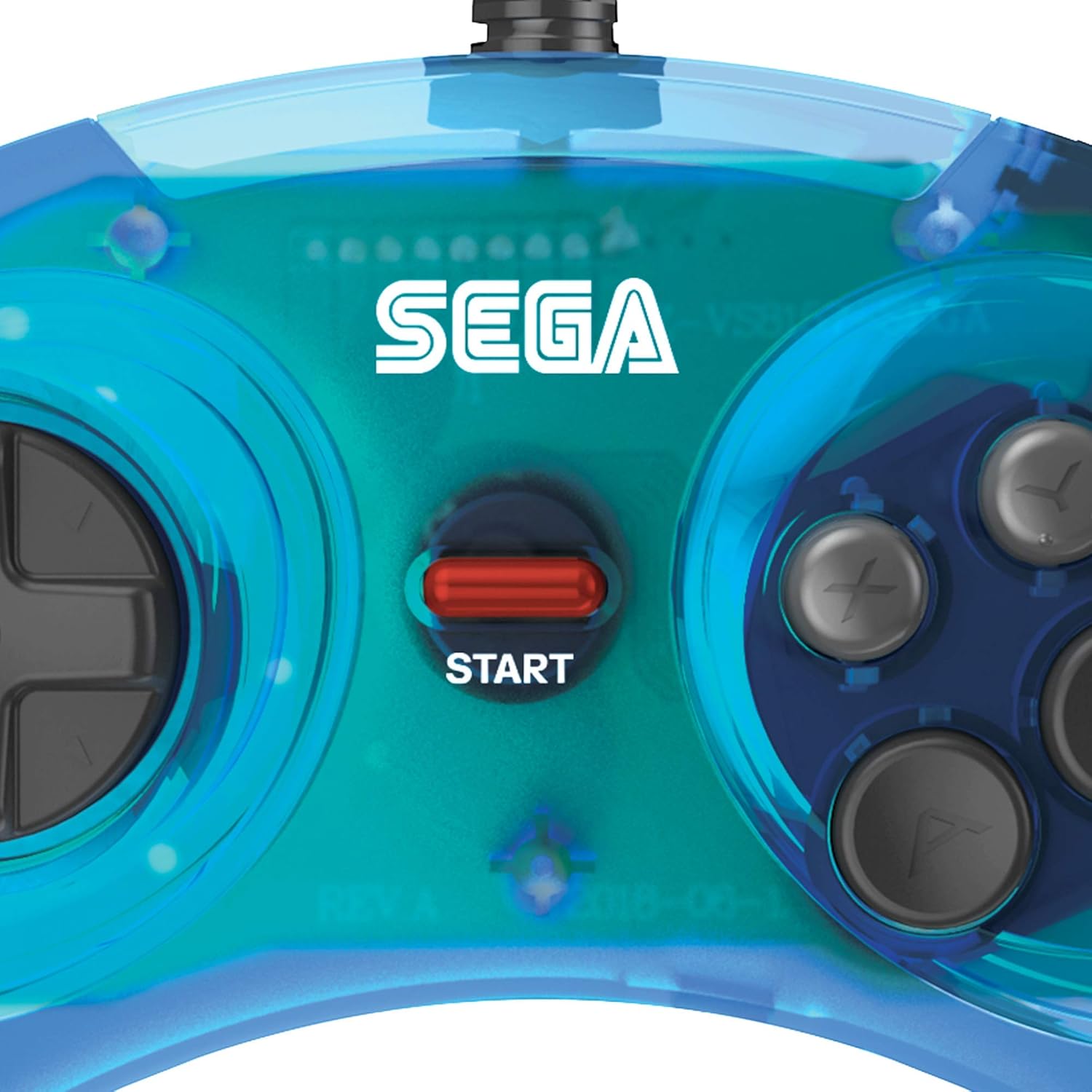
Image: Close-up of the SEGA logo and the red Start button.

Image: Close-up of the directional pad (D-pad).

Image: Close-up of the six action buttons (A, B, C, X, Y, Z).
Uso generale
- Ensure the controller is securely connected to your device's USB port.
- For PC and Mac, you may need to configure controller settings within your game or emulator software.
- The controller is designed for optimal performance with classic 2D games that utilize a 6-button layout.
- Il cavo da 3 metri fornisce ample length for comfortable gaming distances.
Manutenzione
Pulizia
- Per pulire il controller, utilizzare un panno morbido e asciutto.
- Per sporco ostinato, leggermente dampLavare il panno con acqua. Evitare l'uso di prodotti chimici aggressivi o detergenti abrasivi.
- Assicurarsi che nessun liquido penetri nei componenti interni del controller.
Magazzinaggio
- Conservare il controller in un luogo fresco e asciutto, lontano dalla luce solare diretta e da temperature estreme.
- Avoid wrapping the cable too tightly around the controller to prevent damage.
Risoluzione dei problemi
Controller non riconosciuto
- Controllare la connessione USB: Ensure the USB cable is fully inserted into the port on both the controller and the device. Try a different USB port.
- Riavvia dispositivo: Sometimes, restarting your PC, Mac, or console can resolve recognition issues.
- Prova su un altro dispositivo: If possible, test the controller on another compatible device to determine if the issue is with the controller or the original device.
- Check Device Manager (PC): On Windows, open Device Manager and look under 'Human Interface Devices' or 'Game Controllers' to see if the controller is listed. If there's a yellow exclamation mark, try updating or reinstalling the driver (though typically not required for this plug-and-play device).
Buttons Not Responding Correctly
- Impostazioni di gioco: Verify that the controller is properly configured within the game or emulator settings. Some games may require manual button mapping.
- Calibrazione: On PC, you can often calibrate game controllers through the operating system's control panel or settings.
- Ispezione fisica: Check for any visible debris or damage around the buttons.
Issues with Specific Game Platforms (e.g., Steam)
- Steam Big Picture Mode: For Steam, try launching games through Big Picture Mode and ensure controller support is enabled and configured.
- Emulator Configuration: When using emulators like Kega Fusion, ensure the controller's buttons are correctly mapped within the emulator's input settings.
Specifiche
| Numero di modello | RET00158 |
| Tipo di controllore | Controllo di gioco |
| Tecnologia di connettività | USB |
| Quantità del pulsante | 6 |
| Lunghezza del cavo | 3 metri (circa 9.8 piedi) |
| Dispositivi compatibili | SEGA Mega Drive Mini, PC, Mac, Steam, PS3, Nintendo Switch, RetroPie, Raspberry Pi |
| Peso dell'articolo | 200 grammi |
| Dimensioni articolo (L x P x A) | 6.18 x 3.86 x 1.57 pollici |
Garanzia e supporto
Informazioni sulla garanzia
Retro-Bit products typically come with a limited warranty. For specific details regarding the warranty period and terms for your controller, please refer to the warranty card included with your product or visit the official Retro-Bit websito.
Assistenza clienti
If you encounter any issues or have questions not covered in this manual, please contact Retro-Bit customer support. You can find contact information and additional resources on the official Retro-Bit websito: