
1. Introduzione
This manual provides essential instructions for the installation, operation, maintenance, and troubleshooting of your METZ M40E6 40-inch Full HD Android Smart LED TV. Please read this manual thoroughly before using the television and retain it for future reference.

Figure 1: METZ M40E6 TV with Android TV interface.
2. Informazioni sulla sicurezza
Always follow basic safety precautions when using this television to reduce the risk of fire, electric shock, and injury. Do not attempt to service this product yourself. Refer all servicing to qualified service personnel. Ensure the television is placed on a stable surface or securely mounted to prevent falling. Keep the television away from water and heat sources.
3. Contenuto della confezione
Verifica che tutti gli articoli elencati di seguito siano inclusi nel tuo pacchetto:
- 1 x METZ M40E6 LED TV
- 1 x supporto da tavolo
- 1 x Staffa per montaggio a parete
- 1 x Manuale utente (questo documento)
- 1 x Scheda di garanzia
- 1 x Remote Control (with 2 AAA batteries)
4. Impostazione
4.1. Installazione fisica
You can install your TV using the included tabletop stand or a wall mount bracket.
4.1.1. Tabletop Stand Installation
- Posizionare con cautela lo schermo del televisore su una superficie morbida e piana per evitare danni.
- Attach the left and right stand bases to the corresponding slots on the bottom of the TV. Ensure they are oriented correctly (refer to Figure 2).
- Fissare le basi del supporto con le viti fornite.
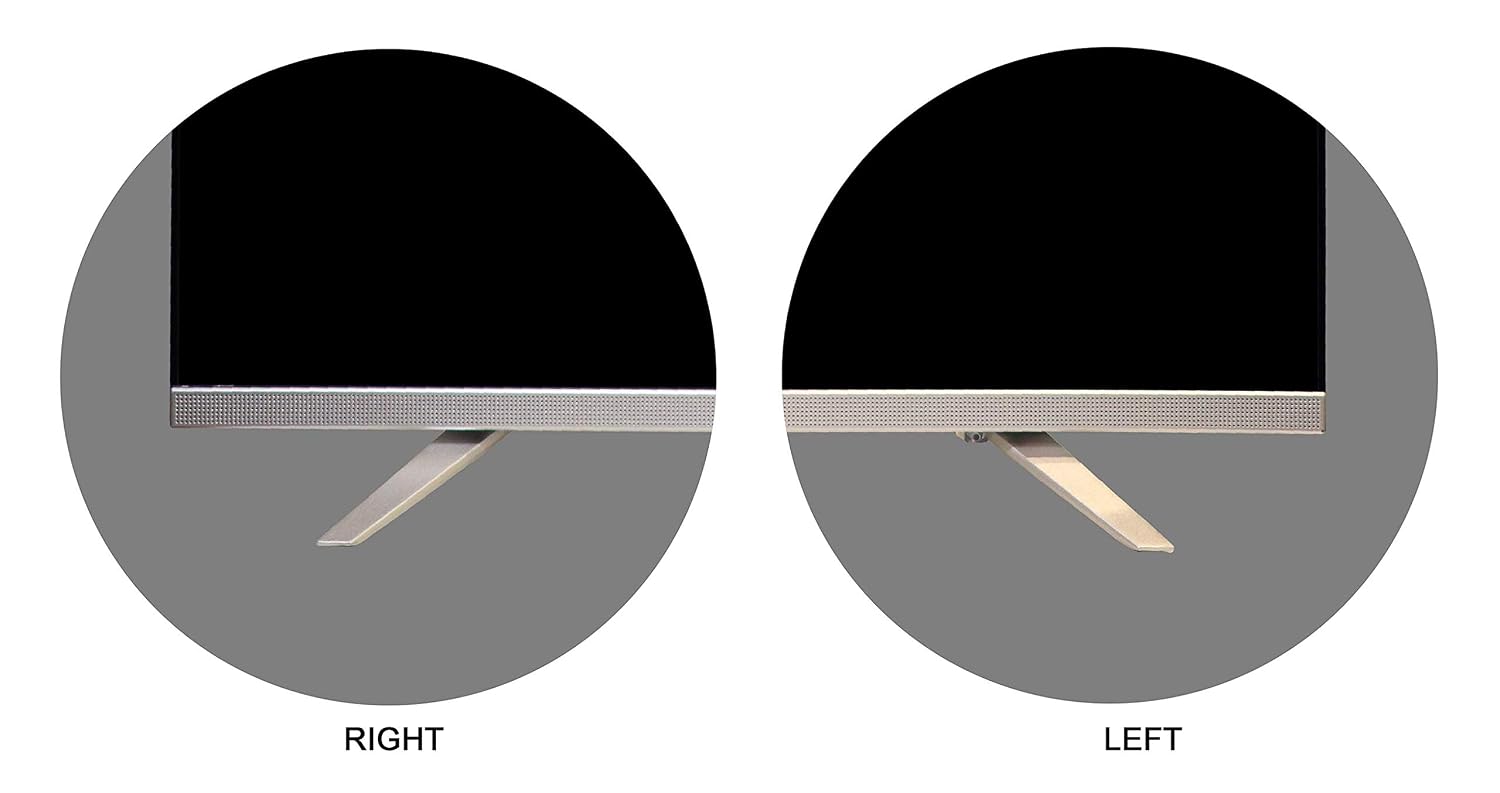
Figure 2: Tabletop stand components.

Figure 3: Stand attachment points.

Figure 4: TV with tabletop stand installed.
4.1.2. Installazione con montaggio a parete
The TV supports a VESA mount standard of 200 x 200 mm. Use the provided wall mount bracket and follow its specific installation instructions. Ensure the wall can support the weight of the TV (approximately 6.9 kg) and the mount.
4.2. Collegamento dei dispositivi
Collegare i dispositivi esterni alle porte appropriate sul retro del televisore.
- Porte HDMI: For connecting set-top boxes, gaming consoles, Blu-ray players, etc. (2 HDMI ports available).
- Porte USB: For connecting USB storage devices to play media. (2 USB ports available).
- Uscita audio digitale: Per il collegamento a sistemi audio esterni.
- Ingresso antenna/cavo: Per collegare un'antenna o un segnale TV via cavo.

Figura 5: Pannello posteriore con porte di connettività.
4.3. Accensione iniziale e configurazione di rete
- Collegare il cavo di alimentazione al televisore e poi a una presa di corrente.
- Premere il pulsante di accensione sul telecomando o sul televisore per accenderlo.
- Seguire le istruzioni sullo schermo per completare la configurazione iniziale, inclusa la selezione della lingua, il fuso orario e la connessione di rete.
- Seleziona la tua rete Wi-Fi e inserisci la password per connetterti a Internet.
- Accedi con il tuo account Google per accedere al Google Play Store e ad altre funzionalità di Android TV.
5. Utilizzo della TV
5.1. Funzioni di controllo remoto
The remote control allows you to navigate the TV's interface and access various functions. It features Google Assistant for voice commands.

Figura 6: Telecomando.
- Pulsante di accensione: Accende o spegne la TV.
- Tastierino di navigazione (Su/Giù/Sinistra/Destra/OK): Per la navigazione e la selezione del menu.
- Pulsante Indietro: Ritorna alla schermata precedente.
- Pulsante Home: Accede alla schermata iniziale di Android TV.
- Pulsante Assistente Google: Activates voice control. Press and hold to speak commands.
- Volume su/giù: Regola il livello del suono.
- Pulsante di ingresso: Seleziona le sorgenti di ingresso (HDMI, USB, TV).
5.2. Navigazione su Android TV
The Android TV home screen provides access to installed apps, recommended content, and settings. Use the navigation pad on your remote to browse.
5.3. Utilizzo delle funzioni intelligenti
- Google Play Store: Scarica e installa un'ampia gamma di applicazioni.
- Chromecast integrato: Trasmetti i contenuti dal tuo smartphone, tablet o computer compatibile direttamente alla TV.
- Assistente Google: Utilizza i comandi vocali per cercare contenuti, controllare i dispositivi della casa intelligente e ottenere informazioni.
- Servizi Internet supportati: Access streaming platforms such as YouTube, Disney+Hotstar, Eros Now, Google Play Movies & TV, Google Play Music, Hotstar, Hungama Play, SONY LIV, Netflix, YUPP TV, Youtube Kids, and Zee5.
5.4. Selezione ingresso
Press the 'Input' button on your remote control to switch between connected devices (e.g., HDMI 1, HDMI 2, USB, TV tuner).
6. Manutenzione
6.1. Pulizia della TV
Scollegare sempre la TV prima di pulirla. Utilizzare un panno morbido e asciutto per pulire lo schermo e il mobile. Per macchie ostinate, strofinare leggermenteampen the cloth with water or a mild, non-abrasive cleaner specifically designed for electronics. Never spray cleaner directly onto the screen.
6.2. Aggiornamenti software
La tua Android TV potrebbe ricevere periodicamente aggiornamenti software. Assicurati che la TV sia connessa a Internet per ricevere questi aggiornamenti, che possono migliorare le prestazioni e aggiungere nuove funzionalità. Puoi controllare manualmente la presenza di aggiornamenti nel menu delle impostazioni della TV.
7. Risoluzione Dei Problemi
Se riscontri problemi con il tuo televisore, fai riferimento ai seguenti problemi comuni e alle relative soluzioni:
- Nessun potere:
Ensure the power cord is securely plugged into both the TV and a working power outlet. Check if the power indicator light on the TV is on. Try a different power outlet. - Nessuna immagine/suono:
Verify that the correct input source is selected. Check all cable connections (HDMI, antenna). Adjust volume levels. - Il telecomando non funziona:
Replace the AAA batteries in the remote control. Ensure there are no obstructions between the remote and the TV's IR sensor. For Google Assistant, ensure the remote is paired via Bluetooth (if required for voice functions). - Unable to Connect to Wi-Fi/Internet:
Check your router and modem to ensure they are working correctly. Restart your router. Go to the TV's network settings and re-enter your Wi-Fi password. Ensure the TV is within range of your Wi-Fi signal. - Netflix/Amazon Prime Video App Issues:
Some streaming applications may require specific versions or direct installation methods not available through the standard Google Play Store. If an app is not working or installing correctly, check the app's official support page for device compatibility or alternative installation instructions. Ensure the TV's software is up to date. - Scarsa qualità dell'immagine:
Check the source resolution. Adjust picture settings (brightness, contrast, sharpness) in the TV's menu. Ensure cables are securely connected.
8. Specifiche
Detailed technical specifications for the METZ M40E6 TV:
| Dimensioni dello schermo | 40 pollici (101 cm) |
| Tecnologia di visualizzazione | GUIDATO |
| Risoluzione | FullHD (1920x1080p) |
| Frequenza di aggiornamento | Frequenza 60 Hz |
| Sistema operativo | Android |
| Connettività | 2 HDMI, 2 USB, Wi-Fi |
| Uscita audio | 16 Watts, Dolby Digital, Surround Sound |
| Mirroring dello schermo | Google Cast (Chromecast) |
| Supporto HDR | L'HDR10 |
| Viewangolo di ing | 178 gradi |
| Consumo energetico | 75 Watt |
| Standard di montaggio VESA | 200 x 200 millimetri |
| Peso | 6900 grammi |
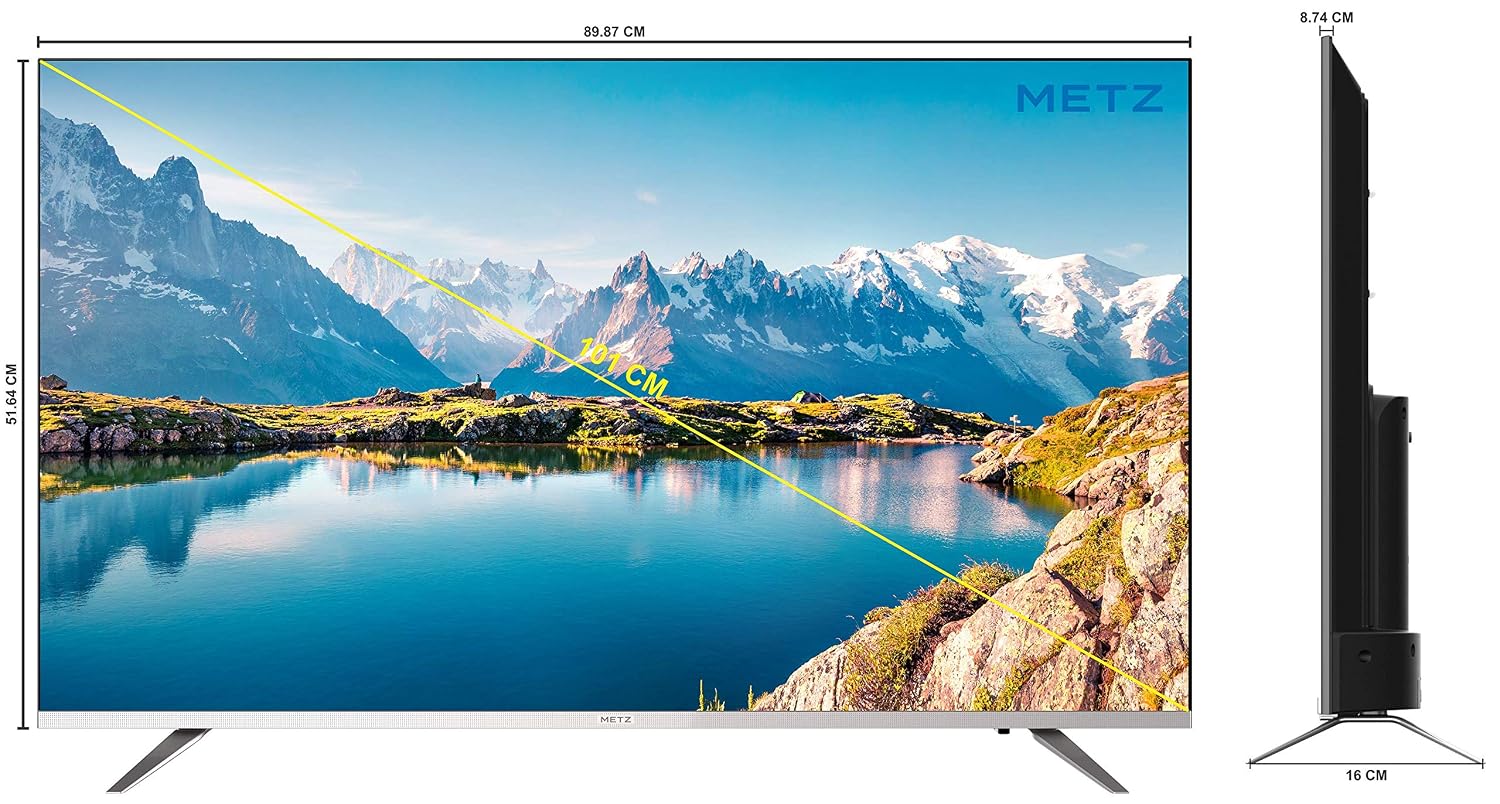
Figura 7: Dimensioni della TV.
9. Garanzia e supporto
Your METZ M40E6 TV comes with a 2-year comprehensive warranty provided by the manufacturer from the date of purchase.
9.1. Contattare l'assistenza
For assistance or to claim warranty service, please contact the brand's toll-free number: Numero di parte 1800-120-333-8888. When contacting support, provide your product's model name (M40E6) and the seller's details as mentioned on your invoice. The service center will schedule a convenient slot for service.
Manufacturer/Importer Contact Information: Radiant Appliances & Electronics India Pvt Ltd, No. 111 & 112, ECITY, FABCITY, Raviryal Village, Maheshwaram Mandal, RR District Hyderabad - 501141. Phone: +91-08414 667701. Email: info@radiantappliances.com