
Introduzione
The Logitech K400 Plus Wireless Touch Keyboard is designed for comfortable control of your entertainment from a distance. Featuring a full-size keyboard layout and a large, integrated touchpad, it offers seamless navigation for your PC-connected TV, media center, or other compatible devices. This manual provides essential information for setting up, operating, and maintaining your keyboard.
Impostare
1. Installazione della batteria
The Logitech K400 Plus requires two AAA batteries (included). To install them:
- Individuare il coperchio del vano batteria sul lato inferiore della tastiera.
- Far scorrere il coperchio per aprirlo.
- Inserire due batterie AAA, assicurandosi della corretta polarità (+/-).
- Chiudere saldamente il coperchio del vano batterie.
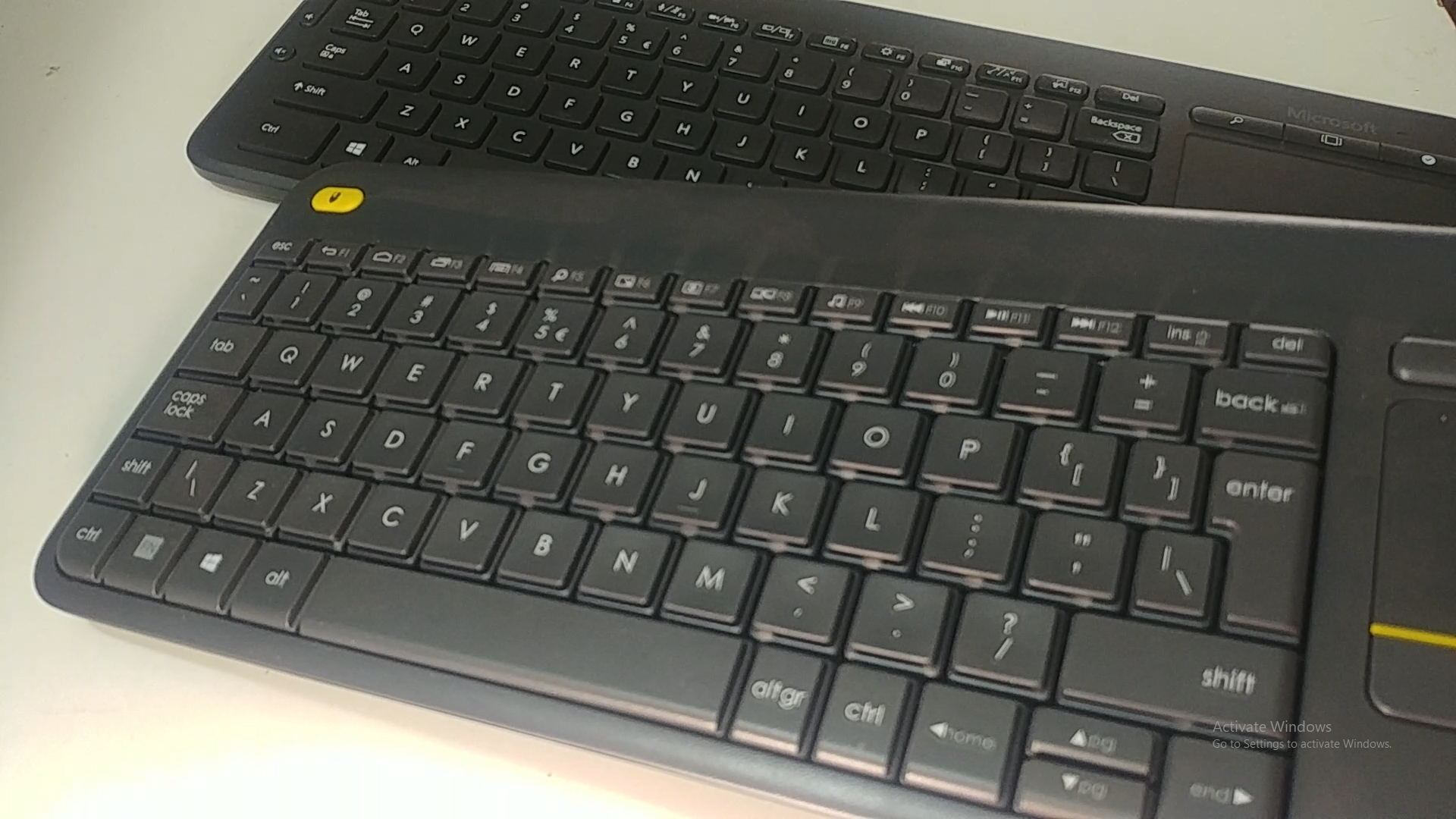
Image: Underside of the Logitech K400 Plus keyboard with the battery compartment open, showing two AAA batteries.
2. Connecting the Keyboard (USB Unifying Receiver)
The K400 Plus connects wirelessly via a small USB Unifying receiver. This receiver is typically stored inside the battery compartment for safekeeping.
- Open the battery compartment cover and remove the USB Unifying receiver.
- Plug the USB Unifying receiver into an available USB port on your PC, smart TV, or other compatible device.
- Turn on the keyboard using the On/Off switch located on the top right edge of the keyboard. A green indicator light will appear.
- Your keyboard should automatically connect. If not, refer to the troubleshooting section or visit the Logitech support website for the Unifying software.

Image: The Logitech K400 Plus Wireless Touch Keyboard, showing its compact design with integrated touchpad.
Istruzioni per l'uso
Disposizione della tastiera
The K400 Plus features a standard QWERTY layout with additional function keys and an integrated touchpad.
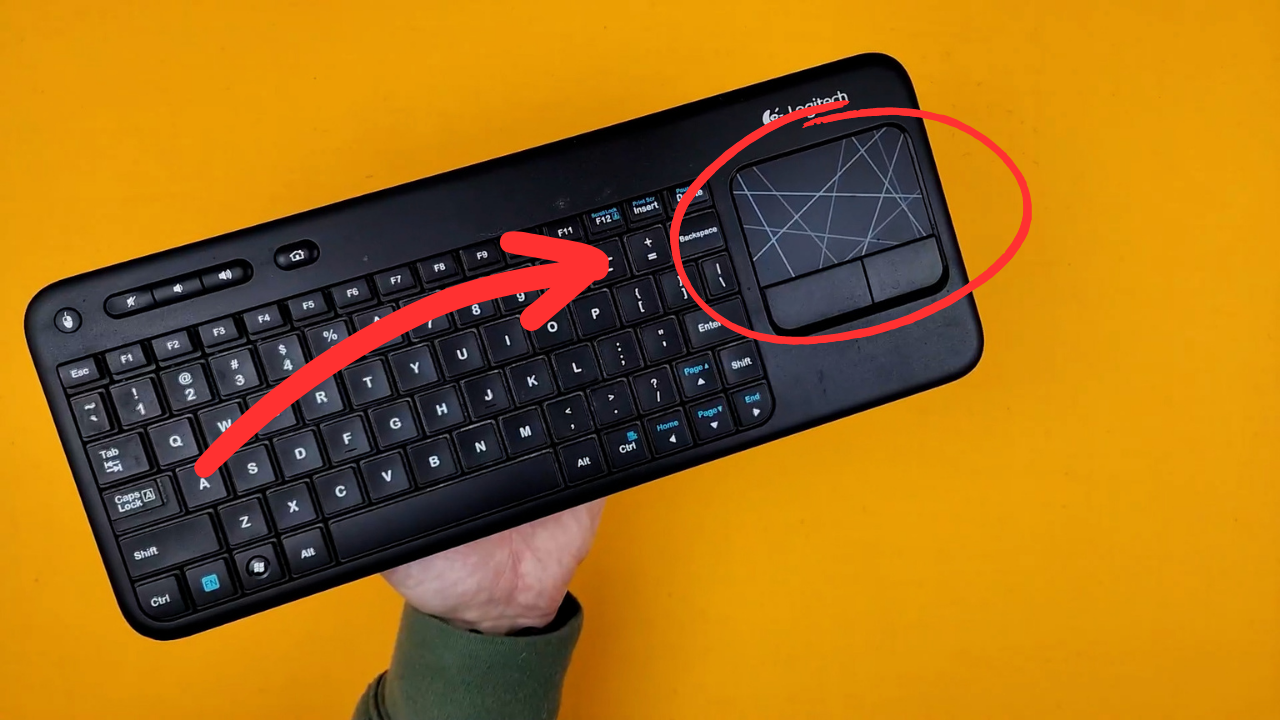
Immagine: Un dettaglio view of the Logitech K400 Plus keyboard keys, highlighting the QWERTY layout.
Utilizzo del touchpad
The large 3.5-inch touchpad allows for intuitive navigation. It supports multi-touch gestures for enhanced control.
- Tocco con un solo dito: Fare clic con il pulsante sinistro del mouse.
- Tocco con due dita: Fare clic con il pulsante destro del mouse.
- Scorrimento con due dita: Scorri verticalmente o orizzontalmente.
- Pizzica per ingrandire: Zoom in or out (if supported by the application).
- Dedicated left and right-click buttons are located below the touchpad for traditional mouse button functionality.
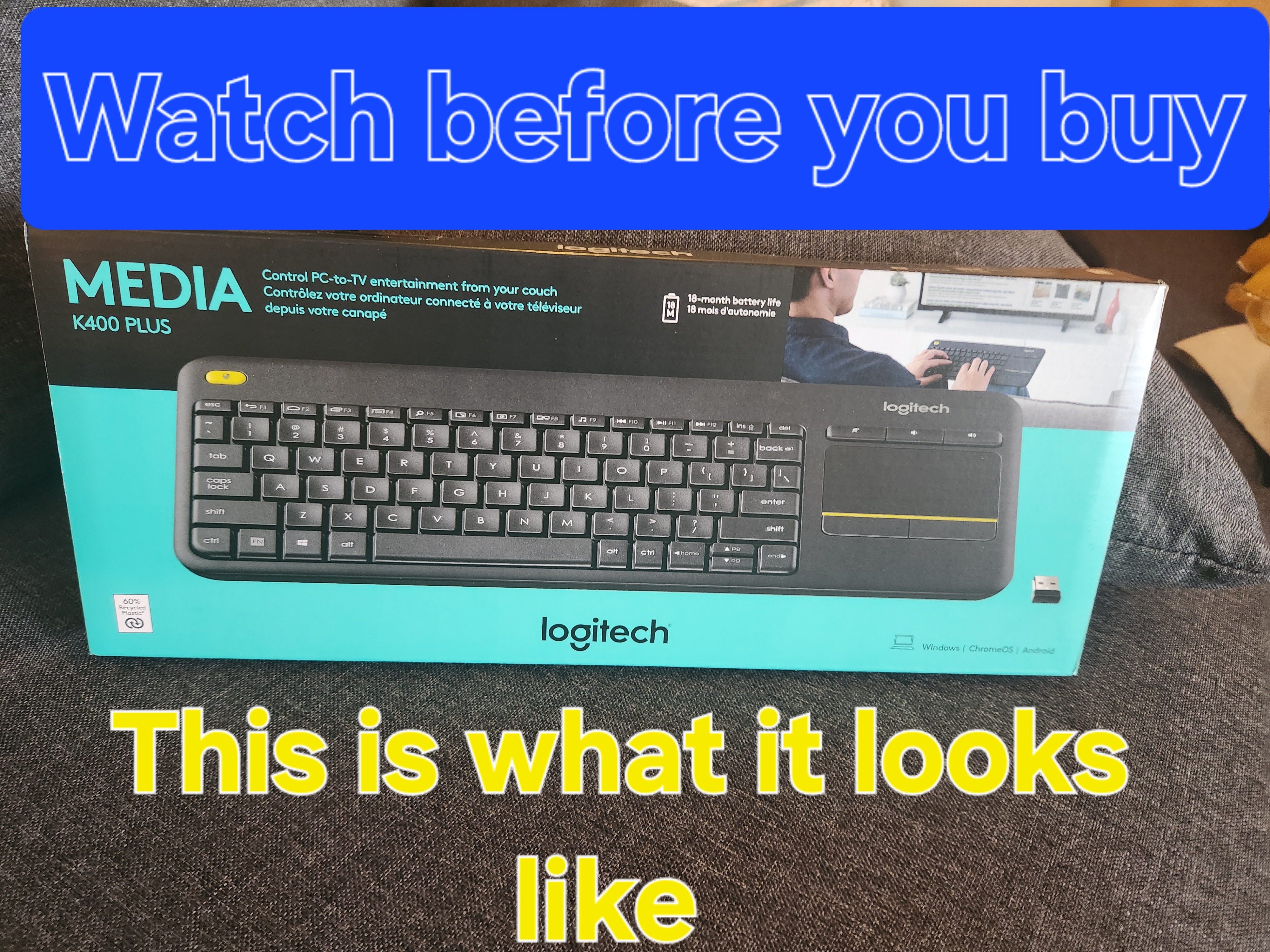
Image: A hand demonstrating the use of the integrated touchpad on the Logitech K400 Plus.
Tasti multimediali e funzione
The top row of keys includes dedicated multimedia controls and function keys (F1-F12) with secondary actions. To activate the secondary actions (indicated by blue icons), press and hold the Fn key (located near the left Ctrl key) while pressing the desired function key.
- Controlli del volume: Dedicated buttons for mute, volume down, and volume up are located above the touchpad.
- Pulsante Home: Access your device's home screen or browser home page.
- Page Up/Down, End: Navigare tra documenti e web pagine.
- Left Mouse Button (top left): An additional left-click button is located on the top left corner of the keyboard for convenient two-hand operation.
Manutenzione
Pulizia
Per pulire la tastiera:
- Spegnere la tastiera utilizzando l'interruttore On/Off.
- Utilizzare un panno morbido e privo di lanugine leggermente damplucidato con acqua o una soluzione detergente delicata.
- Avoid excessive moisture and do not immerse the keyboard in liquid.
- For stubborn dirt between keys, use compressed air.
Sostituzione della batteria
When the battery indicator light (usually located near the On/Off switch) turns red or the keyboard becomes unresponsive, it's time to replace the batteries. Follow the "Battery Installation" steps in the Setup section to replace the two AAA batteries.
Risoluzione dei problemi
La tastiera non risponde
- Controlla la potenza: Ensure the keyboard is turned on and the battery indicator light is green. Replace batteries if necessary.
- Controlla il ricevitore: Make sure the USB Unifying receiver is securely plugged into a working USB port on your device. Try a different USB port.
- Distanza: Ensure the keyboard is within the operating range (up to 10 meters or 33 feet) of the USB receiver.
- Interferenza: Move the keyboard and receiver away from other wireless devices or large metal objects that might cause interference.
- Riparazione: If issues persist, you may need to re-pair the keyboard with the Unifying receiver using the Logitech Unifying software, available for download from the official Logitech support websito.
Touchpad Not Working Correctly
- Superficie pulita: Assicurarsi che la superficie del touchpad sia pulita e priva di detriti.
- Aggiornamento driver: Check your device's operating system for updated drivers for the Logitech Unifying receiver or touchpad.
- Impostazioni: Verify touchpad settings in your device's control panel or system preferences.
Specifiche
| Marca | Logitech |
| Numero di modello | 920-009280 |
| Tecnologia di connettività | Wireless (2.4 GHz via USB Unifying Receiver) |
| wireless Range | Fino a 10 metri (33 piedi) |
| Batterie | Batterie 2 x AAA (incluse) |
| Durata della batteria | Fino a 18 mesi (può variare in base all'utilizzo) |
| Touchpad integrato | 3.5-inch multi-touch touchpad |
| Dispositivi compatibili | PC (Windows 7, 8, 10 or later), Android TV, Chrome OS |
| Dimensioni (L x P x A) | Circa 13.9 x 5.5 x 0.9 pollici (354 x 139.9 x 23.5 mm) |
| Peso | Approximately 13.76 oz (390 g) with batteries |
Garanzia e supporto
Logitech provides a limited hardware warranty for this product. For detailed warranty information, technical support, and driver downloads, please visit the official Logitech support websito:
Per ulteriore assistenza puoi anche consultare le FAQ e i forum della community.