
Introduzione
This manual provides instructions for the setup, operation, and maintenance of your Cimetech 2.4GHz Wireless Ergonomic Optical Mouse. This device offers reliable wireless connectivity, ease of use, and a comfortable design for various computing tasks.
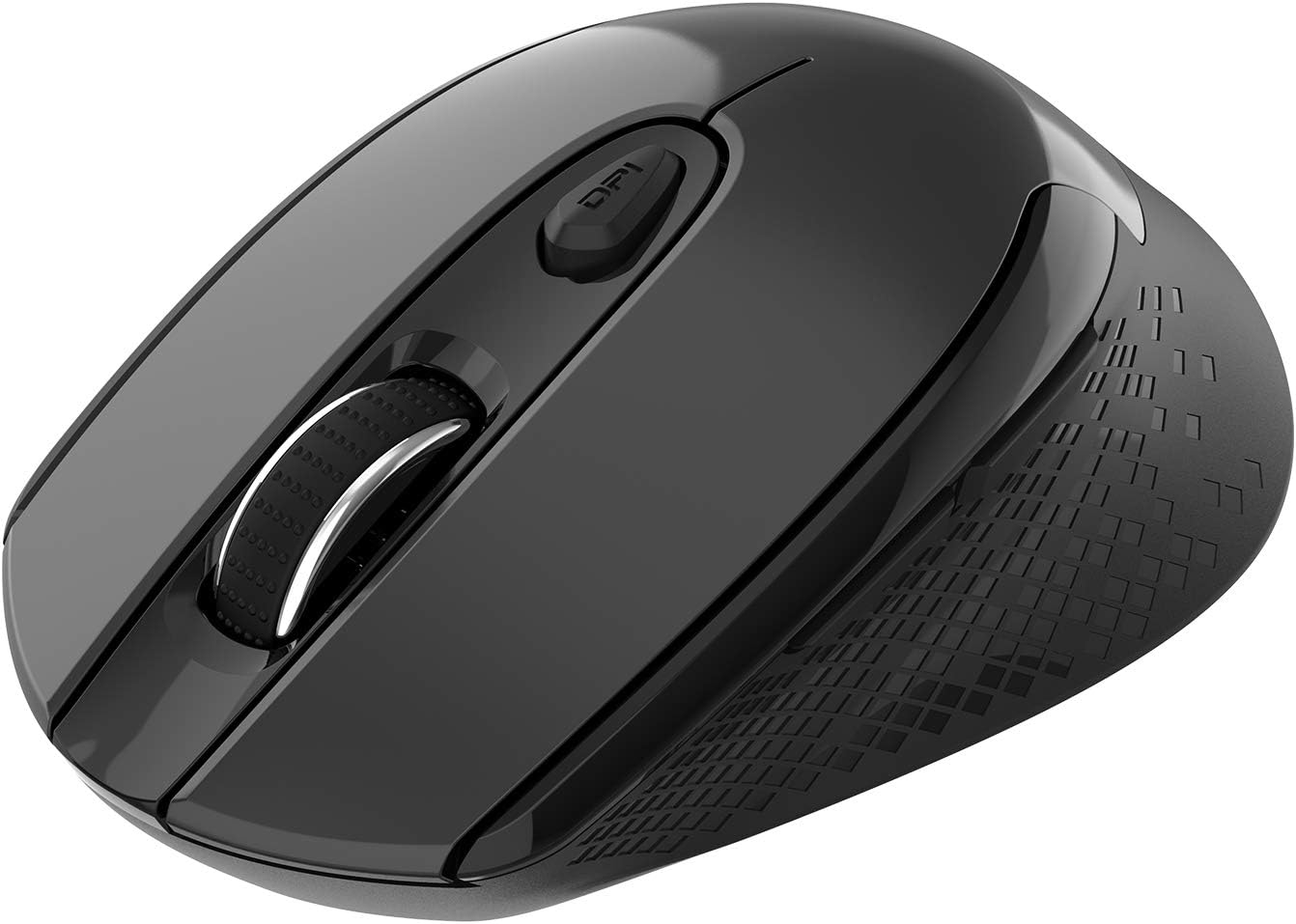
Immagine: dall'alto verso il basso view of the Cimetech Wireless Ergonomic Optical Mouse.

Image: The mouse connected via 2.4G wireless technology, showing the USB receiver plugged into a laptop.
Contenuto della confezione
Verificare che tutti gli articoli siano presenti nel pacco:
- 1 x Cimetech Cordless Mouse
- 1 x USB Receiver (stored in the battery compartment of the mouse)
- 1 x Manuale utente
Impostare
1. Installazione della batteria
- Individuare il coperchio del vano batteria sul lato inferiore del mouse.
- Per aprire il vano, far scorrere o sollevare delicatamente il coperchio.
- Inserire una batteria AA (non inclusa) nel vano, assicurandosi della corretta polarità (+/-).
- Riposizionare il coperchio del vano batterie.
2. Collegamento del ricevitore USB
- Open the battery compartment cover and carefully remove the USB receiver.
- Plug the USB receiver into an available USB port on your computer (laptop, desktop, Mac, or PC).
- Il mouse dovrebbe connettersi automaticamente al dispositivo. In genere non sono necessari driver aggiuntivi.

Image: Visual guide for installing the AA battery and connecting the USB receiver.
Istruzioni per l'uso
Funzioni dei pulsanti
The Cimetech Wireless Mouse features 6 buttons for enhanced functionality:
- Pulsante sinistro del mouse: Funzione standard di clic primario.
- Pulsante destro del mouse: Funzione di clic secondario standard.
- Rotella di scorrimento: Per lo scorrimento verticale. Può essere premuto anche per la funzionalità di clic centrale.
- Pulsante di commutazione DPI: Regola la sensibilità del mouse (DPI).
- Pulsante Avanti: Naviga in avanti in web browser o file esploratori.
- Pulsante indietro: Naviga indietro in web browser o file esploratori.

Image: Labeled diagram showing the location of the Left Click, Right Click, Scroll Wheel, DPI Switch, Forward, and Backward buttons, along with mouse dimensions.
Regolazione DPI
The mouse offers three adjustable DPI (Dots Per Inch) levels to control cursor speed and sensitivity. To change the DPI setting:
- Premere il tasto Pulsante DPI once: DPI is set to 800.
- Premere il tasto Pulsante DPI a second time: DPI is set to 1200 (default setting).
- Premere il tasto Pulsante DPI a third time: DPI is set to 1600.
The mouse retains the last selected DPI setting even after being turned off and on.
Intelligent Power-Saving Modes
The mouse is designed with three power-saving stages to conserve battery life:
- Stage 1 (Standby): Enters after 3 seconds of inactivity. Move the mouse to wake it up.
- Stage 2 (Auto Shut-off): Enters after 60 seconds of inactivity. Move the mouse to wake it up.
- Stage 3 (Deep Sleep): Enters after 15 minutes of inactivity. Move the mouse to wake it up.
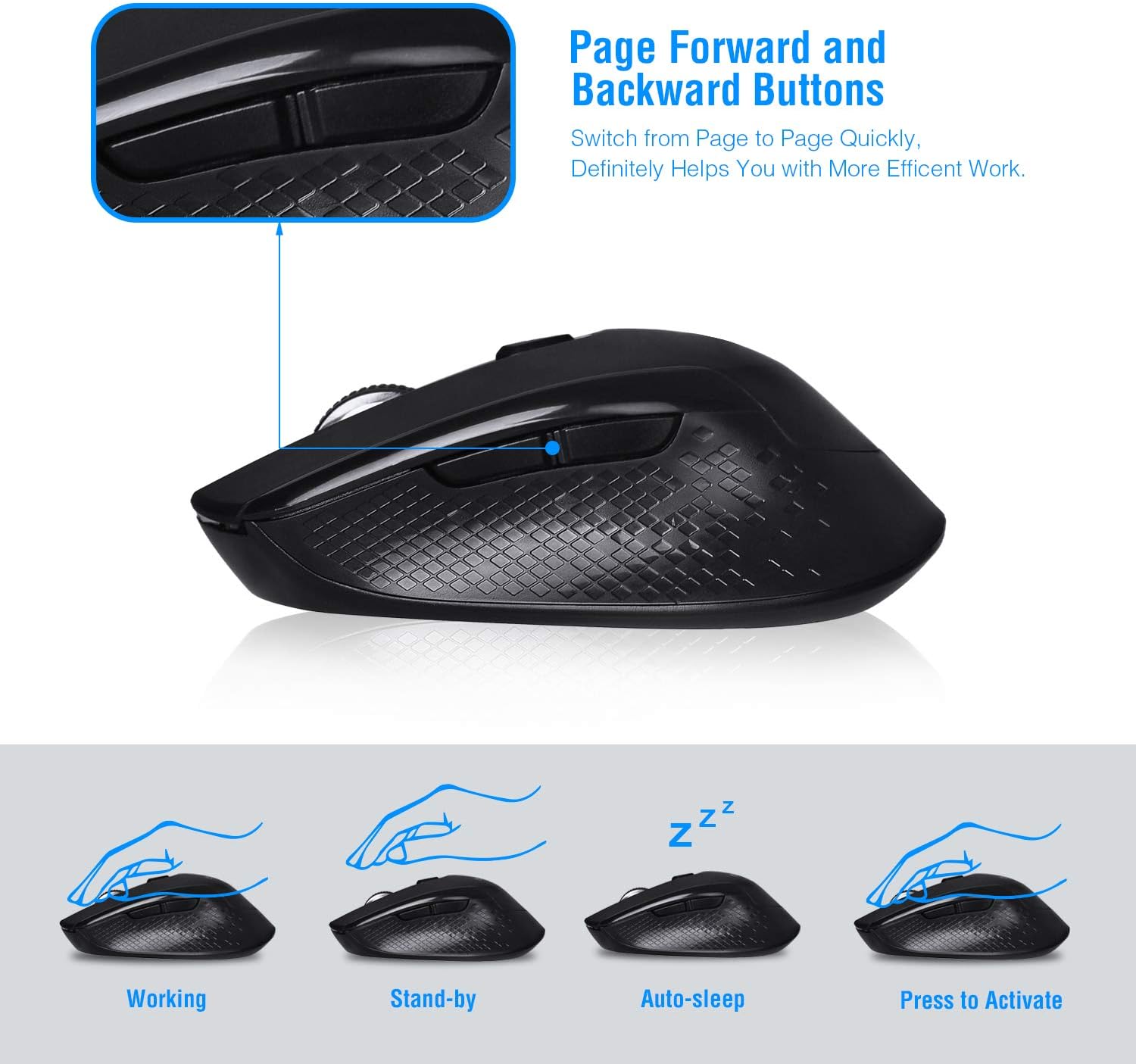
Image: Visual representation of the mouse's working, standby, auto-sleep, and activation states.
Manutenzione
- Mantenere il mouse pulito pulendolo con un panno morbido e asciutto.
- Avoid exposing the mouse to extreme temperatures, direct sunlight, or liquids.
- Se non si utilizza la batteria per lunghi periodi, si consiglia di rimuoverla per evitare perdite.
- Store the USB receiver inside the mouse's battery compartment when traveling to prevent loss.
Risoluzione dei problemi
| Problema | Soluzione |
|---|---|
| Il mouse non risponde |
|
| Il movimento del cursore è irregolare o impreciso |
|
| I pulsanti Avanti/Indietro non funzionano |
|
Specifiche
| Numero di modello | CQ-TM004 |
| Livelli DPI | 800 / 1200 (predefinito) / 1600 |
| Tasso di sondaggio | 125 Hz |
| Campo di funzionamento | Fino a 50 piedi (circa 15 metri) |
| Connettività | 2.4GHz Wireless via USB Receiver |
| Tipo di batteria | 1 batteria AA (non inclusa) |
| Compatibilità | Windows 2000/ME/XP/7/8/10, VISTA, Mac OS |
| Dimensioni del prodotto | 4.13 x 2.64 x 0.1 pollici (10.5 x 6.7 x 0.25 cm) |
| Peso dell'articolo | 2.82 once (80 grammi) |
Compatibilità
The Cimetech Wireless Mouse is compatible with a wide range of operating systems, including:
- Finestre 2000
- Windows ME
- Windows XP
- Windows Vista
- Finestre 7
- Finestre 8
- Finestre 10
- Sistema operativo Mac
It is suitable for use with desktops, laptops, PCs, and MacBooks.
Garanzia e supporto
Specific warranty information is not provided in this manual. For warranty details, technical support, or further assistance, please refer to the official Cimetech websito o contattare direttamente il servizio clienti.
You can often find support resources, FAQs, and contact information on the manufacturer's product support page.