
1. Introduzione
This manual provides detailed instructions for the setup, operation, and maintenance of your Natec TURBOT Wireless Keyboard with Touchpad (model NKL-0968). This device is designed to enhance your experience with Smart TVs, cellphones, and other compatible devices, offering convenient wireless control via 2.4 GHz technology.
Si prega di leggere attentamente il presente manuale prima di utilizzare il prodotto per garantirne il corretto funzionamento ed evitare danni.
2. Contenuto della confezione
Verificare che tutti gli articoli siano presenti nel pacco:
- Natec TURBOT Wireless Keyboard with Touchpad
- Ricevitore USB 2.4 GHz
- Manuale dell'utente (questo documento)
- (Note: 2 AAA batteries are required and may not be included)
3. Guida all'installazione
3.1. Installazione della batteria
The Natec TURBOT keyboard requires two (2) AAA batteries for operation. Locate the battery compartment on the underside of the keyboard. Open the cover, insert the batteries according to the polarity markings (+/-), and close the cover securely.
3.2. Collegamento del ricevitore USB
The USB 2.4 GHz receiver is typically stored in a dedicated compartment on the keyboard itself for safekeeping. Carefully remove the receiver from its storage slot.

Figure 1: USB receiver stored in the keyboard compartment.
Insert the USB receiver into an available USB port on your Smart TV, computer, or other compatible device. The device should automatically detect and install the necessary drivers.
3.3. Accensione della tastiera
Locate the power switch on the side of the keyboard. Slide the switch to the "ON" position. The keyboard should now be ready for use.
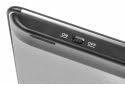
Figure 2: Power switch on the keyboard.
4. Istruzioni per l'uso
4.1. Funzioni della tastiera

Figure 3: Natec TURBOT Wireless Keyboard Layout.
The keyboard features a standard QWERTY layout for typing. It also includes dedicated function keys (F1-F12) which may have secondary multimedia functions (e.g., volume control, media playback). These secondary functions are often accessed by holding down the Fn key and pressing the corresponding function key.
- Blocco maiuscole: Toggles uppercase/lowercase letters.
- Spostare: Used for uppercase letters and secondary symbols.
- Ctrl / Alt / Win: Standard modifier keys for various shortcuts depending on the operating system.
- Retroilluminazione: The keyboard features a backlight for improved visibility in low-light conditions. Refer to your device's operating system or the keyboard's specific function key combinations (often involving the Fn key) to activate or adjust the backlight.
4.2. Funzioni del touchpad
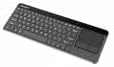
Figure 4: Integrated Touchpad.
The integrated touchpad allows for mouse-like navigation. It supports various gestures:
- Tocco con un solo dito: Functions as a left-click.
- Tocco con due dita: Functions as a right-click.
- Scorrimento a due dita: Drag two fingers up or down to scroll through content.
- Pulsanti fisici: Below the touchpad, there are two physical buttons. The left button acts as a left-click, and the right button acts as a right-click.
Touchpad sensitivity and other settings may be adjustable through your connected device's operating system settings.
5. Manutenzione
- Pulizia: Use a soft, dry cloth to clean the keyboard and touchpad. For stubborn dirt, a slightly damp cloth with mild cleaning solution can be used, ensuring no liquid enters the device.
- Sostituzione della batteria: Replace batteries when the keyboard's performance degrades or it stops responding. Always use fresh AAA batteries.
- Magazzinaggio: When not in use for extended periods, turn off the keyboard to conserve battery life. Store the USB receiver in its designated compartment to prevent loss.
- Evitare condizioni estreme: Do not expose the keyboard to extreme temperatures, direct sunlight, or high humidity.
6. Risoluzione Dei Problemi
6.1. La tastiera non risponde
- Assicurati che la tastiera sia accesa.
- Controllare che le batterie siano installate correttamente e abbiano una carica sufficiente. Sostituirle se necessario.
- Verify that the USB receiver is securely plugged into a working USB port on your device.
- Prova a collegare il ricevitore USB a un'altra porta USB.
- Restart your connected device (Smart TV, computer, etc.).
6.2. Touchpad Not Working
- Assicurarsi che la tastiera sia accesa e collegata.
- Clean the touchpad surface to remove any dirt or obstructions.
- Check your device's settings for any touchpad-related configurations.
6.3. Connessione intermittente
- Ensure there are no large metallic objects or other 2.4 GHz wireless devices causing interference between the keyboard and the USB receiver.
- Avvicinare la tastiera al ricevitore USB.
7. Specifiche
| Marca | Natec |
| Numero di modello | NKL-0968 |
| Tecnologia di connettività | Wireless a 2.4 GHz |
| Dispositivi compatibili | Smart TV, Cellphone |
| Compatibilità del sistema operativo | Android 10.0 (and compatible systems) |
| Caratteristiche speciali | Integrated Touchpad, Backlit Keys |
| Descrizione della tastiera | Multimedia |
| Colore | Nero/Argento |
| Materiale | Acrilonitrile Butadiene Stirene (ABS) |
| Fonte di alimentazione | 2 batterie AAA |
8. Garanzia e supporto
For warranty information, technical support, or further assistance, please refer to the official Natec webo contattare il servizio clienti. Conservare la ricevuta d'acquisto per eventuali reclami in garanzia.
Natec does not provide specific information regarding spare parts availability or software updates beyond the initial purchase.