
1. Prodotto finitoview
The HyperX Cloud Orbit S is a premium gaming headset designed for an unparalleled audio experience. It features advanced Audeze planar magnetic drivers and Waves Nx head tracking and 3D audio technology, delivering breathtaking clarity and precision. This headset is compatible with PC, Xbox, PS4, Mac, Mobile, and Switch.

Figure 1: HyperX Cloud Orbit S Gaming Headset.
2. Guida all'installazione
2.1 Contenuto della confezione
- HyperX Cloud Orbit S Headset
- Microfono staccabile con cancellazione del rumore
- Cavo da USB-C a USB-C
- Cavo da USB-C a USB-A
- Cavo audio da 3.5 mm

Figure 2: All items included in the HyperX Cloud Orbit S package.
2.2 Collegamento dell'auricolare
The HyperX Cloud Orbit S offers versatile connectivity options to suit your gaming setup.
- Da USB-C a USB-C: For direct digital audio connection to compatible devices.
- Da USB-C a USB-A: For digital audio connection to devices with standard USB-A ports.
- Cavo audio da 3.5 mm: For analog audio connection to devices with a 3.5mm jack.

Figure 3: Headset connected with its detachable microphone and USB-C cable.

Figure 4: The three different detachable cable options for the headset.
For a visual guide on setting up your HyperX Cloud Orbit S, watch the official product video:
Video 1: HyperX Cloud Orbit and Orbit S - Product Video. This video provides an overview of the headset's features and connectivity.
2.3 Installazione del software (facoltativa)
For advanced audio customization, including sound profiles and HRTF personalization, download and install the HyperX Orbit software from the official HyperX website. This software allows you to fine-tune your audio experience to your preferences.

Figure 5: HyperX Orbit software interface for advanced audio customization.
3. Utilizzo dell'auricolare
3.1 Controlli di bordo
The headset features intuitive onboard controls for easy access to essential functions:
- Ruota del volume: Regola il volume audio complessivo.
- Mic Volume Wheel: Regola il volume di ingresso del microfono.
- 3D Audio Button: Toggles Waves Nx 3D audio on/off.
- Pulsante di disattivazione del microfono: Disattiva o riattiva il microfono.
- Pulsante di accensione: Accende/spegne l'auricolare.

Figura 6: lato view dell'auricolare evidenziando la disposizione dei comandi.

Figura 7: dettagliata view of the headset's ports and controls.
3.2 Utilizzo del microfono
Attach the detachable noise-cancelling microphone to the designated port on the left earcup. Position the microphone close to your mouth for optimal voice clarity. The integrated pop filter helps reduce plosive sounds.
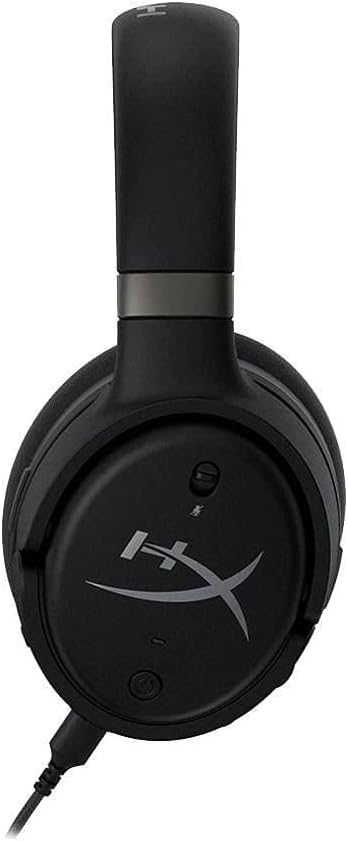
Figure 8: Headset with the detachable microphone in use.
3.3 Waves Nx 3D Audio and Head Tracking
The Waves Nx technology creates a fully immersive 3D audio environment. Head tracking tracks your head's position to stabilize the soundscape, making you feel like you're in the center of the action. This feature enhances realism in games and media.

Figure 9: User experiencing immersive audio with the headset.

Figure 10: Head tracking technology provides a stable soundscape as the user moves their head.
Discover the immersive capabilities of the HyperX Cloud Orbit S in this commercial:
Video 2: HyperX Cloud Orbit - Commercial. Showcases the headset's immersive audio and head tracking features.
4. Cura e manutenzione
- Pulire regolarmente i padiglioni auricolari e l'archetto con un panno morbido e asciutto.
- Evitare di esporre le cuffie a temperature o umidità estreme.
- Store the headset in a safe place to prevent physical damage, especially to the headband and earcup joints.
- Handle detachable cables with care to prevent fraying or damage to connectors.
5. Risoluzione dei problemi comuni
| Problema | Possibile causa | Soluzione |
|---|---|---|
| Nessuna uscita audio | Incorrect cable connection, low volume, muted audio. | Ensure cables are securely connected. Check headset and device volume levels. Confirm audio is not muted on the headset or device. |
| Il microfono non funziona | Microphone detached, muted, or incorrect input settings. | Ensure microphone is fully inserted. Check mic mute button. Verify microphone input is selected in your device's sound settings. |
| Static or white noise | Interference, low signal quality, or inherent amplifier noise. | Try connecting to a different USB port or device. Ensure no strong electromagnetic interference sources are nearby. A slight noise floor may be present with active amplificazione. |
| Headset discomfort | Improper fit or prolonged use. | Adjust the headband for a comfortable fit. Take breaks during extended use. The memory foam earcups are designed for comfort. |
6. Specifiche tecniche
| Caratteristica | Specificazione |
|---|---|
| Nome del modello | Cloud Orbit S |
| Tecnologia di connettività | Wired (USB-C, USB-A, 3.5mm) |
| Tipo di driver audio | Planar Magnetic Driver (Audeze) |
| Gamma di frequenza | 20 Hz - 20,000 Hz |
| Peso dell'articolo | 368 grammi (13 once) |
| Componenti inclusi | Headset, removable microphone |
| Dispositivi compatibili | PC, Xbox, PS4, Mac, Mobile, Switch |
7. Garanzia e supporto
For warranty information and technical support, please refer to the documentation included with your product or visit the official HyperX support channels. Keep your proof of purchase for warranty claims.


