
Introduzione
This manual provides essential information for the installation, operation, and maintenance of your XFX RX 5700 XT Raw II graphics card. Please read this manual thoroughly before installation to ensure proper setup and optimal performance. The XFX RX 5700 XT Raw II is designed for high-fidelity gaming, featuring AMD's RDNA architecture, 8GB of GDDR6 memory, and PCI Express 4.0 support.
Informazioni sulla sicurezza
- Scollegare sempre l'alimentazione dal computer prima di installare o rimuovere qualsiasi componente.
- Maneggiare la scheda grafica tenendola per i bordi per evitare di toccare i componenti sensibili.
- Use an anti-static wrist strap or discharge static electricity by touching a grounded metal object before handling the card.
- Assicurare una corretta ventilazione all'interno del case del computer per evitare il surriscaldamento.
- Non esporre la scheda grafica a umidità o temperature estreme.
Contenuto della confezione
Verificare che tutti gli articoli siano presenti nel pacco:
- XFX RX 5700 XT Raw II Graphics Card
- Guida di installazione rapida
- Driver CD (Note: Latest drivers are recommended from the manufacturer's websito)

Image: Front of the XFX RX 5700 XT Raw II retail packaging, showing the product name and key features.
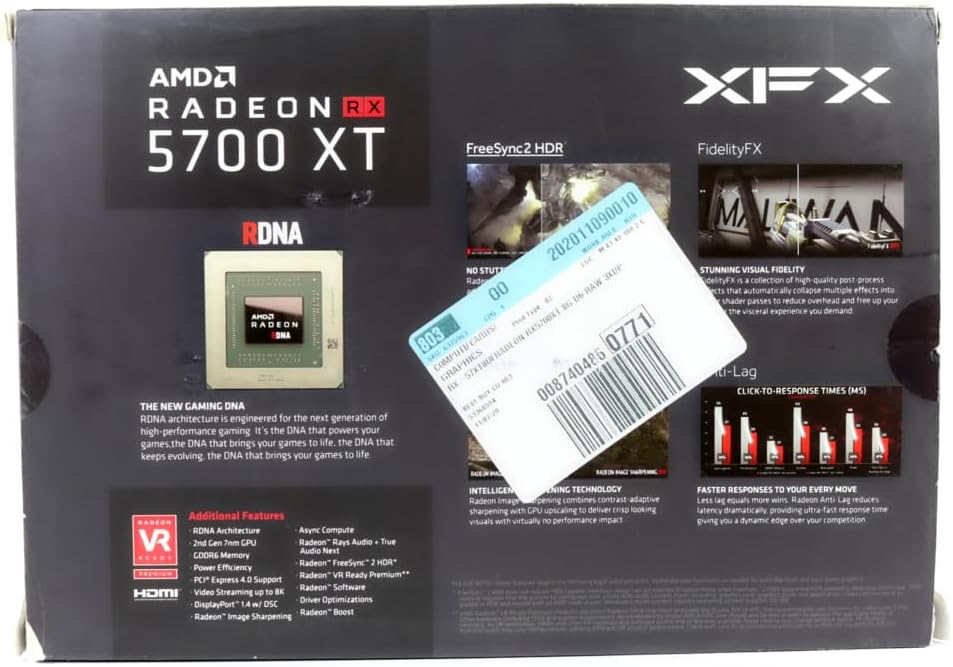
Image: Back of the XFX RX 5700 XT Raw II retail packaging, detailing RDNA architecture and additional features.
Impostare
1. Installazione fisica
- Prepara il tuo sistema: Power off your computer and disconnect the power cable. Open the computer case.
- Locate a PCI Express 4.0 slot: Identify an available PCI Express 4.0 x16 slot on your motherboard. This graphics card occupies approximately 2.9 slots due to its cooling solution. Ensure sufficient clearance.
- Rimuovere le coperture degli slot: Remove the necessary expansion slot covers from your computer case corresponding to the chosen PCIe slot.
- Inserire la scheda grafica: Carefully align the graphics card with the PCIe slot and press down firmly until it is securely seated. The retention clip on the motherboard should click into place.
- Proteggi la carta: Fasten the graphics card to the computer case using the screw or latch mechanism provided by your case.
- Collegare i cavi di alimentazione: The XFX RX 5700 XT Raw II requires both an 8-pin and a 6-pin PCI Express power connector from your power supply. Connect these cables securely to the corresponding ports on the graphics card. Ensure your power supply meets the recommended wattage (typically 600W or higher).

Immagine: Angolata view of the XFX RX 5700 XT Raw II, showing the dual-fan cooling system and heatsink fins.

Immagine: in alto view of the XFX RX 5700 XT Raw II, highlighting the XFX logo and the dual 8-pin and 6-pin power connectors.
2. Installazione del driver
- Reconnect power and boot: Close your computer case, reconnect the power cable, and turn on your computer.
- Connetti display: Collega il monitor a una delle uscite DisplayPort o HDMI della scheda grafica.
- Installa i driver:
- Insert the provided Driver CD and follow the on-screen instructions.
- Alternatively, and highly recommended: Download the latest AMD Radeon drivers directly from the official AMD webposto (www.amd.com/support). Select your graphics card model (Radeon RX 5700 XT) and operating system.
- Follow installation prompts: Complete the driver installation process, which may require a system restart.

Immagine: Posteriore view of the XFX RX 5700 XT Raw II, displaying three DisplayPort outputs and one HDMI output.
Istruzioni per l'uso
Collegamenti del display
The XFX RX 5700 XT Raw II features multiple display outputs:
- DisplayPort 1.4 HDR: Connect up to three DisplayPort monitors for high-resolution and high-refresh-rate gaming.
- HDMI2.0b: Connect one HDMI monitor or TV.
You can use a combination of these outputs for multi-monitor setups. Ensure your cables are securely connected to both the graphics card and your display devices.
Software Configuration (AMD Radeon Software)
Dopo l'installazione del driver, sarà disponibile il software AMD Radeon. Questo software consente di:
- Monitorare le prestazioni: View GPU temperature, clock speeds, and fan speeds.
- Adjust game settings: Optimize game performance and visual quality.
- Tune performance (Wattman): Utilize AMD Wattman within the Radeon Software to adjust GPU clock speeds, memory clock speeds, and voltage settings. This can help optimize performance or reduce power consumption and heat. Adjusting fan curves can also help manage noise levels.
- Enable features: Access features like Radeon FreeSync, Radeon Image Sharpening, and Radeon Anti-Lag.
Refer to the AMD Radeon Software documentation for detailed instructions on using these features.
Manutenzione
- Pulizia: Periodically clean dust from the graphics card fans and heatsink fins using compressed air. Ensure the computer is powered off and unplugged before cleaning. Hold the fan blades gently to prevent them from spinning rapidly during cleaning, which can damage the bearings.
- Aggiornamenti driver: Regularly check the official AMD webSito per i driver grafici più recenti. Mantenere i driver aggiornati garantisce prestazioni ottimali, stabilità e accesso a nuove funzionalità.
- Ventilazione del sistema: Ensure your computer case has adequate airflow to prevent heat buildup, which can affect the longevity and performance of your graphics card.
Risoluzione dei problemi
If you encounter issues with your graphics card, consider the following steps:
- Nessuna uscita di visualizzazione:
- Ensure the monitor is powered on and connected securely to the graphics card.
- Verificare che la scheda grafica sia completamente inserita nello slot PCIe.
- Confirm that all required power cables (8-pin and 6-pin) are connected to the graphics card from the power supply.
- Se possibile, effettuare una prova con un cavo di visualizzazione o un monitor diverso.
- Problemi di prestazioni / FPS bassi:
- Ensure you have the latest graphics drivers installed from AMD's official websito.
- Controllare le impostazioni grafiche del gioco; ridurre le impostazioni se necessario.
- Monitor GPU temperature using AMD Radeon Software. High temperatures can lead to thermal throttling.
- Verify that your power supply is sufficient for your system components.
- Excessive Heat or Fan Noise:
- Assicurare un adeguato flusso d'aria all'interno del case del computer.
- Pulisci la polvere dalle ventole della scheda grafica e dal dissipatore di calore.
- Use AMD Radeon Software (Wattman) to adjust fan curves or undervolt the GPU. Some users have found success in reducing temperatures and noise by adjusting voltage and clock speeds to stock specifications.
- Check the BIOS switch on the card; some cards have a "silent" or "performance" BIOS.
- Instabilità del sistema/arresti anomali:
- Ensure drivers are correctly installed and up to date.
- Check for system memory (RAM) issues.
- If you have applied any overclocking, revert to default settings.
- Ensure your power supply is stable and provides sufficient power.
Specifiche
| Caratteristica | Dettaglio |
|---|---|
| Coprocessore grafico | Scheda grafica AMD Radeon RX 5700 XT |
| Marca | Effetti speciali |
| Dimensione RAM grafica | 8 GB |
| Interfaccia di uscita video | Porta Display, HDMI |
| Produttore di processori grafici | Degenerazione maculare |
| Tipo di RAM grafica | Memoria GDDR6 |
| Dispositivi compatibili | Scrivania |
| Risoluzione massima dello schermo | 3840x2160 |
| Interfaccia della scheda grafica | PCI Express 4.0 |
| Velocità di clock della memoria | 14 Gbps (14 GHz effective) |
| Numero di fan | 2 |
| Nome del modello | Radeon RX 5700 XT RAW II Graphic Card |
| Orologio di base | 1605 MHz |
| Orologio di gioco | 1755 MHz |
| Orologio di potenziamento | Fino a 1905 MHz |
| Processori di flusso | 2560 |
| Bus di memoria | 256 bit |
| Card Profile | 2.9 posto |
Informazioni sulla garanzia
The XFX RX 5700 XT Raw II graphics card comes with a Garanzia del produttore di 3 anni. For specific terms and conditions, please refer to the warranty documentation included with your product or visit the official XFX websito.
Supporto
For further assistance, technical support, or driver downloads, please visit the official XFX support websito:
You may also refer to the AMD support website for general Radeon software and driver information: