
Introduzione
The PWAY HDMI KVM Switch 2 Ports (Model PW-S7201H2) allows you to control two computers using a single set of keyboard, mouse, and two monitors. This device supports dual HDMI output for extended or mirrored display modes and offers convenient switching methods. This manual provides detailed instructions for installation, operation, and troubleshooting to ensure optimal performance.
Contenuto della confezione

Image: The PWAY HDMI KVM Switch and its accessories, including cables, anti-slip foot pads, and user manual.
Please check the package contents carefully. If any items are missing or damaged, contact your vendor.
- 1 x PWAY HDMI KVM Switch (Model PW-S7201H2)
- 1 cavo di alimentazione micro USB
- 4 x cavi HDMI
- 4 x Anti-slip Foot Pads
- 1 x Manuale utente
Caratteristiche del prodotto
- Doppia uscita HDMI: Simultaneously outputs two HDMI signals to display the same image on both screens (copy mode) or extended desktop (expansion mode).
- Risoluzione Ultra HD 4K: Supports resolutions up to 4K x 2K at 30Hz, providing clear and realistic visuals. Also supports 3D and 1080P or lower resolutions.
- Cambio di tasti di scelta rapida: In addition to the manual button, switch between 2 signal sources via keyboard hotkeys. (Hotkey: Scroll Lock + Scroll Lock + 1/2 or Ctrl + Ctrl + 1/2).
- Alta compatibilità: Automatically identifies and combines different display devices. Supports various input devices such as PCs, laptops, PS4, PS3, and Nintendo Switch.
- Facile da usare: Funzionalità plug and play, non sono necessari driver.
- Connettività USB: Features 2 USB 2.0 ports and 2 USB 1.1 ports for keyboard, mouse, and other USB devices.
Schema di collegamento

Image: Detailed connection diagram showing inputs for two PCs and outputs for two monitors, keyboard, mouse, and other USB devices.
Refer to the diagram above for proper connection of your devices to the KVM switch.
Istruzioni di installazione
- Spegnimento dei dispositivi: Prima di effettuare qualsiasi collegamento, assicurarsi che tutti i computer e i monitor siano spenti.
- Collegare i computer:
- Connect the HDMI OUT (A) and HDMI OUT (B) ports of the KVM switch to your two monitors using the provided HDMI cables.
- Connect the HDMI IN (1) and HDMI IN (2) ports of the KVM switch to the HDMI output ports of your first computer (PC1).
- Connect the HDMI IN (1) and HDMI IN (2) ports of the KVM switch to the HDMI output ports of your second computer (PC2).
- Connect the USB-B ports (USB 1 and USB 2) on the KVM switch to the USB ports on your first computer (PC1) and second computer (PC2) respectively, using the provided USB-B cables. These connections enable keyboard, mouse, and other USB device sharing.
- Connetti le periferiche:
- Connect your USB keyboard and mouse to the dedicated K/M USB ports on the KVM switch.
- Connect any other USB devices (e.g., printer, USB drive) to the USB 2.0 ports on the KVM switch.
- Collegamento elettrico: Connect the Micro USB Power Cable to the DC 5V port on the KVM switch and to a suitable USB power adapter (not included) or a USB port on one of your computers.
- Accensione: Power on the KVM switch, then power on your monitors, and finally power on your computers.

Immagine: Example setup showing two monitors connected to the KVM switch, displaying content simultaneously.
Istruzioni per l'uso
Passaggio da un computer all'altro
The PWAY HDMI KVM Switch offers two methods for switching between connected computers:
1. Interruttore a pulsante

Image: Illustration of pressing the physical switch button on the KVM device.
Press the "SWITCH" button on the front panel of the KVM switch to cycle between PC1 and PC2. The LED indicators (PC1, PC2) will illuminate to show which computer is currently selected.
2. Cambio di tasti di scelta rapida
Use keyboard hotkeys for quick switching without reaching for the KVM switch. Ensure your keyboard is connected to the dedicated K/M USB port.
- Hotkey Combination 1: Premere Blocco scorrimento + Blocco scorrimento + 1 (for PC1) or 2 (for PC2).
- Hotkey Combination 2: Premere Ctrl + Ctrl + 1 (for PC1) or 2 (for PC2).
The KVM switch will beep to confirm the hotkey command and switch to the selected computer.
Display Modes (Copy vs. Expansion)
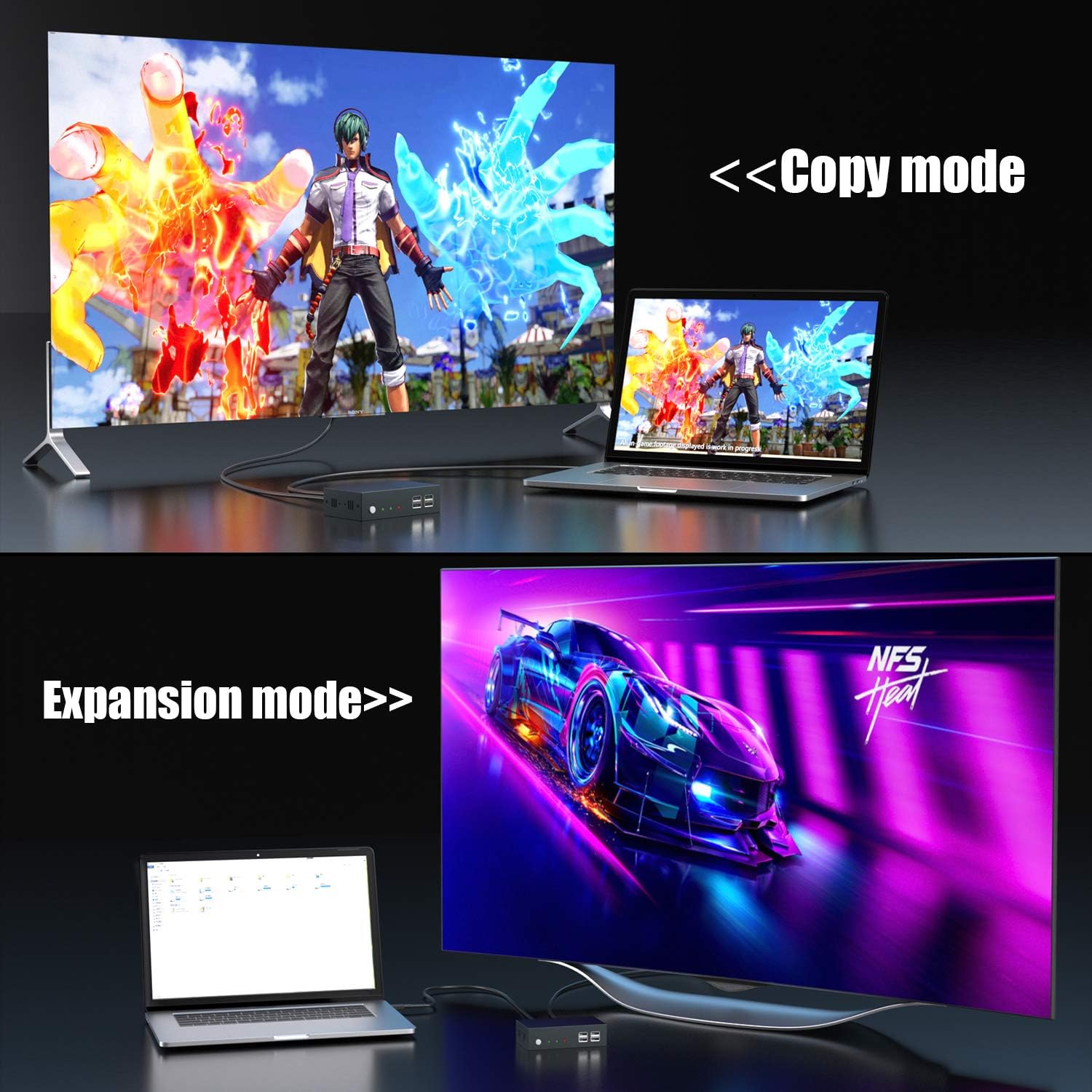
Image: Visual representation of two monitors in 'Copy mode' (mirroring content) and 'Expansion mode' (extending desktop).
The KVM switch supports both copy mode (mirroring the same content on both monitors) and expansion mode (extending the desktop across two monitors). These settings are configured within your computer's display settings, not on the KVM switch itself.
Risoluzione dei problemi
- Nessuna visualizzazione sui monitor:
- Ensure all HDMI cables are securely connected to both the KVM switch and your computers/monitors.
- Verify the KVM switch is powered on and the correct input (PC1/PC2) is selected.
- Check your computer's display settings to ensure the monitors are detected and configured correctly (e.g., extended or duplicate display).
- Try connecting monitors directly to the computer to rule out monitor or cable issues.
- Confirm the display refresh rate in your computer's adapter properties is set to a supported frequency (e.g., 59Hz or 60Hz for 4K@30Hz output).
- Tastiera/mouse non rispondono:
- Ensure the USB-B cables are securely connected from the KVM switch to both computers.
- Verify the keyboard and mouse are connected to the dedicated K/M USB ports on the KVM switch.
- Prova a collegare la tastiera/il mouse direttamente al computer per verificare che funzionino.
- Restart the KVM switch and computers.
- Hotkeys Not Working:
- Ensure your keyboard is connected to the dedicated K/M USB port.
- Confirm the hotkey sequence is pressed correctly and within the specified time frame.
- Some keyboards with special functions might interfere; try a standard keyboard if issues persist.
- Perdita intermittente del segnale:
- Controllare che tutti i collegamenti dei cavi non siano allentati.
- Ensure the power adapter provides stable 5V power to the KVM switch.
- Reduce cable lengths if possible, especially for HDMI cables, to minimize signal degradation.
Specifiche
| Numero di modello | PW-S7201H2 |
| Marca | PWAY |
| Protocollo di connettività | HDMI, USB |
| Numero di porte | 2 (per computer) |
| Risoluzione video | Up to 4K x 2K @ 30Hz, 3D, 1080P and lower |
| Porte USB | 2 x USB 2.0, 2 x USB 1.1 (K/M) |
| Metodi di cambio | Button Switch, Hotkey Switch (Scroll Lock + Scroll Lock + 1/2 or Ctrl + Ctrl + 1/2) |
| Materiale | Metallo |
| Alimentazione elettrica | DC 5V (tramite Micro USB) |
Manutenzione
- Pulizia: Utilizzare un panno morbido e asciutto per pulire il dispositivo. Non utilizzare detergenti liquidi o spray.
- Ambiente: Keep the device in a cool, dry place away from direct sunlight, heat sources, and moisture.
- Gestione dei cavi: Ensure cables are not excessively bent or tangled to prevent damage and maintain signal integrity.
Informazioni sulla sicurezza
- Do not attempt to open or modify the device. This may cause electric shock or damage the product.
- Use only the provided power cable and recommended power adapter.
- Tenere il dispositivo lontano da acqua o altri liquidi.
- If the device emits smoke, unusual odors, or makes strange noises, immediately disconnect the power and contact support.
Garanzia e supporto
PWAY products are designed for reliability and performance. For warranty information or technical support, please refer to the warranty card included in your package or visit the official PWAY website. Please have your model number (PW-S7201H2) and purchase details ready when contacting support.